How do I edit a cadence?
Last updated: August 18, 2026
Edit Cadences Overview
Cadences can be saved by the creator as a "draft" or they can be set to "open".
A cadence in "draft" status is seen as still being "in progress", and employees cannot yet be enrolled in the cadence. Any cadence that's duplicated will automatically be in "draft" status after duplicating.
An open cadence is seen as being ready for use, and employees can be enrolled in the cadence.
The status of the cadence, open or draft, will determine which parts of a cadence can be edited.
Edit Option for Draft Cadences
cadence name
cadence description
scheduling of the cadence
metrics
number of steps in the cadence - steps can be added to and deleted from the cadence.
name of steps
agenda of steps - agenda items can be edited, reordered, added, or deleted.
structure of the cadence - steps can be reordered by dragging and dropping or using the "Move Up" and "Move Down" actions.
Edit Options for Open Cadences
cadence name
cadence description
metrics
name of existing steps
agenda of existing steps - agenda items can be edited, reordered, added, or deleted within existing steps.
Once a cadence has been open (eligible for employees to be enrolled), you cannot change the scheduling, add new steps, delete steps, or reorder steps.
What happens if I edit the agenda of existing steps in an open cadence?
If an agenda item is edited, added, or deleted, the cadence will be updated. Depending on which step of the cadence an employee is in, the edits will reflect as follows:
Past Step Changes: If an employee is in step 3 and step 2 is edited/new agenda items are added/agenda items are deleted, the employee will not see the changes reflected since they are already past step 2.
Current Step Changes: If an employee is in step 3 and step 3 is edited after they enter step 3, the employee will not see the changes reflected. Only new employees added to step 3 will see the change.
Future Step Changes: If an employee is in step 3 and step 4 is edited before they enter step 4, the employee will see the latest edits made to step 4.
Edit a Cadence
Users with "Coaching Cadences: Create Cadence" permission will be able to edit cadences where they are listed as the Owner. Users with "Coaching: All Access" permission can edit all cadences.
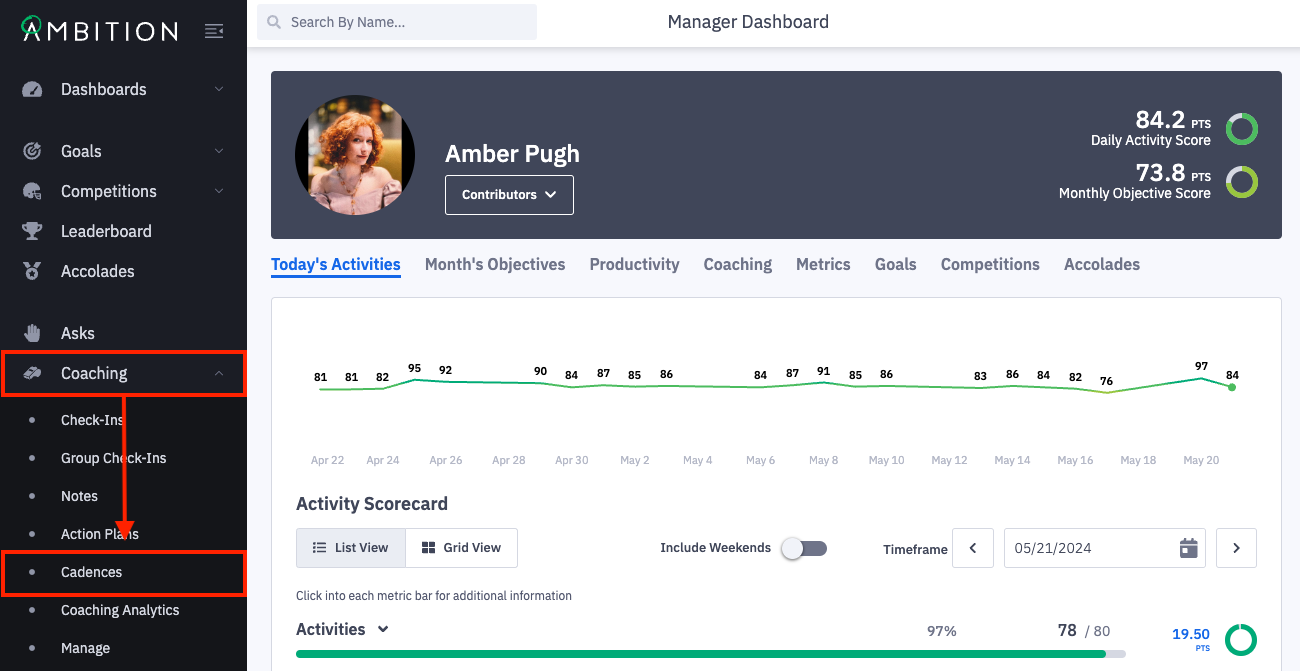
1. Open the left navigation and click Coaching > Cadences.
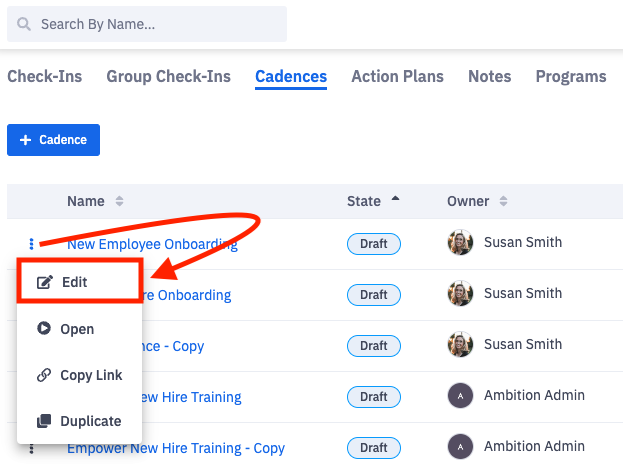
2. Click the ellipses icon and Edit on the cadence you wish to edit.
3. Make the appropriate edits.
Details
The Cadence Name and Description can be edited.
Scheduling (only editable when a cadence is saved as a draft)
The interval at which cadence steps open can be edited.
If Week is selected, the specific day or days of the week that a step should open can be edited.
The interval that steps should be due can be edited.
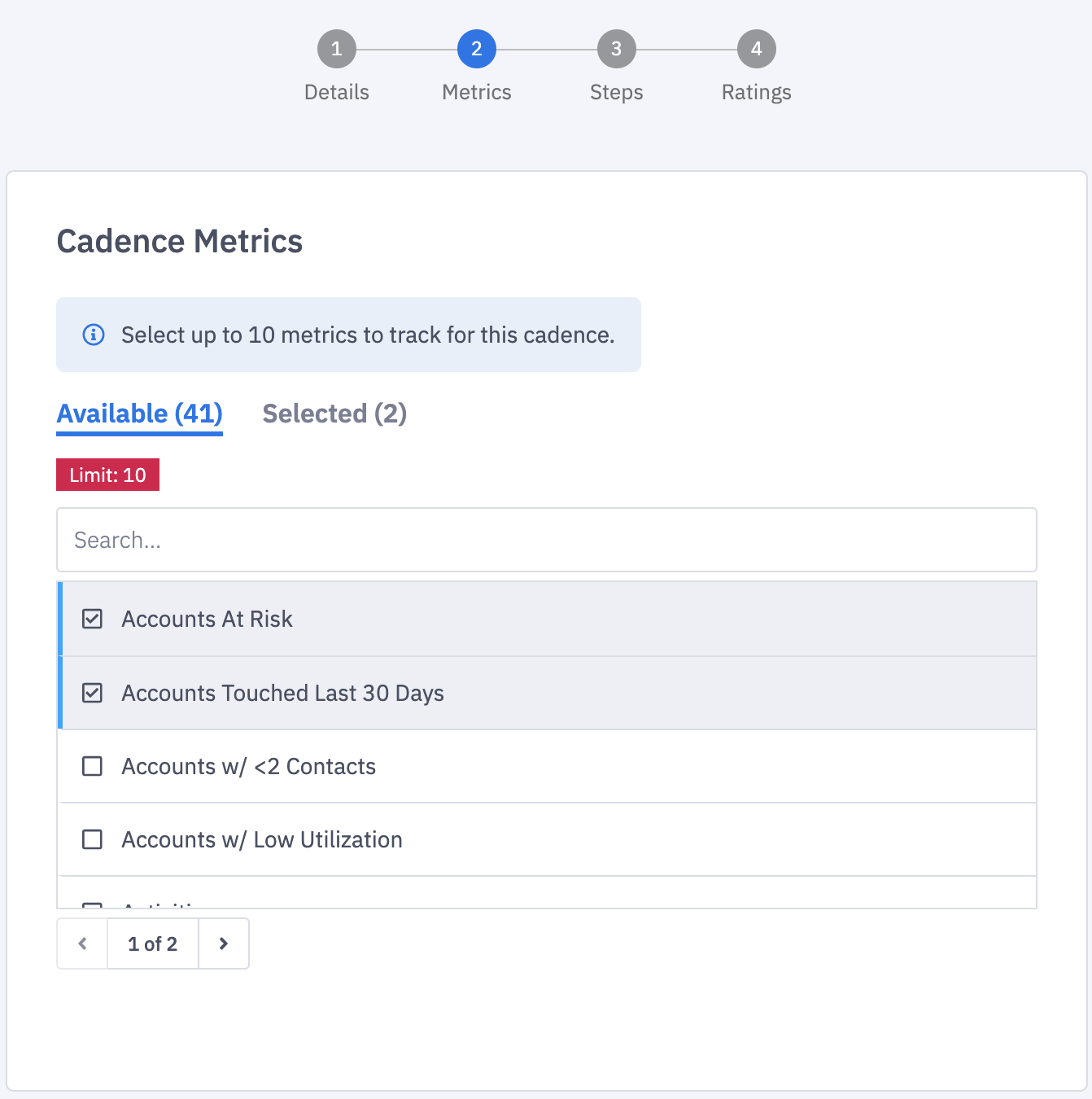
Metrics (optional)
The selected cadence metrics can be edited at any time. When these metric selections change, the corresponding effectiveness graph will reprocess and display the updated metrics.
Steps
Steps can be:
added - steps can only be added when a cadence is saved as a draft
reordered - steps can only be reordered when a cadences is saved as a draft
deleted - steps can only be deleted when a cadence is saved as a draft
Add New Steps (steps can only be added when a cadence is saved as a draft)
1. Click the plus sign icon in between the existing steps where you wish to add a new step.
Alternatively, you can add a new step anywhere within the cadence and reorder the steps as needed. Especially helpful if you need to add a new step as step 1!
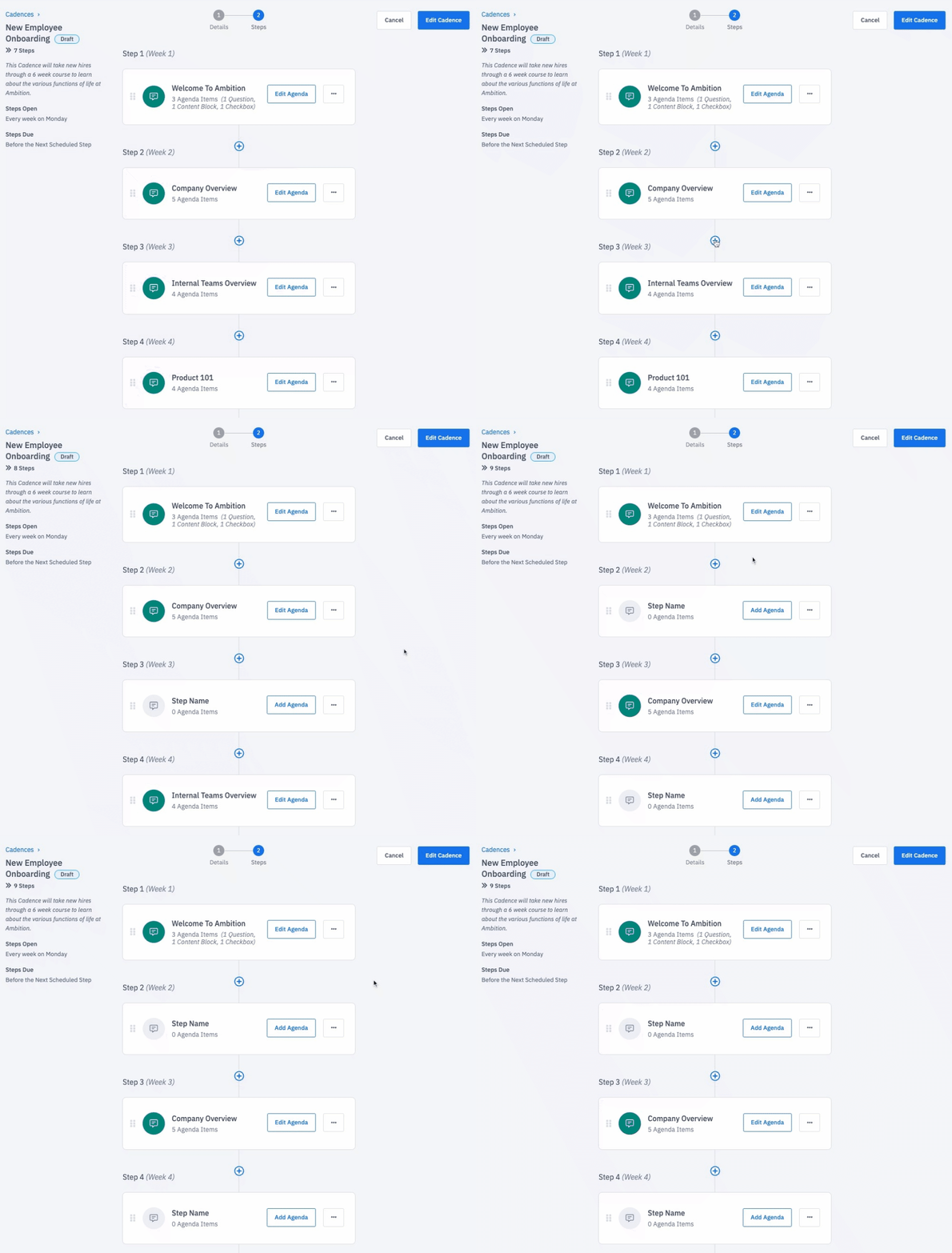
2. Click Add Agenda to create the new step's agenda.
Learn more about creating new agenda items here.

3. After compiling the step's agenda, click Save Step.
If you cannot complete creating the new step's agenda, you can save the step in progress and resave the entire cadence as a draft again.

Edit Steps
Once a cadence is open, you cannot add new steps, delete steps, or reorder steps, but you can edit the agenda of existing steps.
1. Click Edit Agenda on the steps that need to be edited.
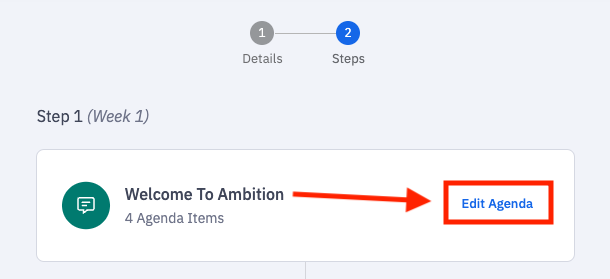
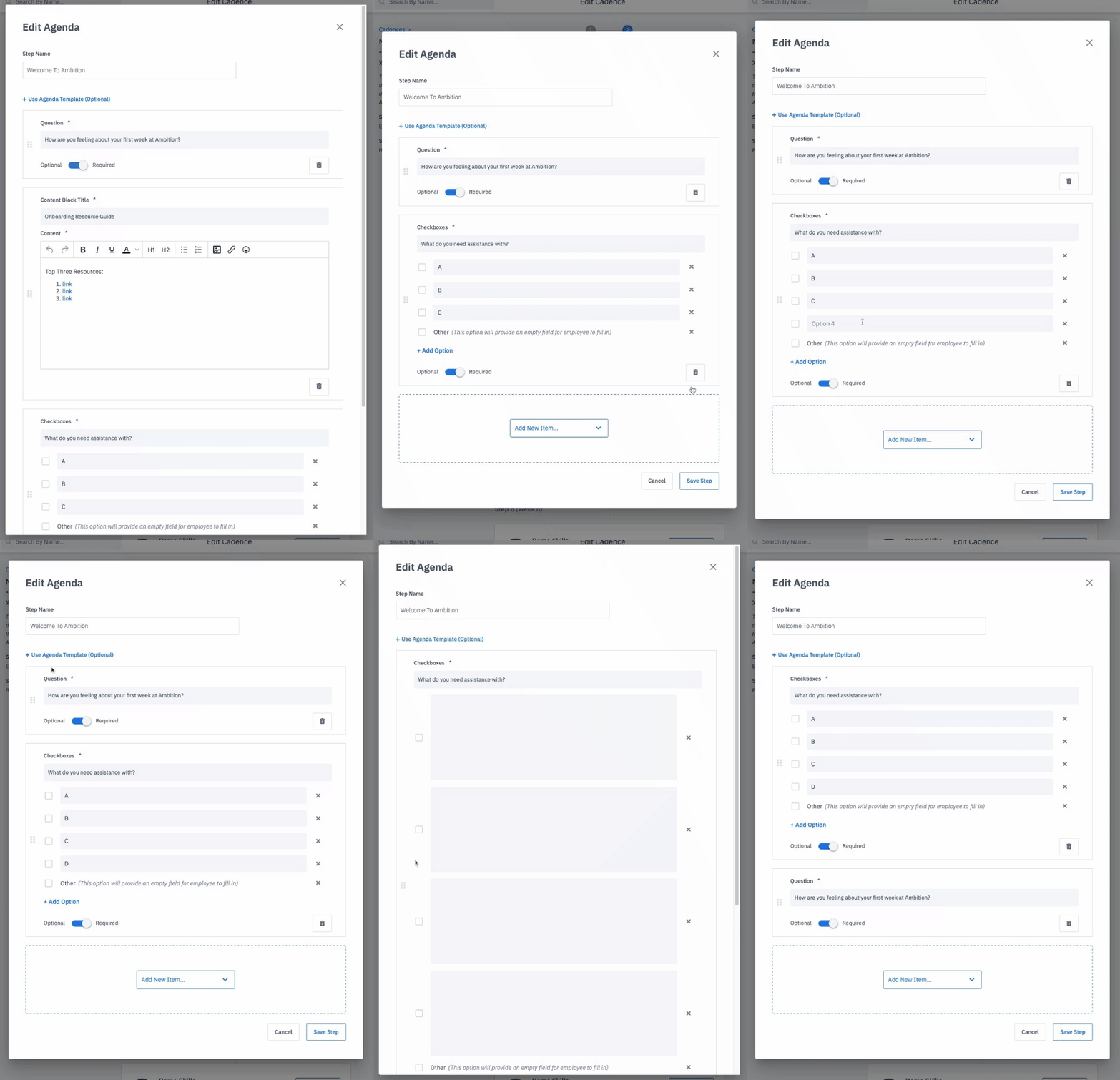
You can edit the:
step's Name
content in agenda items
order of the agenda items
agenda by adding new agenda items
agenda by deleting agenda items
Example of deleting an item, editing an item, and reordering the agenda.
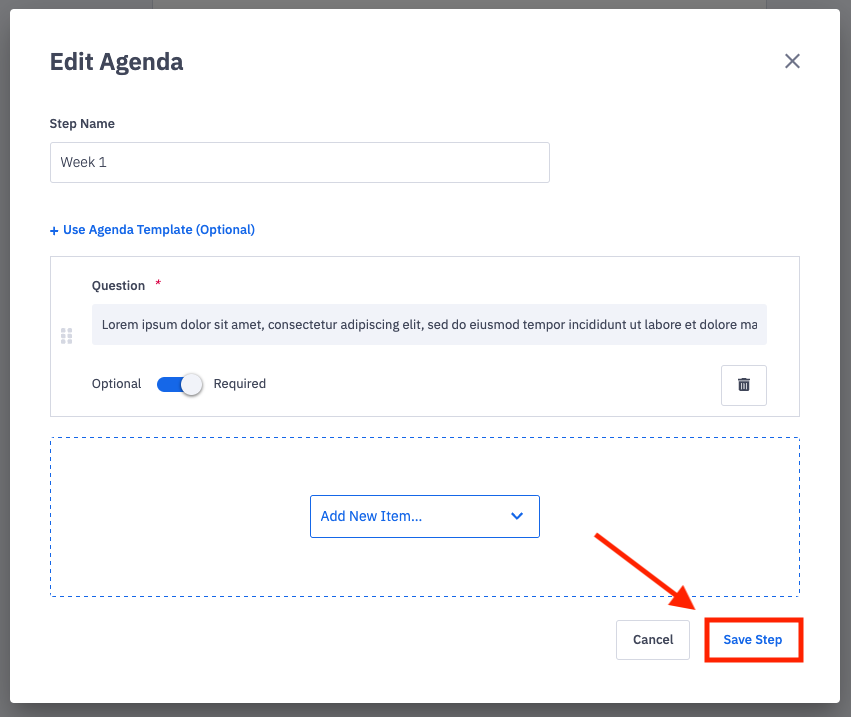
2. Click Save Step to save your changes to an existing step.
Reorder Steps (steps can only be reordered when a cadence is saved as a draft)
1. Locate the step that needs to be reordered within the cadence.
2. Steps can be reordered by clicking the ellipses icon and then clicking "Move Up" or "Move Down". The first step can only be moved down, and the last step can only be moved up.
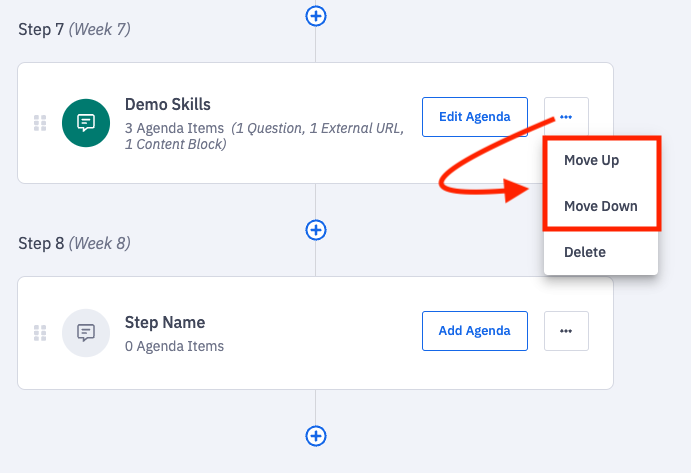
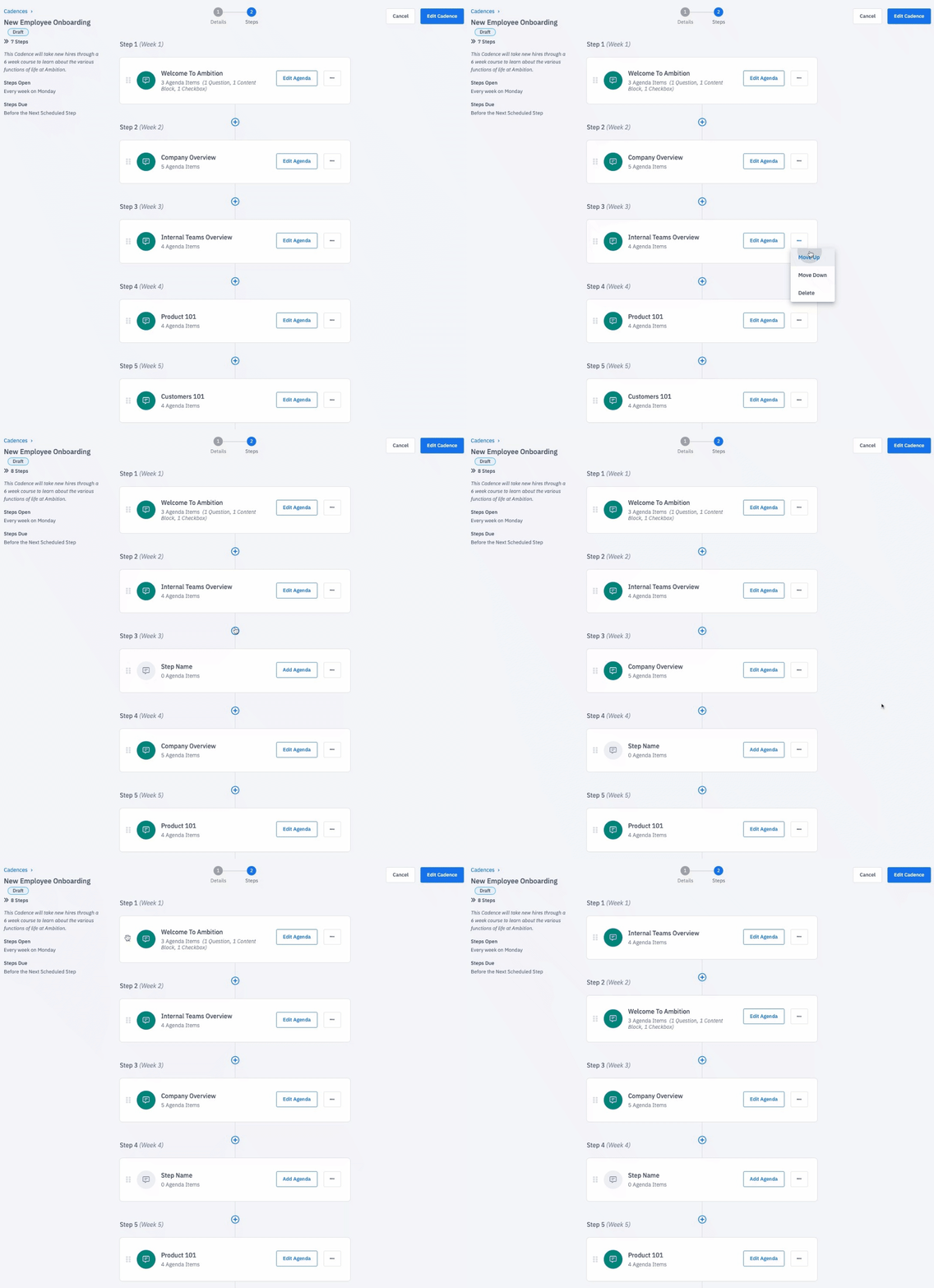
Steps can also be reordered by clicking the grid icon on the left side of a step and dragging and dropping the step in the desired location
Example of using both the "Move" buttons and dragging and dropping.
Delete Steps (steps can only be deleted when a cadence is saved as a draft)
1. Locate the step that needs to be deleted from the cadence.
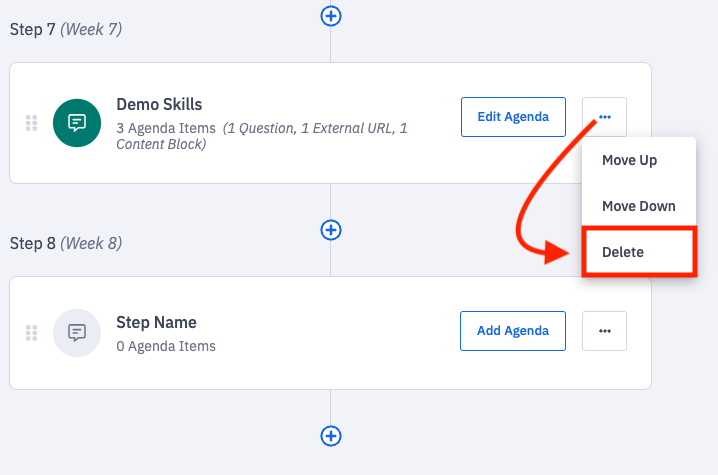
2. Click the ellipses icon and Delete.
Rating Categories (optional)
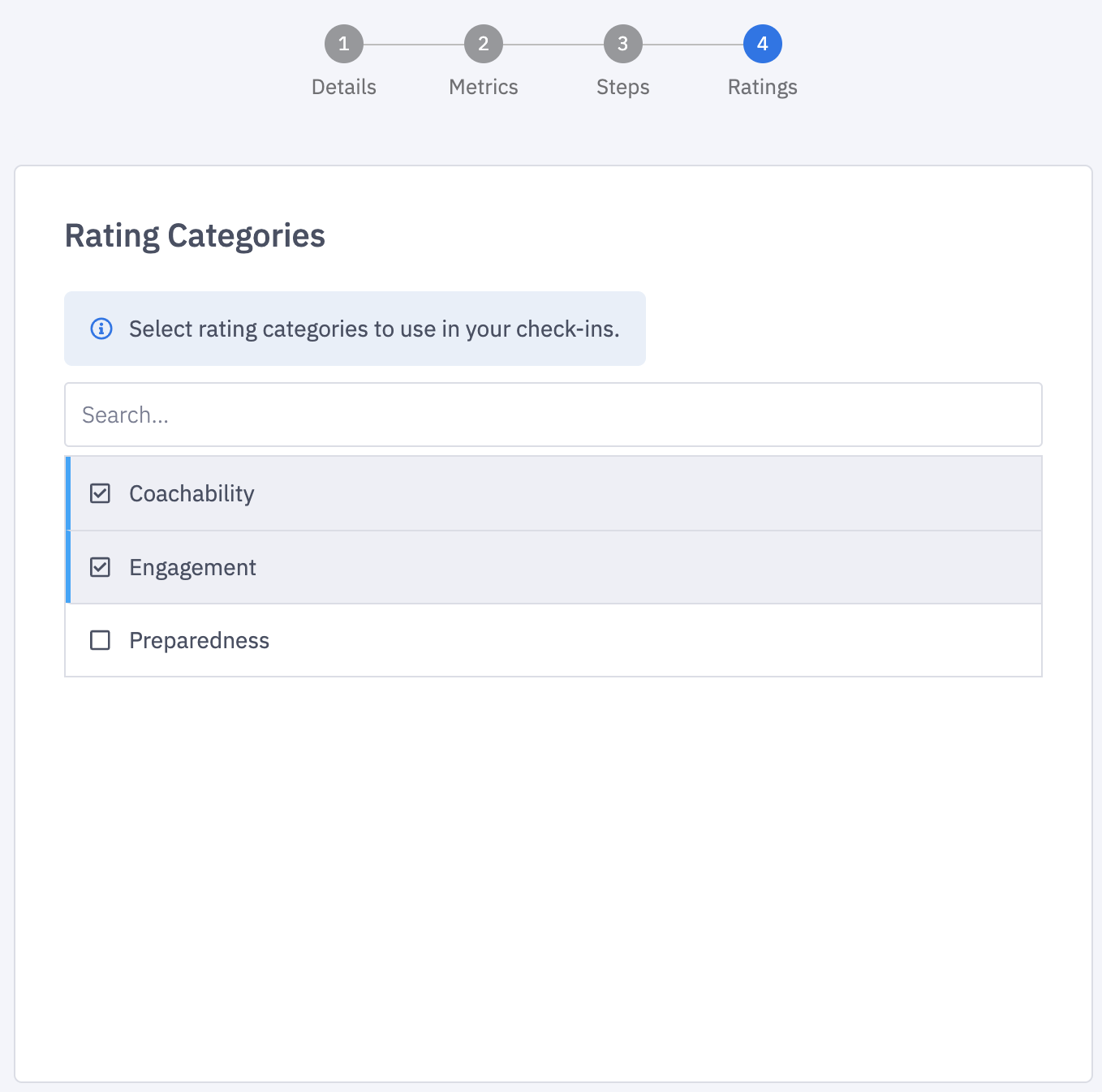
The Cadence Rating Categories can be edited at any time. Upon save, all new check-in steps created going forward will reflect these new rating categories.
Saving an Open Cadence
4. After making all needed edits, click Save to save your changes.

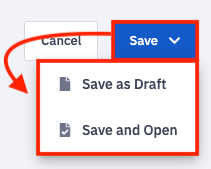
Saving a Cadence Draft as Draft or Open
4. After making the desired edits, click Save > Save and Open.
If your cadence has no incomplete steps, the cadence will move out of "Draft" status and will now be "Open". Once open, employees can be added to the cadence.
If you still have incomplete or in progress steps, click Save and then Save as Draft again. Your cadence will not be able to be opened or assigned to employees until all steps are complete.