How do I edit or delete group types?
Last updated: February 27, 2026
Edit and Delete Group Types
Edit a Group Type
Users with the "Group Types: Edit" permission will be able to edit or delete group types.
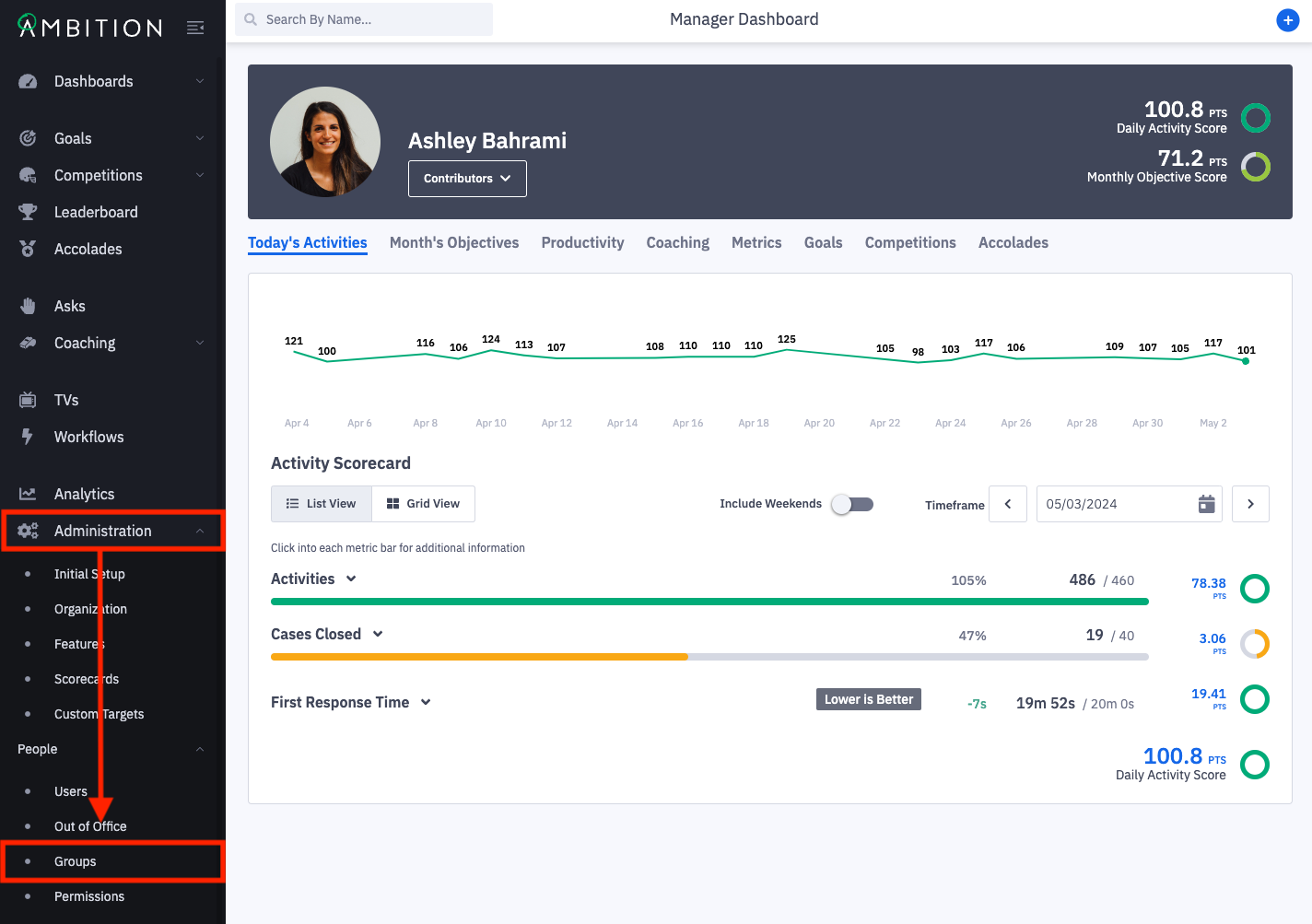
1. Open the left navigation and click Administration > People > Groups.
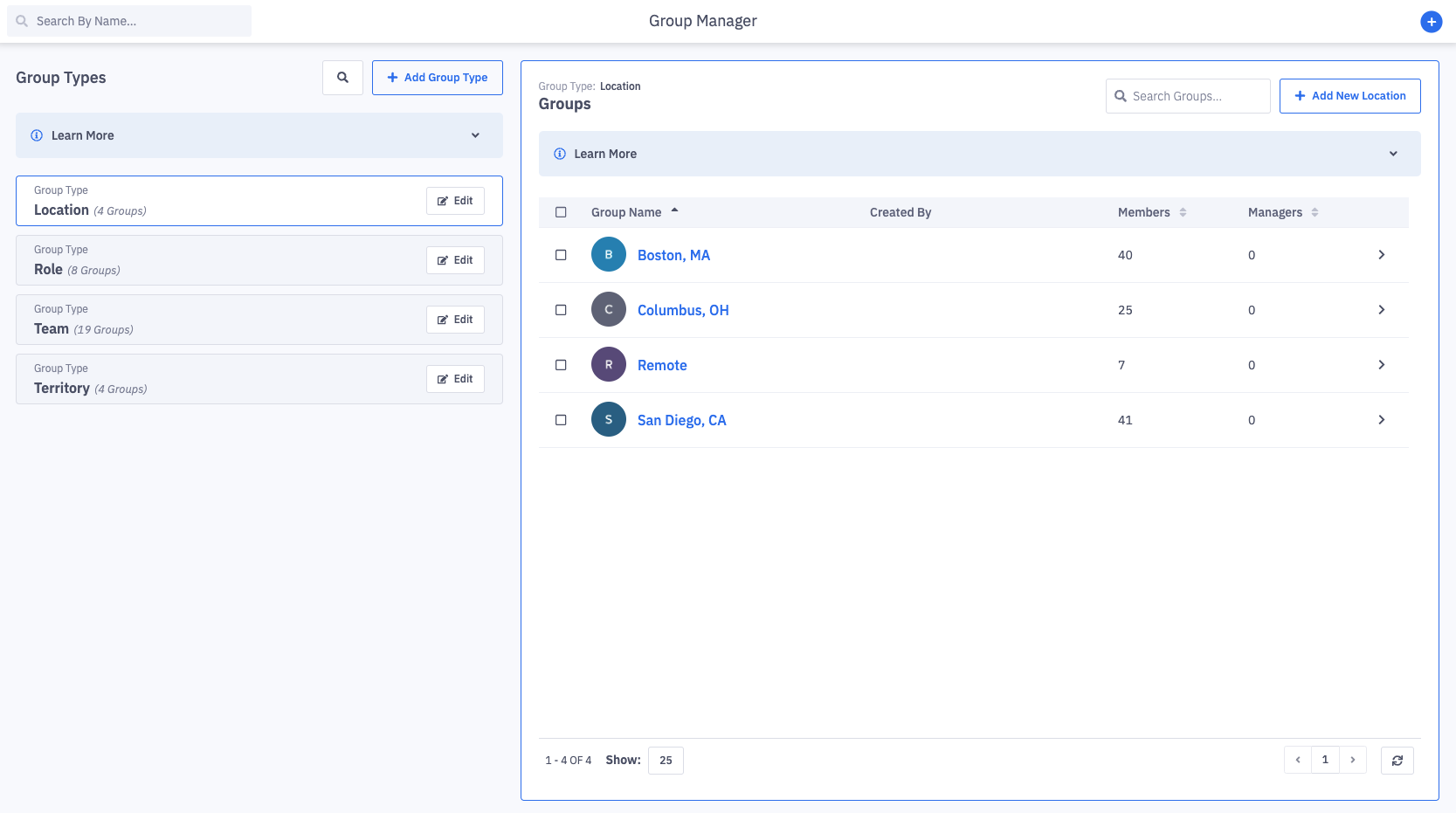
2. Upon accessing the Groups tab, you will see the Group Manager.
If you can have permission to "Edit All Groups", then all group types and groups that your organization has created will be found here.
If you have permission to "Edit Subordinate Groups", then only group types that contain groups where you are listed as a manager of will be found here. You will have visibility and access to editing groups where you are listed as a manager.
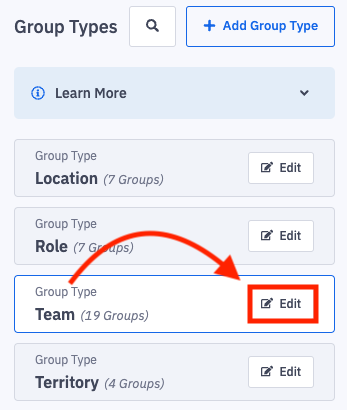
3. Click Edit in line with the respective group type's name.
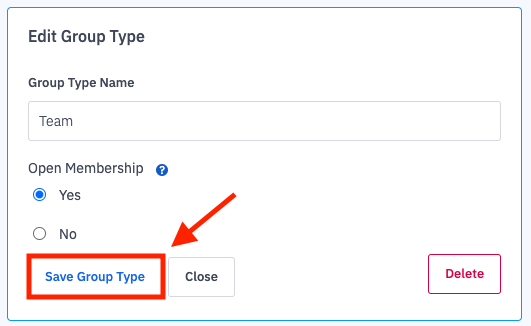
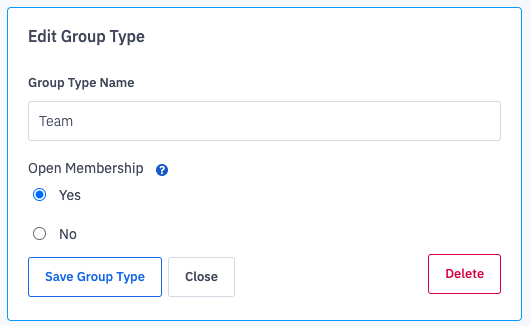
4. Make appropriate edits to the group's name or membership type.
What is open membership? "Open Membership" provides the ability for users to self-join groups in this group type. In addition to "Open Membership" being selected, users will need the "Group Memberships: Edit" permission set to "Can Join Open Groups".
Delete a Group Type
Users with the "Group Types: Edit" permission will be able to edit or delete group types.
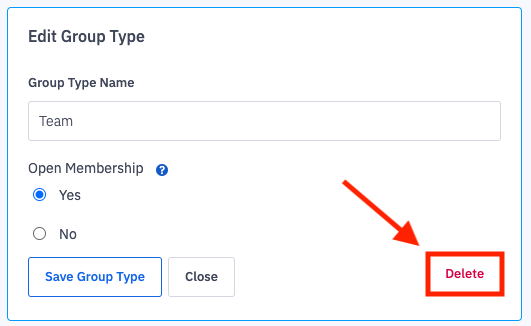
To delete a group type, click the Delete button.
Type "I UNDERSTAND" to confirm your understanding that any groups in the group type will be deleted as well.
5. Click the Save Group Type button.