How do I upload data for an API integration?
Last updated: March 17, 2026
Upload API Data
Uploading data involves making a POST request to an Ambition endpoint.
Important to Note
There is a 15MB file size limit.
Either CSV or JSON formatted files can be uploaded, but a single integration cannot receive both formats.
CVS file must be a flat file with headers
JSON must either be flat (unnested) before transmission or flattened with the JSON Transformer within an Ambition API integration.
The file must contain the CSV headers or JSON keys that are included in the Data Format.
All data in Ambition must be attributable to a user. If your data exists at a team or organizational level, it must be broken down into user level metrics.
Locate API Credentials
Users with the "Integrations: Edit" permission will be able to access the Integrations tab and create, edit, and delete all metrics.
1. Log in to your Ambition instance.
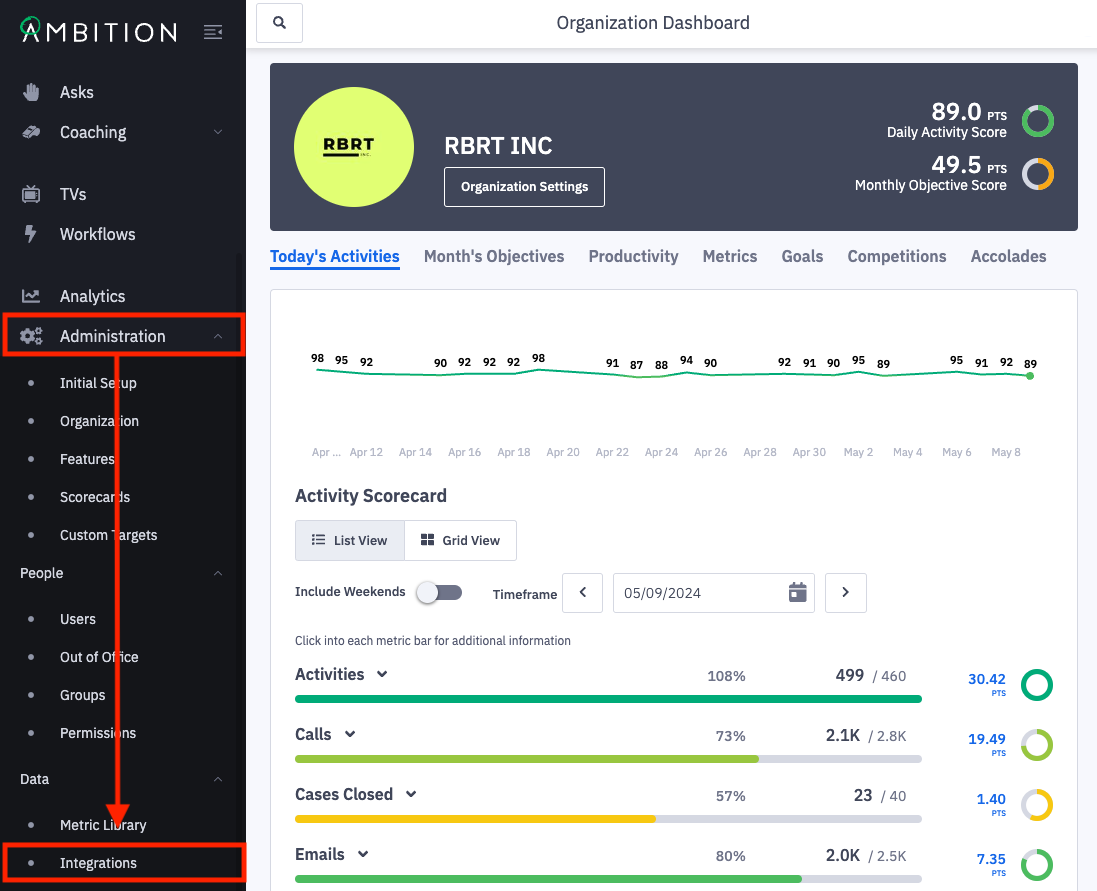
2. Open the left navigation and click Administration > Data > Integrations.
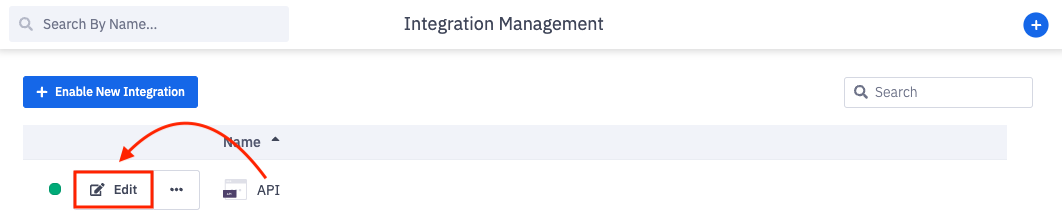
3. Click Edit in line with the appropriate API integration.
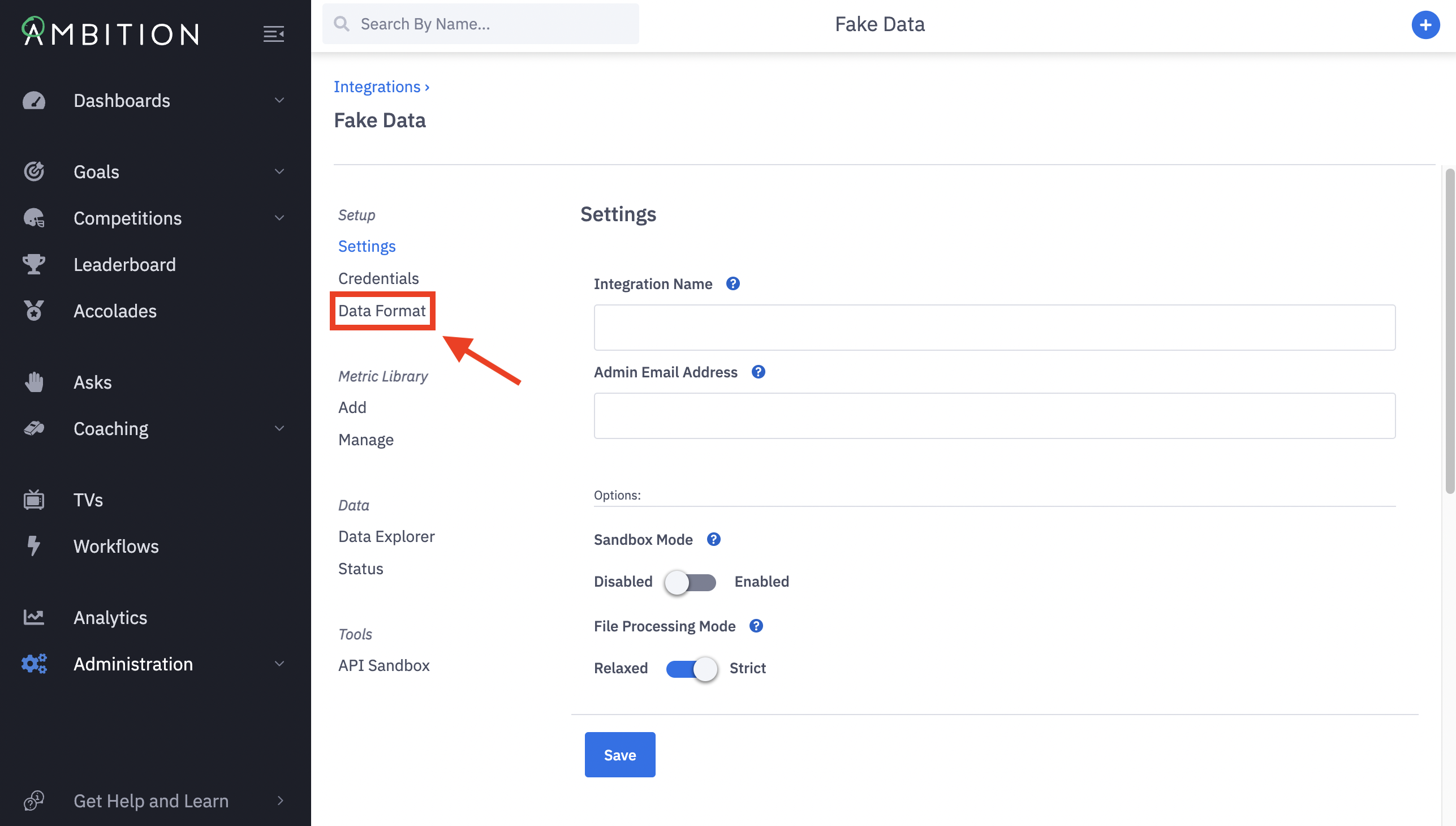
4. Click on Data Format to find your CONTENT_TYPE labeled as Data Format, CSV or JSON. Confirm the file set to be transmitted is formatted in the set data format.
Required field names for your file can be found here under the Data Format section labeled as Field Keys.
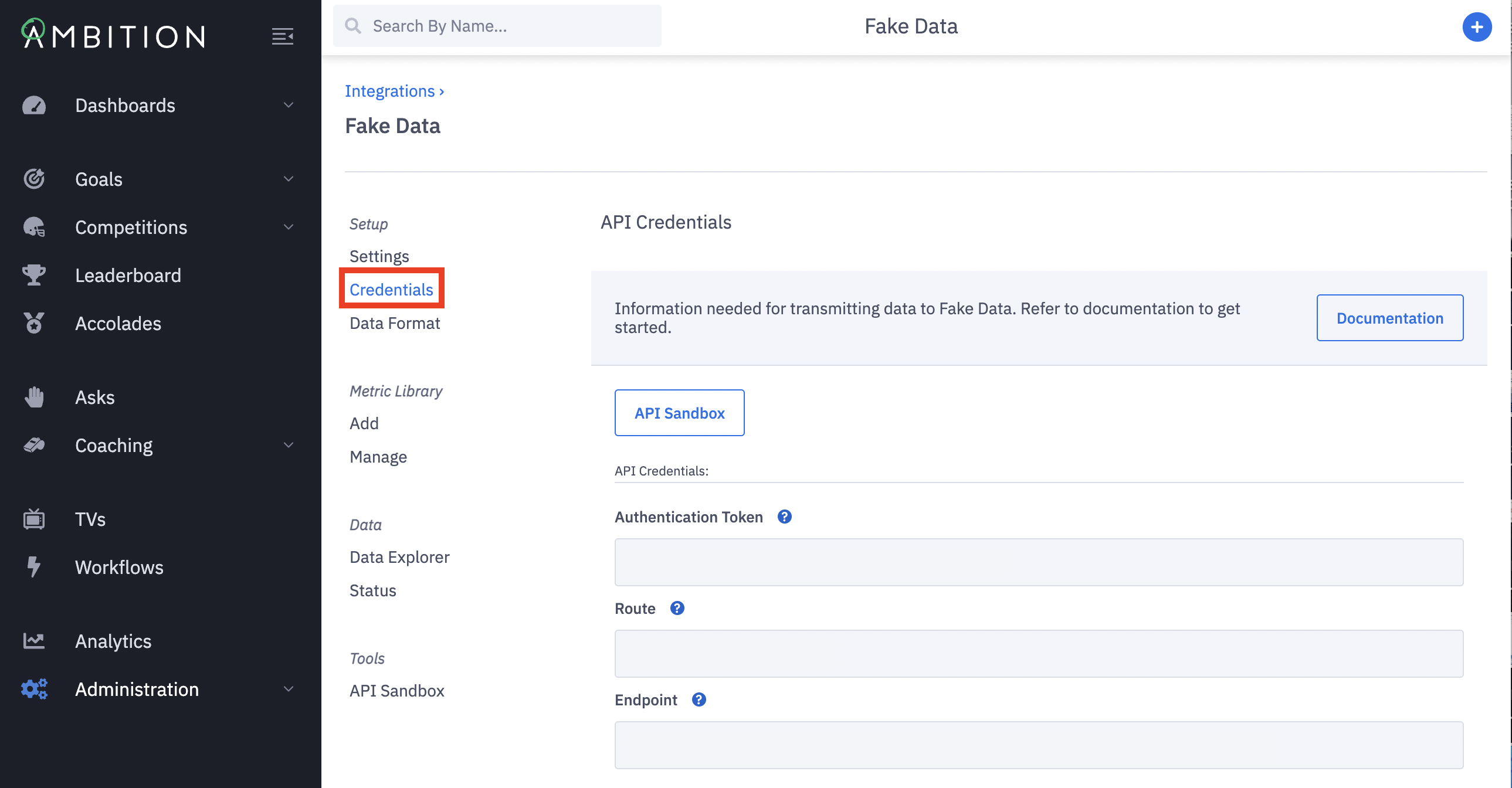
5. Click on Credentials to find your AUTH_TOKEN and ENDPOINT.
POST Request
You will need to construct a POST request consisting of three parts: Authorization Header, Content Type Header, and Body.
Authorization Header
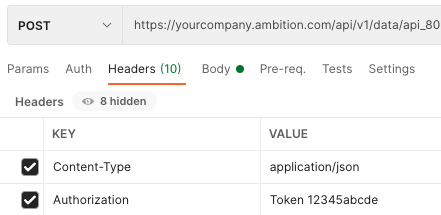
Authorization: Token AUTH_TOKEN Content Type Header
CONTENT_TYPE | DATA_FORMAT | CONTENTS |
application/json | JSON | JSON Formatted Data |
text/csv | CSV | CSV Formatted Data |
application/vns.ms-excel | CSV | Excel Formatted Data |
Content-Type: CONTENT_TYPEBody
The body will consist of either JSON or CSV data, dependent on selected DATA_FORMAT.
Refer to the "How do I construct data for an API integration?" for constructing the body's data.
Endpoint
Once constructed, you will send your POST request to the ENDPOINT found within the "Credentials" tab.
You must include the trailing "/" when uploading data to the ENDPOINT, otherwise you will receive an error stating that the connection has been closed.
If the POST is successful you will receive a 201 response code.
Upload Example
Using cURL to upload
curl \
-H "Authorization: Token AUTH_TOKEN" \
-H "Content-Type: CONTENT_TYPE" \
-X POST \
-d '[{"email": "jason@yourcompany.com", "date": "8/16/2016", "calls": "3"}]' \
https://SUBDOMAIN.ambition.com/api/v1/data/DATA_TYPE/
Example Headers for using Postman to upload JSON
Errors
If a POST fails for any reason, all data contained within the request will be discarded.
For example, if you send 10 records and the 8th record is malformed and causes the request to fail, the 7 preceding records will be discarded.
If a request fails, the response will contain error messages consisting of IDs and Descriptions. Check both the response.status_code and response.content.
ID | DESCRIPTION |
import_parse_json | The JSON request body is improperly formatted. |
import_parse_csv | The CSV request body is improperly formatted. |
import_transform_data | The request body does not match the DATA_FORMAT. |
Seeing records successfully received by Ambition, but no records generated? Ensure that metrics have been created within the integration.
Sandbox Mode
What is Sandbox Mode and when should I use it?
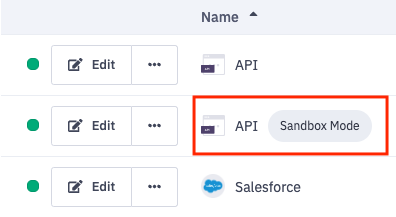
Sandbox Mode is on by default when an API integration is first enabled in Ambition, and is notated by a "Sandbox Mode" badge in line with the integration on the Integration Management page.
Sandbox Mode allows for delivery of test and/or production files to an endpoint without impacting the instance as a whole. When an integration is in Sandbox Mode, the metrics created within the integration will not display outside of the integration and bad files will not halt processing.
Sending test files to an integration in "sandbox mode" is not a requirement, but is an optional capability meant to support organizations that would like to test file structures and data delivery methods. Sandbox Mode can be disabled or reenabled at any time.
Sandbox Mode is especially helpful when adding additional integrations to Ambition after you've launched to your end users.
What does Purging Data entail?
When in Sandbox Mode, you will have the option to purge the integration. Purging the integration entails all processed metric values and processed files will be deleted. Purging allows for any test and/or files with errors to be cleared out before production data is sent to Ambition.
Unless an integration is explicitly purged, any data from test files will contribute to metric values once Sandbox Mode is disabled.
Learn more about purging data here.
How do I disable/enable Sandbox mode?
Users with the "Integrations: Edit" permission will be able to access the Integrations tab and create, edit, and delete all metrics.
1. Open the left navigation and click Administration > Data > Integrations.
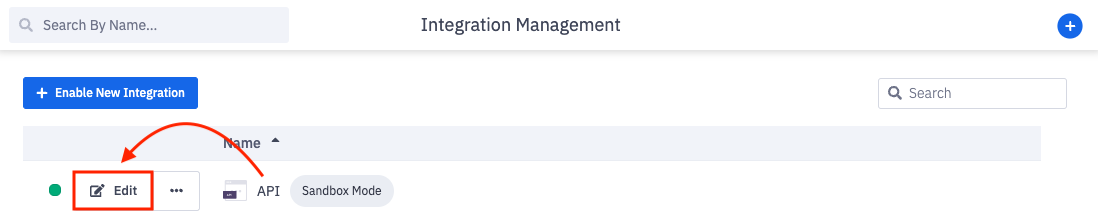
2. Click Edit in line with the appropriate API integration.
Integrations currently in Sandbox Mode will feature a "Sandbox Mode" badge in line with the integration on the Integration Management page.
3. On the Settings page, locate the "Sandbox Mode" toggle
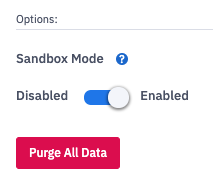
While in Sandbox mode, you will have the option to Purge All Data.
To Purge Data:
Click the Purge All Data button.
Click Confirm when prompted
To Disable Sandbox Mode:
Toggle the Sandbox Mode option to Disabled.
Click Save.
To Enable Sandbox Mode:
Toggle the Sandbox Mode option to Enabled.
Click Save.