How do I invite users to Ambition?
Last updated: November 25, 2025
Inviting Users to Ambition
Since users need to be invited to Ambition in a variety of ways, several flexible methods of inviting users are supported.
Invite Users Upon Adding to Ambition
When manually creating users, there is an "Invite Upon Creation" checkbox.
When checked, the manually created user will be invited upon Create User being clicked.
When syncing users from Salesforce, you will see a "Send Invite Email(s)" checkbox.
When checked, the user(s) will be invited upon Sync '#' Users being clicked.
Invite Upon Creation is automatically checked, meaning we'll automatically send an invite email to the new user asking them to set a password and login. Ambition recommends unchecking these boxes during onboarding.
If your organization is using single sign-on, sending an invite email will redirect the user to sign in with company-managed credentials rather than setting an Ambition password.
Invite Select Users
You can also invite users in batches by selecting the specific ones you want to be invited at that time.
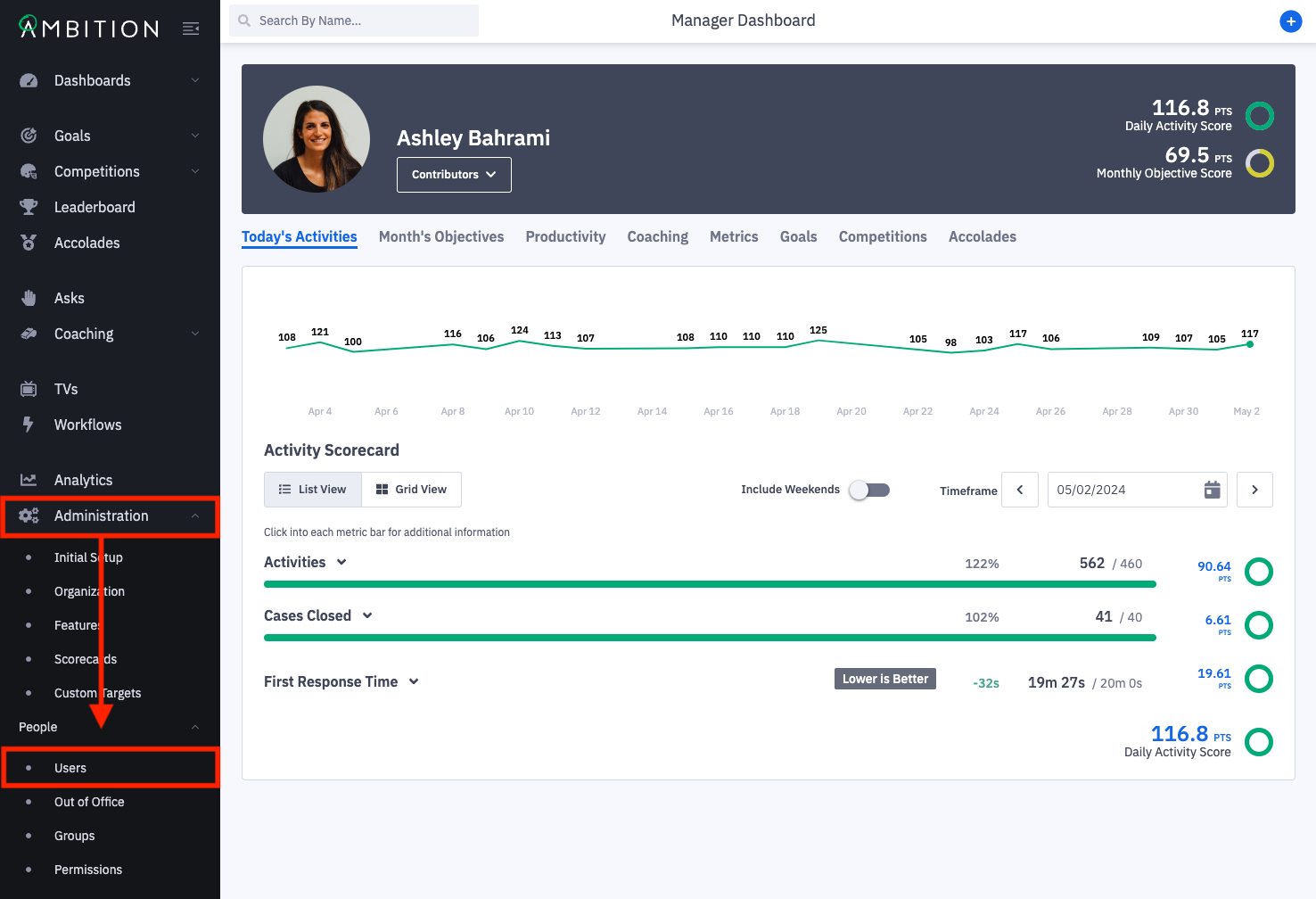
1. Open the left navigation and click Administration > People > Users.
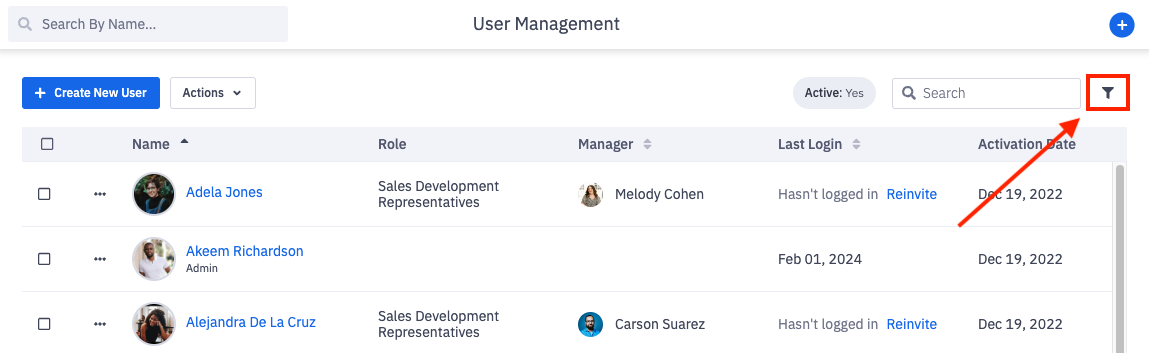
2. Click the filters icon to slide out the filter panel.
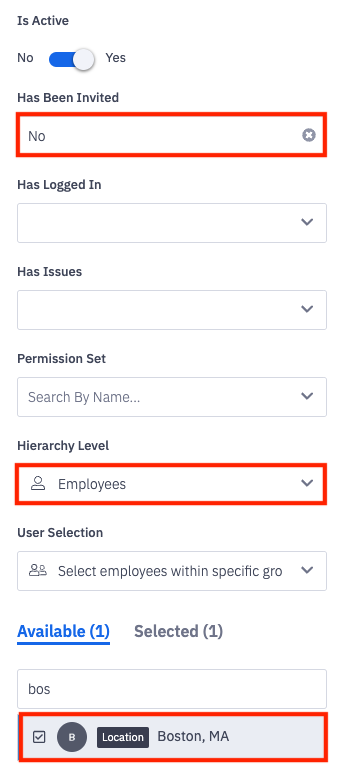
3. Update the "Has Been Invited" filter to No.
Add additional filtering of permission set and hierarchy level to drill down to the exact users you desire to invite.
Example below would filter just uninvited Employees within the Boston Location.
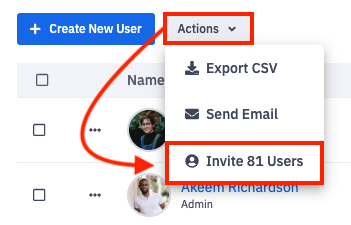
4. After filtering to the exact group of users you desire to invite, click the Actions button.
Click on Invite # Users to send out Ambition invites.
-- OR --
Within the "Last Login" column, you can invite a user for the first time or resend their invite if they have no yet logged in.
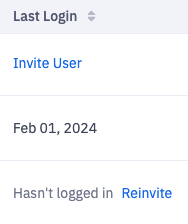
Users can also be invited from within their settings.
Invite All Uninvited Users
When you're ready to launch or have added a new wave of Ambition users, you can bulk invite all remaining users.
1. Open the left navigation and click Administration > People > Users.
2. Click the Actions button and select Invite # Users.
Email Invitation Example
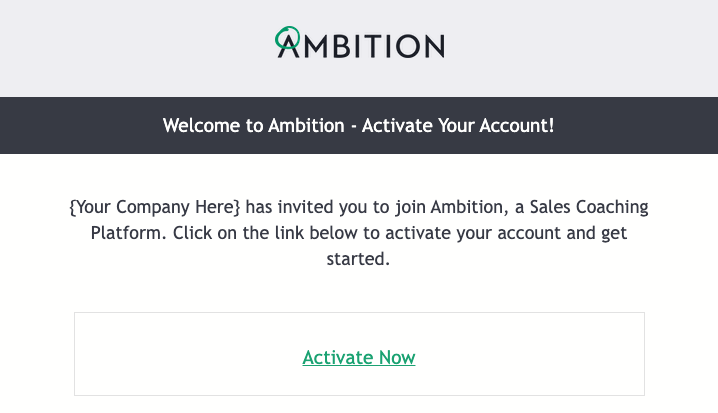
Below in an image of the invitation email. Your organization's name will appear in the {Your company here} has invited you to join Ambition..." message.
The email will contain an "Activate Now" button through which the user will be prompted to set an Ambition password.
If your organization is using single sign-on, the "Activate Now" button will redirect the user to sign in with company-managed credentials rather than setting an Ambition password.
What if users do not receive an email invitation after being invited to Ambition?
If an individual user did not receive their invitation to Ambition:
1. Have the user check for the email in their Spam folder.
2. Verify the user's email address listed on the user settings page.
If multiple users or all users did not receive their invitation to Ambition:
1. We recommend contacting your internal IT team to whitelist the '@ambition.com' domain so that Ambition emails are not blocked by your company's spam filters.
2. Reach out to gethelp@ambition.com for additional support.