What notifications will users receive about coaching?
Last updated: June 17, 2025
Coaching Notifications
Users will be notified by email when they are involved in Ambition coaching events.
If you wish to opt out of email notifications, learn more here.
Coaching Email Frequency
Employees, managers, and co-coaches will receive coaching email notifications when:
Action Item Emails
Action Item Email | What Event Sends the Email? | Who Gets an Email? |
An action item has been created and assigned to you. If multiple action items are assigned to you within a 10 minute time period, the email will serve as a summary of all the action items that were assigned to you during that 10 minute time period. If you create an action item for yourself to complete, no email will be sent. | The assignee of the action item (any participant in the check-in/group check-in can be assigned an action item) |
Action Plan Emails
Action Plan Email | What Event Sends the Email? | Who Gets an Email? |
An action plan contains a required external url agenda item, and the employee has submitted the action plan to be approved. | Manager | |
An action plan passes its due date if the action plan was not completed. | Employee and Manager | |
A co-coach has been added to or removed from an existing action plan | Employee | |
An action plan has been completed. | Employee and Manager | |
An action plan's Due Date is extended through the "Extend and Notify" or "Reopen" options. | Employee | |
| Employee or Manager (the employee has the option to remind the manager if an action plan is in "Pending Approval" Status) | |
The "Pending Approval" status is only applicable to action plans with an "External URL" agenda item. | Employee | |
An action plan has been created and started for them. | Employee. If co-coaches are added on creation, they will also be notified that they are involved in an action plan. | |
A comment has been left in an action plan. | If the employee leaves the comment, the manager will be notified. If the manager leaves the comment, the employee will be notified. |
Check-In, Cadence, and Program Emails
Check-in Email | What Event Sends the Email? | Who Gets an Email? |
An employee's cadence step is overdue. When employees can only progress in a cadence once the manager marks the step complete, the manager will be prompted to approve, reopen, or excuse the check-in in order to allow the employee to progress through the cadence. | Manager | |
A check-in has been completed and is ready for review/approval. | Manager, Co-Coach | |
A check-in has been reviewed and been approved by the manager or co-coach. | Employee, Co-Coach | |
A co-coach has been added to your check-in through the "Manage Co-Coaches" option. | Employee | |
A check-in has been excused. | Employee | |
A check-in's due date is extended through the "Extend and Notify" or "Reopen" options. | Employee | |
| Employee or Manager (the employee has the option to remind the manager to approve a check-in if the check-in is in "Pending Approval" status) | |
Employee requests that an expired check-in be reopened | Manager | |
| Employee | |
A check-in is available and ready to be completed. ↳ If the manager selected the "Schedule 1:1 for Later" option, the standard new check-in email will be accompanied with a calendar invite. | Employee. The manager and any co-coaches will also receive a new check-in email accompanied with a calendar invite if the "Schedule 1:1 for Later" option was selected. If a manager has connected their Outlook or Google calendar with Ambition, there will not be a calendar invite attached in the email sent to the manager. | |
A coaching program has been created. | Employee | |
A group check-in has opened | All group check-in participants | |
A group check-in is scheduled | Manager and Co-Coach | |
A comment has been left in a check-in | If the employee leaves the comment, the manager will be notified. If the manager leaves the comment, the employee will be notified. |
Shared Note Emails
Shared Note Email | What Event Sends the Email? | Who Gets an Email? |
| Employee |
Things to Note:
New check-in emails will be sent in accordance with the recurrence of a coaching program. Daily recurrence = daily email, weekly recurrence = weekly email, etc.
If an individual is involved in multiple coaching programs, they will receive a new check-in is due notification for each program.
If a goal agenda item is used within an action plan, emails will be sent regarding the goal's progress as well. Learn more about email notifications associated with Ambition goals here.
Action Item Email Contents and Examples
Action Item Created
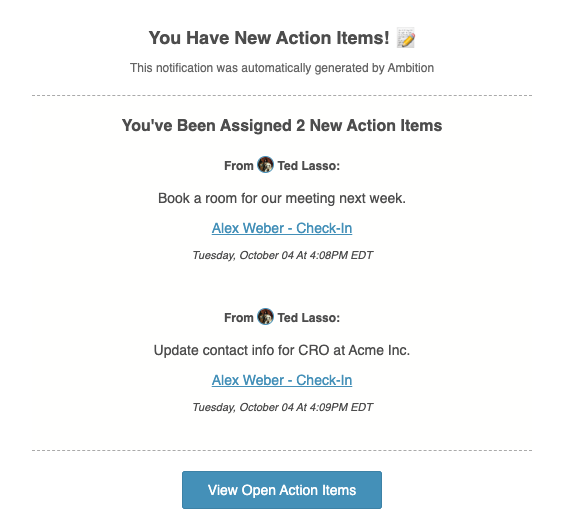
The email will contain:
Name of the user who created and assigned the action item to you.
The action item's content
A link back to the check-in/group check-in where the action item was created. The "View Open Action Items" button will navigate you to the coaching tab on your personal dashboard
The date and time the action item was created
If multiple action items are assigned to you within a 10 minute time period, the email will serve as a summary of all the action items that were assigned to you during that 10 minute time period
Example Email
Action Plan Email Contents and Examples
Action Plan Activity
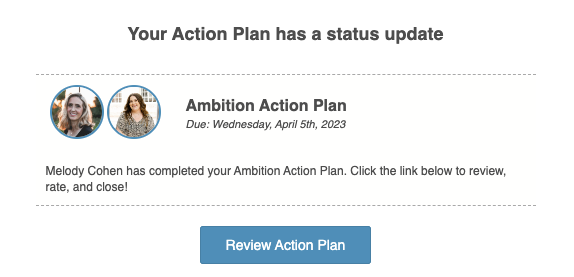
The email will contain:
Message that the action plan has been completed by the employee
Due date
Example Email
Action Plan is Closed and Incomplete
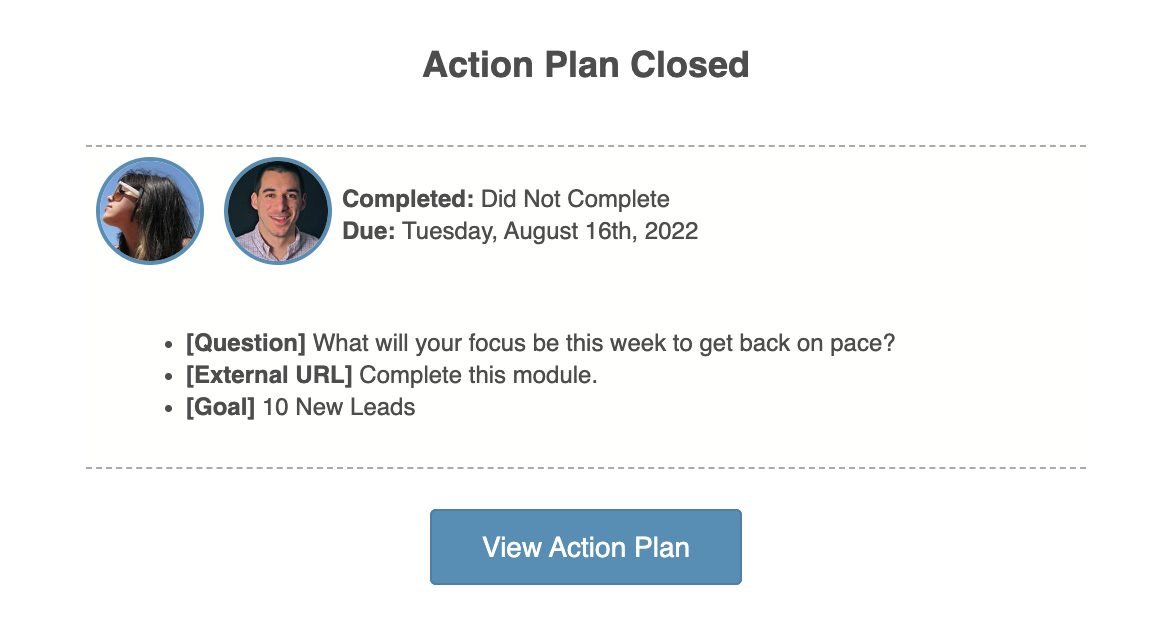
The email will contain:
Status "Completed: Did Not Complete" will signify that the action plan was not completed
Due date
Each action item type that made up the agenda and the item's content
Example Email
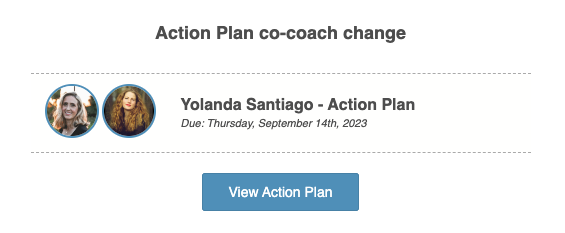
Action Plan Co-Coach
The email will contain:
Message that a co-coach has changed (a co-coach could have been added or removed)
Due date
Avatar of the co-coach(es) will not display in the email, but you can view all co-coaches who are added to your action plan by clicking, View Action Plan.
Example Email
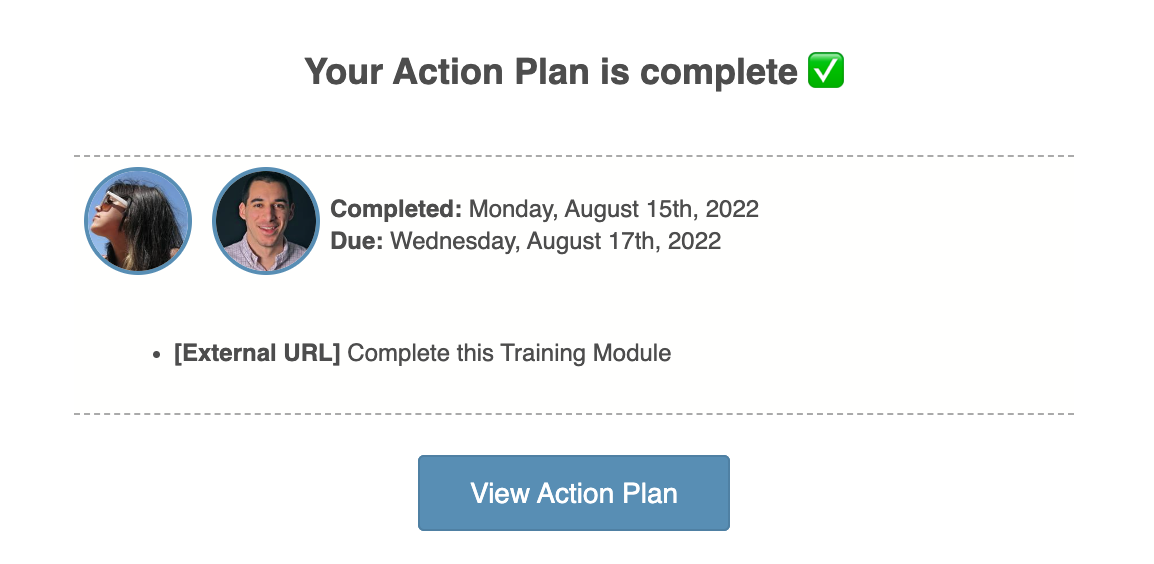
Action Plan is Completed
The email will contain:
Completed date
Due date
Each action item type that made up the agenda and the item's content
Example Email
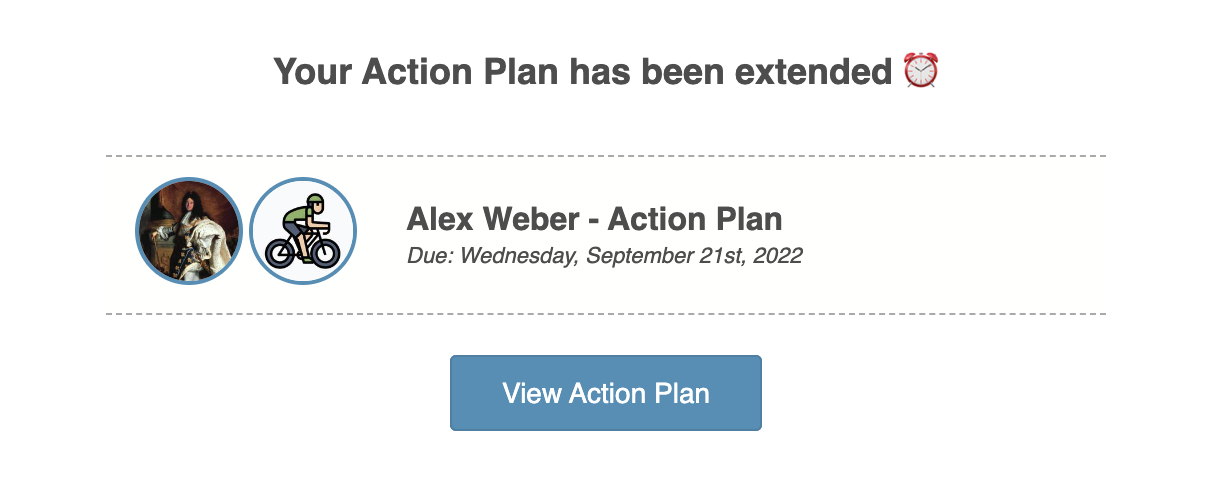
Action Plan Extended
The email will contain:
Message that the action plan has been extended
New action plan due date
Example Email
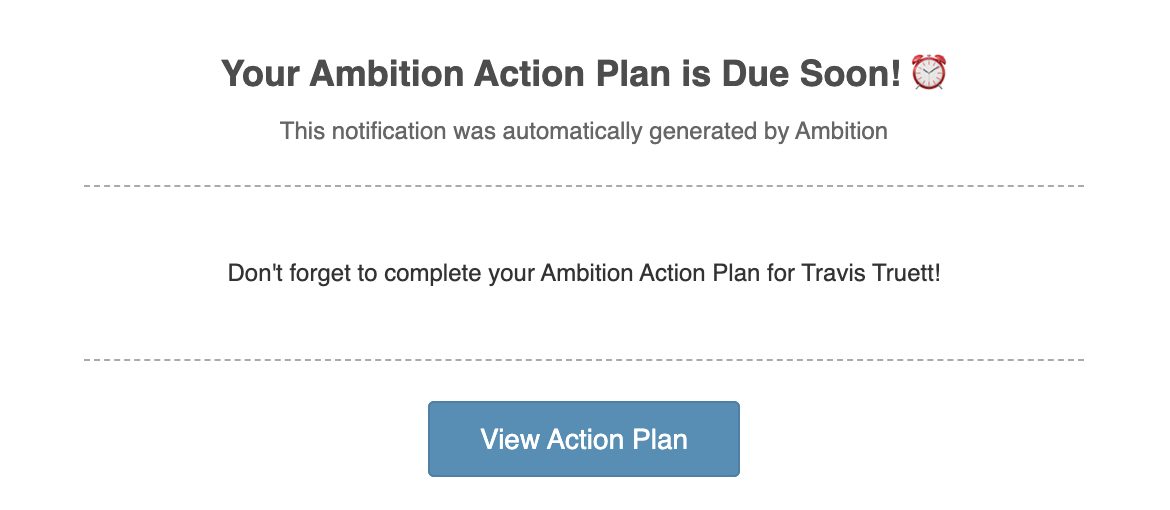
Action Plan Reminder
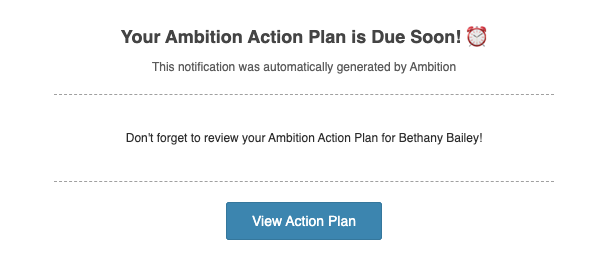
If an action plan has not been completed and/or submitted for manager review and it is due in ~60 minutes, or if the manager uses the manual "Remind" option to remind the employee to complete their action plan, the email will contain:
A reminder message that includes the action plan creator's name
Example Email
If an employee uses the manual "Remind" option to remind the manager to review their action plan (manager approval is only needed when an External URL agenda item is included in an action plan and listed as a required agenda item), the email will contain:
Reminder message that includes the name of the employee who has completed the action plan and is awaiting manager approval
Action Plan Reopened - More Information Has Been Requested
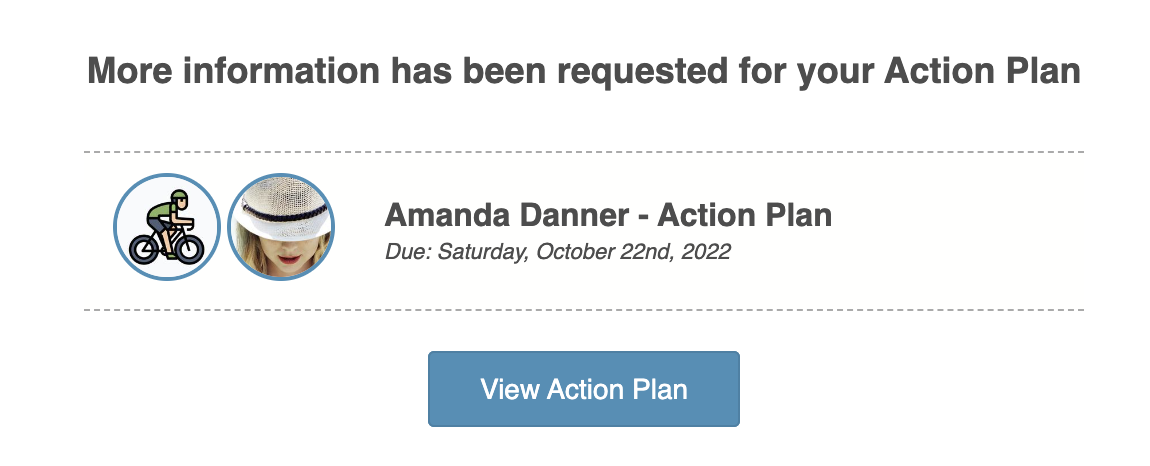
The email will contain:
Message that more information has been requested
Due date of action plan
Example Email
Action Plan is Started
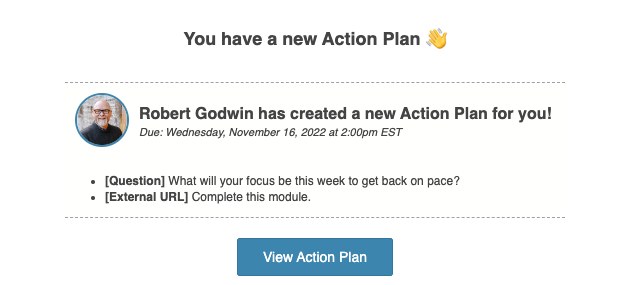
The email will contain:
The Action Plan creator's name
Due date and time
Each action item type that make up the agenda and the item's content
Example Email
Action Plan Comment
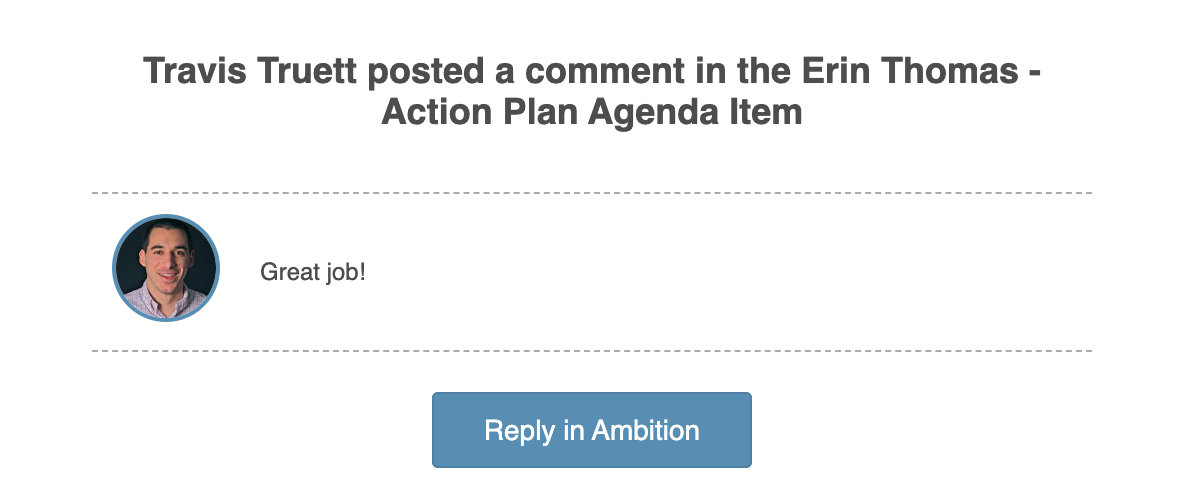
The email will contain:
The name of the user who left the comment
The comment's content
Example Email
Check-In Email Content and Examples
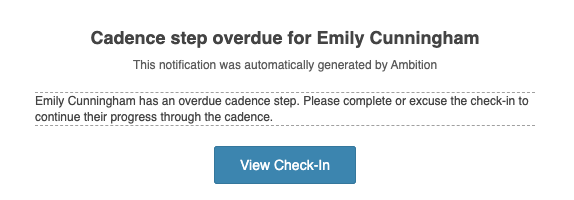
Cadence Step Overdue Reminder
The email will contain:
The name of the employee whose check-in needs approval
View check-in button will navigate you to the exact check-in that needs approval
Example Email
The "Check-In Activity" Emails correlate to two events. One event for the employee and one event for the manager.
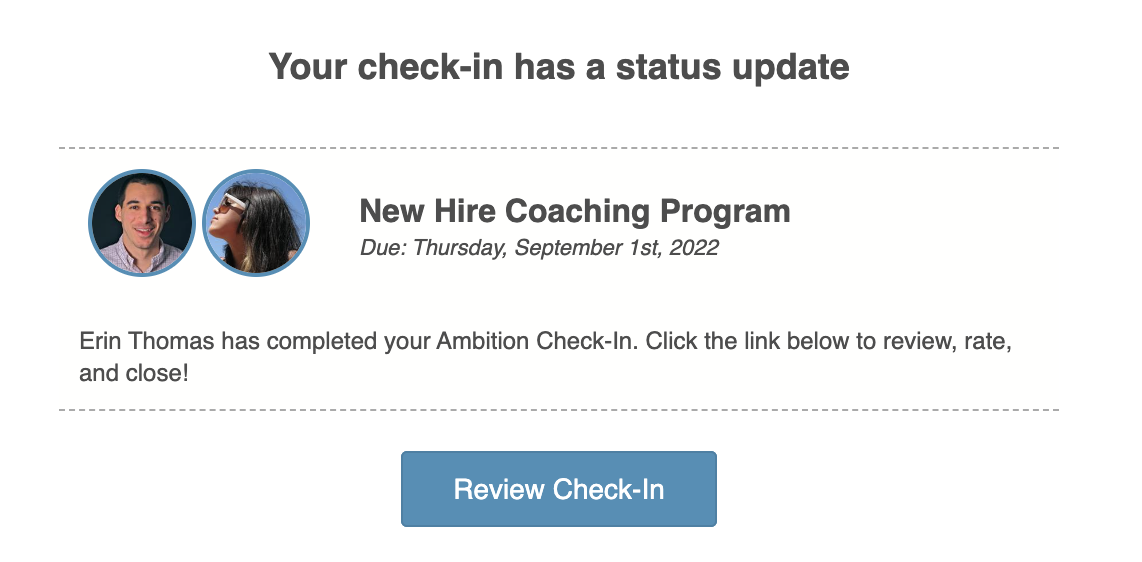
Check-In Activity - Check-In Completed By Participant
The email will contain:
Title of the check-in or name of the coaching program as applicable
Message that the check-in has been completed by the employee
Example Email
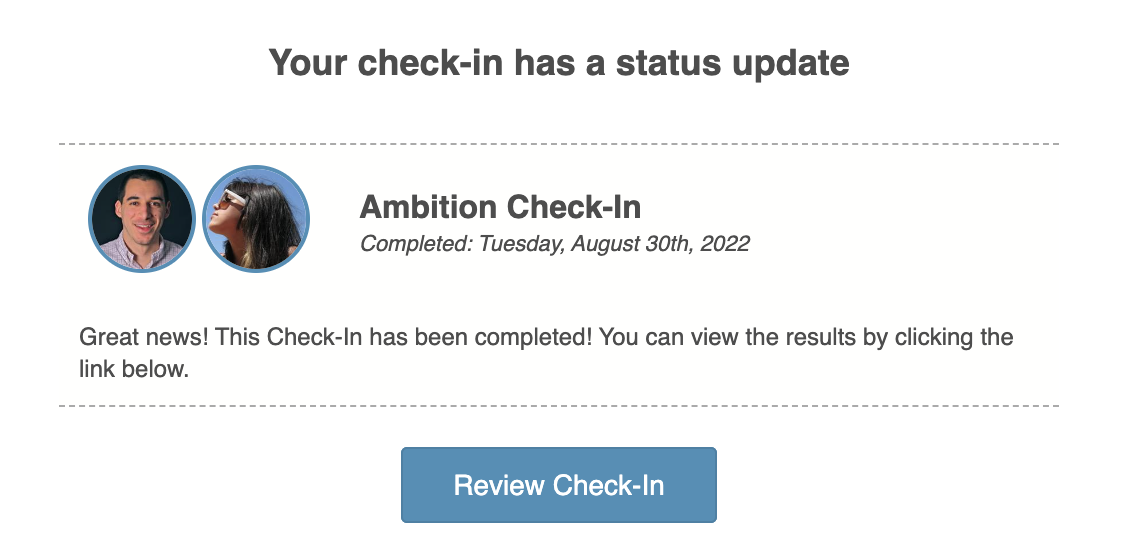
Check-In Activity - Check-In Reviewed and Approved by Manager or Co-Coach
The email will contain:
Title of the check-in or name of the coaching program as applicable
Message that the check-in was approved
Example Email
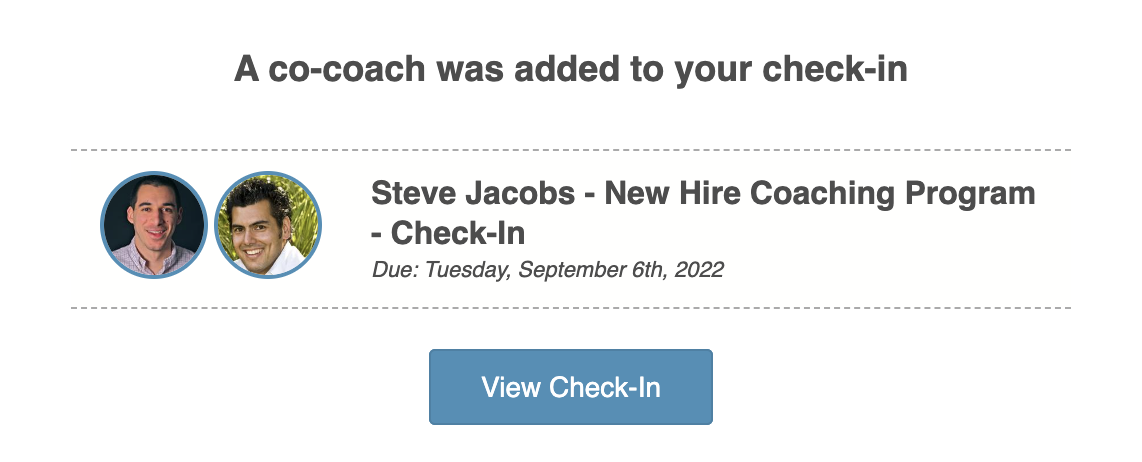
Co-Coach Added
The email will contain:
Notification that a co-coach was added to a check-in
The date the check-in is due
Example Email
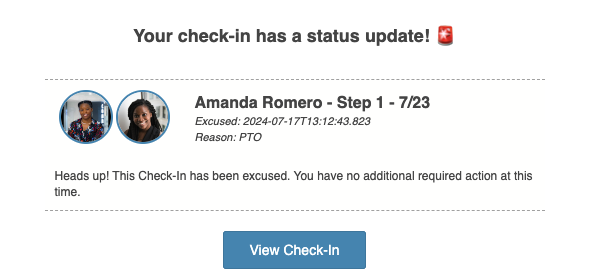
Check-In Excused
The email will contain:
Message that the check-in has been excused
The date the check-in was excused
The reason the manager provided for excusing the check-in
Example Email
Check-In Extended
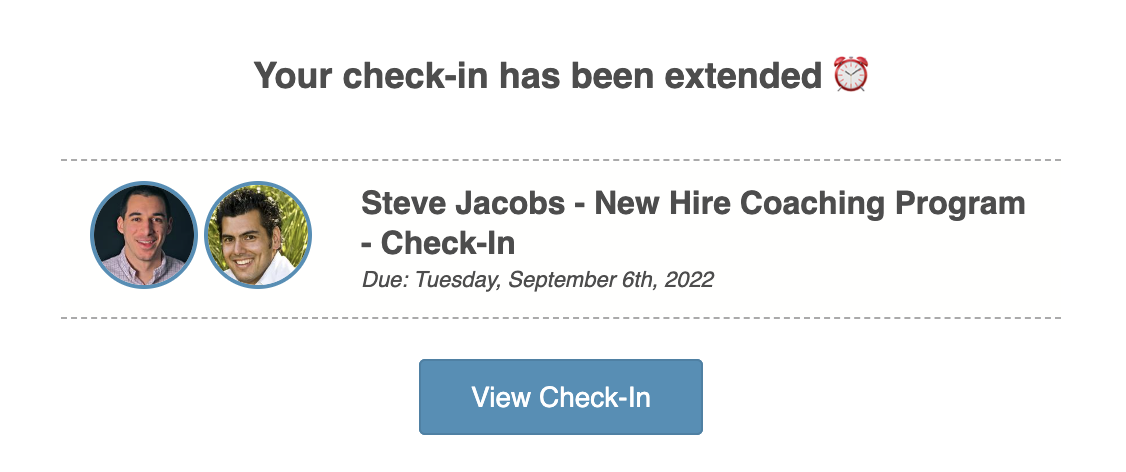
The email will contain:
Message that the check-in has been extended
New check-in due date
Example Email
Check-In Reminder
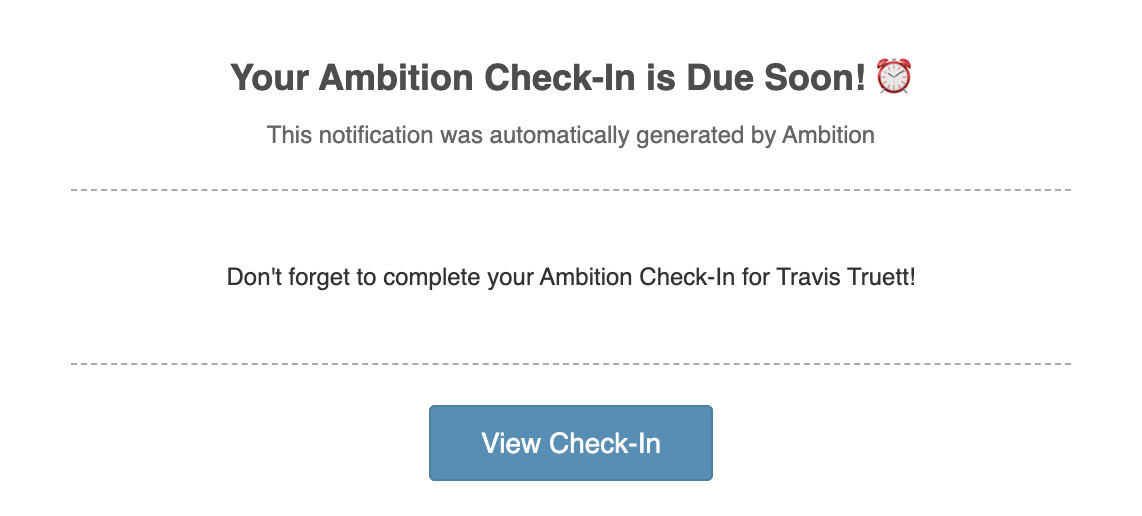
If a check-in has not been submitted for the manager to review and it is due in ~60 minutes, or if the manager uses the manual "Remind" option to remind the employee to complete their check-in, the email will contain:
Reminder message that includes the name of the manager who is conducting the check-in
Example Email
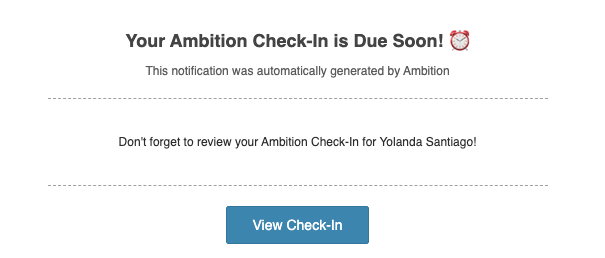
If an employee uses the manual "Remind" option to remind the manager to review their check-in, the email will contain:
Reminder message that includes the name of the employee who has completed the check-in and is awaiting manager approval
Example Email
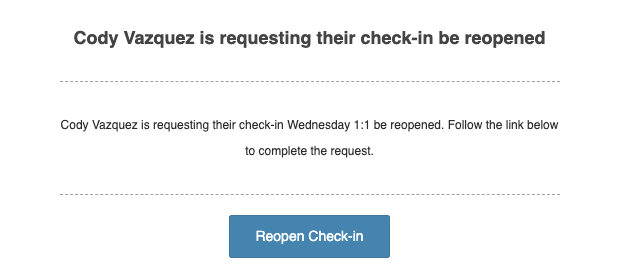
Check-In Reopen Request
The email will contain:
Message that an employee is requesting that an expired check-in be reopened
Name of the employee and the title of the check-in
Example Email
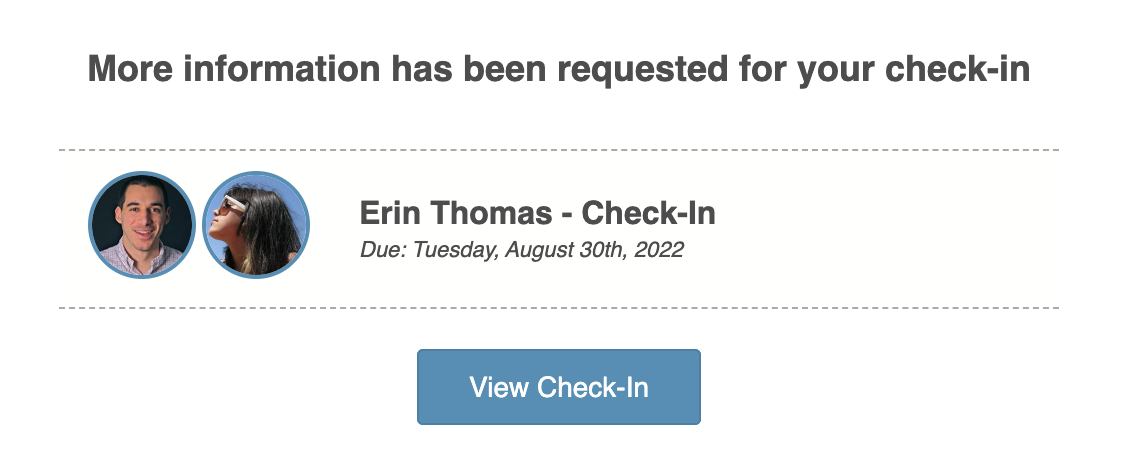
Check-In Reopened - More Information Has Been Requested
The email will contain:
Message that more information has been requested
Title of the check-in or name of the coaching program as applicable
Example Email
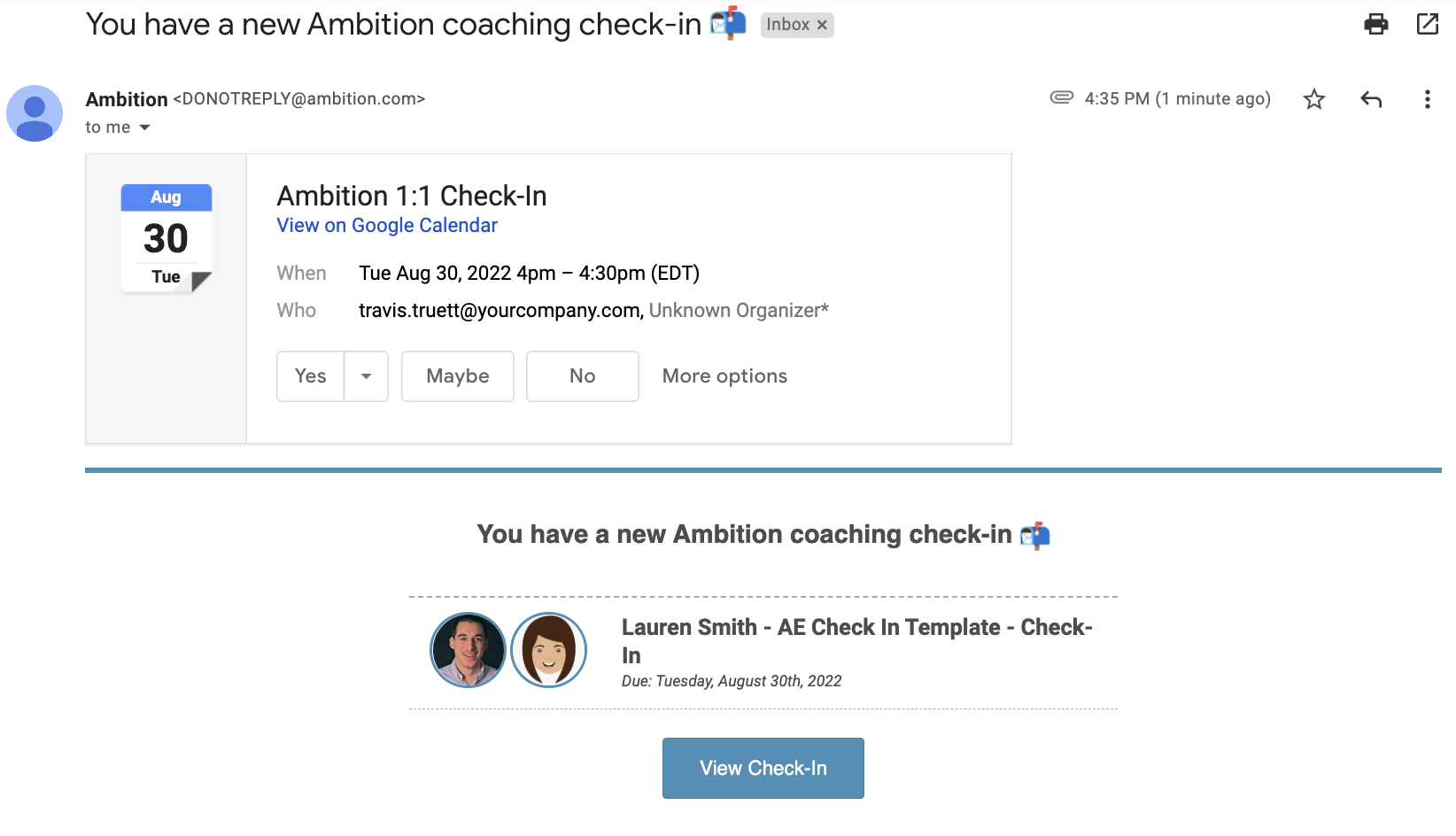
Check-In Started
The email will contain:
The date the check-in is due
If "Scheduled for Later", email will include a calendar invite (exact format will depend on email client)
Example Email
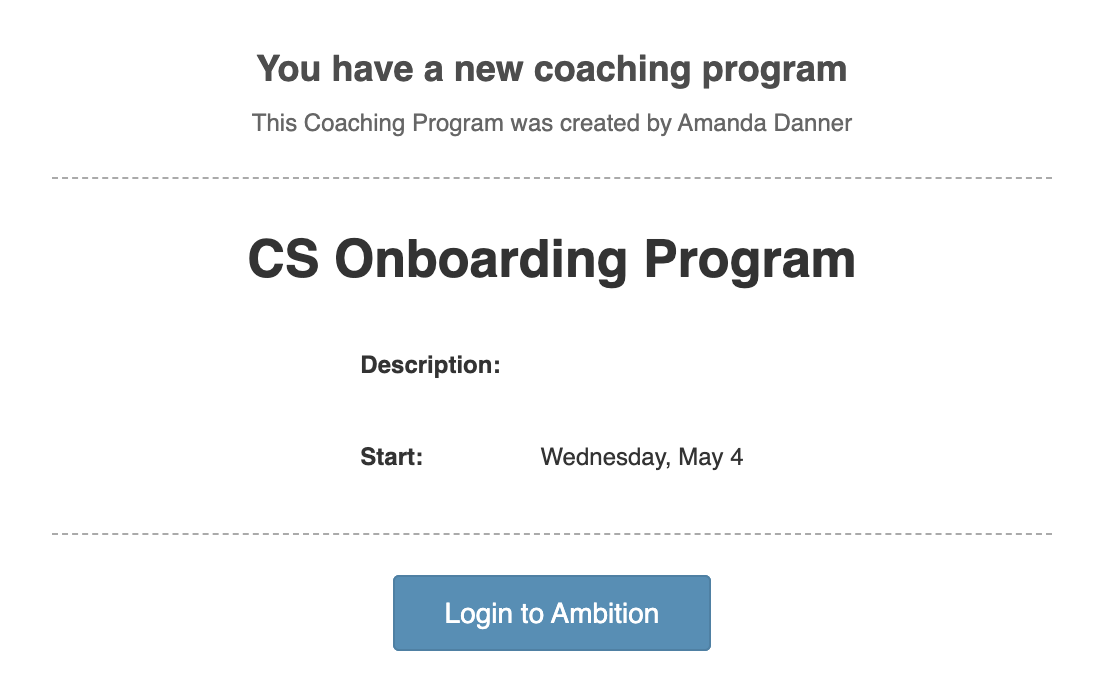
Program Created
The email will contain:
The name of the manager who is conducting the program
Coaching program name
Description, if applicable
Start date of the program
Example Email
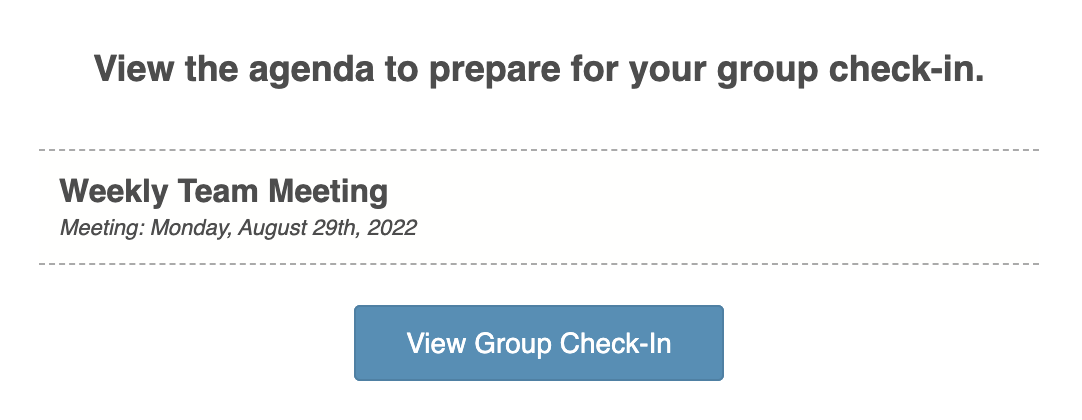
Group Check-In Opened
The email will contain:
Name of the group check-in
Date of the group check-in
Example Email
Group Check-In Scheduled
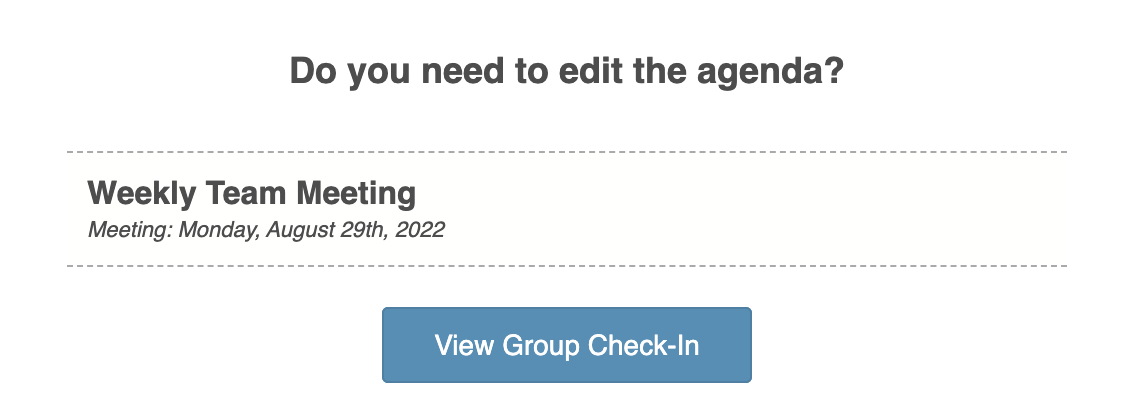
The email will contain:
Prompt to managers and co-coaches to edit the agenda if needed
Name of the group check-in
Date of the group check-in
Example Email
Comment has been left in a Check-In
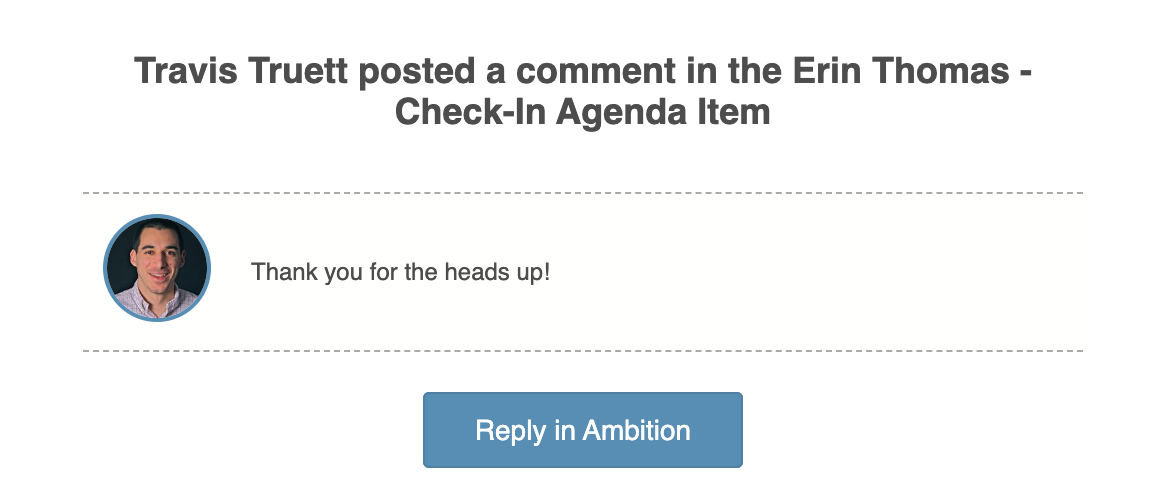
The email will contain:
The user's name who left the comment
Content of comment left
Example Email
Shared Note Email Content and Example
Shared Note
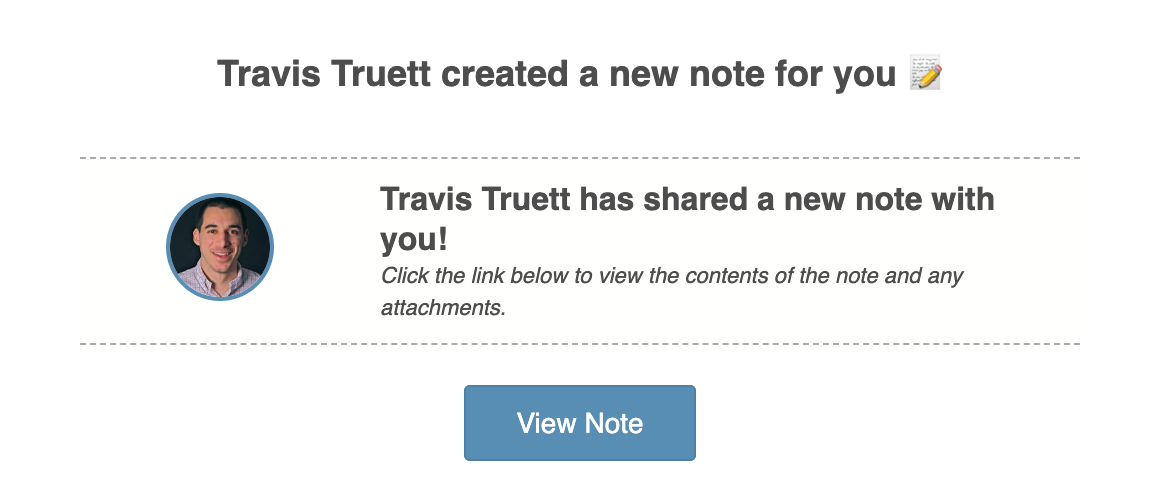
The email for notes will be the same regardless of whether the note originally created as a shared note OR a previously private note has been re-saved as a shared note.
The email will contain:
The note creator's name
Example Email