How do I access and use histogram reporting?
Last updated: June 18, 2025
Histogram Report
Histogram Overview
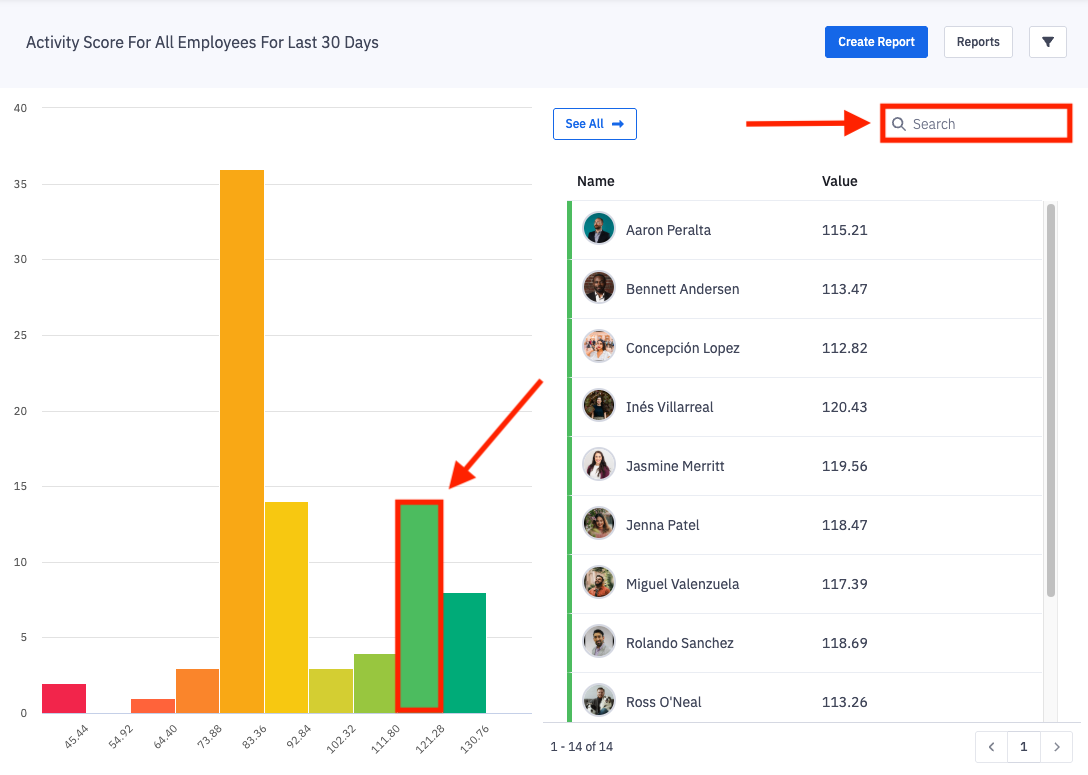
Histogram reporting is a data visualization mode that lets you view the distribution of data across any level of the organization.
Quickly view who your top, middle, or low performers are for any metric, so that you can further engage, motivate, and inspire your team to achieve their goals.
Access Histogram Reporting
Users with the permission "Analytics Reporting: View" will be able to view all analytics data aside from saved reports created by others that are not explicitly shared with them.
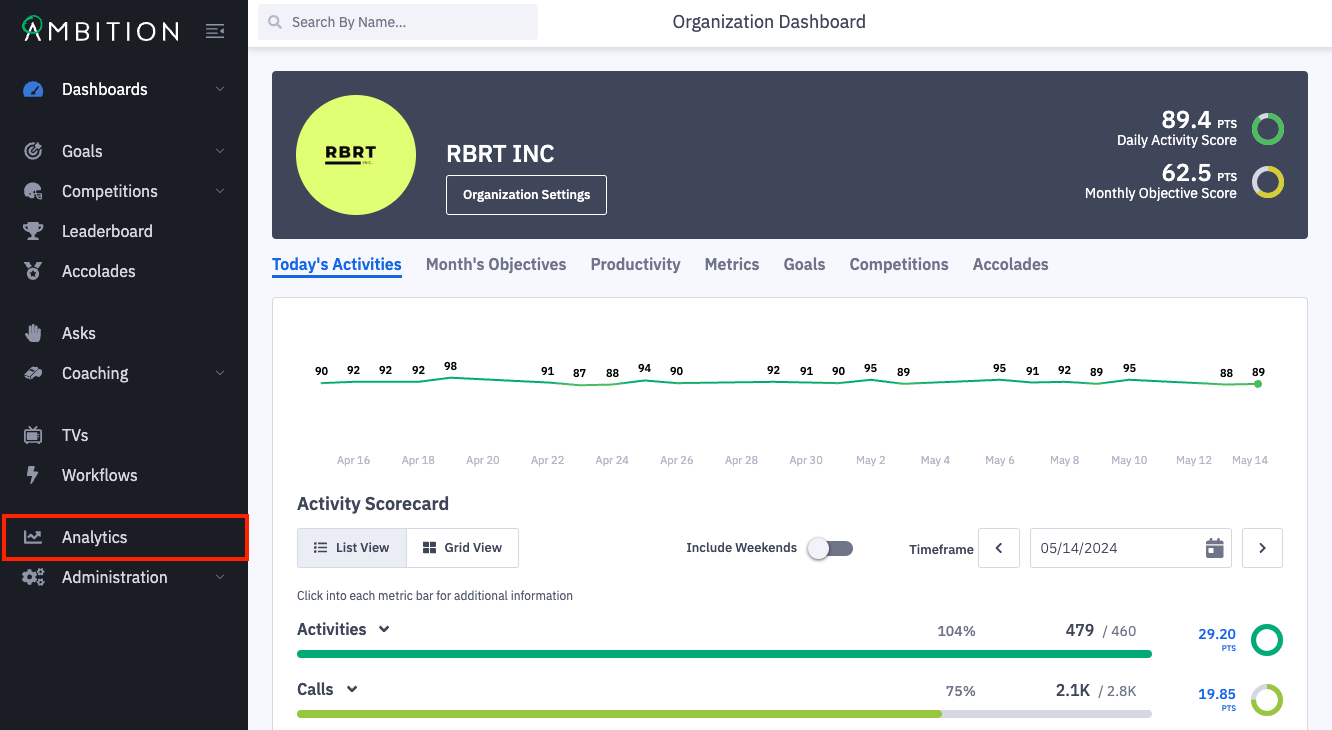
1. Click the left navigation and click Analytics.
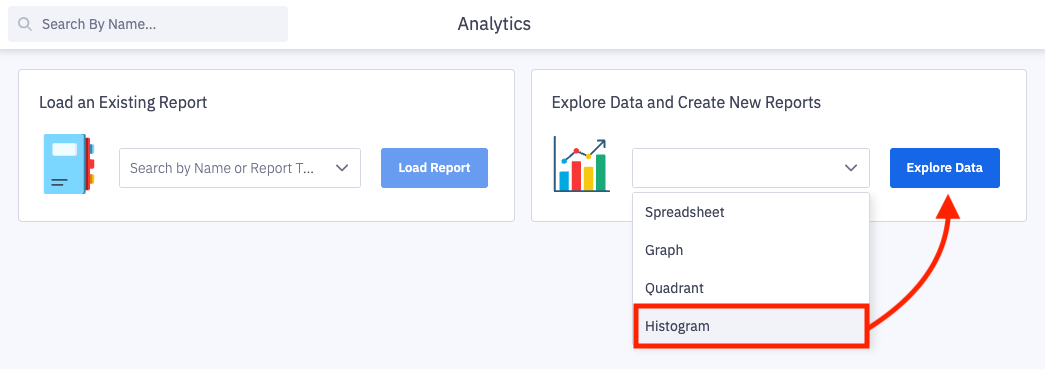
2. From the analytics' home page, you can open any previously saved reports or open a new report type.
Select Histogram from the Explore Data and Create New Reports dropdown menu and click Explore Data.
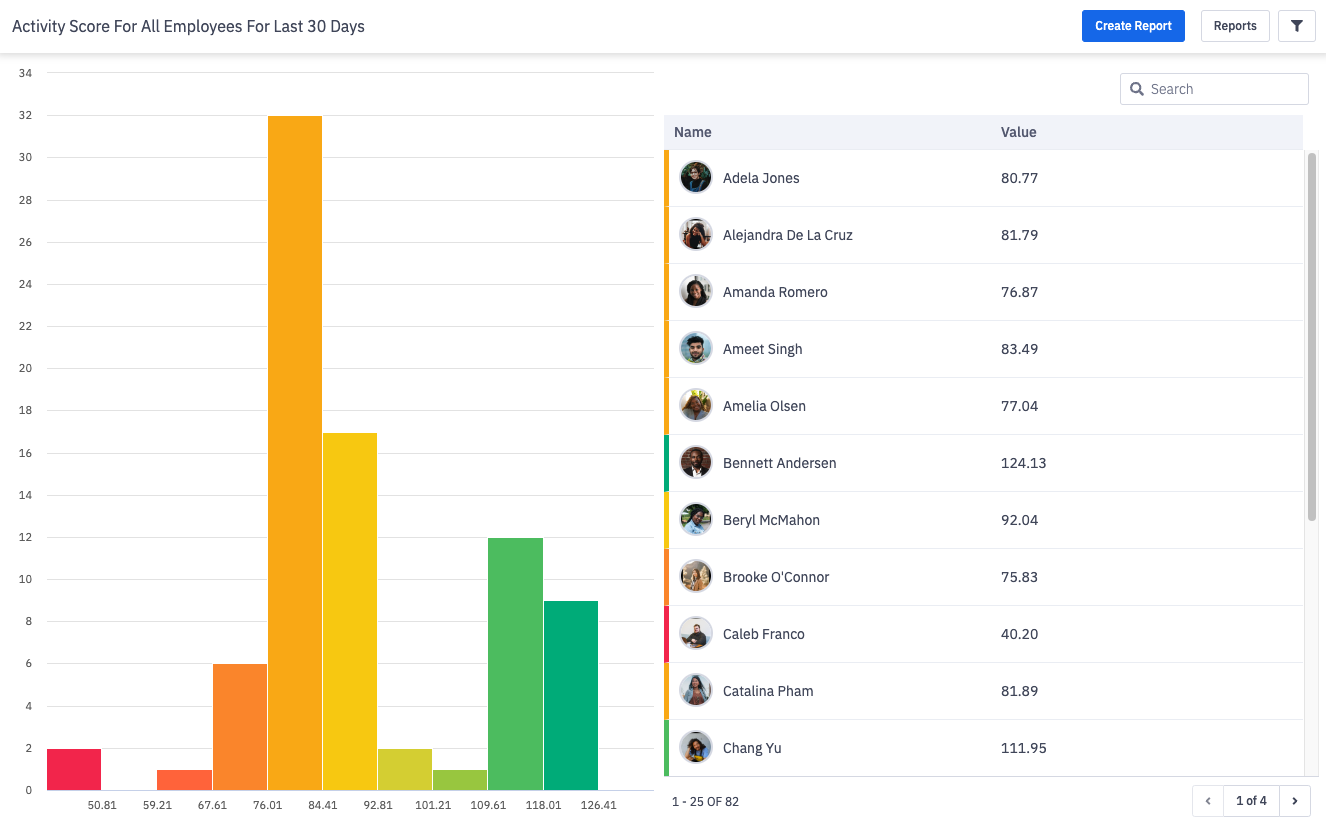
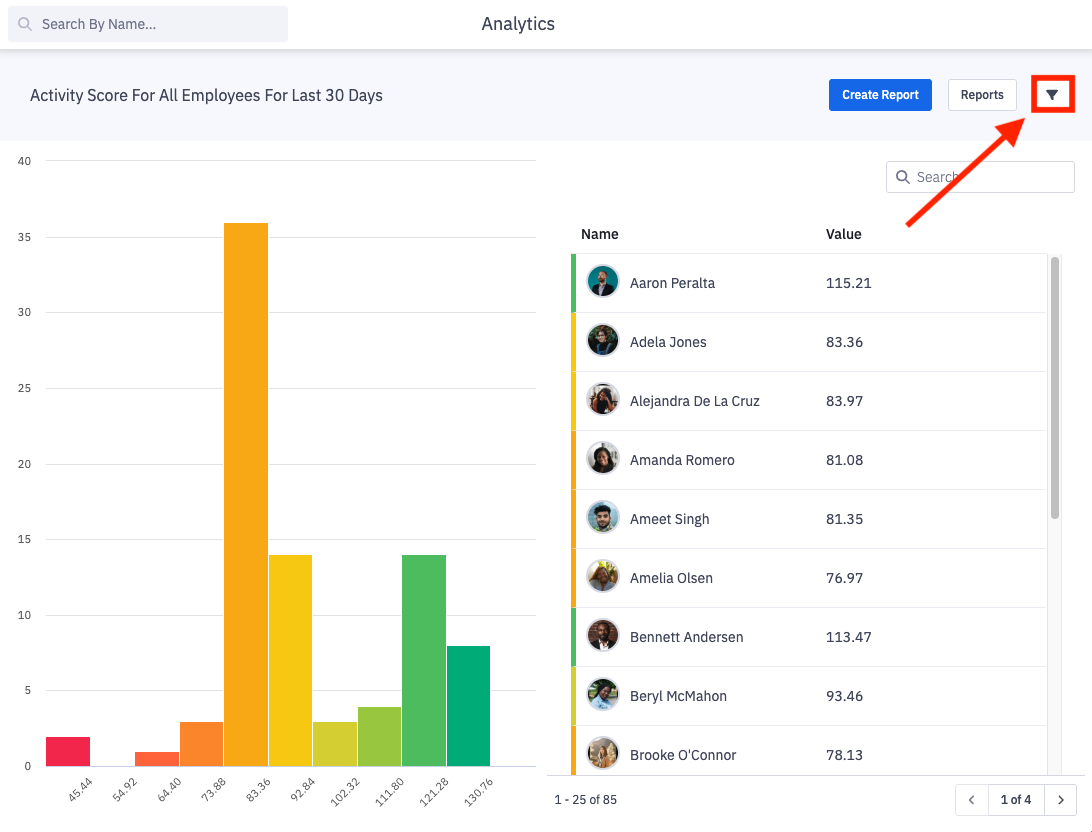
3. By default, the histogram will load activity score of employees for the last 30 days.
Click the filters icon to adjust the metric, timeframe, or hierarchy.
Timeframe
Select the Timeframe that you are wanting to view data across.
Note: UTC is used as the time standard when using Time Frame selections. To view data in your respective time zone or across several time zones, we recommend using the Custom option.
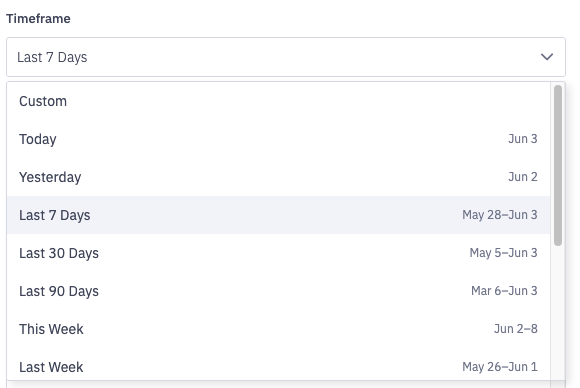
Timeframe options include:
Custom*
Today
Yesterday
Last 7 Days
Last 30 Days
Last 90 Days
This Week
Last Week
This Month
Last Month
This Quarter
Last Quarter
This Year
Last Year
*Selecting Custom -> Date Range will allow you to choose a specific date range through a calendar picker. A custom end date can be selected as well.
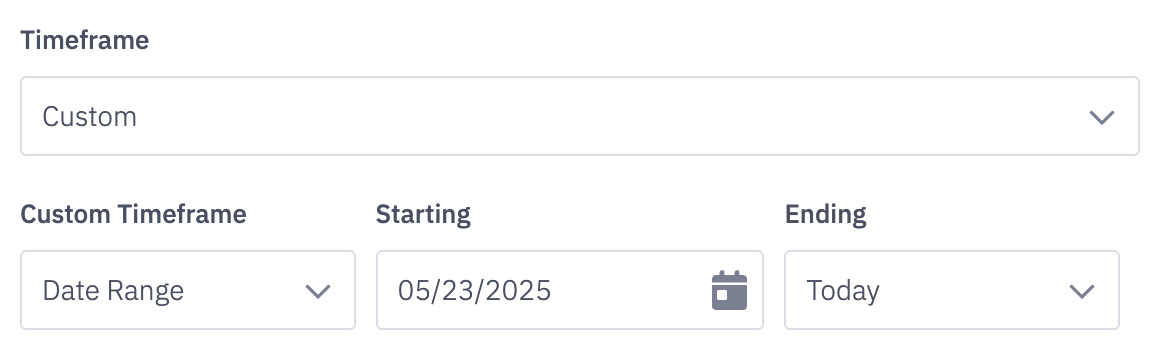
At the current time, the custom time frame option can display data for a time range of up to 3 years. ex. January 1st, 2020- January 1st, 2023.
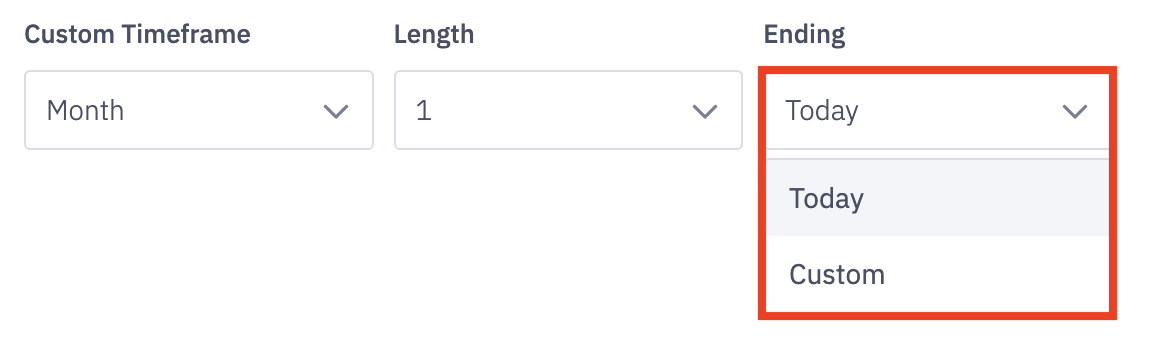
If you select "custom" as the timeframe, select the custom time frame - day, week, month, quarter, or year - and also select the length of time you'd wish to view.
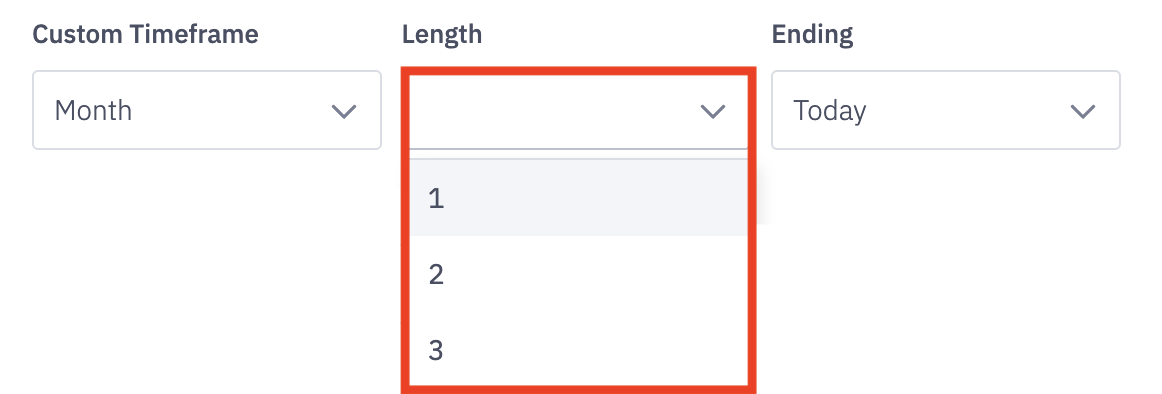
Determine the end range of your data set by selecting either today or a custom ending time.
*Selecting Custom will allow you to choose a specific end date through a calendar picker.
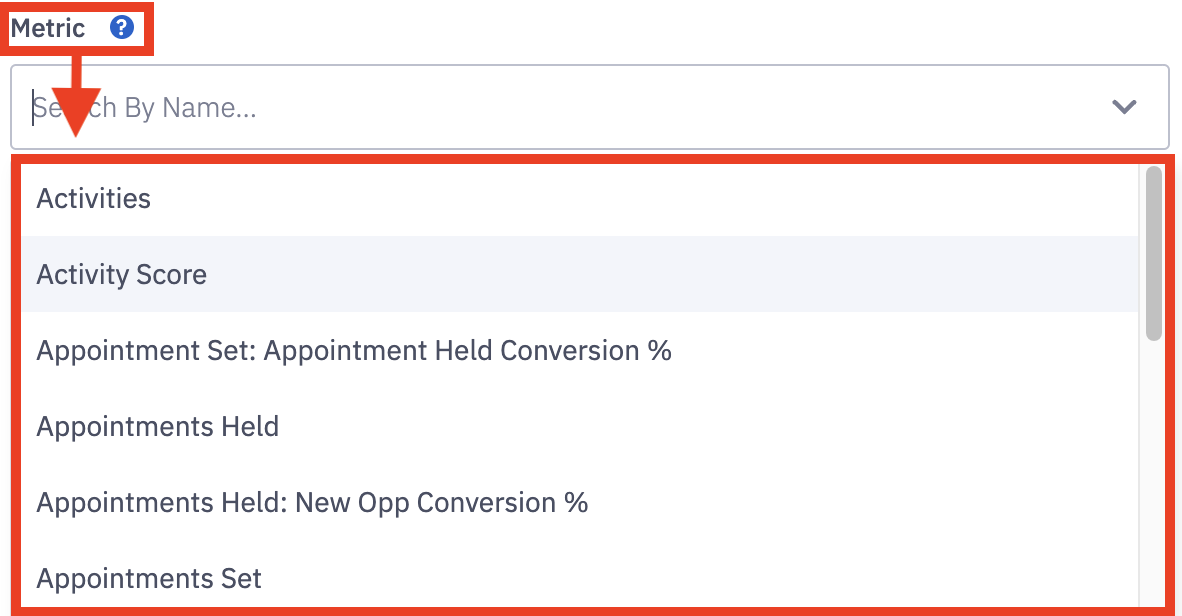
Metric
Select the Metric you wish to analyze by clicking the dropdown under Metric.
Hierarchy Level
Select the appropriate hierarchy level for the data you are looking to analyze.
Read more about Ambition hierarchy levels here.
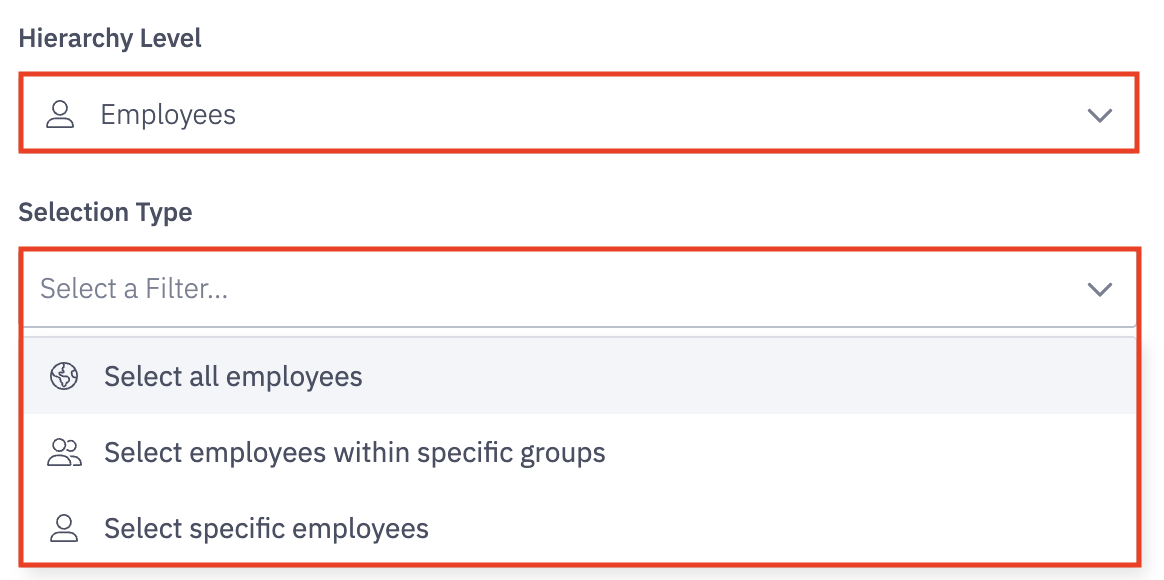
Hierarchy Level will only feature the Employee option.
Use the selection types to filter the exact employees you are desiring to view data for.
Selection Type will display options of All, Within Specific Groups, and Specific Employee.
Is this data for Employees > All? Employees > Within > BDR Role? Employees > Custom > Joe Smith?
Special Note When Using the Employee > Within > "Manager" Hierarchy Level In Cases where a Manager Manages other Managers.
If Manager A is listed as a Manager B's manager within their user settings, any of Manager B's direct reports will also be considered as users Manager A manages, or Manager A's subordinates.
Apply Filters
4. Select the Apply Filters button to update the histogram with your filter changes. Applying filters will reload your histogram report with the newly selected filters.

5. To view the top, middle, and low performers are for the selected metric:
search for team members by name
click directly into one of the vertical colored bars to view the employees's in that range