How do I upload data for a File Upload integration?
Last updated: March 17, 2026
Upload File Upload Data
Uploading data involves manually uploading a file within the Ambition interface.
Important to Note
There is a 10MB file size limit.
Either CSV or JSON formatted files can be uploaded, but a single integration cannot receive both formats.
CVS file must be a flat file with headers
JSON must either be flat (unnested) before transmission or flattened with the JSON Transformer within an Ambition File Upload integration.
The file must contain the CSV headers or JSON keys that are included in the Data Format.
All data in Ambition must be attributable to a user. If your data exists at a team or organizational level, it must be broken down into user level metrics.
Upload File Upload Data
Users with the "Integrations: Edit" permission will be able to access the Integrations tab and create, edit, and delete all metrics.
1. Login to your Ambition instance.
2. Open the left navigation and click Administration > Data > Integrations.
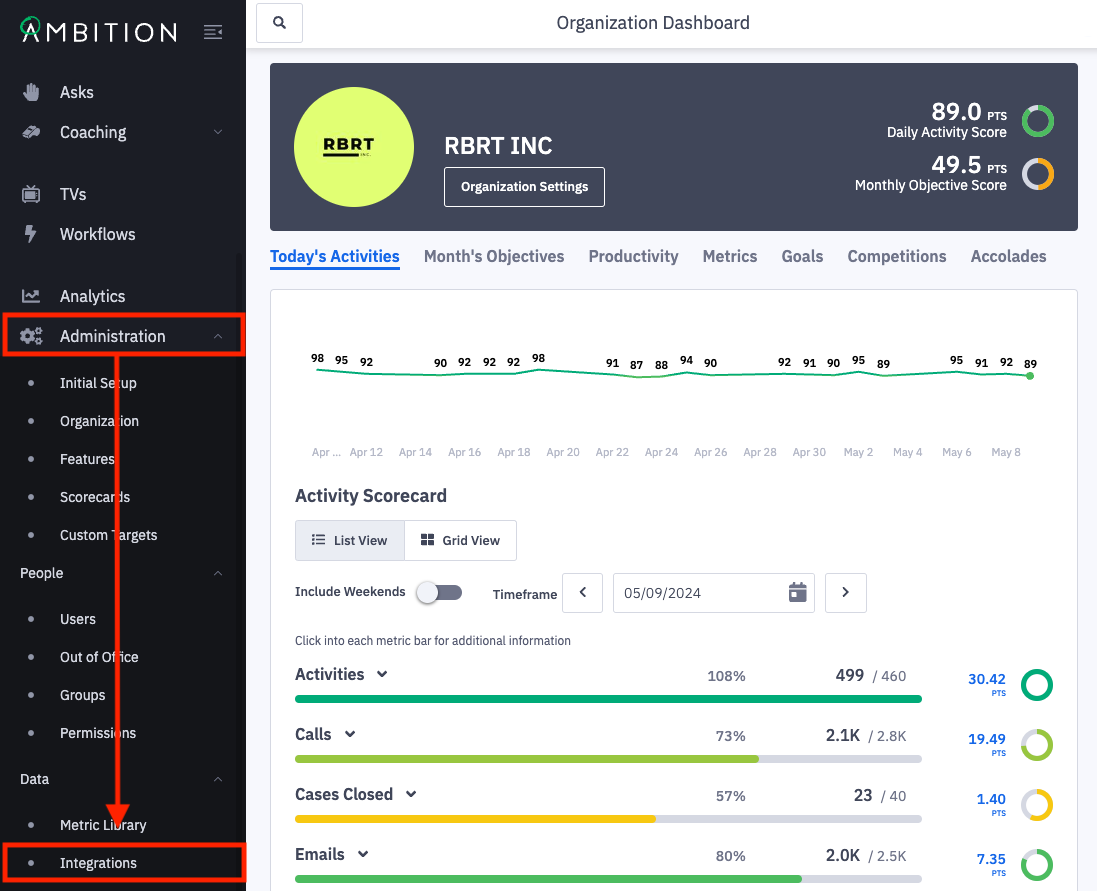
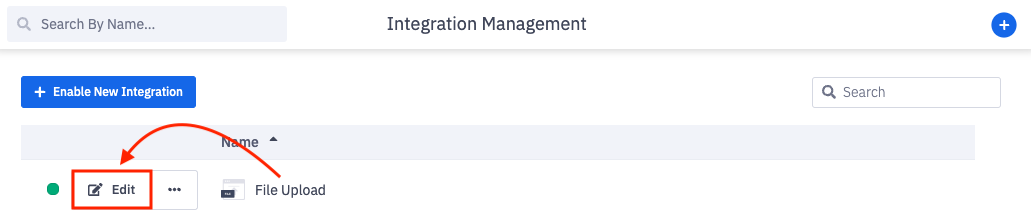
3. Click Edit in line with the appropriate File Upload integration.
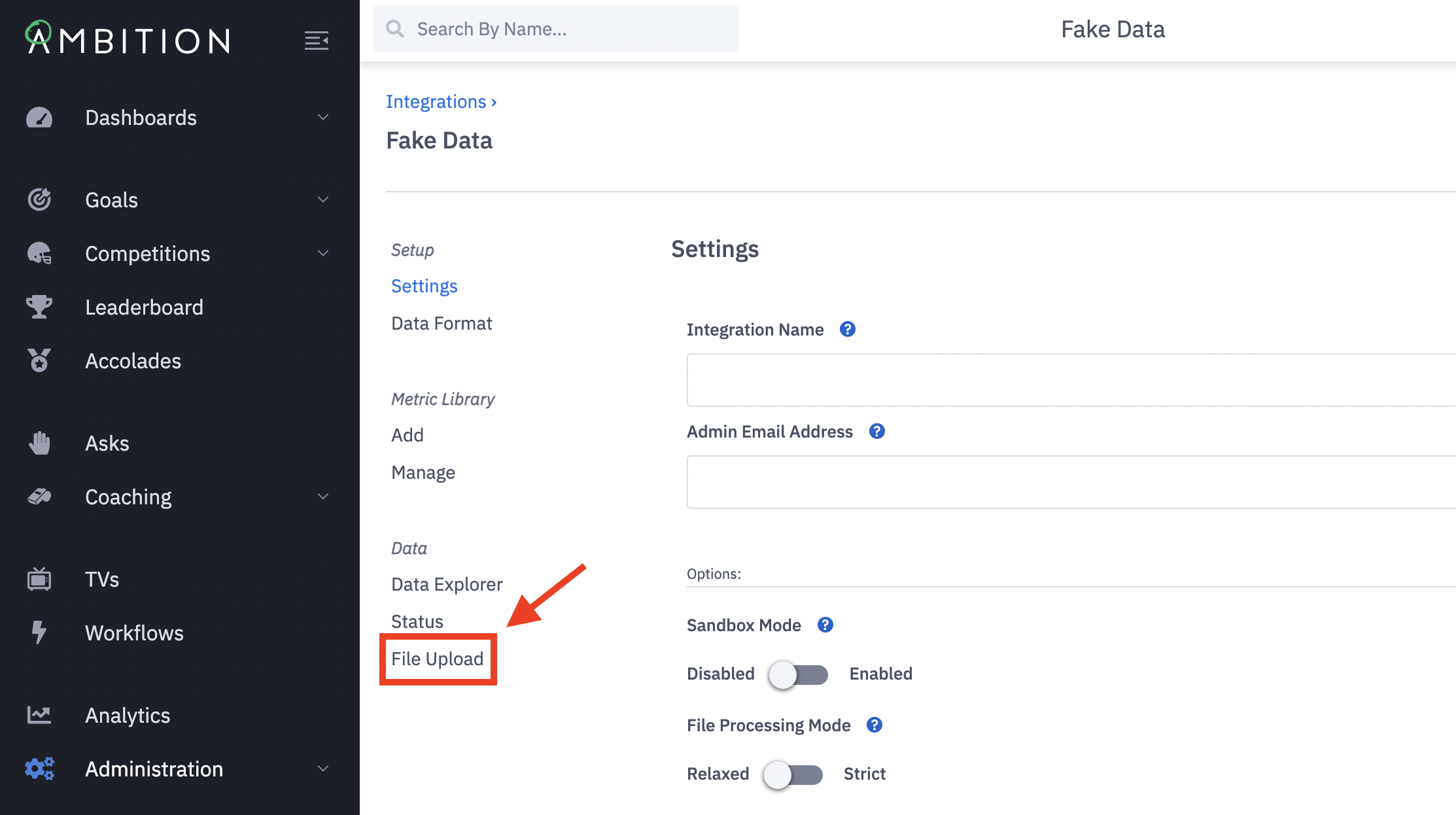
4. Click on File Upload.
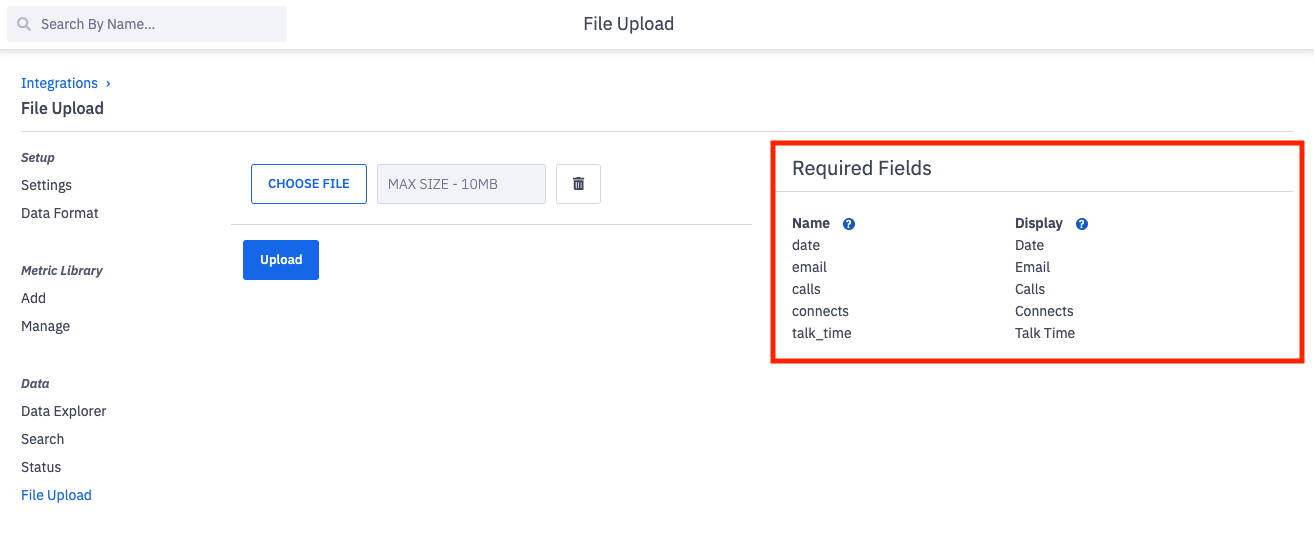
5. Ensure that the .csv OR .json file about to be uploaded contains all the Required Fields found under the Name column. Ensure the file matches the exact case sensitivity and spelling seen under the Name column.
It's important to note that either CSV or JSON formatted files can be uploaded, but a single integration cannot receive both formats.
Click on Data Format if you need to verify the integration's file format.
6. Click the Choose File button. Select the CSV or JSON file to be uploaded.
Verify seeing the correct file name chosen to be uploaded, and click the Upload button to upload your file to Ambition.

Seeing records successfully received by Ambition, but no records generated? Ensure that metrics have been created within the integration.
File Upload Examples
Example Daily Totals File Format
*Field keys required for upload can be found by clicking the "Data Format" tab from within File Upload integration.
date | metric_name1* | metric_name2* | |
joey@freshwater.com | 2023-06-01 | 23 | 32 |
agnes@goodman.com | 2023-06-01 | 11 | 84 |
Example Daily Totals File Format
Uploading Multiple Days for One Account
*Field keys required for upload can be found by clicking the "Data Format" tab from within File Upload integration.
date | metric_name1* | metric_name2* | |
joey@freshwater.com | 2023-06-01 | 12 | 2 |
joey@freshwater.com | 2023-06-02 | 1 | 3 |
joey@freshwater.com | 2023-06-03 | 33 | 9 |
Example Records Based File Format
date | record_id | type | status | appointment_date | |
joey@freshwater.com | 2023-06-01 8:23:11 | abc123 | appointment | completed | 2023-06-01 12:30:00 |
agnes@goodman.com | 2023-06-01 8:25:30 | abc456 | call | completed |
|