How do I add users via CSV upload?
Last updated: May 13, 2026
The Upload Users method lets you create or update multiple Ambition user records at once using a CSV file. Use this when onboarding a new team, migrating users from another system, or making bulk updates to existing user data.
This action requires the "User: Create" permission.
1. Choosing Your Creation Method
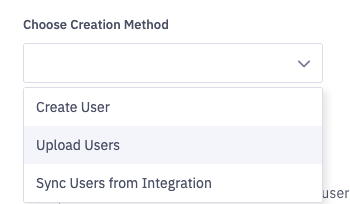
On the User Management page, click the Choose Creation Method dropdown and select Upload Users to open the upload form.
2. Upload Your CSV File
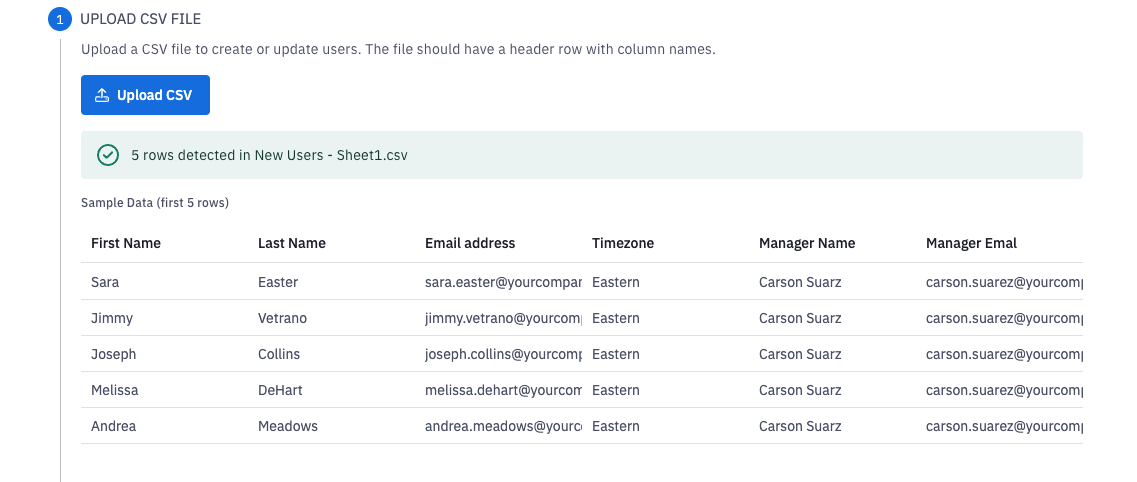
Click Upload CSV to select your file.
File Requirements
Your file must meet the following requirements to complete the user creation process:
Format:
.csv(comma-separated values)The first row must be a header row with column names
Each subsequent row represents one user
UTF-8 encoding is recommended to avoid character display issues with special characters in names
Column Requirements
Column | Required? | Notes |
|---|---|---|
| Yes | User's first name |
| Yes | User's last name |
| Yes | Work email — used as the login and unique identifier |
| Recommended | Use standard timezone strings (e.g., |
| Recommended | Email address of the user's manager in Ambition. The manager must already exist as a user. |
| Optional | Office or region name |
| Optional | Must match an existing Role name exactly |
| Optional | Must match an existing Group name exactly |
Any custom attributes | Optional | Use the attribute's internal Name (not Display Name) as the column header |
File Prep Mistakes To Avoid
Tips for formatting your CSV well.
Extra spaces in column headers:
first_name(with a trailing space) will not map correctly.Inconsistent role or group names:
Account Executivevs.Account Executivesare treated as different values. Check exact names in Ambition before building your file.Missing email addresses: Email is the unique identifier. Rows without an email will be skipped.
Duplicate emails in the file: If the same email appears twice, only the first row will process.
Manager not yet in Ambition: If you reference a manager email that doesn't exist as a user, that field will be ignored for that row. Upload managers before direct reports.
3. Map Columns
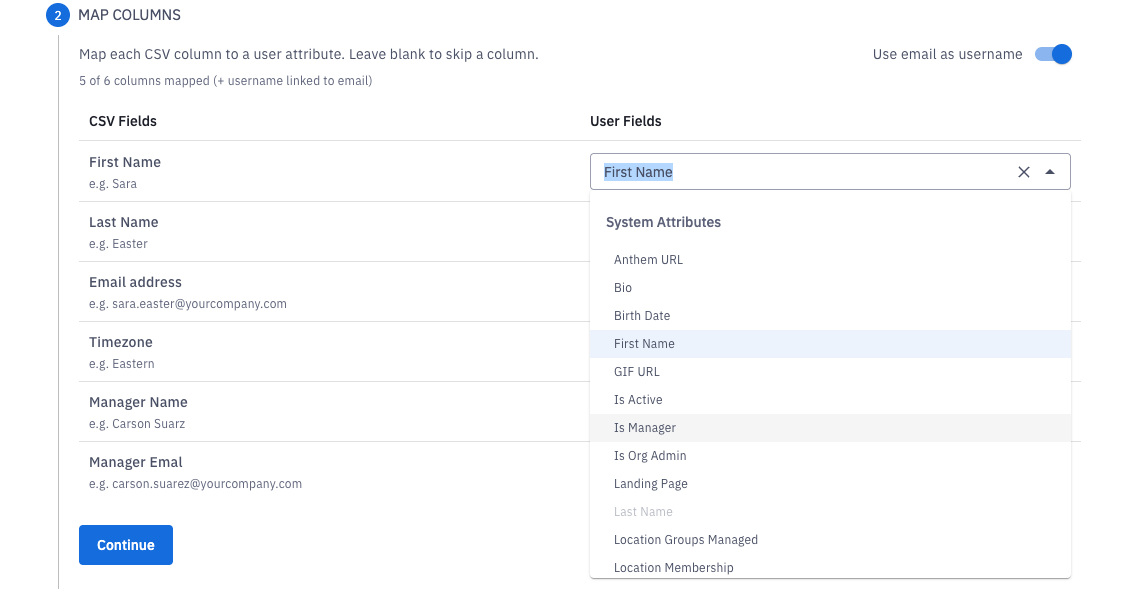
Once your file is uploaded, Ambition will parse the header row and present a column mapping interface. This step lets you tell Ambition which column in your CSV corresponds to which field in the platform.
4. Confirm and Upload
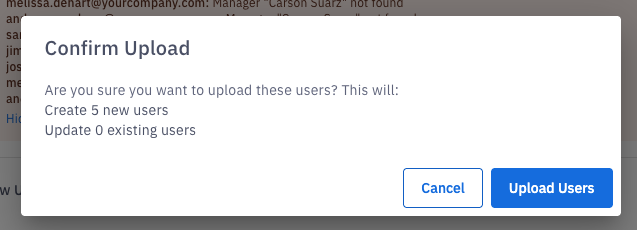
Before finalizing, Ambition will display a summary of what will be created and updated, including row counts, any rows flagged for errors, and a preview of the changes.
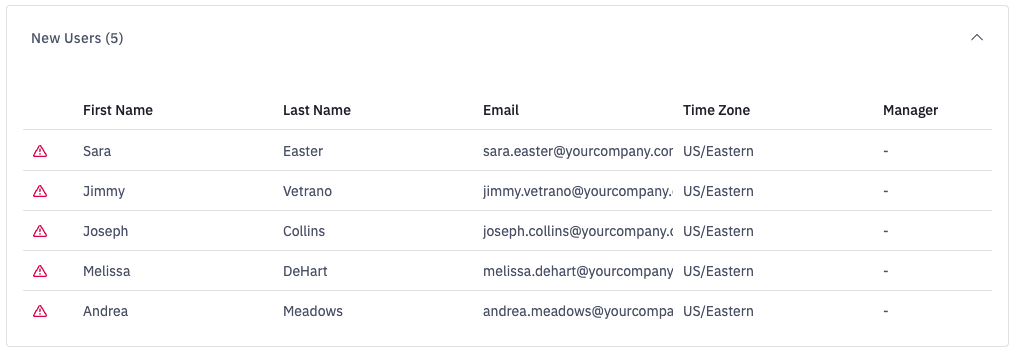
Review the screen carefully. Be sure you check for:
Created: Net-new users that will be added to your account.
Updated: Existing users whose records will be modified.
Errors / Skipped: Rows that couldn't be processed, with a reason. Fix these in your source file and re-upload if needed.
Once you're satisfied with the preview, click Upload (or equivalent confirm action) to execute the import.
CSV Upload works well when onboarding a new team, migrating users from another system, or making bulk updates to existing user data.
Consider an alternative path if you:
Are onboarding 1-2 users
Have users that already exist in Salesforce
Want new hires auto-added going forward