How do I create Formula Builder metrics?
Last updated: June 24, 2025
Formula Builder Metrics
Ambition allows you to combine two existing metrics (even coming from different systems) or combine a metric and a constant number into one metric. Formula builder metrics are helpful for measuring ratios and aggregating activity from multiple systems within Ambition.
Create Formula Builder Metrics
Users with the "Integrations: Edit" permission will be able to access the integrations tab and create, edit, and delete all metrics.
1. Open the left navigation and click Administration > Data > Integrations.
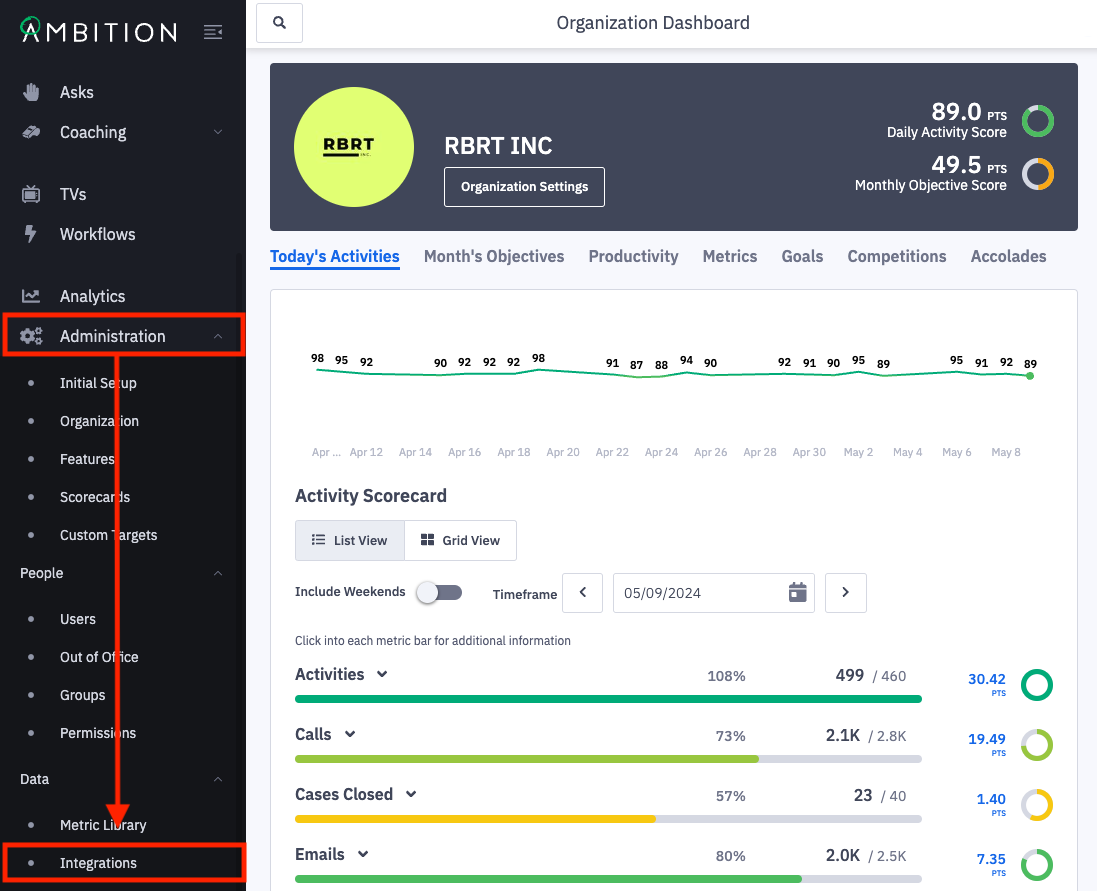
2. Click Edit in line with the Formula Builder integration.
If you do not see an active Formula Builder integration, learn how to enable here.

3. Click on Add found under Metric Library.
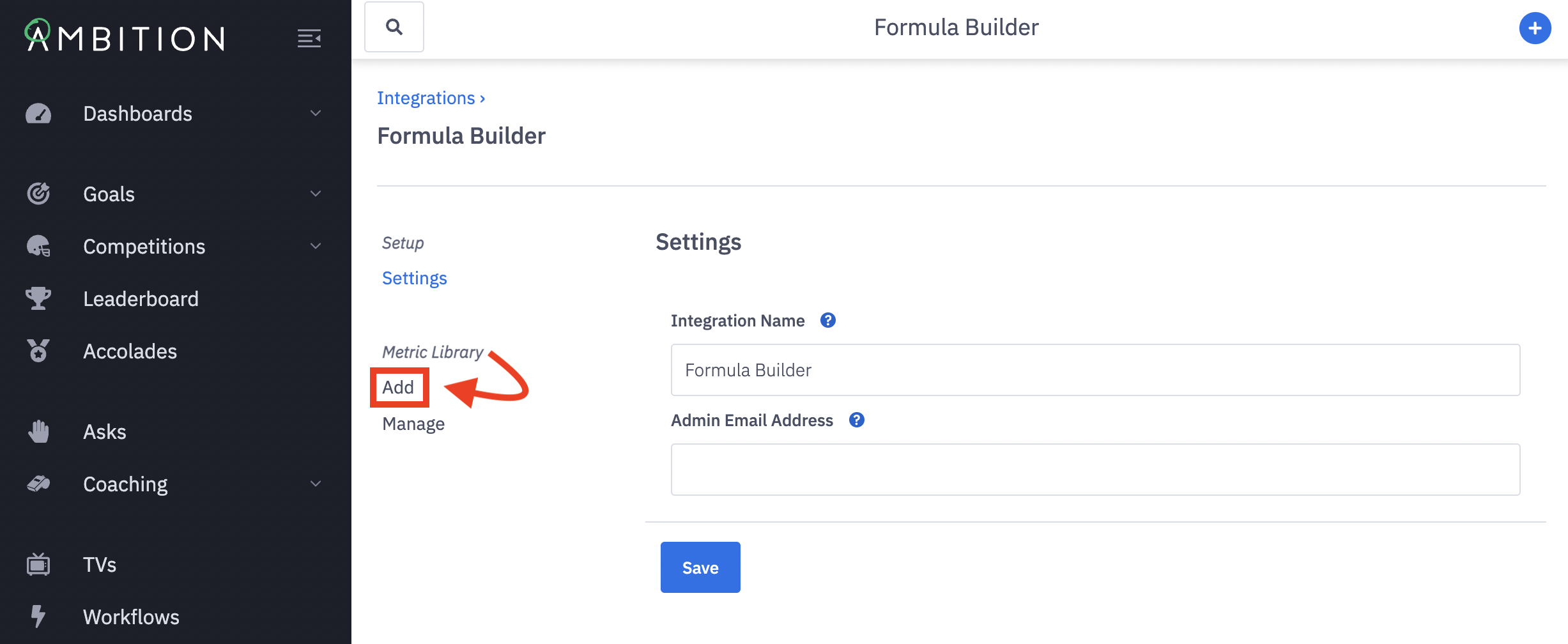
4. Complete the form by filling out the following fields:
Basics
Name:
What is this formula builder metric tracking? Visible to end user. 64 character limit.
Description:
Visible to end user and very important for formula builder metrics. Provide detail to assist in understanding the calculation.
Logic
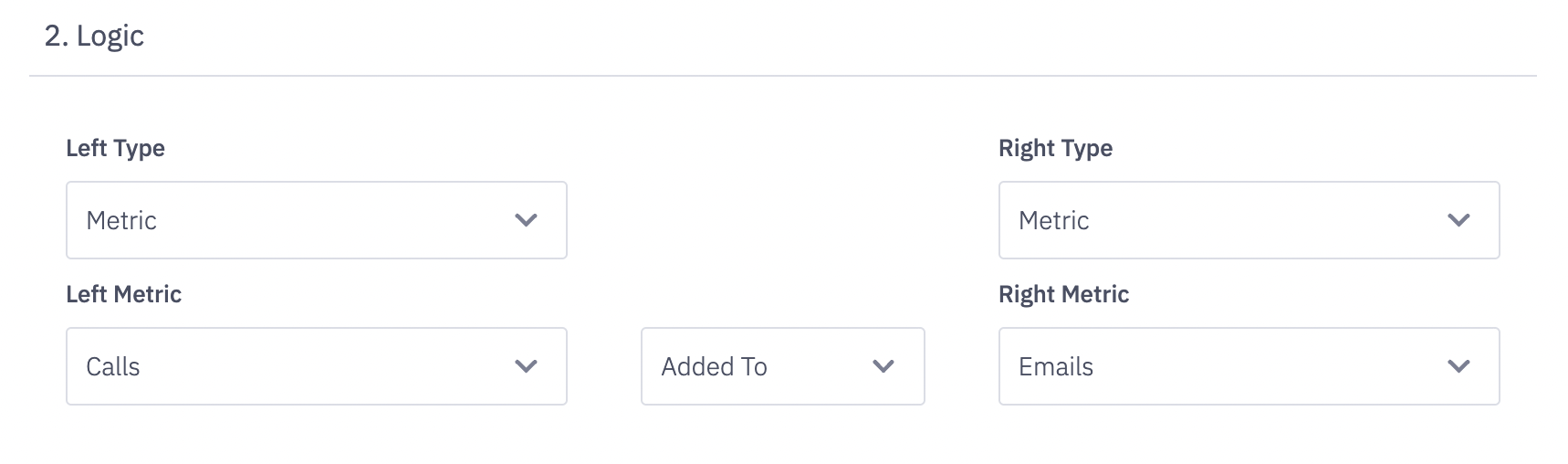
Use the Left and Right Type selectors to construct the metric calculation needed.
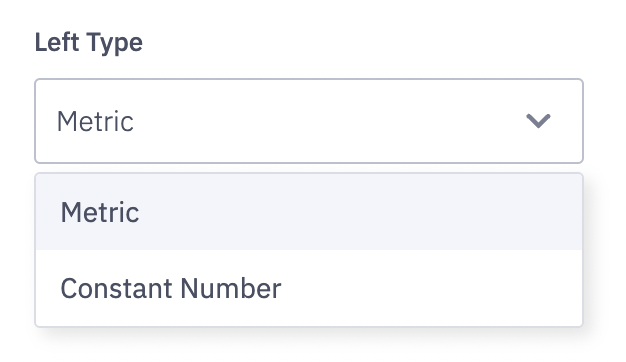
Left and Right Type:
Use the dropdown to select Metric or Constant Number.
Note: Currently Activity and Objective Score cannot be used in the Formula Builder
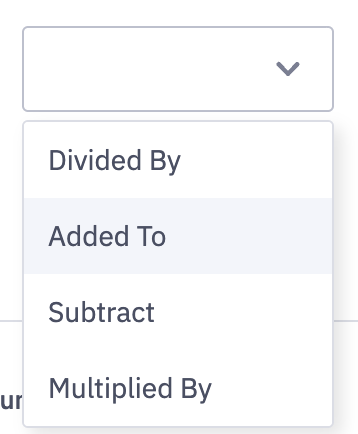
Select the basic math operator that needs to be applied.
Formatting
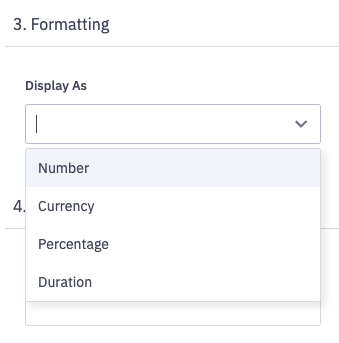
Display As:
Select how the metric should be formatted. Is this metric a number, a financial amount, a percentage, or a duration?
Currency is represented in USD with a $ by default.
Optional Modifiers

Multiplier:
Set a value that will multiply each generated value.
Ex: If you are wanting to convert a decimal value into a percentage set this to '100'
Minimum Value Threshold:
Optional, useful for preventing negative numbers. Sets a floor that the computed metric cannot fall below.
Maximum Value Threshold:
Optional, useful for preventing arbitrarily high numbers. Sets a ceiling that the computed metric cannot rise above.
5. Click the Save button.

Depending on the amount of data shared between the two metrics you are combining it might take ~15 minutes to process this new Formula Builder metric.