How do I create and use skills with the Ambition AI agent?
Last updated: July 23, 2026
Skills allow users to create plug-and-play prompts to use when chatting with the Ambition AI agent.
You can use any of the pre-loaded Skills from the Skills library, modify an existing Skill from the library, or create a Skill from scratch.
Only users with the AI: Manage permission can create Skills.
How to access the Skills tab
Go to Hub --> Skills --> + New Skill.
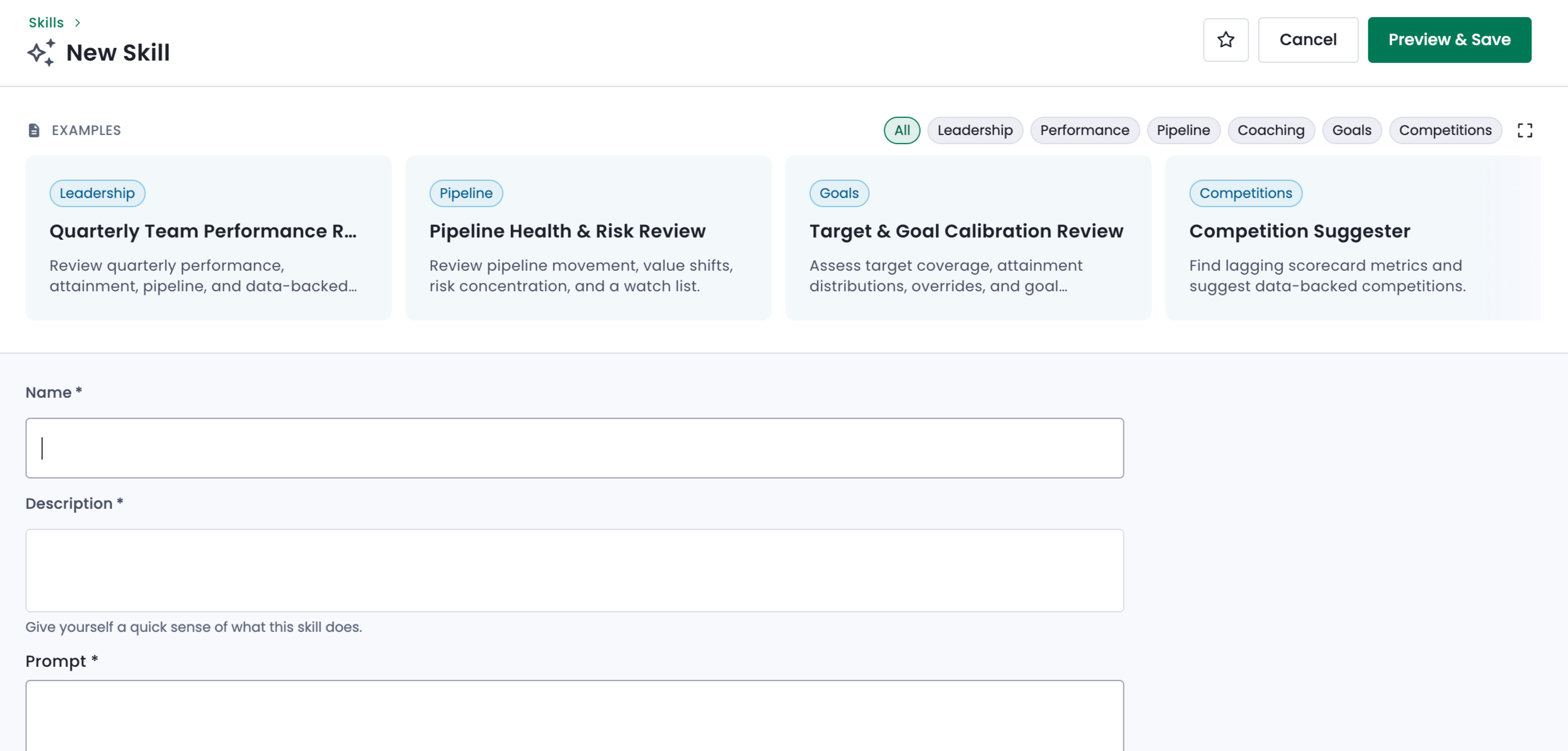
You'll then be taken to the Skills creation page. You can select a pre-loaded Skill from the example library at the top of the page and use the Skill as-is or modify it before saving it.
You can also use the Skill creation form to design a completely customized Skill from the ground up.
Skill Prompt Formatting
Best Practices
Character limit: There is no character limit for the prompt field, but keeping prompts under 500 words helps the agent return accurate replies quickly and with fewer tokens.
Bullet points and numbered lists: You're not required to enter your prompt using bullet points, numbered lists, or headers. However, using these formatting options can make it much clearer to the AI agent what the intended order of operations is. Using headers can also help the agent to better segment each set of instructions into discrete units.
Use the Add Ambition Data feature to reference specific entities: If you want the Skill to always reference a particular user, group, goal, competition, matchup, or metric, you can use the "+" symbol at the bottom of the prompt field or the "@" symbol in the prompt field body. Selected entities will appear in green hyperlinked text.
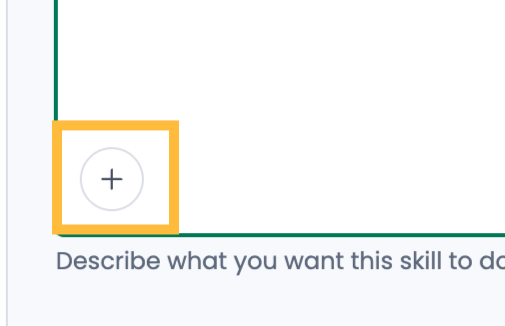
If you want the user to select the entity themselves, then you can use designate parameters in the prompt body. Parameters are discussed in the following section.
Parameters
Skill parameters are what allow users to determine which entity the AI agent should reference when answering their question.
The prompt field currently supports the following parameters:
Employee
Group
Goal
Competition
Matchup
Metric
Parameters are designated by enclosing the parameter name in curly brackets ("{}").

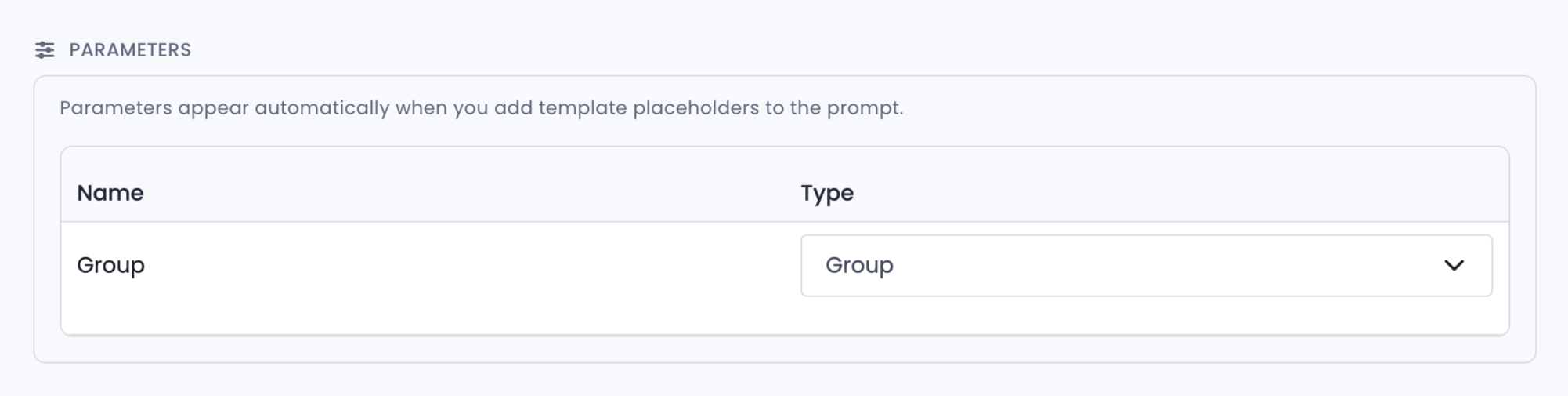
In the Parameters section, you'll then use the drop-down selector to confirm what each particular parameter corresponds to: an employee, group, goal, competition, matchup, or metric.
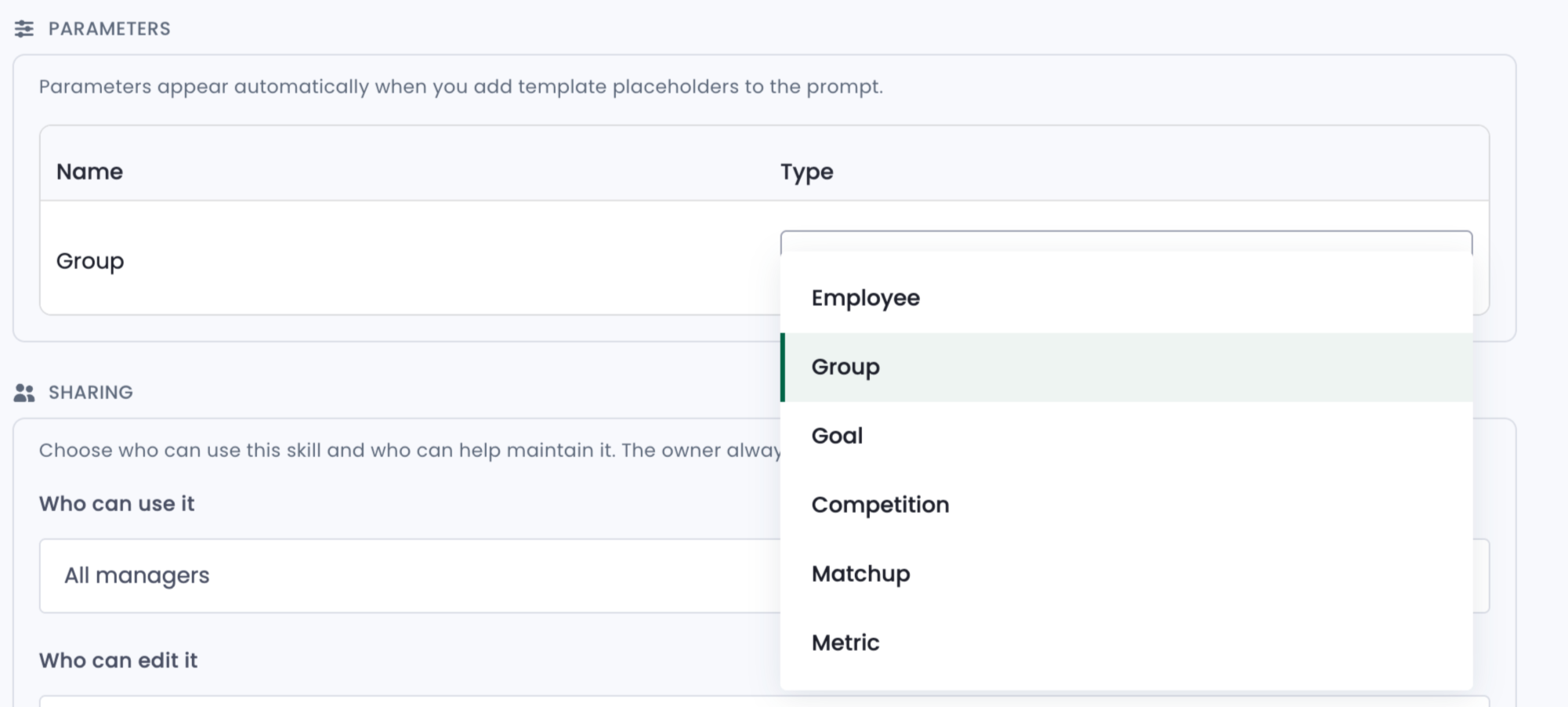
If your Skill uses parameters of multiple different types (such as metric and group), you'll see multiple drop-down menus to specify what each of those parameters refers to.
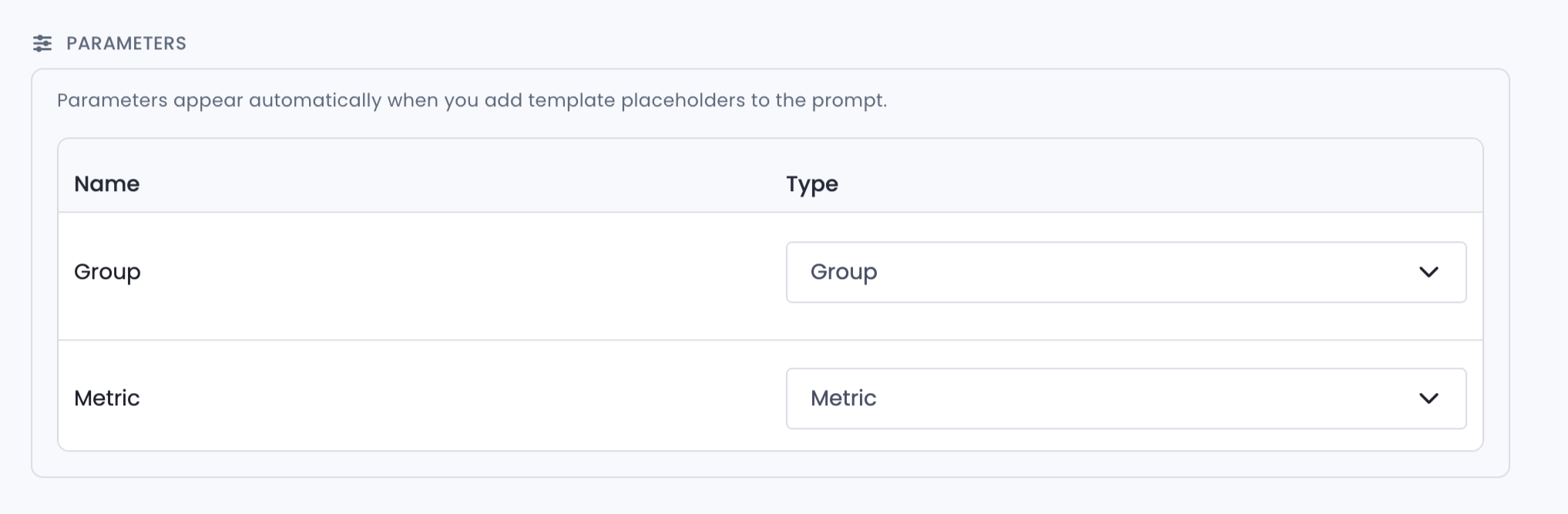
If the Skill uses multiple parameters of the same type, then you'll see only one parameter drop-down menu.
Create a Skill from the Skill library
Ambition's ever-growing Skill library offers plug-and-play prompts that you can save and use when chatting with the AI agent.
You can save and use a Skill from the example library in just a few clicks:
Access the example library at the top of the page. Each Skill is shown on a blue card.
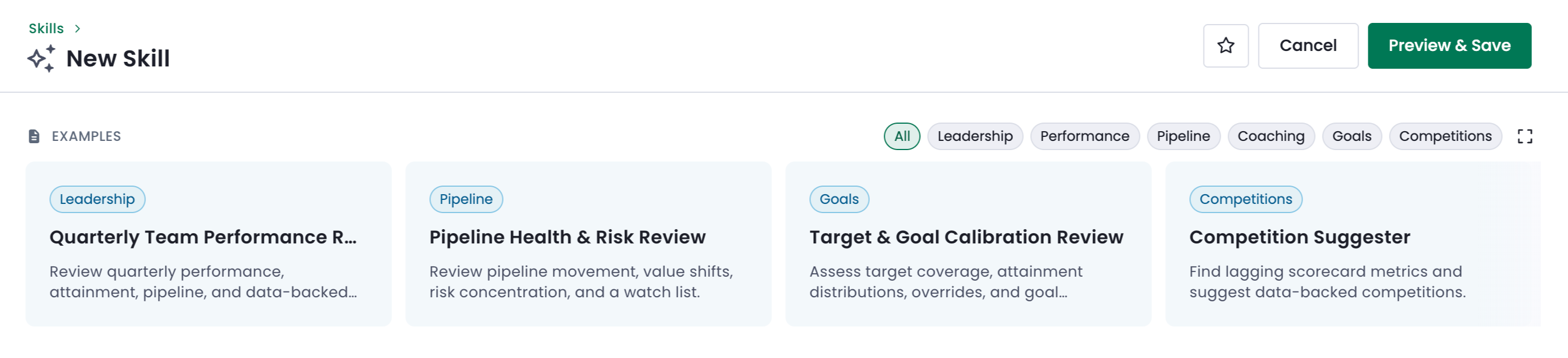
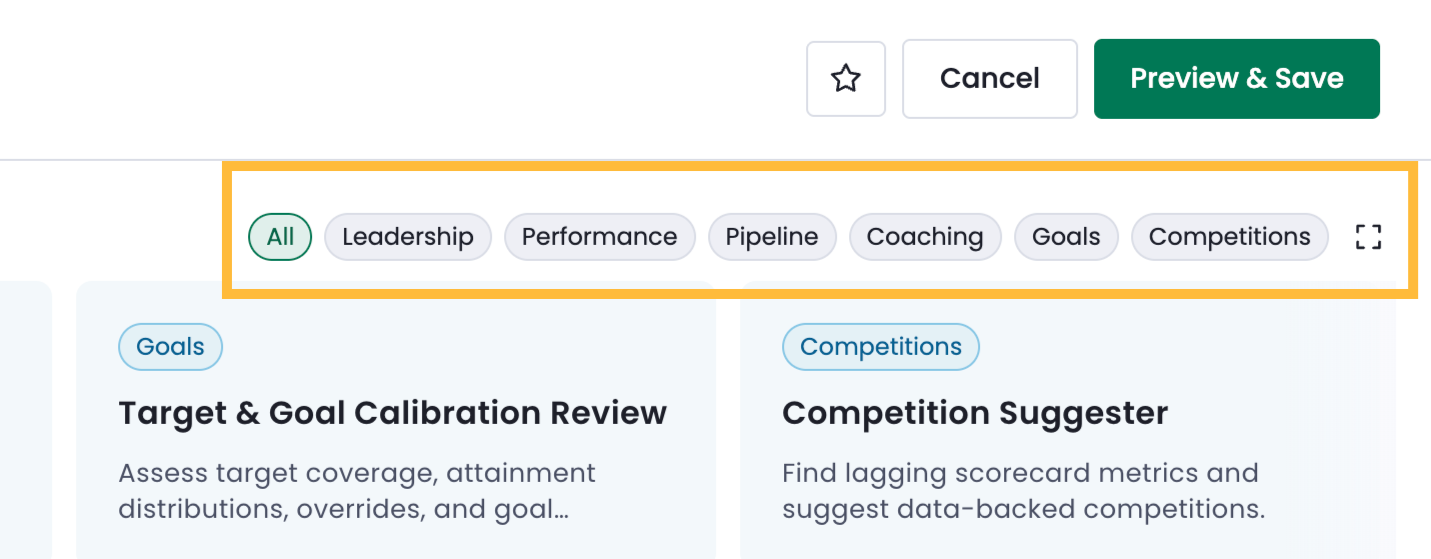
Scroll through the cards to find the Skill you would like to use, or you can use the categories to find Skills that serve a certain purpose, such as pipeline tracking or competition insights.
Click on the Skill that you would like to use. This will fill in the Skill creation form's fields with pre-loaded information.
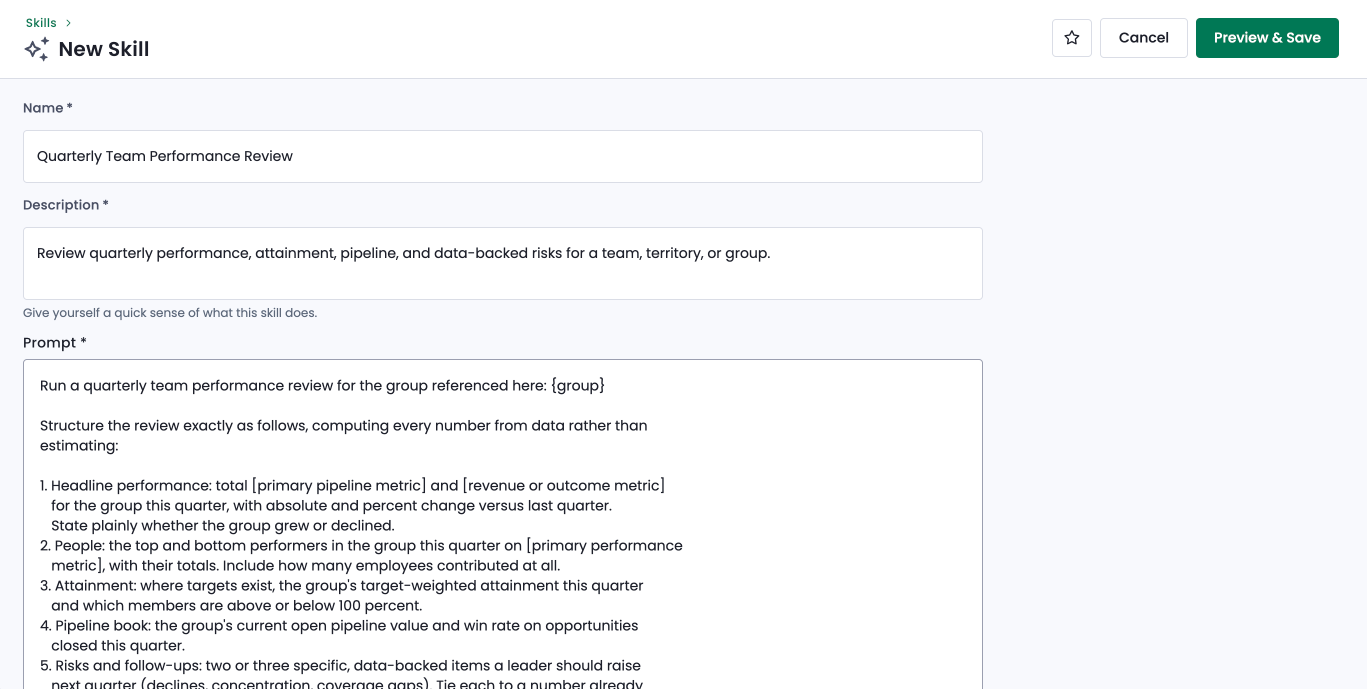
Optional: You can customize any field from a pre-loaded Skill, including the name, description, prompt, parameters, and sharing settings.
Optional: If your selected Skill has parameters, determine what those should be in the Parameters section.
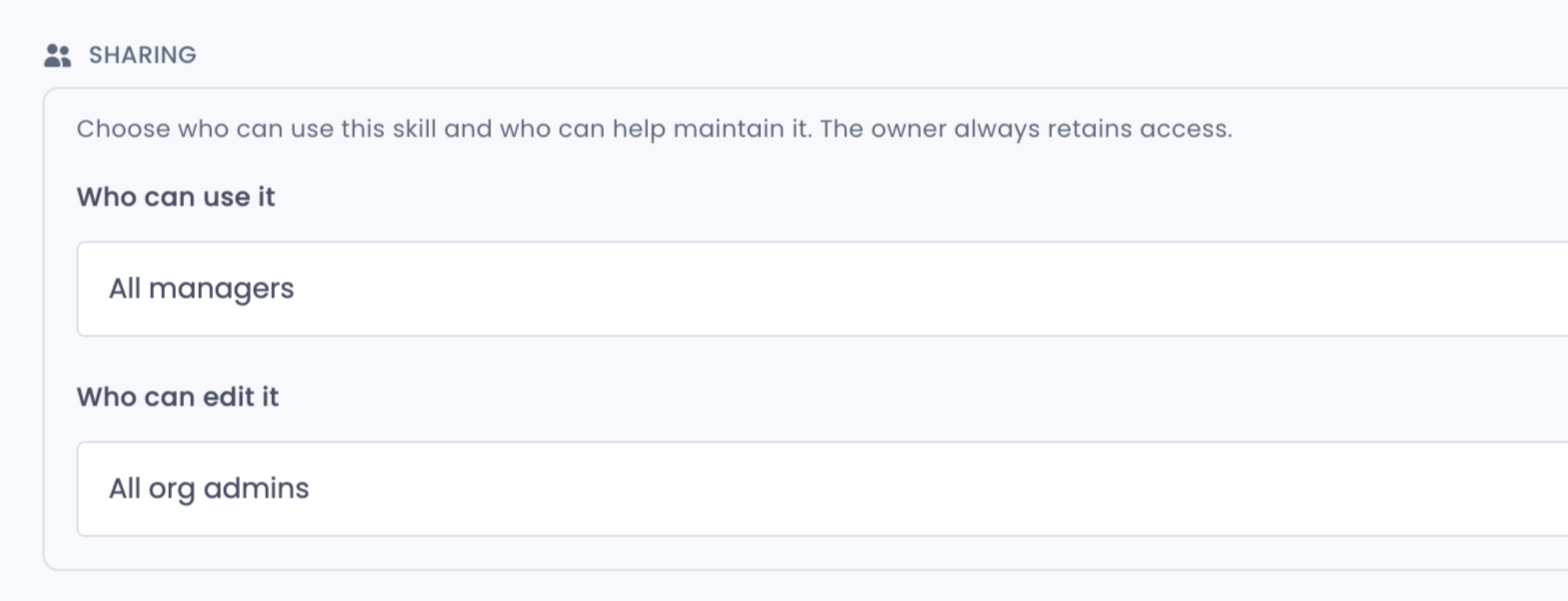
Use the Sharing drop-down menus to define who can use and edit the Skill.
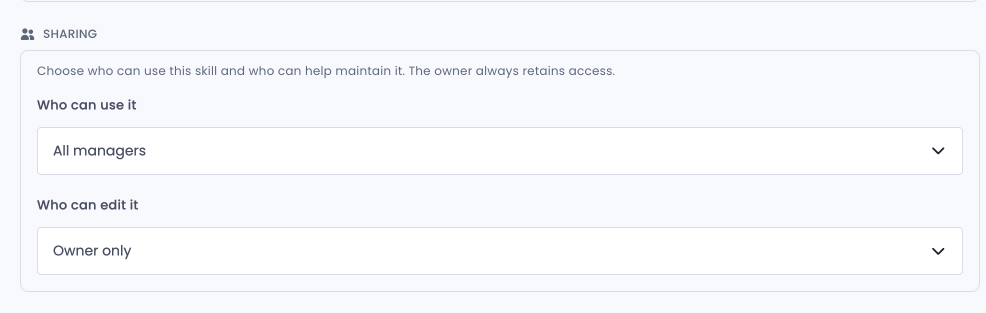
The AI: Skill Sharing: Can Share Skills with Anyone permission is required to share a Skill with anyone in your org. Can Share Skills for Subordinate Users is required for users who want to create Skills for those in their management hierarchy.
Click on Preview & Save to give the Skill a test run before saving it.

If your Skill has a parameter, you'll see a pop-up window asking which entity the Skill should be run for. Since this test Skill has chosen a group as its parameter, only groups will be shown in the drop-down menu.
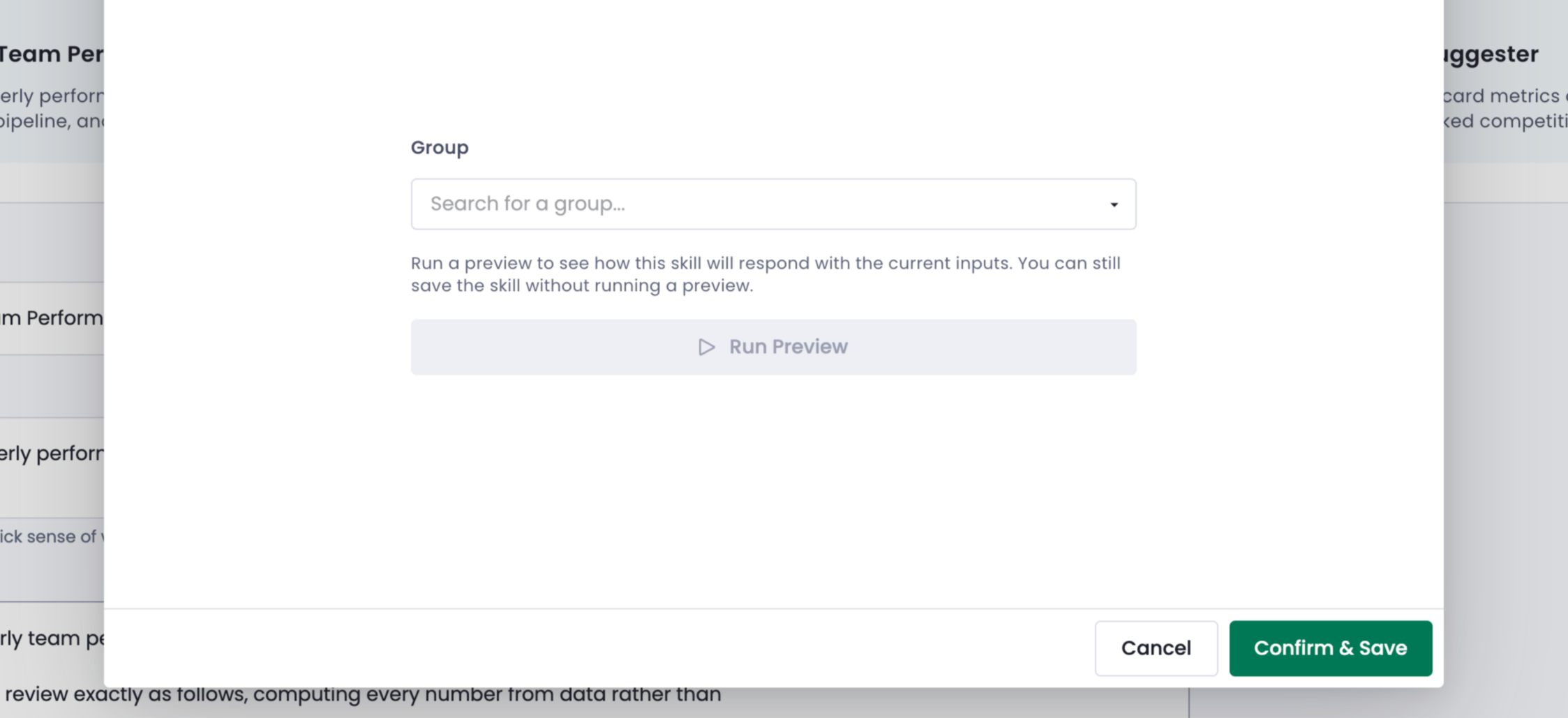
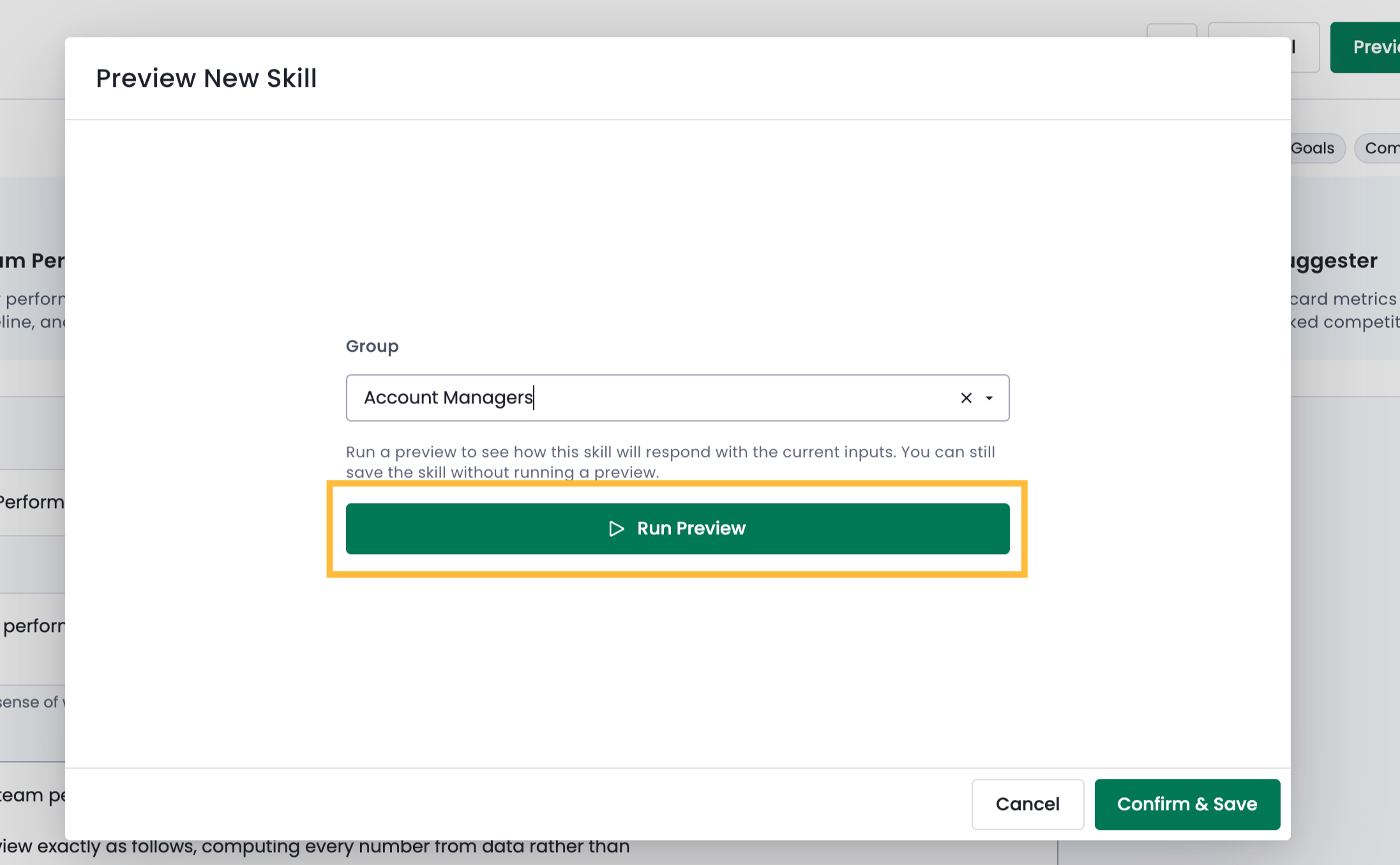
After making your parameter selections, click on Run Preview.
The agent will need a few moments to generate its preview. The pop-up window will then show its reply in accordance with the guidelines set out in your Skill instructions.
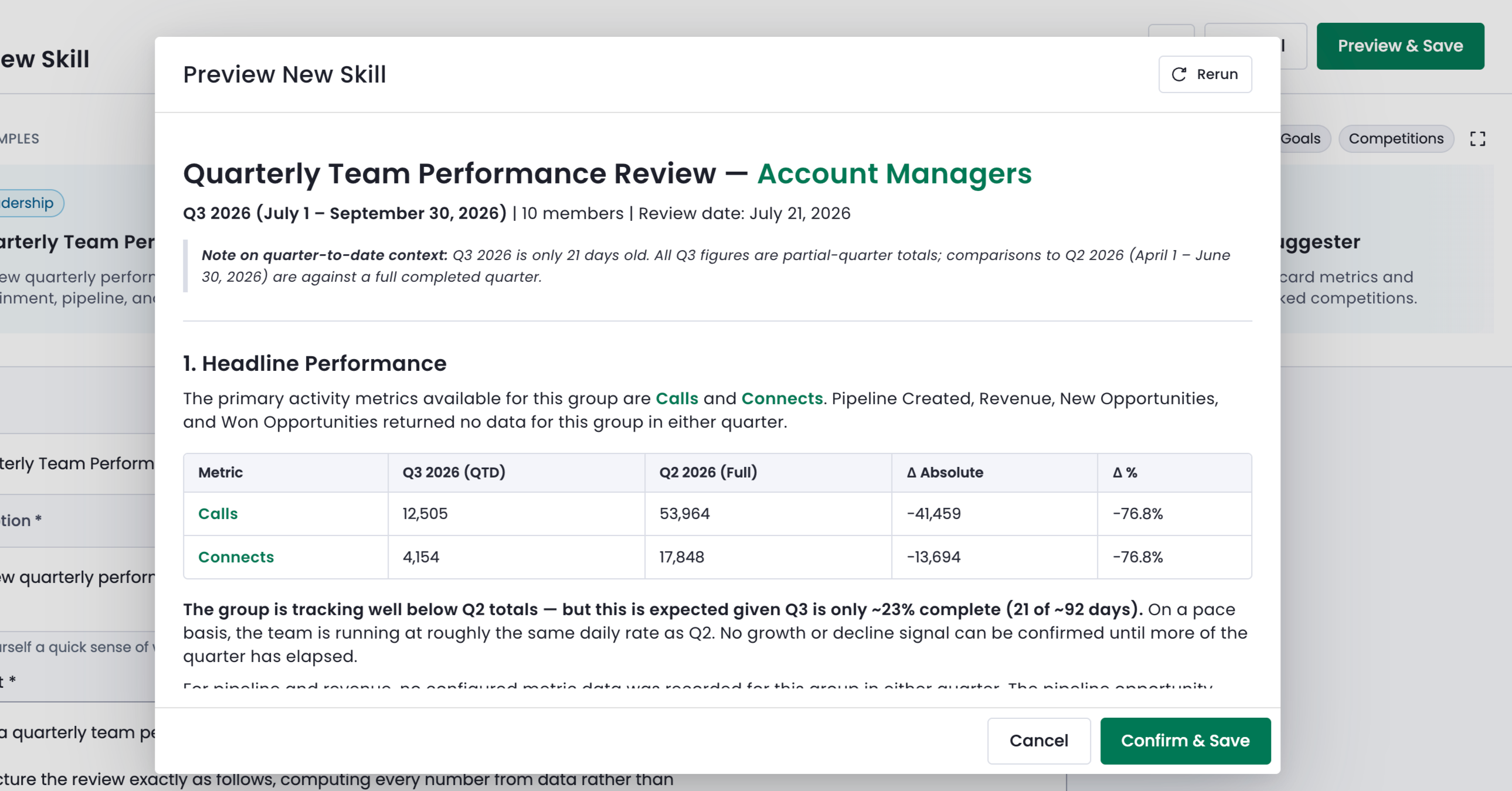
If you're satisfied with the output, click on Confirm & Save.

Optional: If you'd like to edit the Skill further, you can click on "Cancel" and any previous edits you made to the Skill fields will remain the same as before you ran the Skill preview.
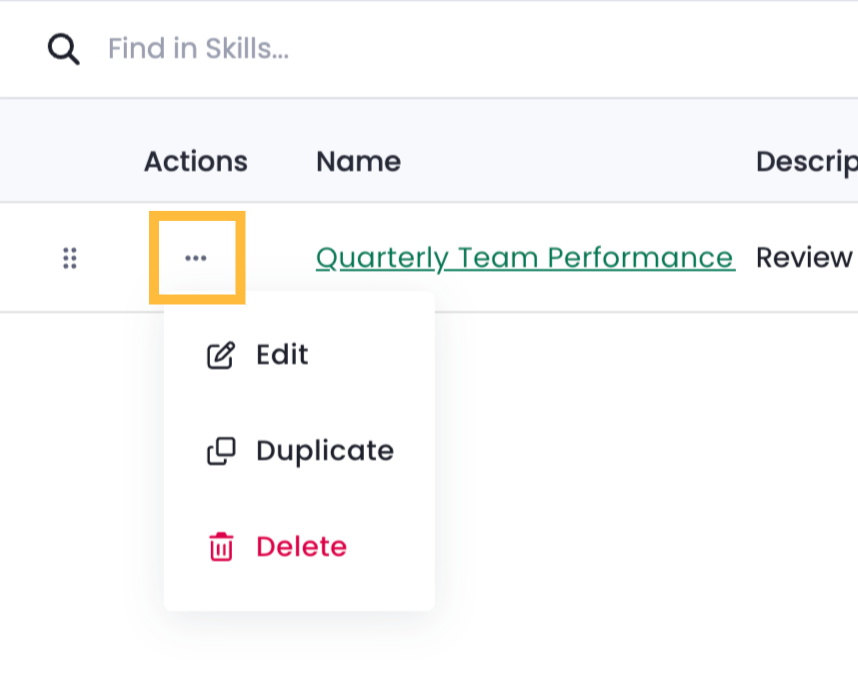
You can view your Skill any time on the Skill management page.

You can edit, duplicate, or delete a Skill by clicking on the breadcrumb menu next to the Skill's name.
Create a custom Skill
Creating a custom Skill follows a very similar flow as the steps to modify an existing Skill from the example library:
Use the Name and Description fields to give the Skill a name and one- to two-sentence summary.
Use the Prompt field to enter instructions that the AI agent should follow when executing this Skill.
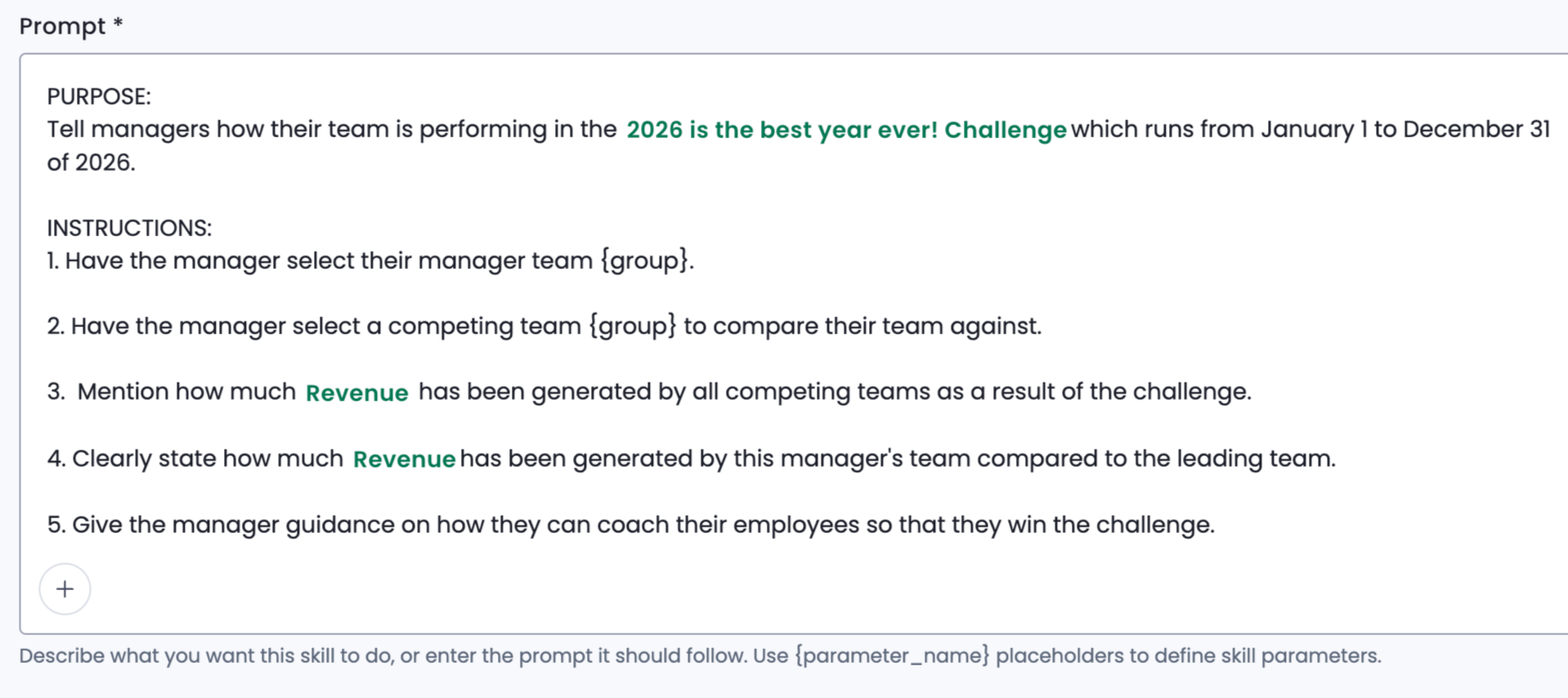
Optional: If you included parameters, use the Parameter drop-down menu to determine what each parameter name should correspond to: a user, group, goal, competition, matchup, or metric.
Under the Sharing section, select which users will be able to use the Skill in their AI agent queries and which users will be able to edit it.
You can preview the skill by clicking on Preview & Save in the upper right corner of the page.
If your Skill used a parameter(s), you'll see a pop-up menu asking you to select which entity should be used as the subject of the Skill query.
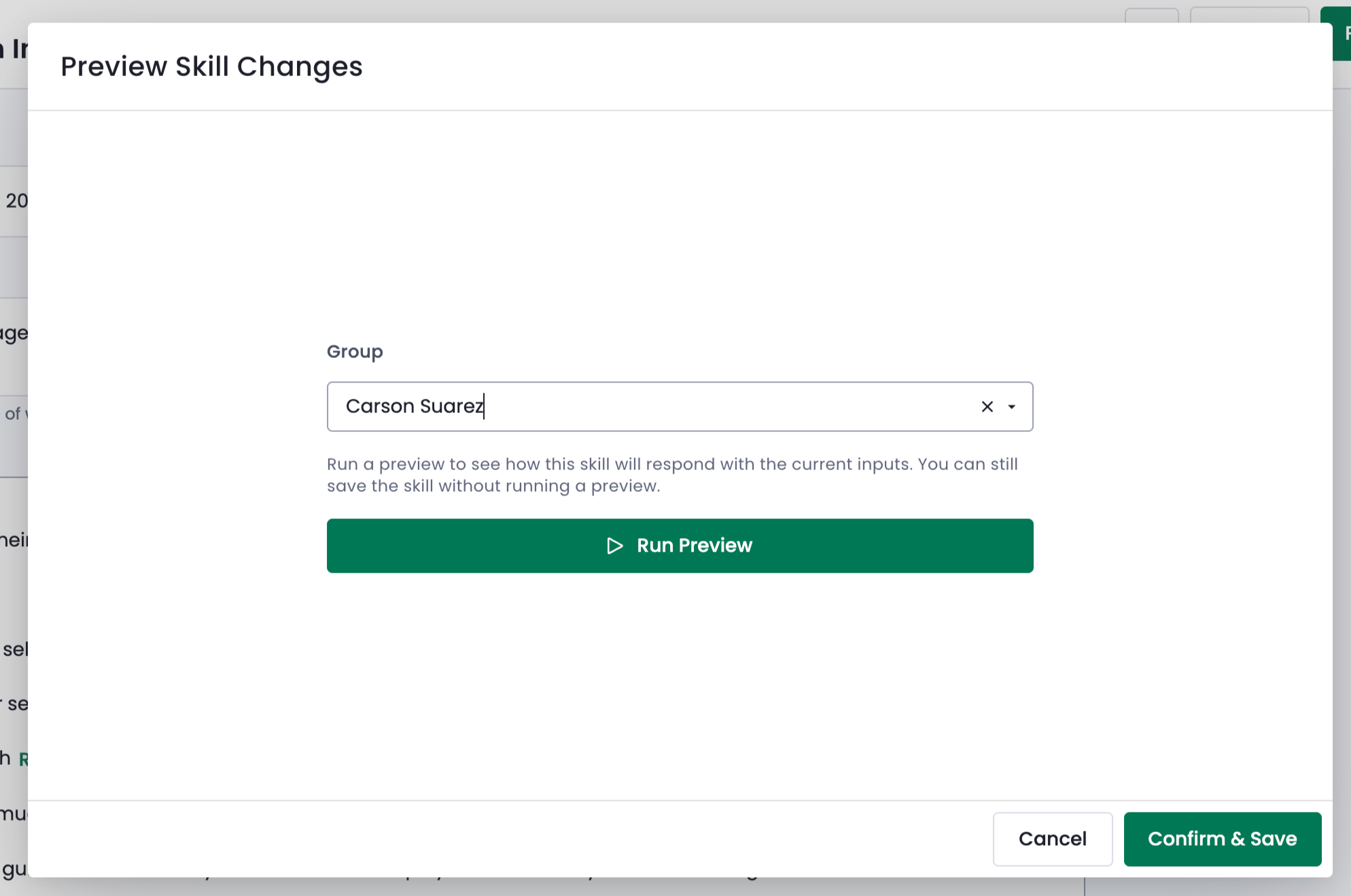
The agent will need a few moments to generate its reply and then will show a preview of its output in accordance with the Skill criteria.
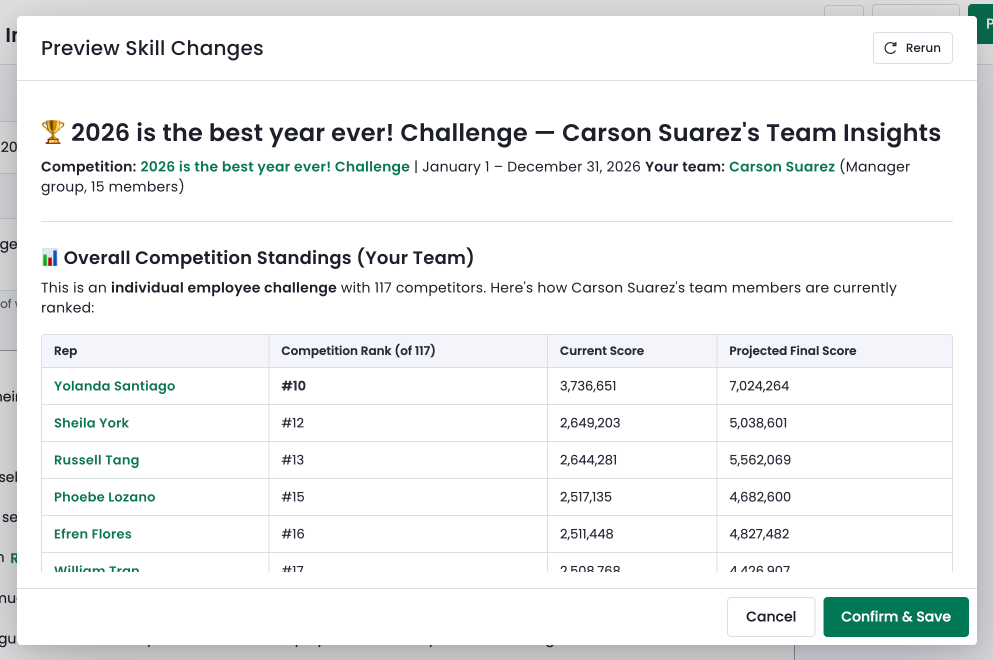
If you'd like to edit the Skill further, you can click on Cancel and make additional modifications. If you're satisfied with the reply, click on Confirm & Save.
Your Skill will be visible on the Skill management page.
Use the breadcrumb menu beside a Skill's name to edit, duplicate, or delete that Skill.

How to run Skills in the Ambition agent
There are two options for running a Skill when chatting with the AI agent:
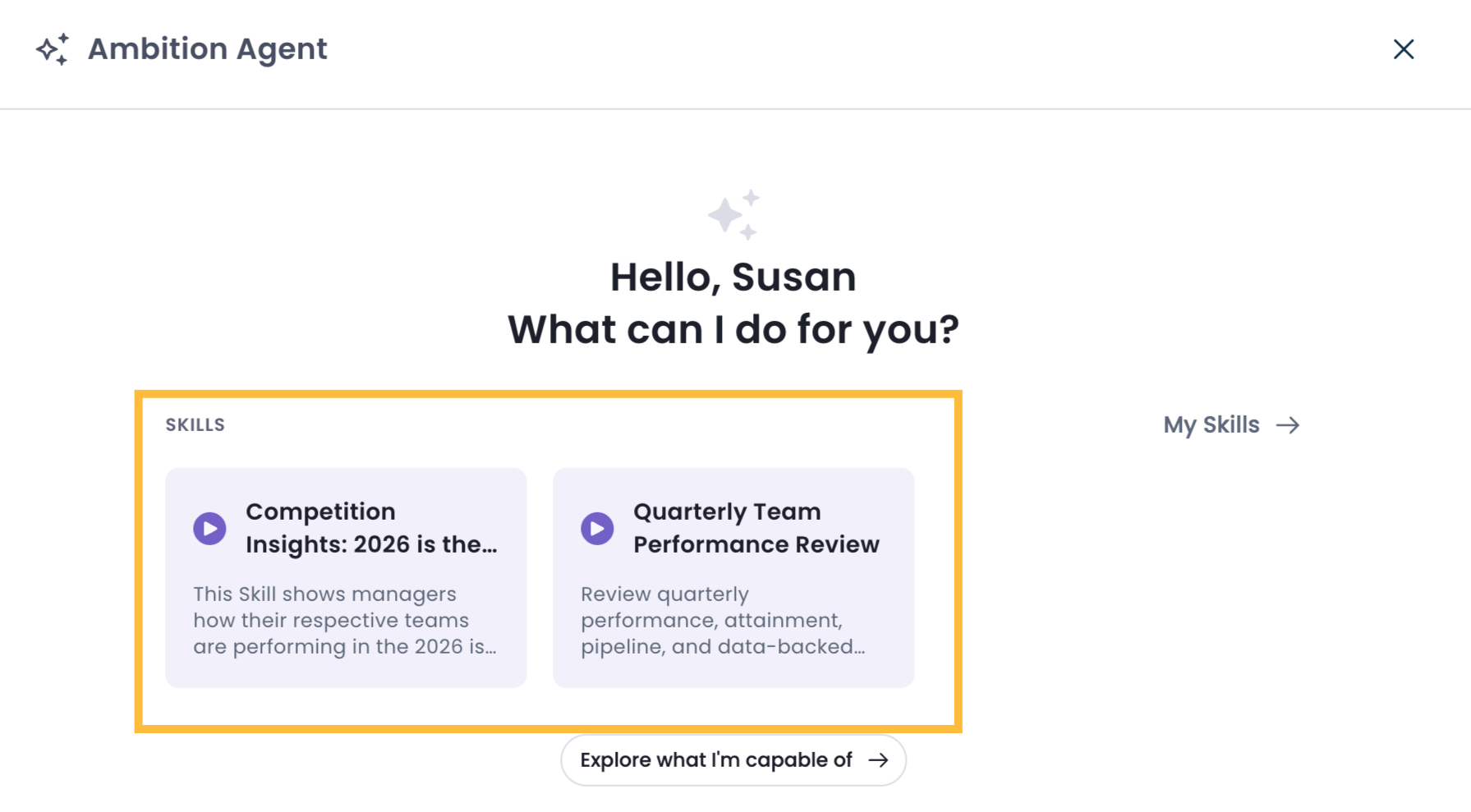
Select the Skill from the Skill library visible in the agent chat window.
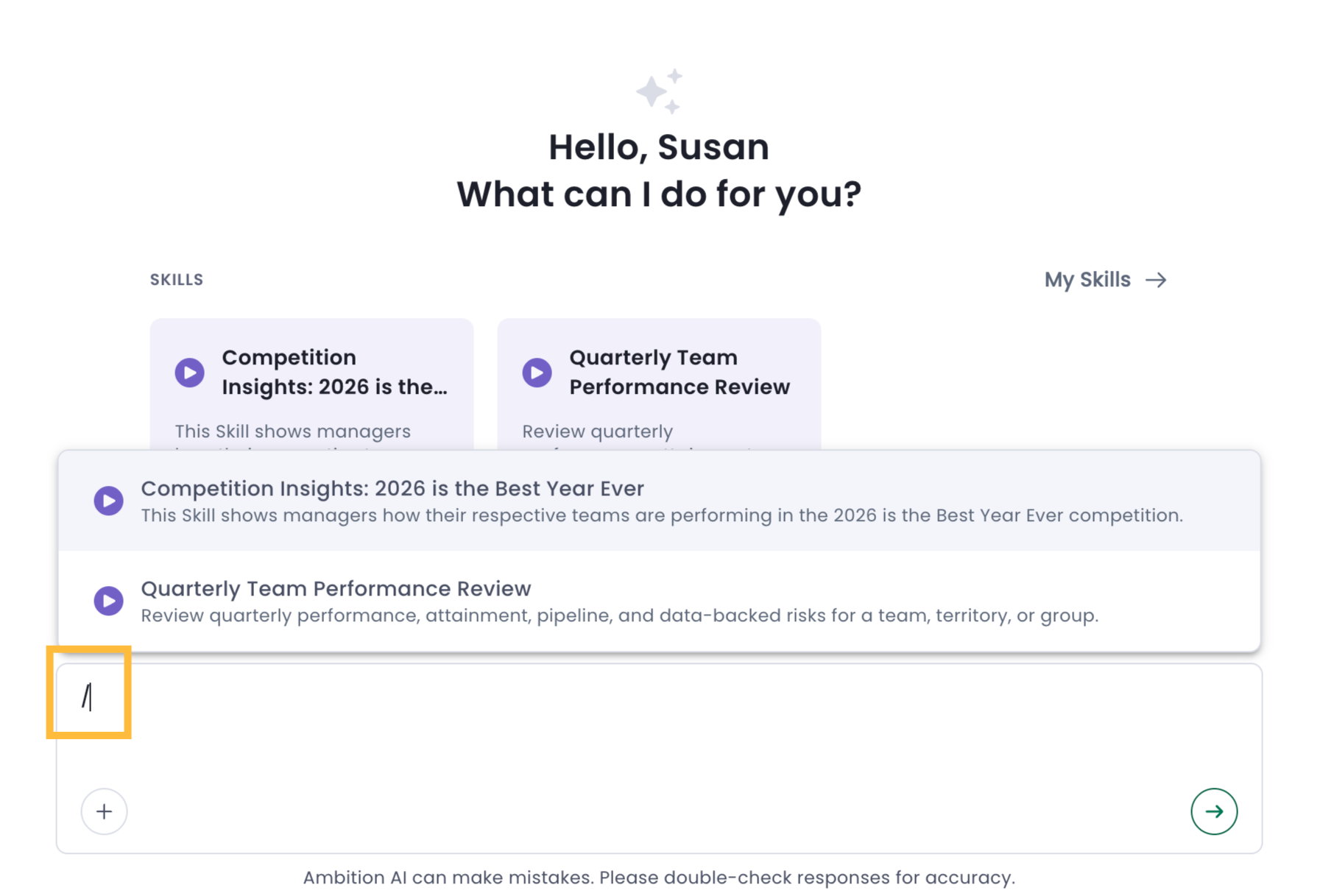
Use a slash command ("/") to pull up a list of Skills. Clicking on a Skill will lead the agent to process the user's question in accordance with the Skill criteria.
📄 How can I use Ambition agent's Inspect Work tab to check agent replies?
📄 How can I audit my organization's AI agent usage and settings?