How do I manage the Favorites on my Homepage?
Last updated: May 17, 2026
Your Favorites list is personal to you and does not affect what other users see. This article explains how to add, remove, and reorder the Favorites in all locations that they appear.
Add A Page To Your Favorites
You can add any page in Ambition to your Favorites directly from that page.
Navigate to the page you want to favorite.
Hover over the icon beside the page title - a star icon becomes visible on hover.
Click the star to add the page to your Favorites.
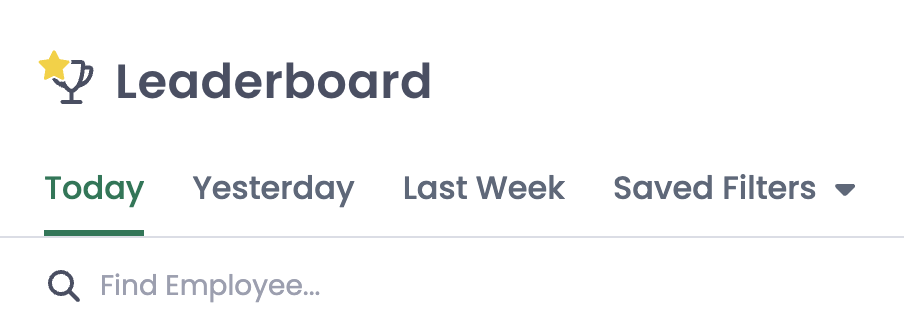
It will now appear on your homepage and in the side navigation bar under Hub.
Remove A Favorite
You can remove a favorite directly from the associated page by:
Navigate to the page you want to remove.
Click its star icon to deselect it.
You can also remove a Favorite from the homepage editor:
Click the pencil icon in the Favorites list on your homepage.
Locate the Favorite in the list, and click its trash icon to remove it.
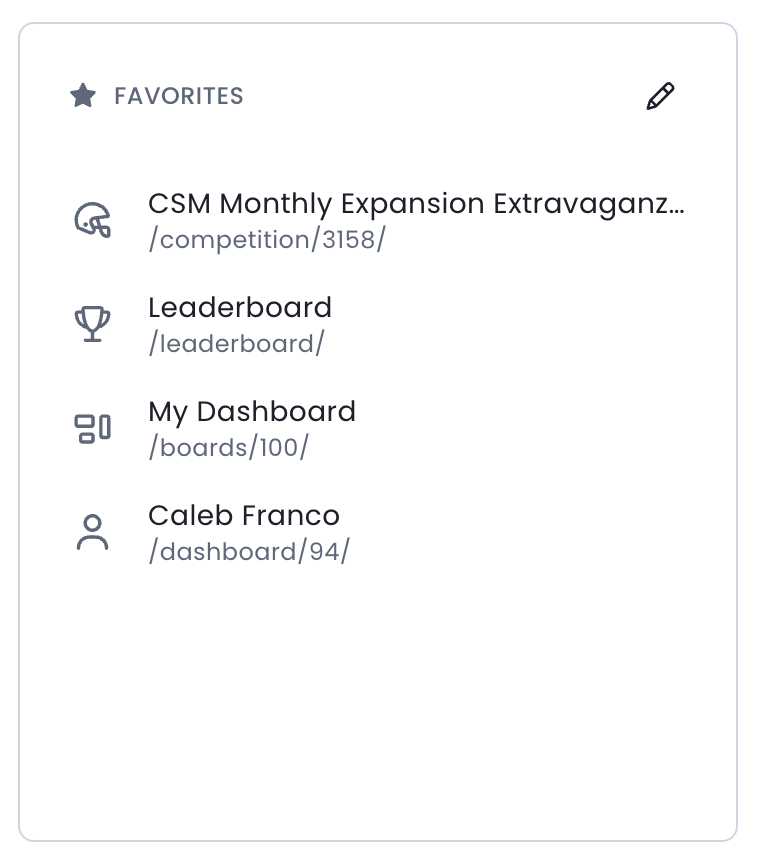
Reorder Your Favorites
Organize your Favorites in order of importance or usage by:
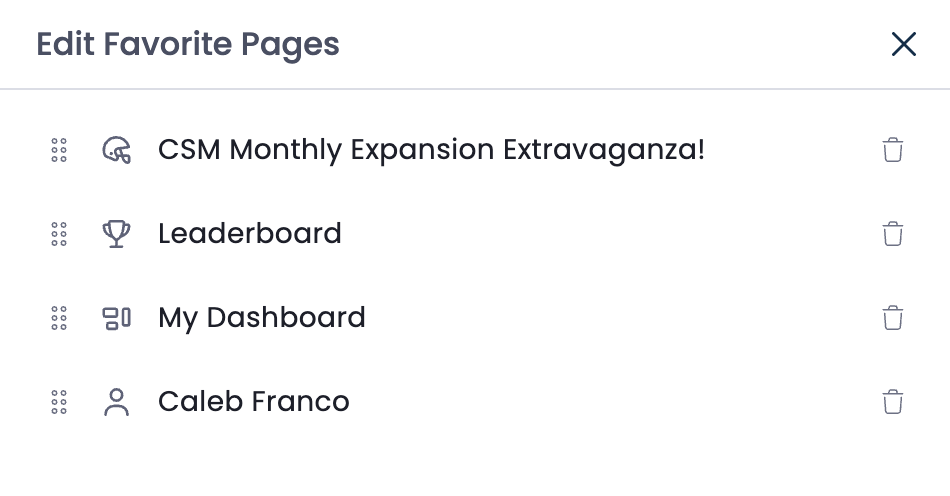
Click the pencil icon next to the Favorites label on your Home screen.
Drag and drop your Favorites into the order you want. The order you set here is reflected both on your homepage and in the side navigation bar.
Click Save to apply your changes.
Favorites are yours to manage.
Admins and Managers can set a user's landing page but cannot add, remove, or reorder Favorites on behalf of another user.