How do I create a Multimedia Slide?
Last updated: October 17, 2025
Multimedia Slide
Display multimedia (Image, YouTube or Vimeo hosted Video, or third-party URL) on the TV.


Create a Multimedia Slide
Users with "TVs: Create" permission will be able to create, edit, and delete slides on TVs they've created.
Users with "TVs: Edit" permission will be able to create, edit, and delete slides on any TV.
1. Open the left navigation and click TVs.
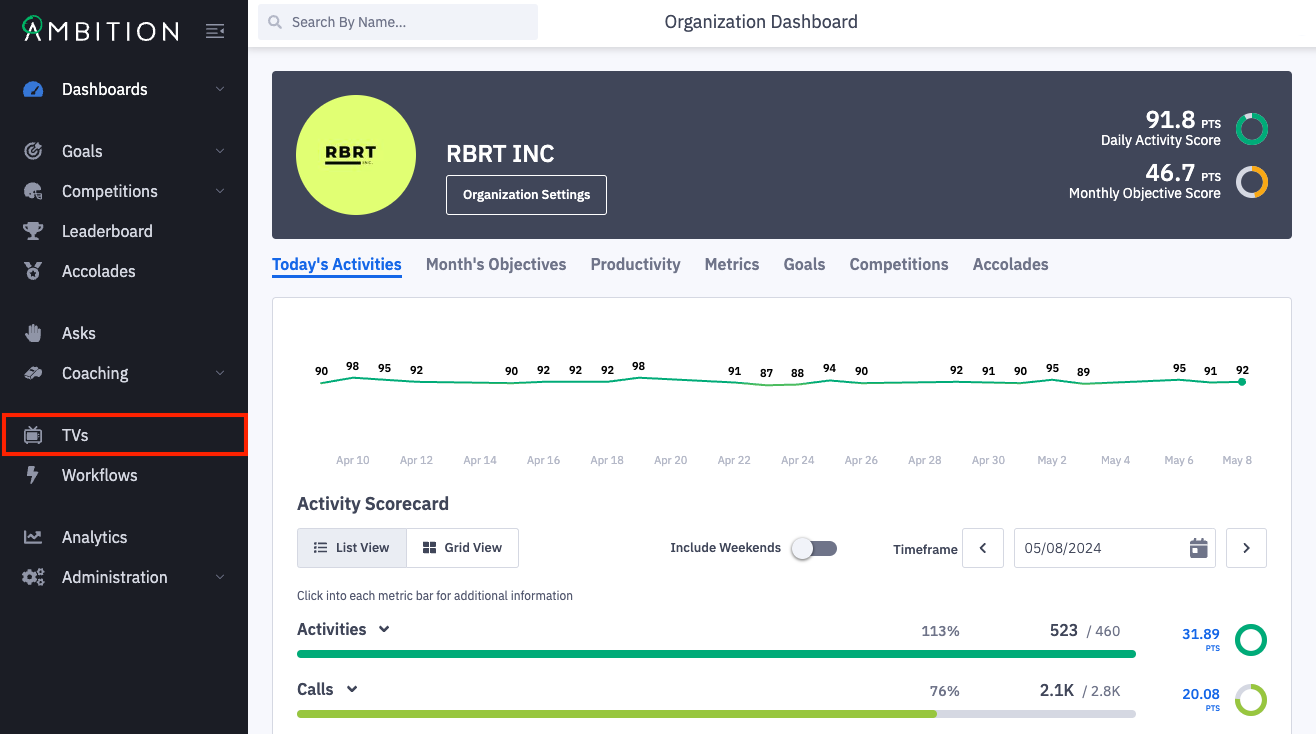
2. Click the number in the slides column on the TV you wish to edit. You can also click the ellipses icon, Edit, and Slides.
Upon clicking Slides, you will see a blank Create Slide form.

3. Complete the Create Slide Form.
Basic Settings
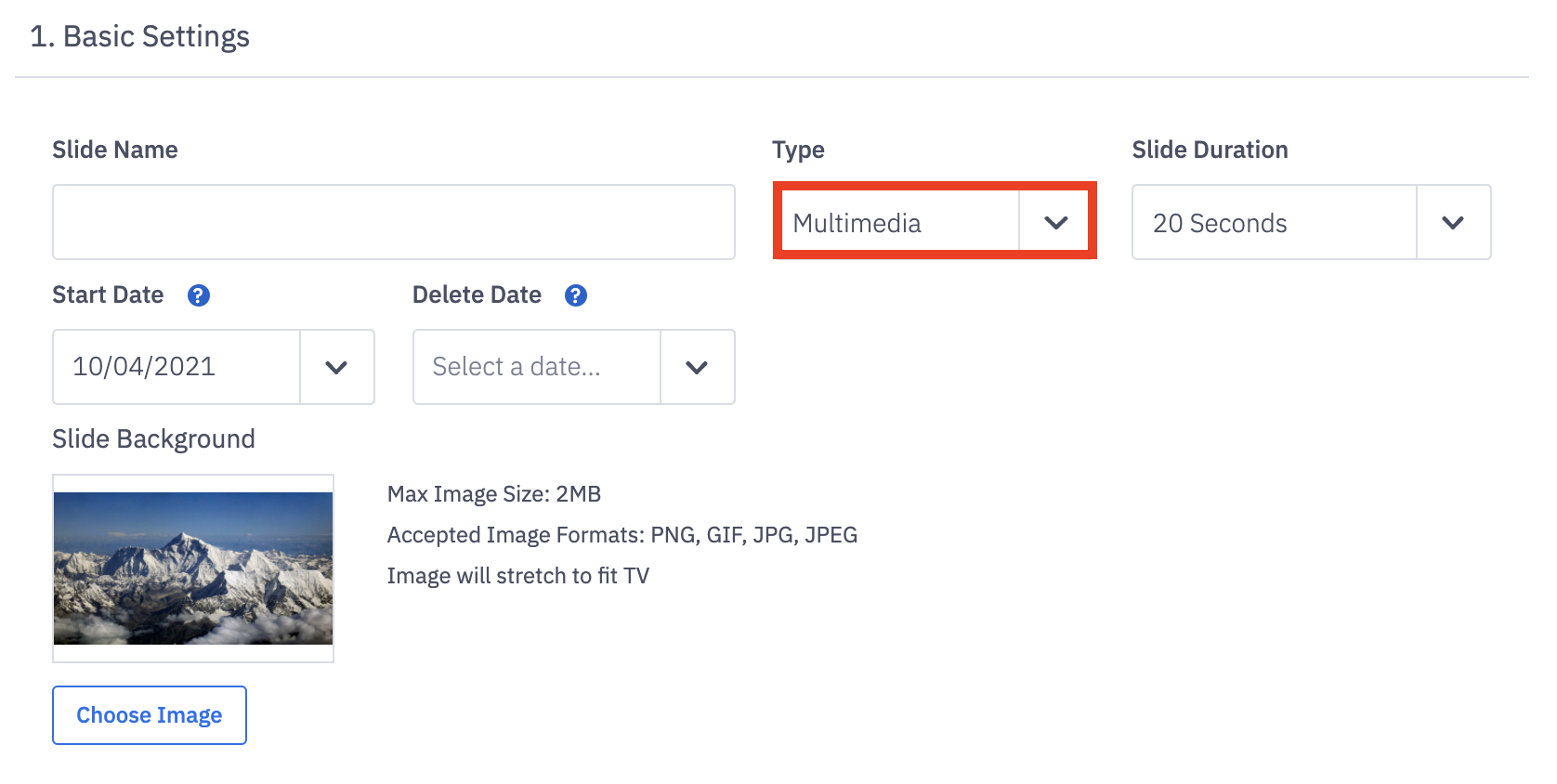
Field Name | Field Description |
Name | The slide name will be displayed on the TV to identify the slide. |
Type | Select Multimedia from the dropdown. |
Slide Duration | Determine how long this slide will be displayed per carousel rotation. Options range from 10, 20, and 40 seconds to 1, 2, 3, 4 and 5 minutes. Note: At this time custom durations aren't supported. If you opt to display a video that's 1:30 in length and select a 2 minute slide, the video will play all the way through and then restart and play for 30 more seconds. |
Start Date | When the slide will be visible on the TV. Date defaults to today. |
Delete Date | Optional. When the slide will be removed from the TV and deleted. |
Slide Background | Optional. Upload a background image for the slide. |
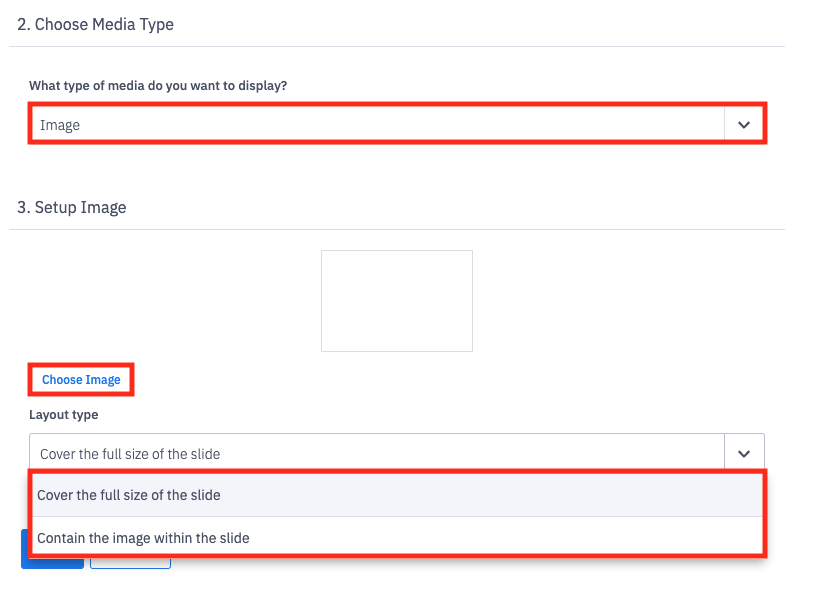
Choose Media Type
Image
Choose Image: Select image to upload.
Note: At this time uploading GIFs is not supported
Layout type: Determine if the image should maintain original size or stretch to fit.
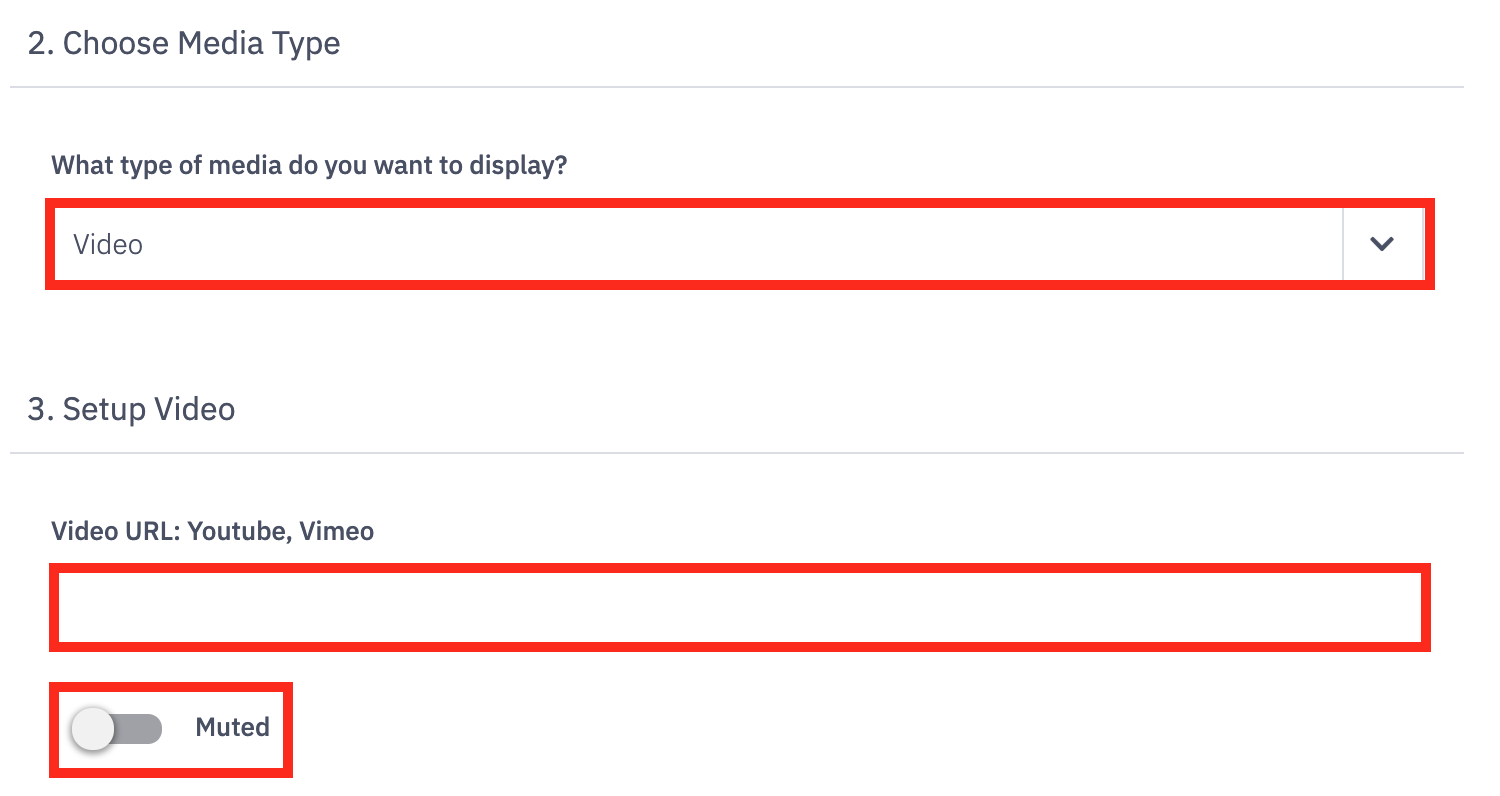
Video
If you are using a Chromecast to display Ambition TVs, ensure the "Optimize Fullscreen Videos" option is turned off in order to allow videos to play as expected.
Video URL: Input a Youtube or Vimeo link.
Note: Private YouTube videos cannot be displayed on Ambition TVs due to YouTube security protocols. Unlisted YouTube videos can be displayed on Ambition TVs!
Muted: Determine if the video should be muted.
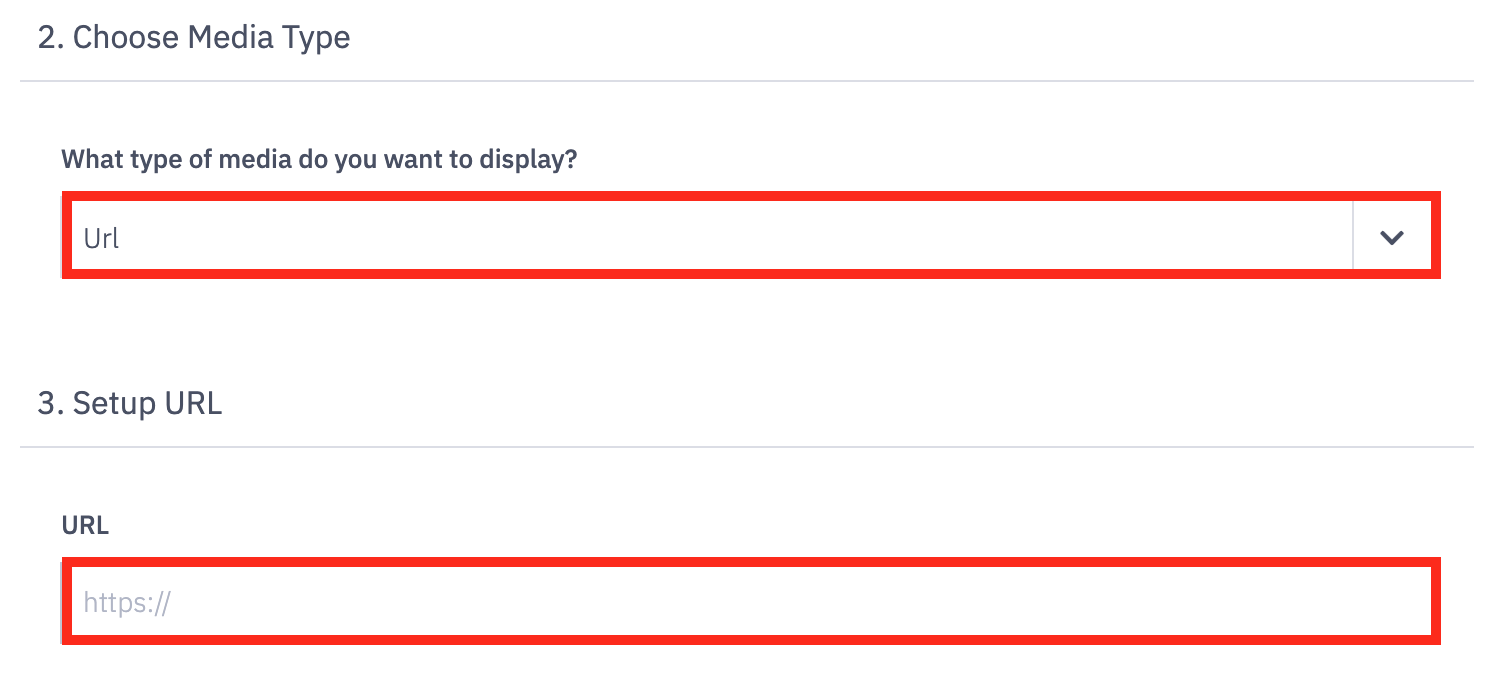
URL
URL: Input the third-party URL you'd wish to embed via iframe.
Screen blank after inputting and saving a URL? Learn more here.
4. Optionally click the Preview button to preview your multimedia slide.
Note: Uploaded slide background images will not be viewable through the Preview option.
5. Click the Save button.

Troubleshooting an Empty Screen
What if I embedded a URL and the screen is blank?
1. Open Browser Console
Chrome
Windows: F12
Mac: Command + Option + I
Microsoft Edge
Windows: Control + Shift + J
Mac: Command + Option + J
2. View any error messages found in Browser Console:
X-Frame-Options is "SAMEORIGIN" or "DENY"
This URL cannot be embedded within a third-party site. Unfortunately there is nothing that Ambition can do here.
Mixed Content "loaded over HTTPS, but requested an insecure resource"
This means that you need to change your URL from "http" to "https" for security purposes.