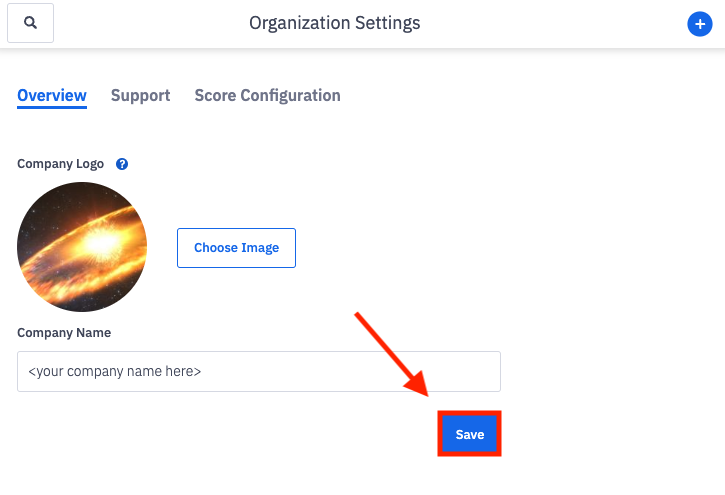
How can I update the company display name or logo?
Last updated: June 13, 2025
Company Name and Logo
Update Company Name or Image
Any user with the "Organization: Edit" permission can update the company name or image.
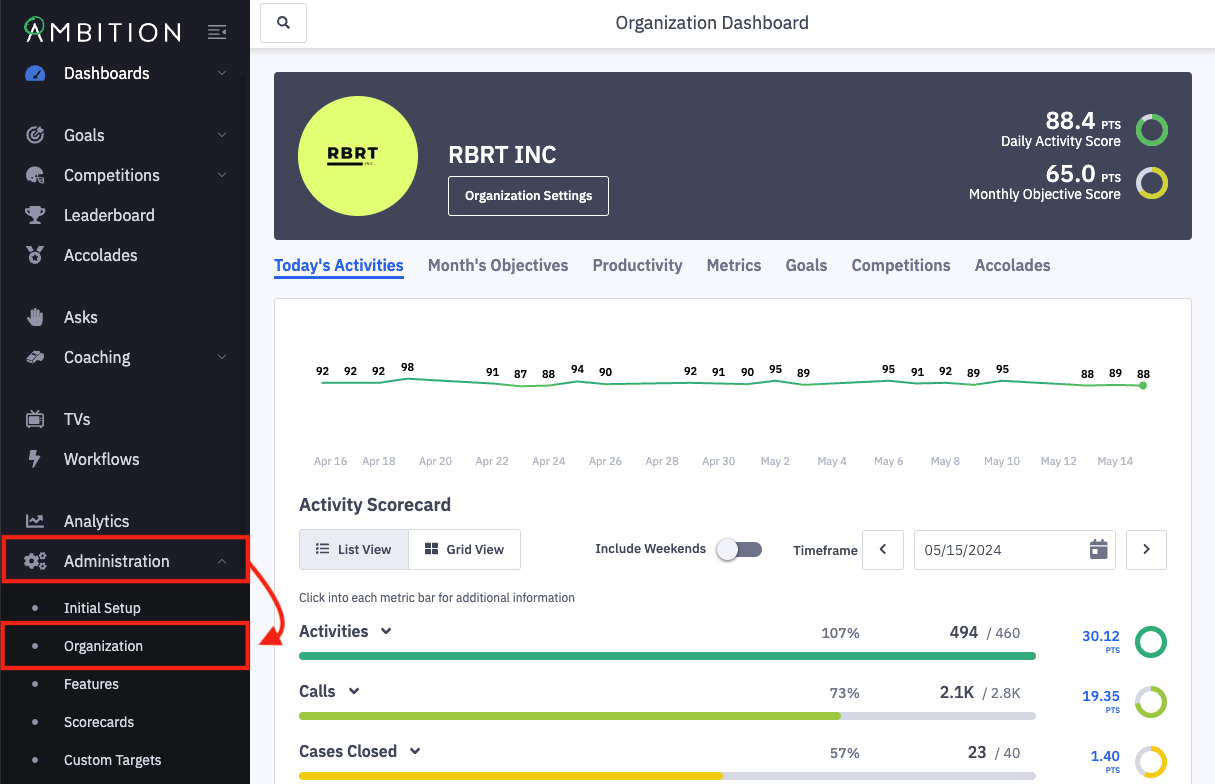
1. Open the left navigation and click Administration > Organization.
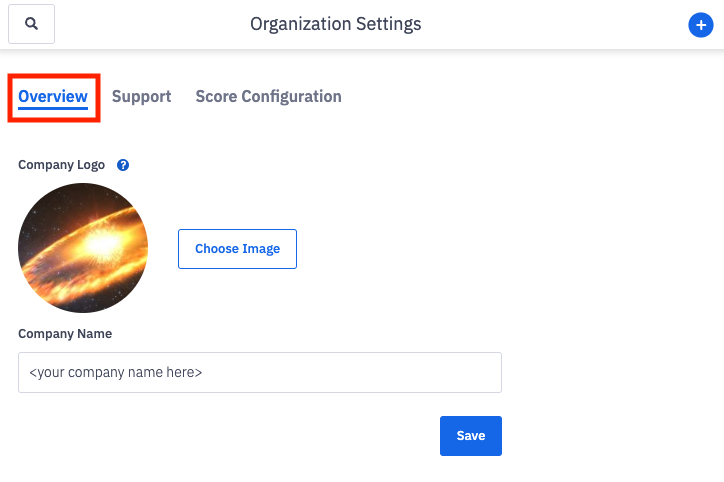
2. Locate the Overview tab.
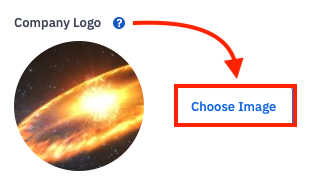
3. Make the appropriate updates:
Company Logo
An avatar or company logo for branding use across Ambition.
Click the Choose Image button.
Select the image you wish to upload from your device.
The Company Logo will appear:
On the Organizational Dashboard (admin permissions only)
When the "Organization" hierarchy is used within a Goal, TV slide, etc.
Pro tip: your company's LinkedIn or X image is a great resource for an already smaller sized image.
Company Name
The name that will be displayed across the Ambition site and all related communication.
Type in the name of your company.
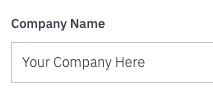
The Company Name will appear:
On the Organizational Dashboard (admin permissions only)
When the "Organization" hierarchy is used within a Goal, TV slide, etc.
Within the email invitation that user receive, " has invited you to join Ambition"
4. Click the Save button.