How can I select which timeframes should be shown across Ambition?
Last updated: October 23, 2025
Select/Unselect Visible Timeframes
The date configuration tab allows organizations to select which timeframes options they want presented to users when viewing metric data, analytics, metric snapshots agenda items, and pipeline data.
Date Configuration
Any user with the "Organization: Edit" permission can access and edit the date configuration tab.
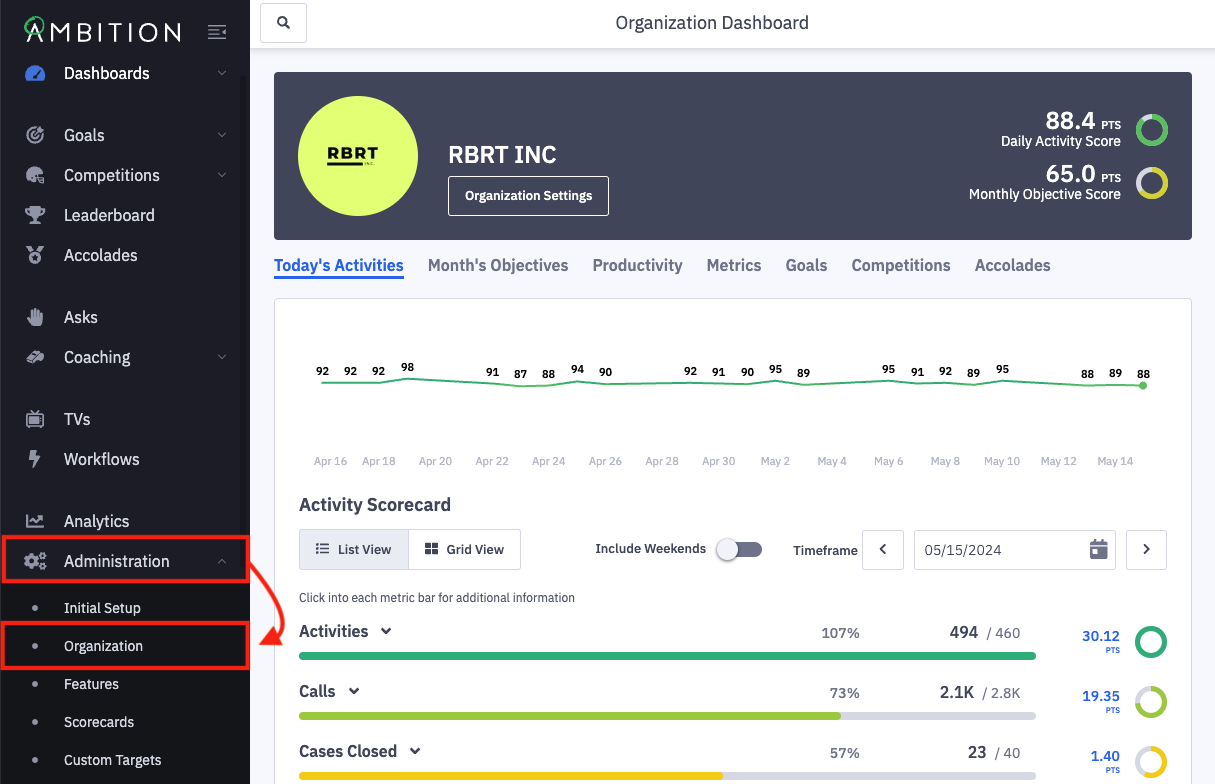
1. Open the left navigation and click Administration > Organization.
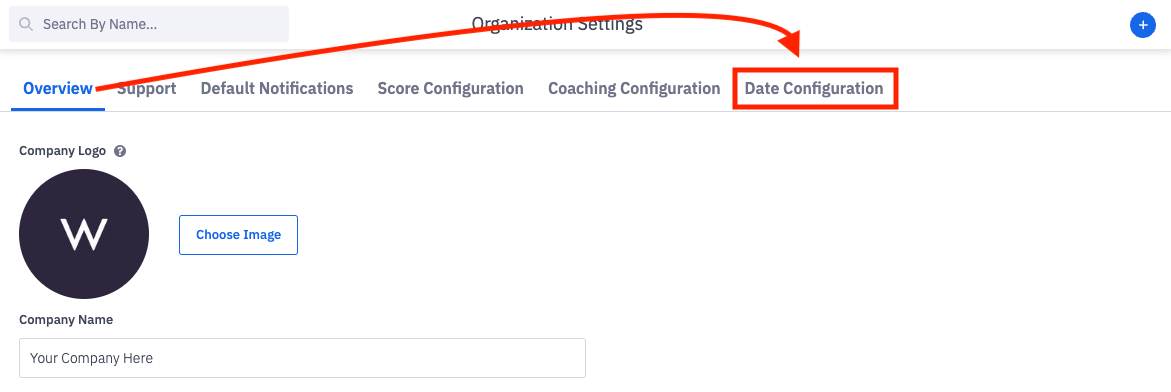
2. Click on the Date Configuration tab.
3. Check or uncheck the appropriate timeframes and select defaults:
Metrics
The timeframes selected will be available timeframe options when viewing metric data in Ambition.
Areas impacted include viewing the metrics tab on a dashboard and within a check-in and when adding metrics to leaderboard TV slides.
Note: When accessing the leaderboard tab, scorecard timeframes (day, week, month) will override the default selected below. Ex. If "Last Week" is set as the default value, but a "Today" activity score is used, the leaderboard will default to showing activity scores for "Today" when first loading the leaderboard tab.
Analytics
The timeframes selected will be available timeframe options within analytics.
Areas impacted include all analytics reporting and the productivity quadrant on a dashboard.
Metric Snapshots
The timeframes selected below will be available as timeframe options when using the metric snapshot agenda item.
Note: No default value will be set since each agenda items requires a time frame to be selected rather than populating a default.
Pipeline Date Ranges
The timeframes selected will be available as timeframe options in the "Date Range" selector when using pipeline views and templates.
Pipeline Comparison Dates
The timeframes selected will be available as timeframe options in the "Changes Since" selector when using pipeline views and templates.
4. Click Save.
If a timeframe within metrics or analytics had previously been saved in an analytics report or leaderboard saved filter and is then unselected, the report or filter will no longer be accessible. We recommend deleting the previous report or filter and creating a new one with the timeframes that are now available.