How do I enable the Calendar Sync integration?
Last updated: May 15, 2026
Ambition's Calendar Sync integration will keep Ambition's scheduled coaching Sessions in sync with a manager's Google or Microsoft Outlook calendar.
Admin-level permissions are required to enable this integration.
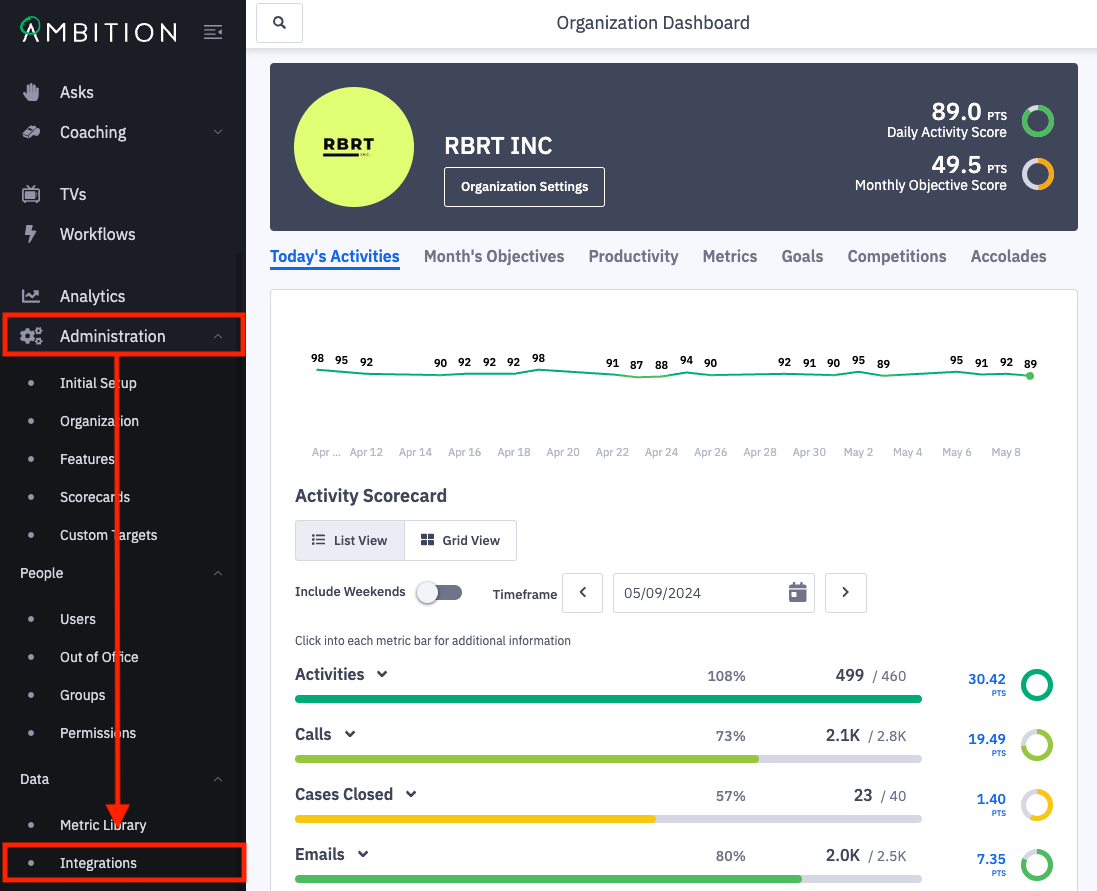
1. Open the left navigation and click Administration > Data > Integrations.
2. Click the + Enable Integration button.
If this is the first integration enabled in your instance, you will skip this step and begin at step 3.

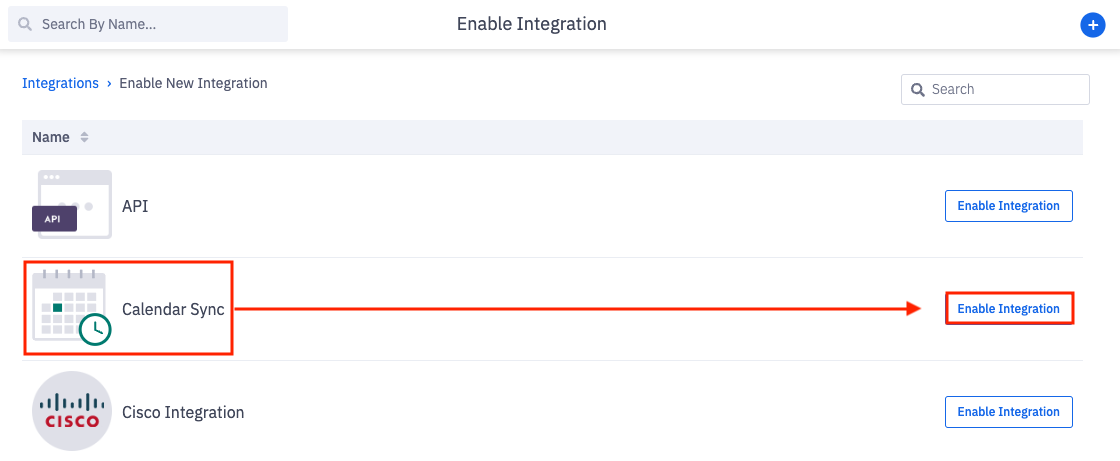
3. Locate the Calendar Sync integration and click "Enable Integration" in line with the Calendar Sync integration name and icon.
You will be redirected within the Calendar Sync integration.
Don't see the Calendar Sync integration? The feature can be enabled by any user with system admin permissions. Enable Feature: Open the left navigation and click Administration > Features. Locate the Calendar Sync Integration feature, and toggle "On". Click the Update Features button to save.
Upon enabling you will be redirected into the integration. To enter the Calendar Sync integration anytime after original enabling:
Once enabled, the Calendar Sync integration will appear on the Integration Management page.
4. Click Edit in line with the Calendar Sync integration.

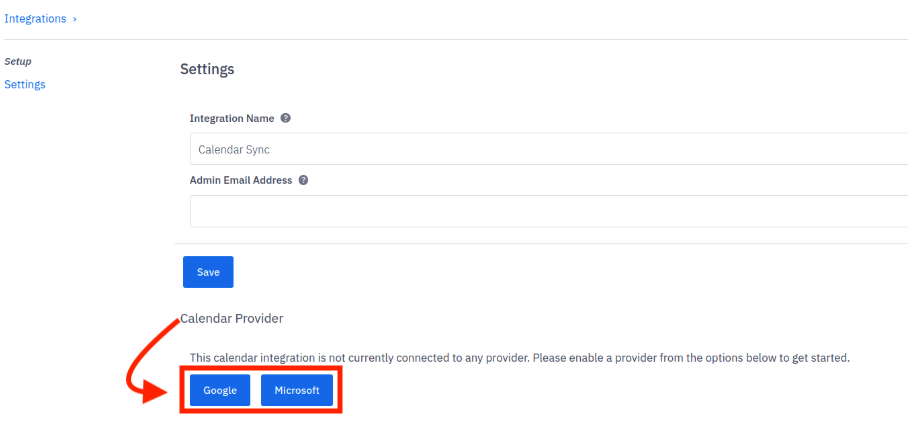
5. On the settings tab, select the appropriate Calendar Provider: Google or Microsoft.
What calendar providers are supported?
Ambition supports connecting with either Google or Microsoft Outlook, but cannot support both providers at once through the Calendar Sync integration.
What happens after the calendar sync is enabled?
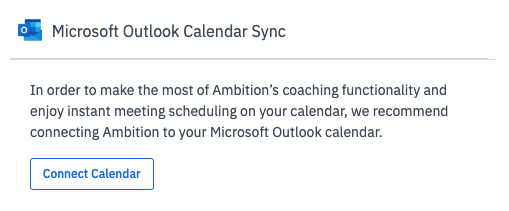
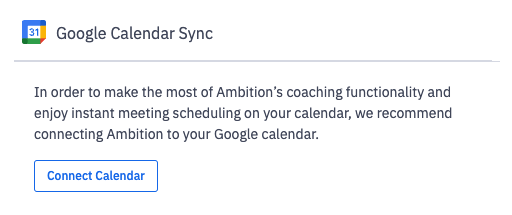
6. Enabling the Calendar Sync integration will add a "Calendar Sync Settings" tab on the user settings page for each manager with a "Connect Calendar" option for the selected calendar provider.
 |  |