How Can I Create All of My Ambition Coaching Events with the New Coaching Experience?
Last updated: September 2, 2026
With the new Coaching experience, you no longer have to guess which specific option to select from a long list. We've simplified the process so you can easily build the exact Coaching item you need.
Required permissions:
All of the permissions required to perform certain actions in the old coaching experience are still required in the new coaching experience, as well.
How Do I Create Coaching Events?
Getting started is easier than ever. All coaching variations now begin by simply clicking the + Coaching button.
First, you'll be asked whether you want to Start Fresh (without a template) or Use a Template. Don't worry if you choose to start fresh—you can always apply a template later in Step 1!
Here is a guide on how to recreate your favorite legacy coaching events using the new creation steps:
Start a 1:1 Now
Use this when you want to immediately begin a coaching Session with an employee.
Step 1: Details - In the Coaching Format section, select Single Coaching Session.
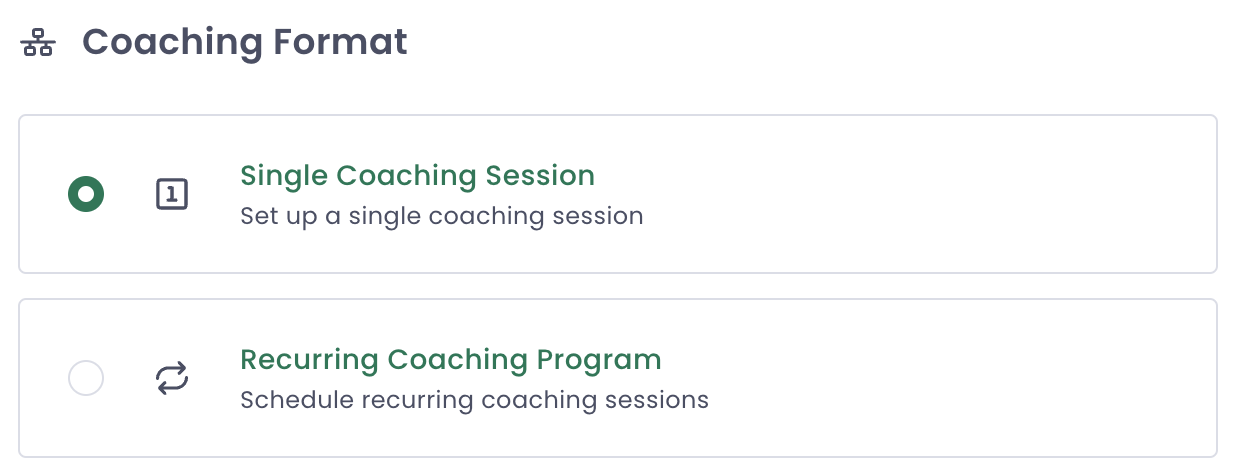
Step 2: Participants - Because you chose a single Session in Step 1, the system automatically limits your selection to one participant. Select your employee.
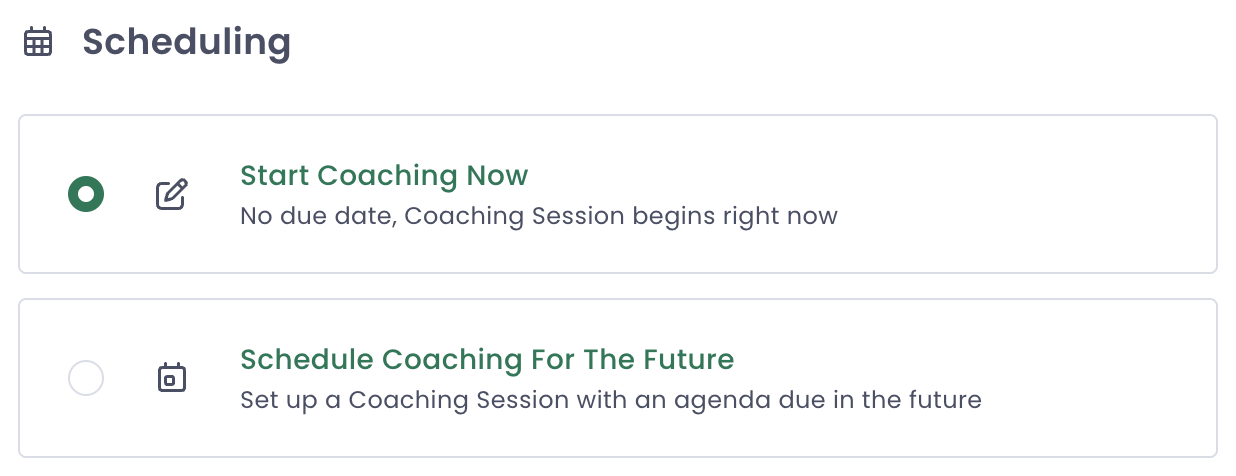
Step 3: Scheduling - Select Start Coaching Now.
Schedule A 1:1 For Later OR Request An Update
In the past, Schedule 1:1 for Later (with a meeting) and Requesting an Update (without a meeting) were two separate paths. We’ve combined them to make things simpler! There is one path that includes an option to add a meeting date.
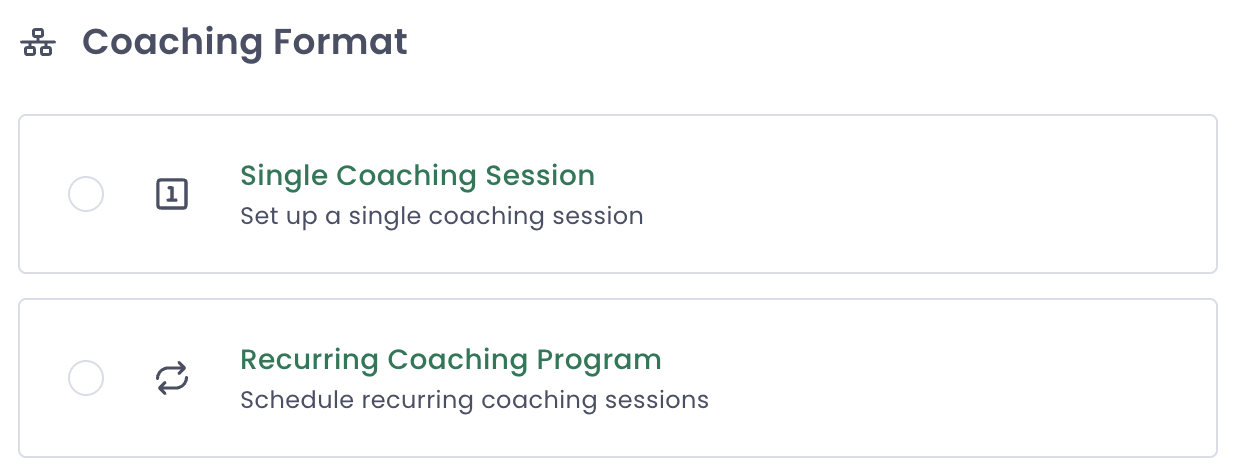
Step 1: Details - If you want a one-off Check-In, select Single Coaching Session. If you want a repeating Check-In, select Recurring Coaching Program.
Step 2: Participants - Select the employee you want to check in with.
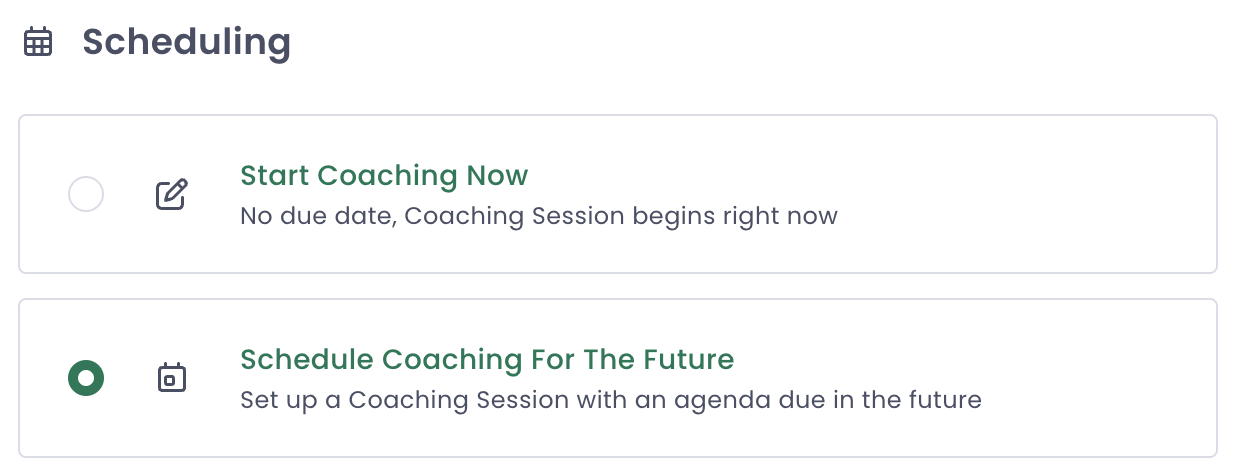
Step 3: Scheduling - Select Schedule Coaching For The Future. This reveals the date options. You can set when the agenda will open for the employee, when it is due, and (optionally) pick a date and time for a live meeting.
Create a Recurring Check-In (Now called "Programs")
All recurring Check-Ins are now referred to as Programs. Follow these steps whether you are a manager creating a Program for yourself, or an admin creating a Program for a single manager.
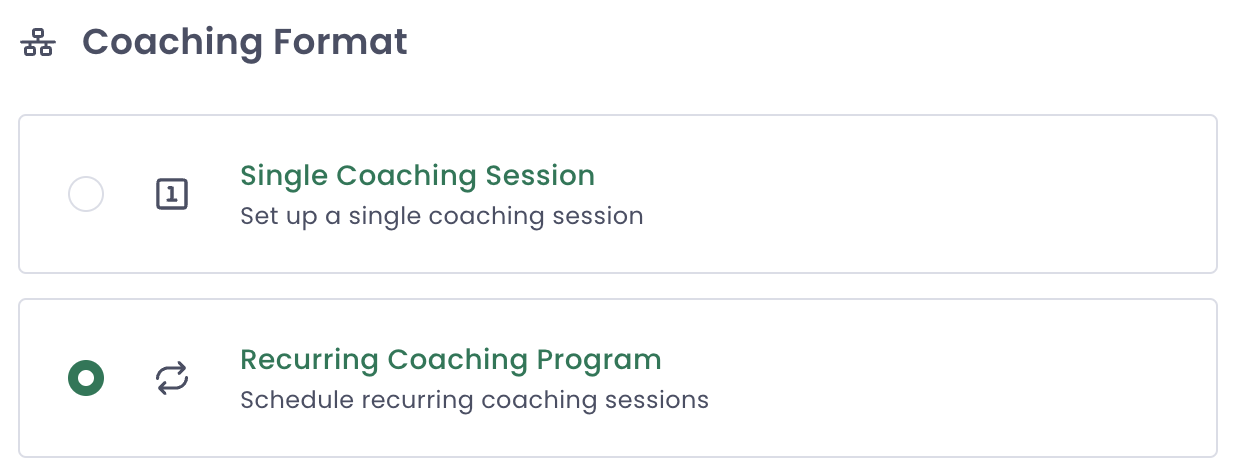
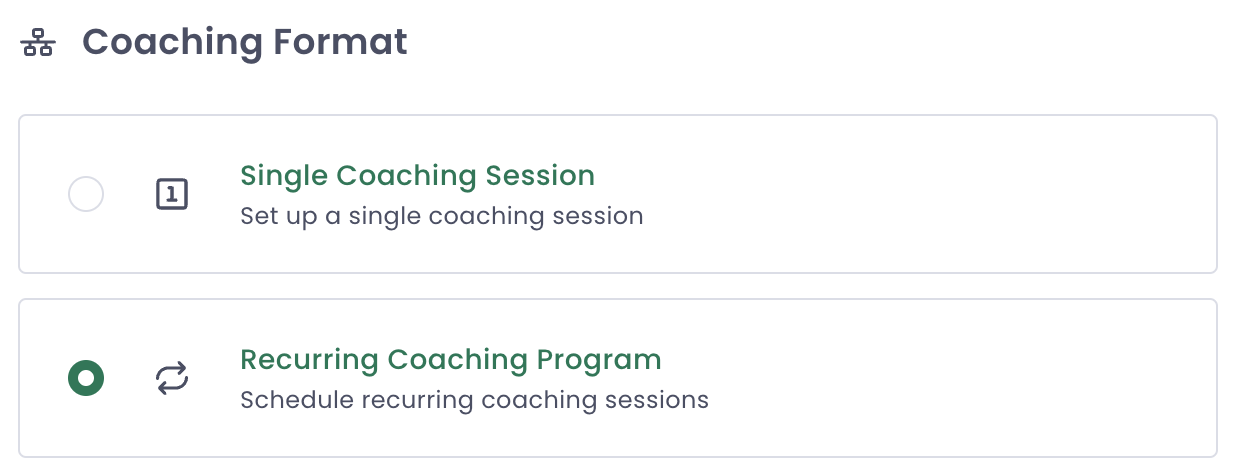
Step 1: Details - In the Coaching Format section, select Recurring Coaching Program.
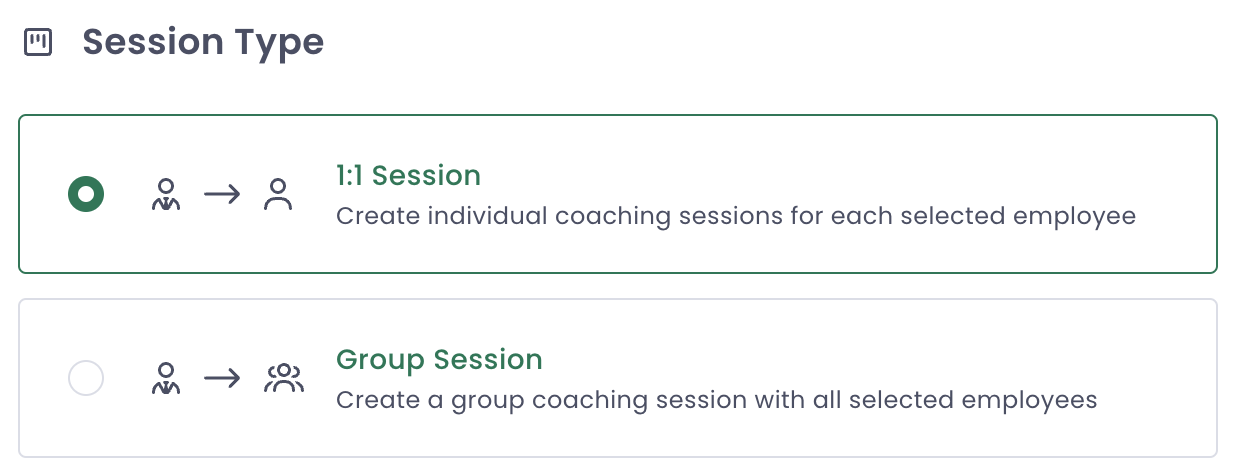
Step 2: Participants - In the Session Type section, select 1:1 Session.
Step 3: Scheduling
If you are selecting just one employee: You can schedule your recurring meeting time right here on this step, just like before.
If you are selecting multiple employees: You will now schedule each employee's individual meeting time after the Program has been successfully created.
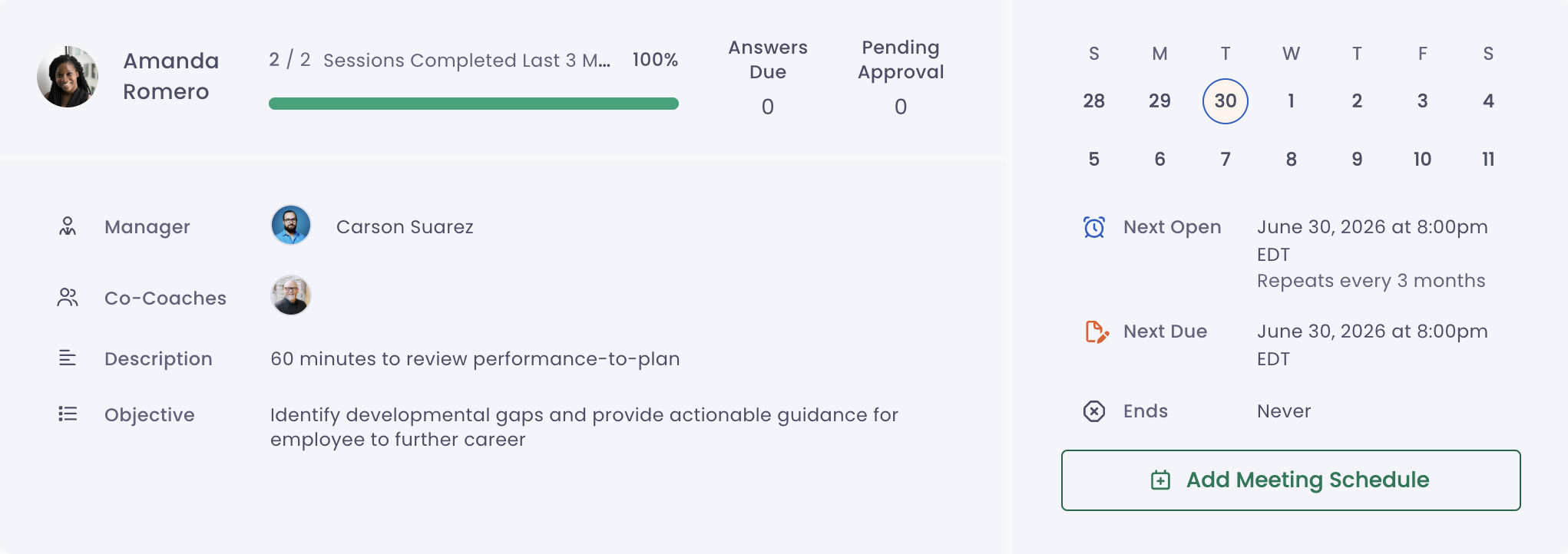
From the Program page, click on an the employee name
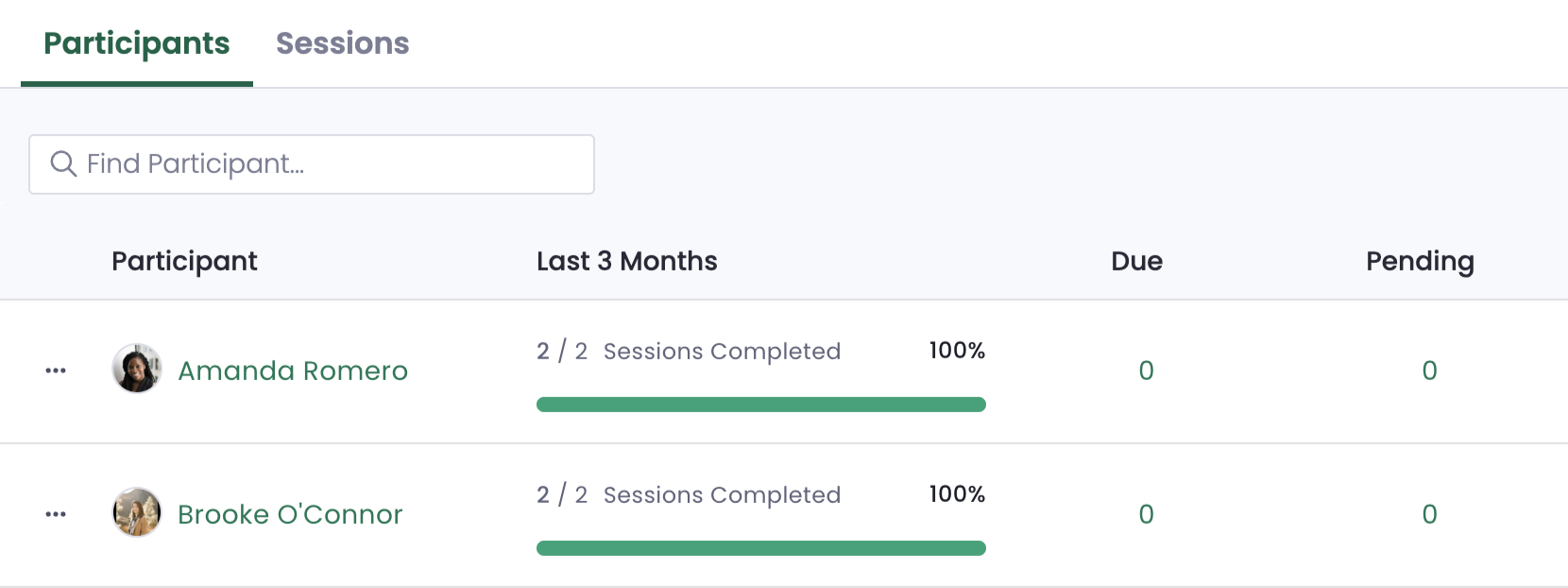
From the Program participant page, click the “Add Meeting Schedule” button
Create A Group Check-In
Use this to set up a recurring Session with an entire team or group of employees at once.
Step 1: Details - In the Coaching Format section, select Recurring Coaching Program.
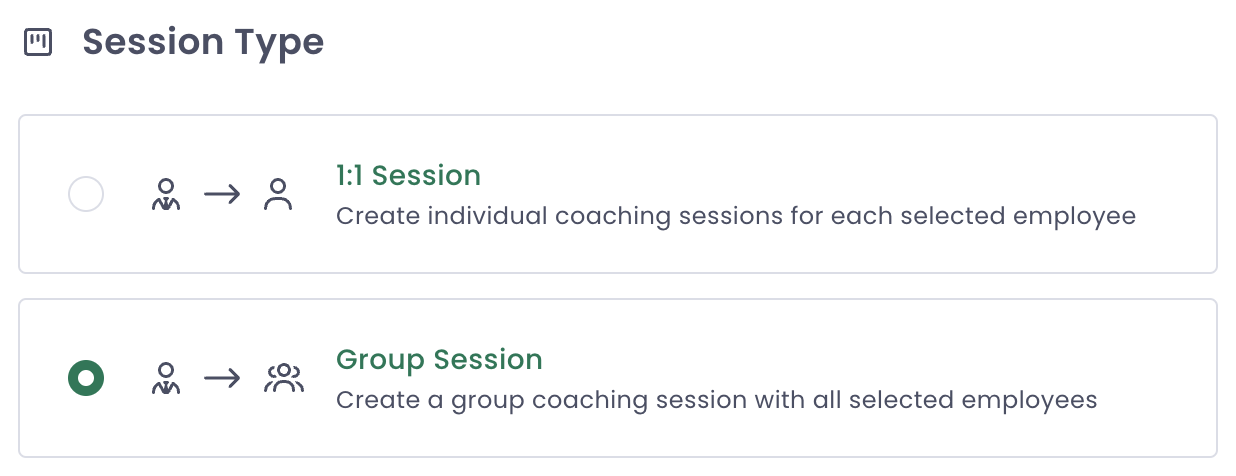
Step 2: Participants - In the Session Type section, select Group Session.
Create A New Managed Program
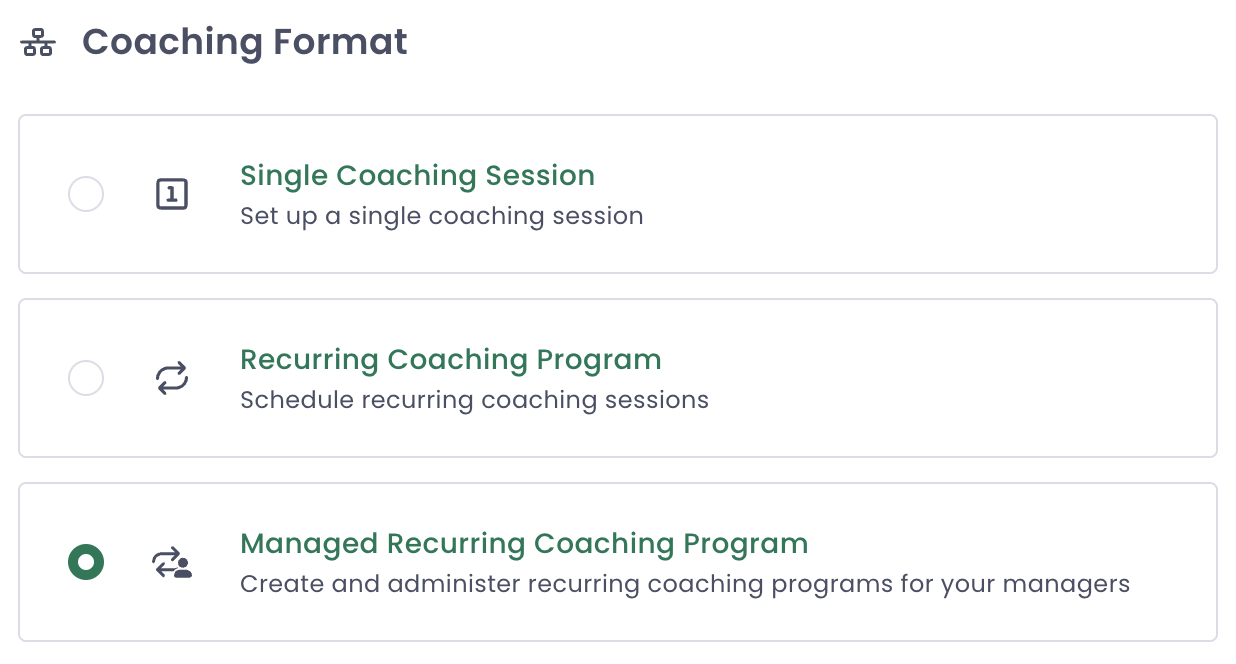
Step 1: Details - In the Coaching Format section, select Managed Recurring Coaching Program.