How do I set up a Cisco integration?
Last updated: June 23, 2025
Cisco Integration
Ambition offers a preconfigured template capable of parsing your Cisco CDR data into the following metrics:
Outbound: Outgoing Calls, Outgoing Call Length, Average Outgoing Call Length
Inbound: Incoming Calls, Incoming Call Length, Average Incoming Call Length
If your organization desires to send Cisco data in addition to the metrics listed above, using the preconfigured template will not meet your organization's needs.
In that case, creating a API/FTP integration will be the best route!
Enable the Integration
Users with the "Integrations: Edit" permission will be able to access the Integrations tab and create, edit, and delete all metrics.
1. Login to your Ambition instance.
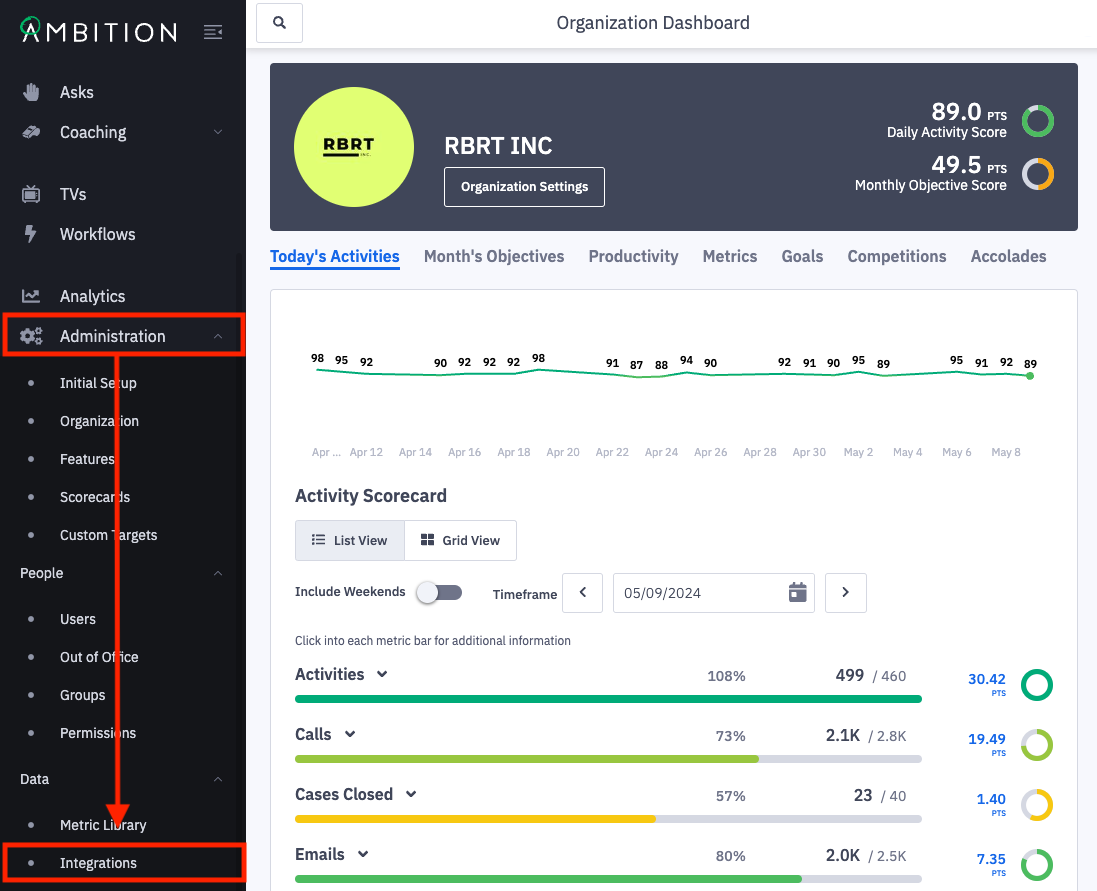
2. Open the left navigation and click Administration > Data > Integrations.
3. Click the + Enable Integration button.
If this is the first integration enabled in your instance, you will skip this step and begin at step 4.

4. Locate the Cisco integration and click "Enable Integration" in line with the Cisco integration name and icon.
You will be redirected into the newly enabled Cisco integration.
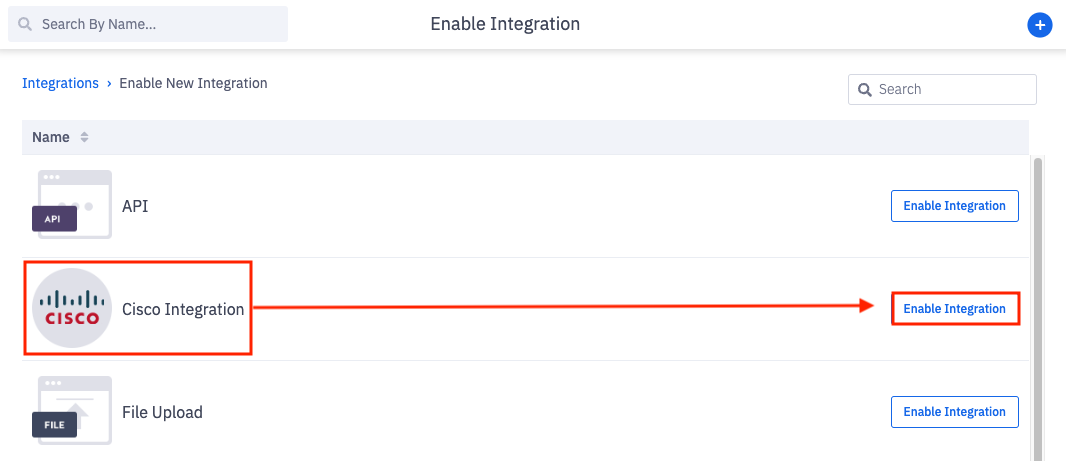
Upon enabling you will be redirected within the integration. To enter the Cisco integration anytime after original enabling:
Once enabled, the Cisco integration will appear on the Integration Management page.
5. Click Edit in line with the appropriate Cisco integration.

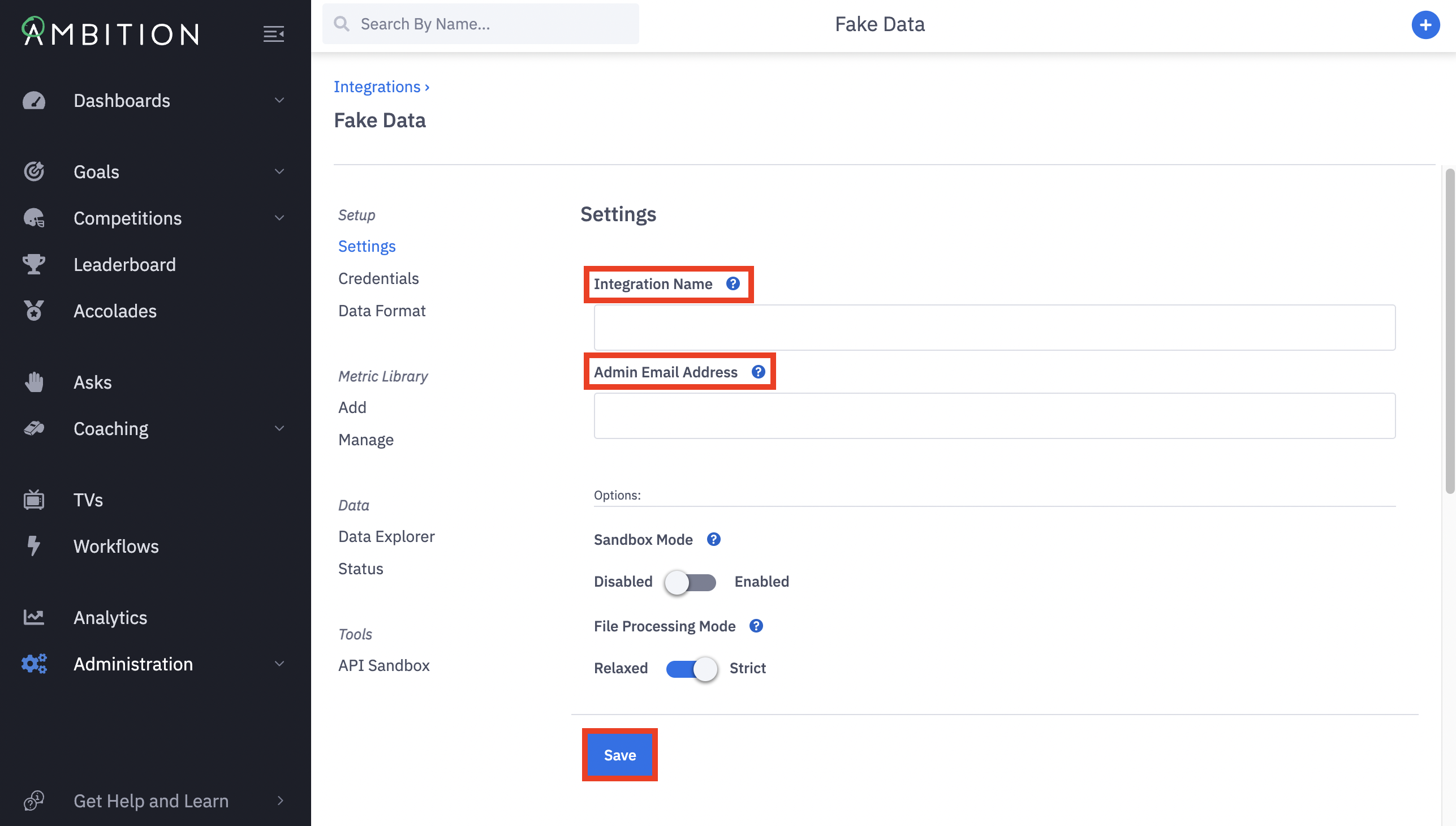
6. The integration will be named "Cisco Integration" by default. If desired, you can update the Integration Name field to a more descriptive name.
7. Provide an Admin Email Address. This email will be contacted if and when integration issues arise.
8. Click the Save button.
Data Format and Metrics
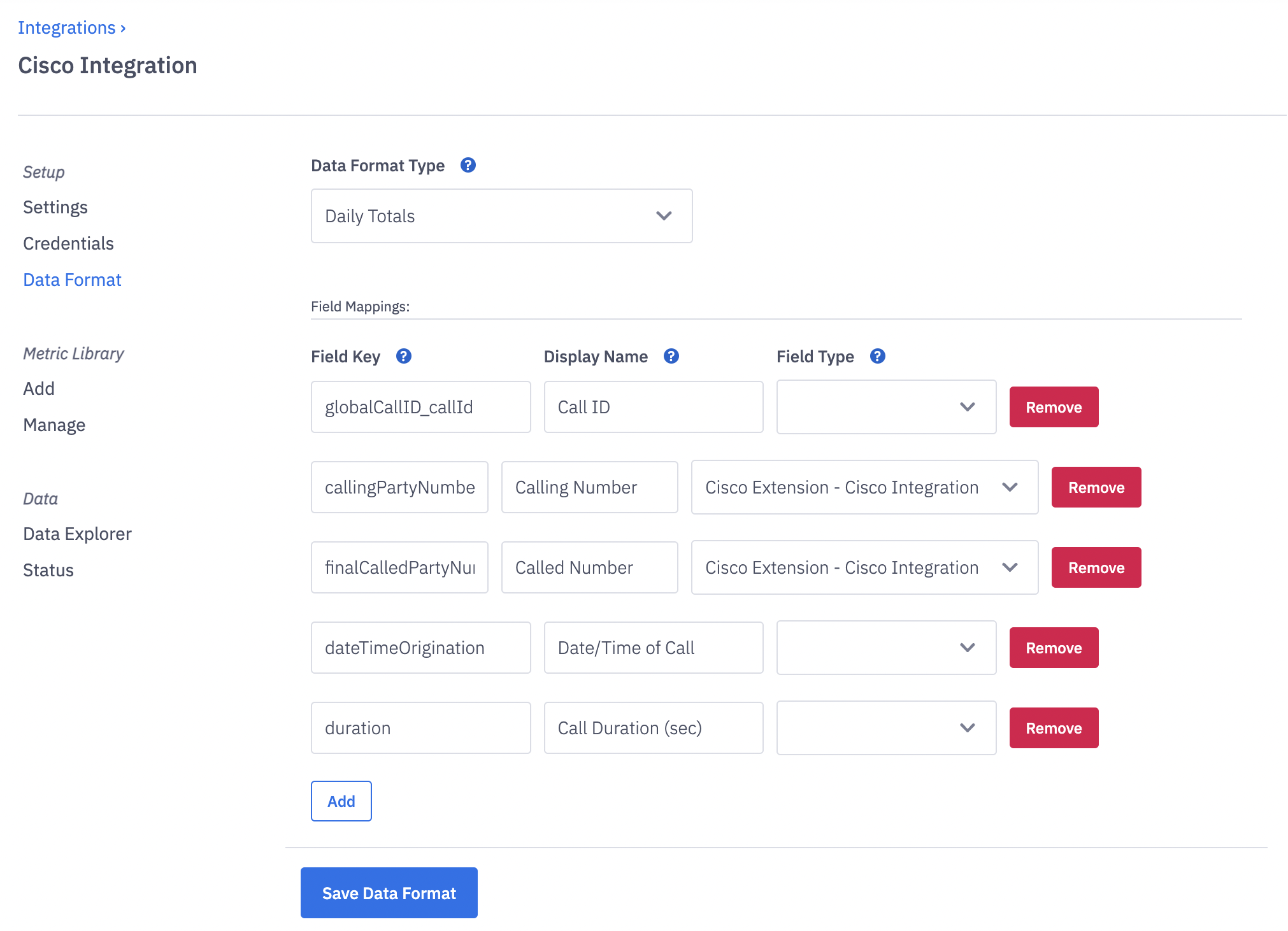
In order to use the preconfigured template mentioned above, Ambition requires the following CDR fields:
Fields | Description |
globalCallID_callId | Call ID |
dateTimeOrigination | Date/time of Call |
callingPartyNumber | Calling Number |
finalCalledPartyNumber | Called Number |
duration | Call Duration (Seconds) |
The CDR fields will be automatically mapped within the Data Format.
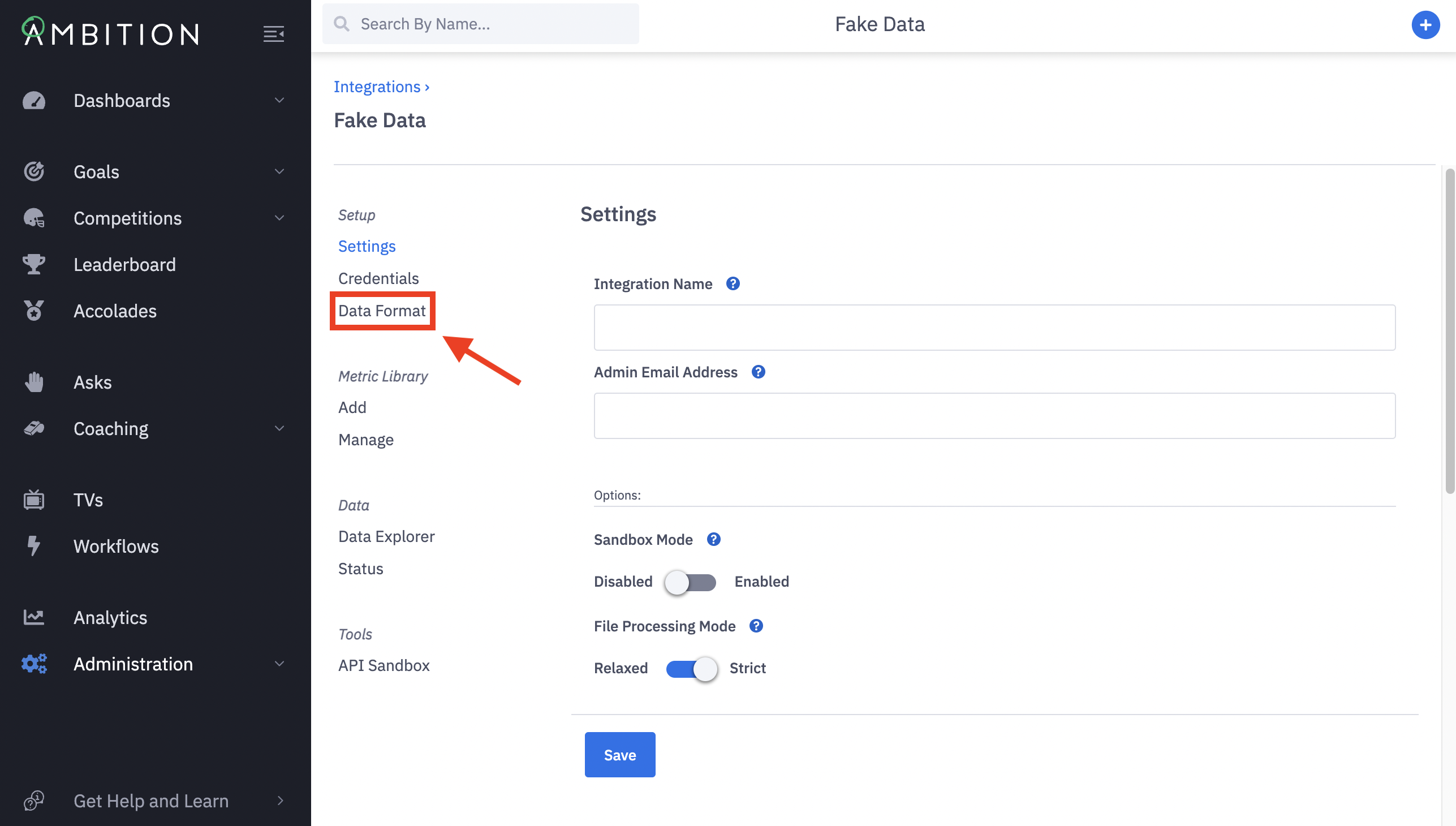
The majority of Field Types will be blank due to the nature of the preconfigured template.
No changes are needed!
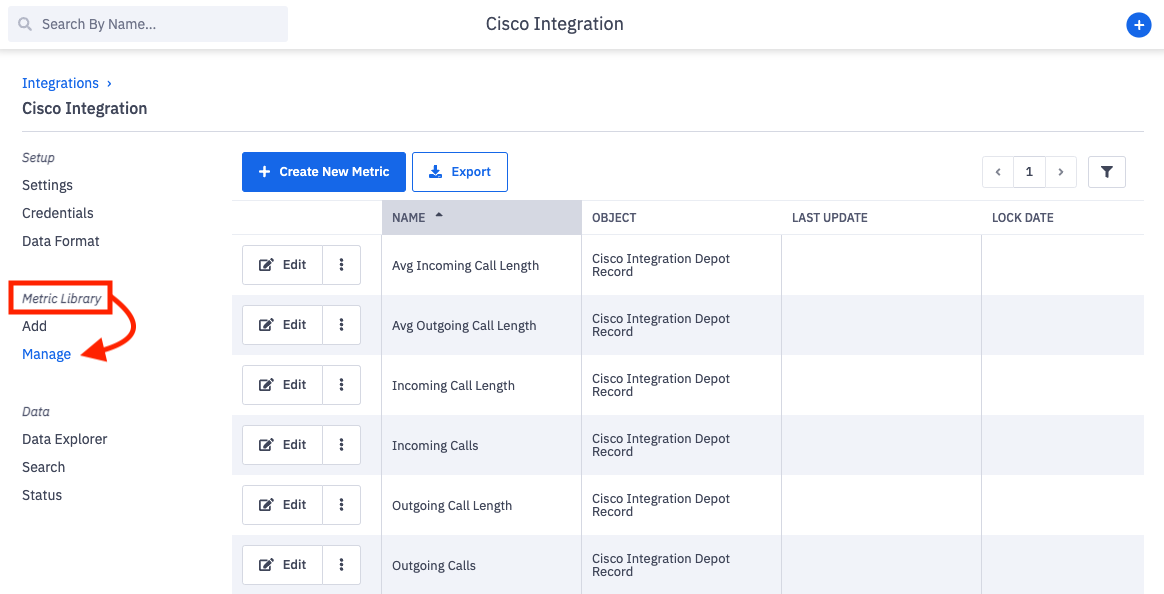
The preconfigured template metrics will be automatically created and viewable through the Manage tab
Upload Cisco Data
Credentials
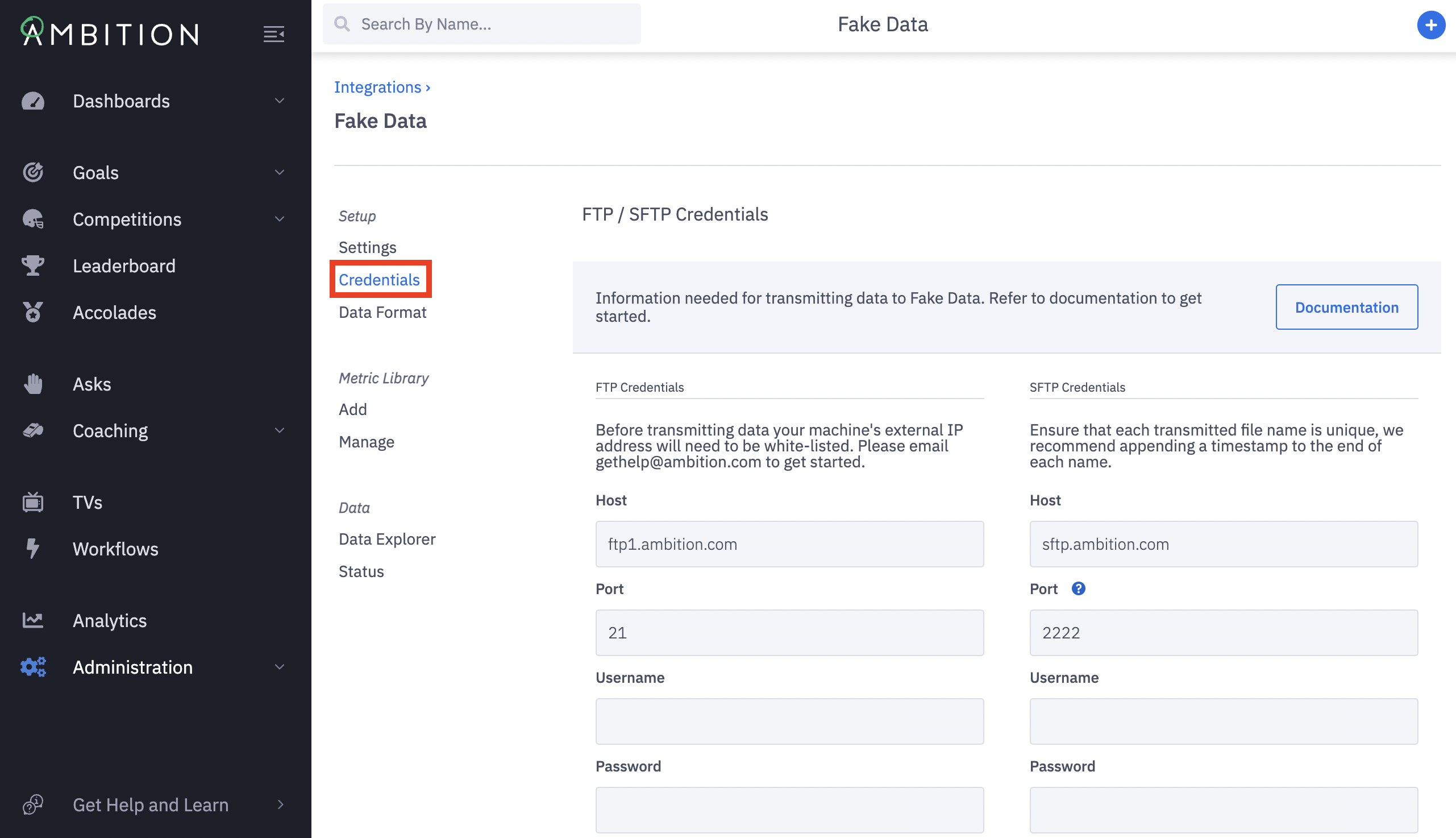
1. Click the Credentials tab from within the Cisco integration to find the USERNAME, PASSWORD, HOST, and PORT.
FTP Transmission
You will need to email gethelp@ambition.com with your server's external IP address so that we can create a whitelist rule in our firewall. This IP address should not start with 192.168, 172.16 - 172.31, or 10. as these are private, internal addresses. In addition, we only support Passive FTP which means you must open restrictions on outbound ports.
Use either the built-in Cisco CDR Manager or a custom solution to transmit data on an automated basis. Exclude sending CMR files.
If using Cisco's built-in solution you must select the FTP protocol as you are not able to configure SFTP with Ambition's custom port (2222) at the given time.
Extensions
Ambition will map Cisco data to employees through phone extensions. These can be input manually through an individual's Account Settings page or bulk uploaded through CSV.