How do I subscribe/unsubscribe to Ambition email notifications?
Last updated: August 14, 2025
Email Notification Settings
Users with "Users: Edit - Can Edit Self" permission will be able to update their notification settings.
Each application within Ambition (coaching, competitions, goals, etc.) is supported by email notifications. These notifications alert users of upcoming events, progress updates, or even final results.
Update Email Notification Settings
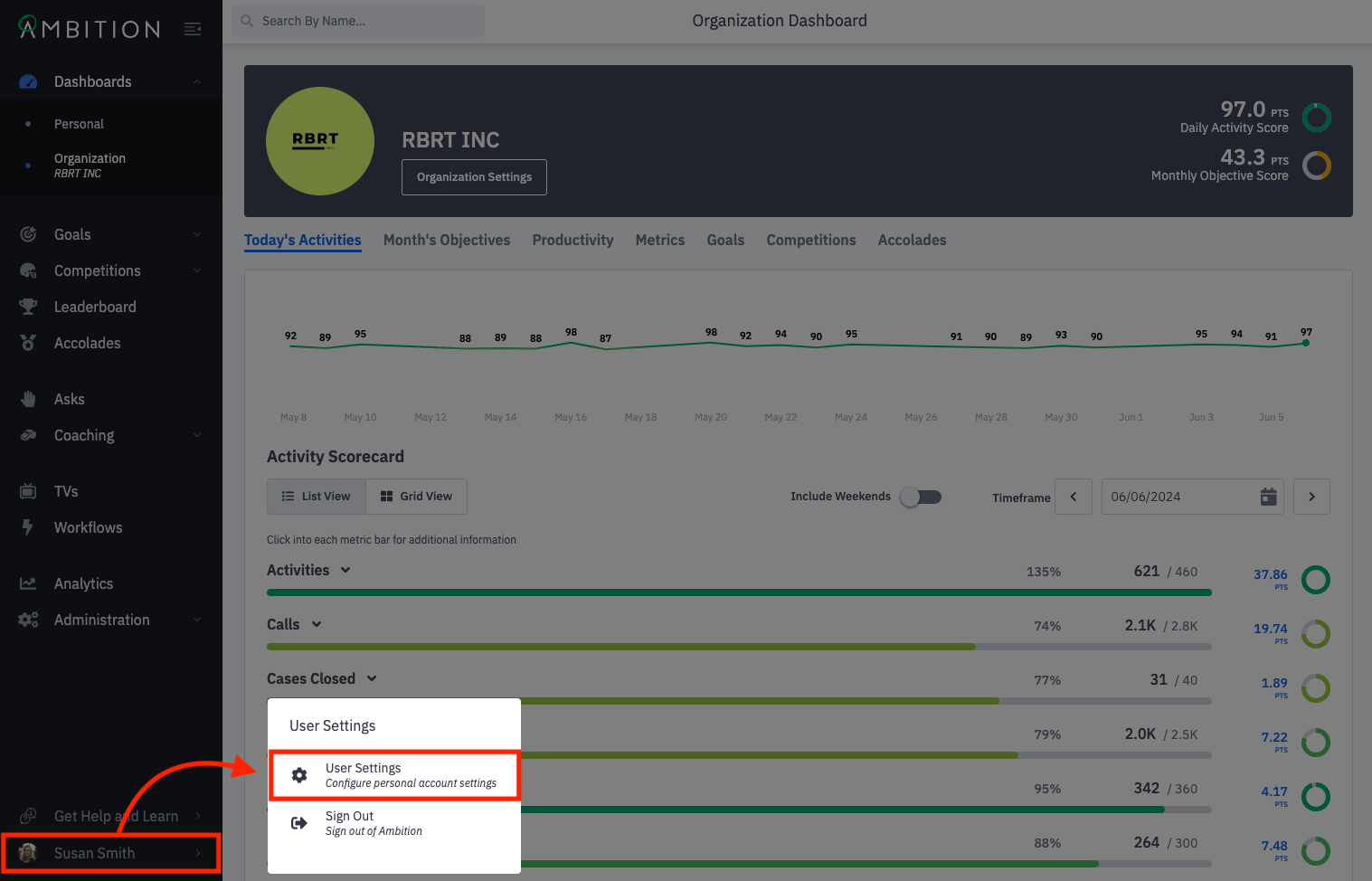
1. Open the left navigation and click on your image and name in the lower left corner. Select User Settings.
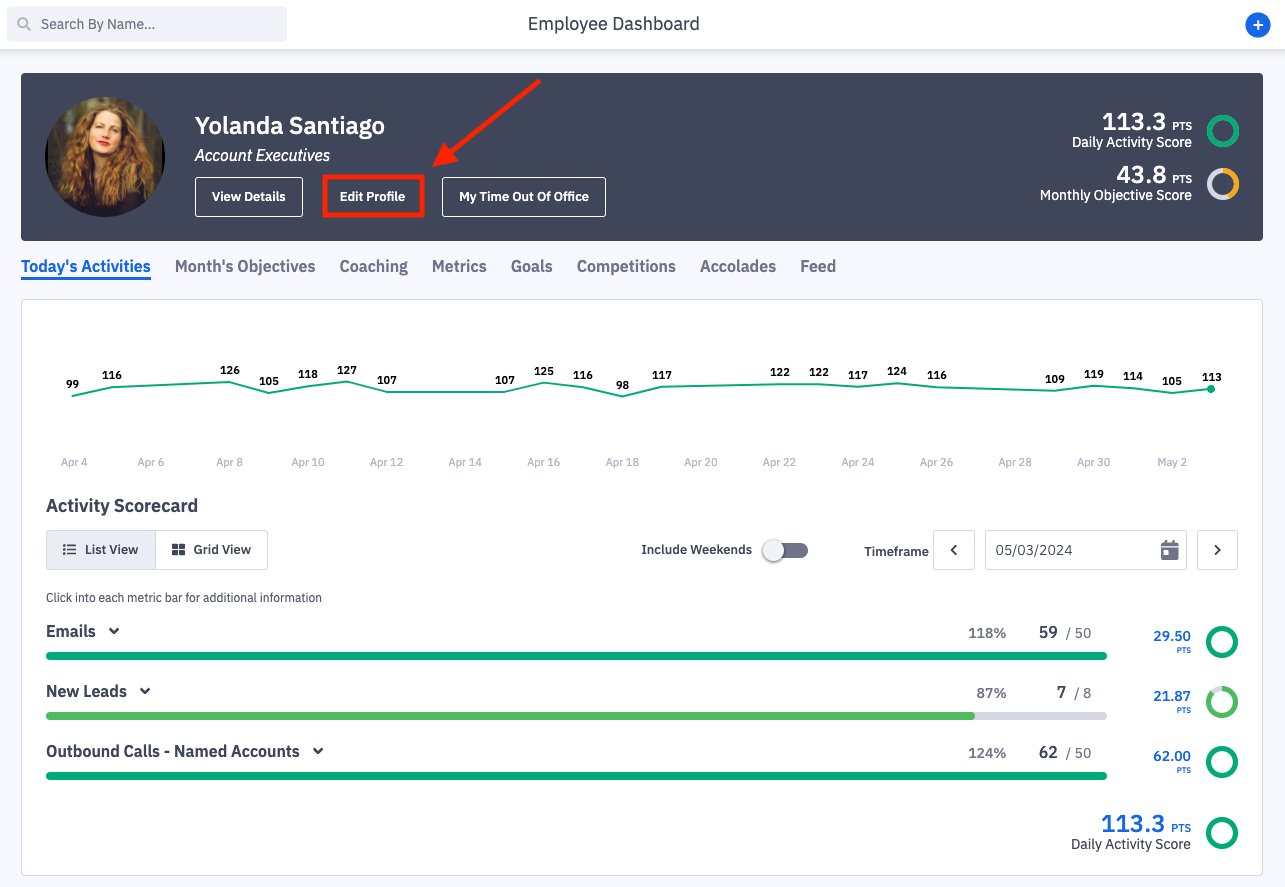
User Settings can also be accessed by clicking Edit Profile on an employee's dashboard.
Note: Users with admin permissions can edit the notification settings for any user in Ambition.
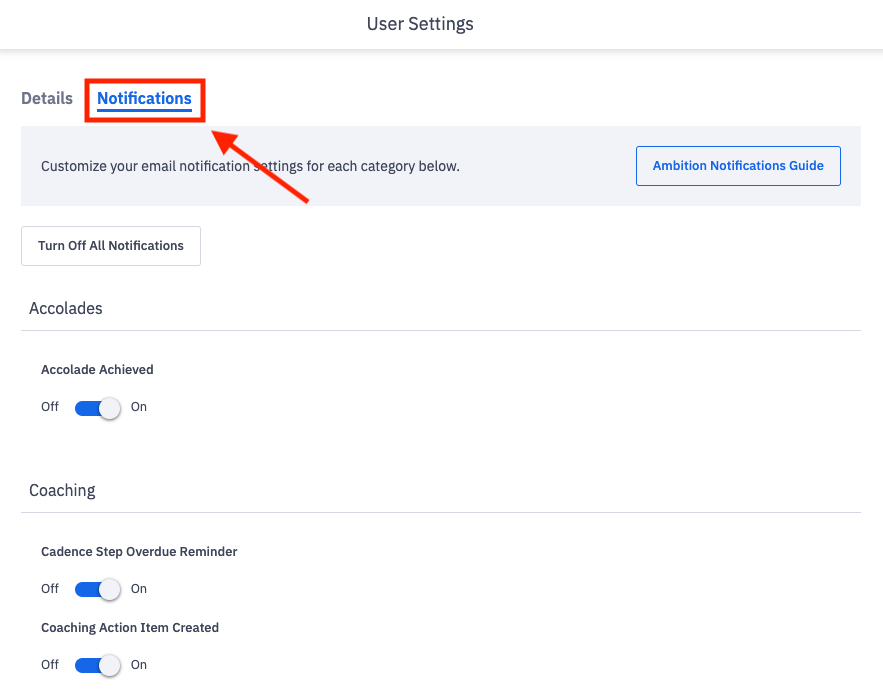
3. From the user settings page, click on the Notifications tab.
4. Unsubscribe, subscribe, customize options.
Unsubscribe to All Emails by clicking TURN OFF ALL NOTIFICATIONS.
Subscribe to All Emails by clicking TURN ON ALL NOTIFICATIONS.
Customize the emails you receive by scrolling to the application in question:
Accolades
Analytics (scheduled analytics report workflow)
Asks
Coaching
Comments
Competitions
Digests (manager and admin permissions only)
Goals
Integrations (integration health status alert workflow)
Leaderboard (scheduled leaderboard workflow)
Metric Processing (metric and record based alert workflows)
Special note about unsubscribing from workflow emails - The exception of turning off a workflow email notification is if the user's email is manually input into the "send an email to the following" section on an email action. Users will still receive those email notifications even if they are unsubscribed from the workflow type.
Learn more about each type of email here.
By default, all notifications are turned on.
5. Turn on or disable email notifications by clicking the Off/On toggle.
Note: If disabling emails, any emails that are already scheduled will still be sent. Email preferences will update upon the next recurrence.