How do I install Ambition's Managed Package in Salesforce?
Last updated: October 15, 2026
Authorize and Install Ambition's Salesforce Managed Package
Prerequisites for Installing
Standard Salesforce User License
System Administrator Profile
Wish to install using a headless user? Lean more here.
Install Ambition's Managed Package into Production Salesforce
Users with the "Integrations: Edit" permission will be able to access the Integrations tab and create, edit, and delete all metrics.
1. Log in to your organization's Ambition instance. After install, Ambition can be accessed within Salesforce, but preinstall Ambition must be accessed through your organization's standalone Ambition domain.
2. Open the left navigation and click Administration > Data > Integrations.
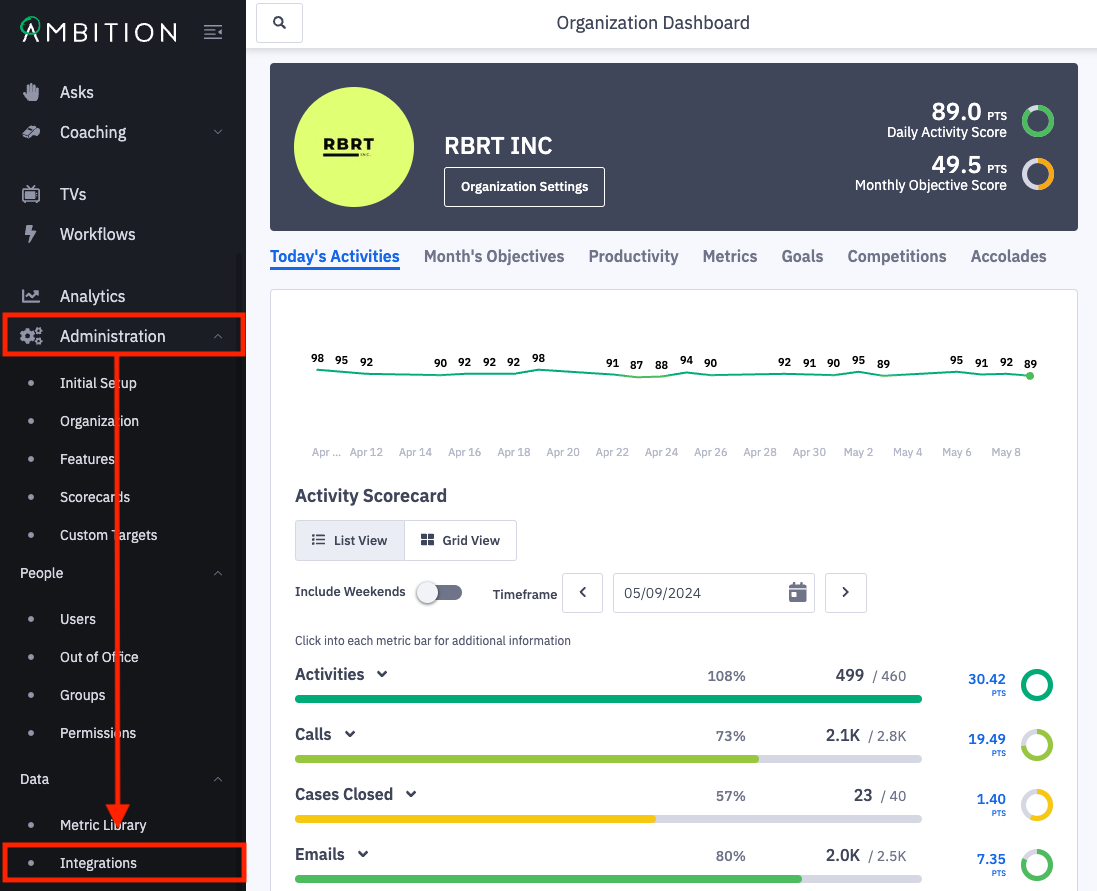
3. Click the + Enable Integration button.
If this is the first integration enabled in your instance, you will skip this step and begin at step 4.

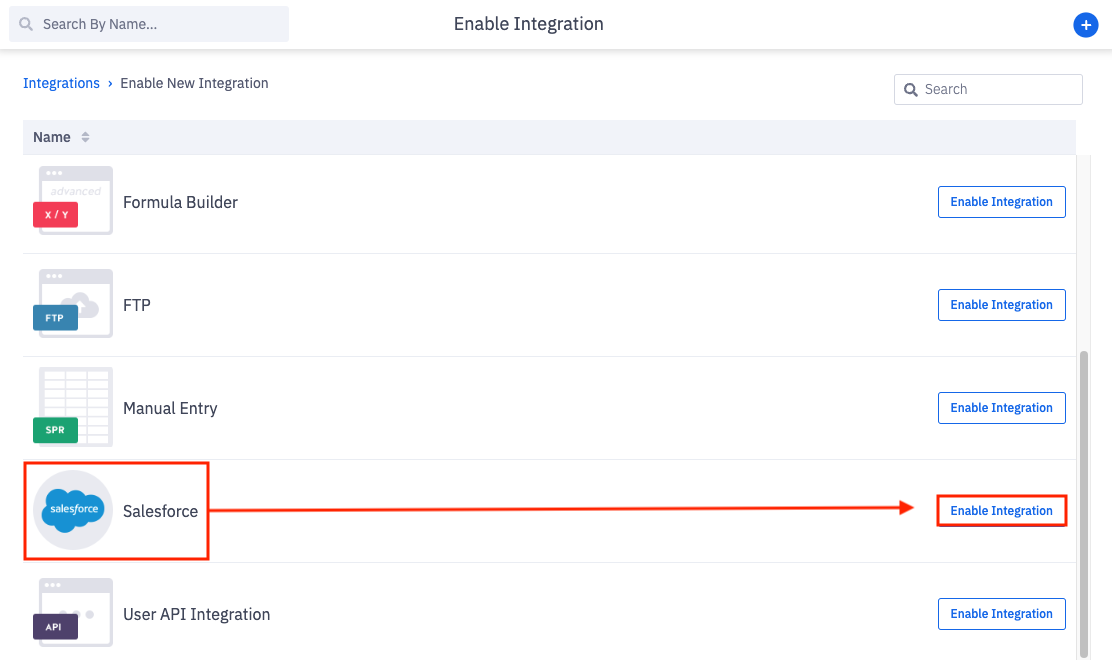
4. Locate the Salesforce integration and click "Enable Integration" in line with the Salesforce integration name and icon.
You will be redirected into the newly enabled Salesforce integration.
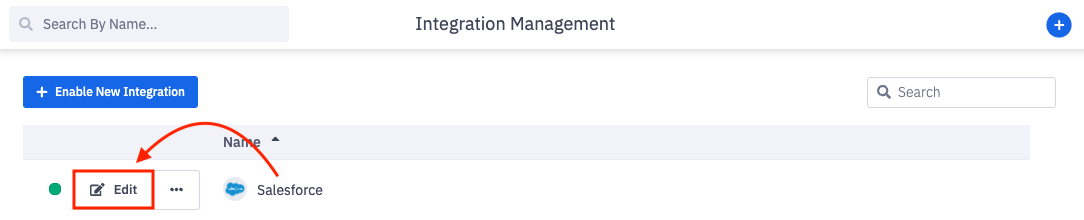
Upon enabling you will be redirected into the Integration. To enter the Salesforce integration anytime after original enabling:
Once enabled, the Salesforce integration will appear on the Integration Management page.
5. Click Edit in line with the Salesforce integration.
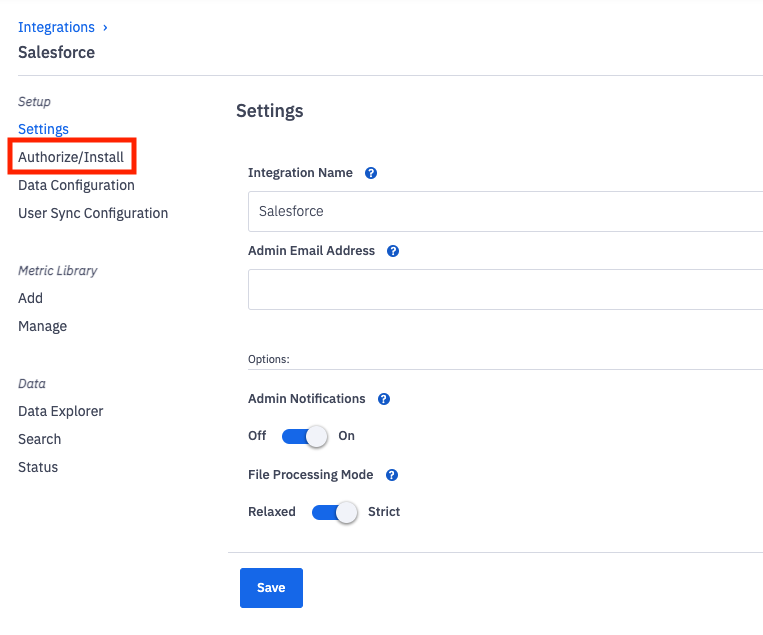
6. Click on the Authorize/Install tab.
7. Click "Authorize".
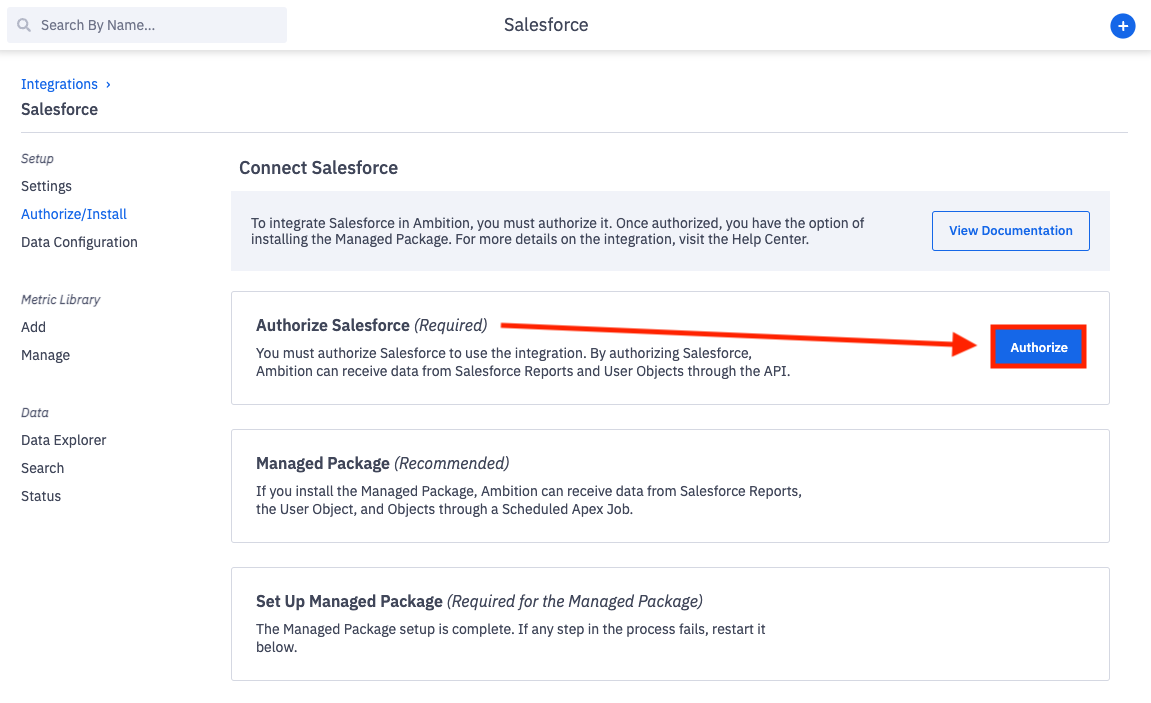
8. When prompted, enter your Salesforce Production credentials.
Click Allow when prompted. You will be redirected back to Ambition once authorization is complete. This authorization process might take ~1 minute.
↳ Verify the authorizing user's language settings. Ambition will sync translated Salesforce field names and API names if applicable.
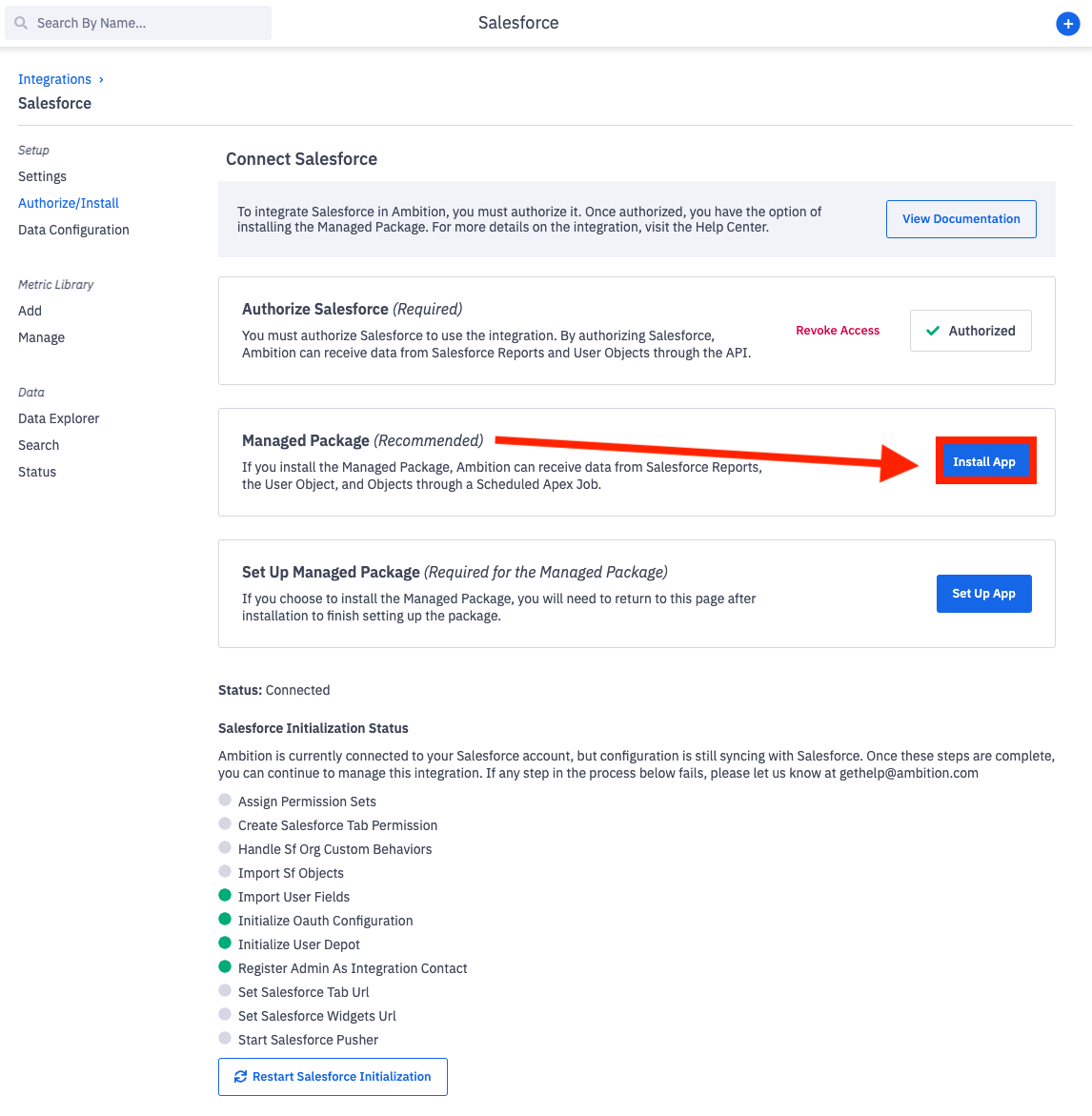
9. After authorizing is complete, click "Install App"
↳ Installing with a headless user? Enter the headless user's credentials.
10. Click the "Download for Production" button.
11. Set Security Level to "Install for Admins Only" and click Install.
12. Approve Third-Party Access with a checkmark and click Continue.
Ambition is now installing, a process that typically takes 3-4 minutes to complete.
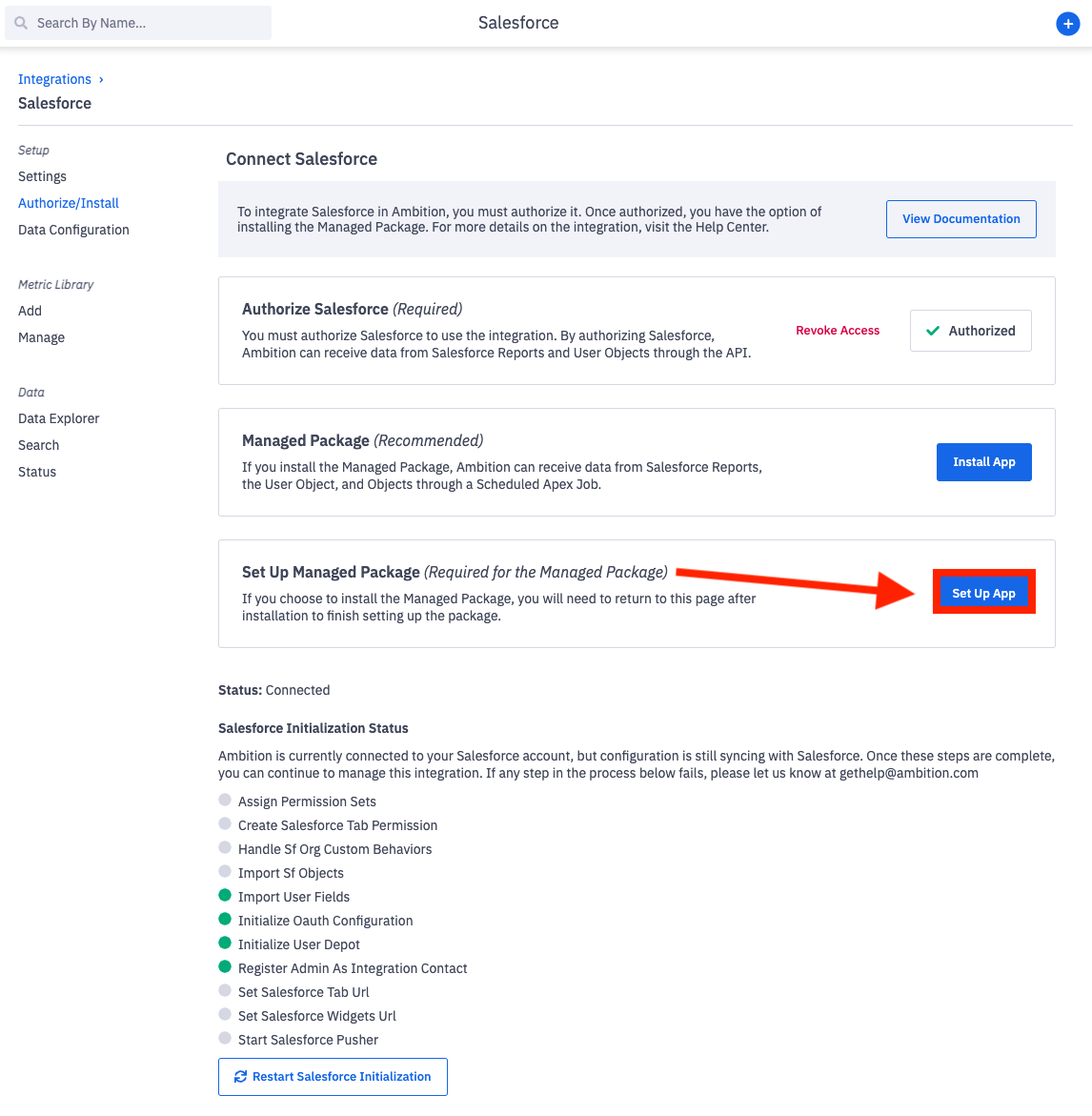
13. Once you've been notified of successful installation, return to the Authorize/Install tab within Ambition and click "Set up App"
Getting an error when you try to authorize or install?
Try repeating the process with your browser in Private Browsing (IE) or Incognito (Chrome) mode. Sometimes there are cookie-related issues, especially if you have recently logged into another user's Salesforce account.
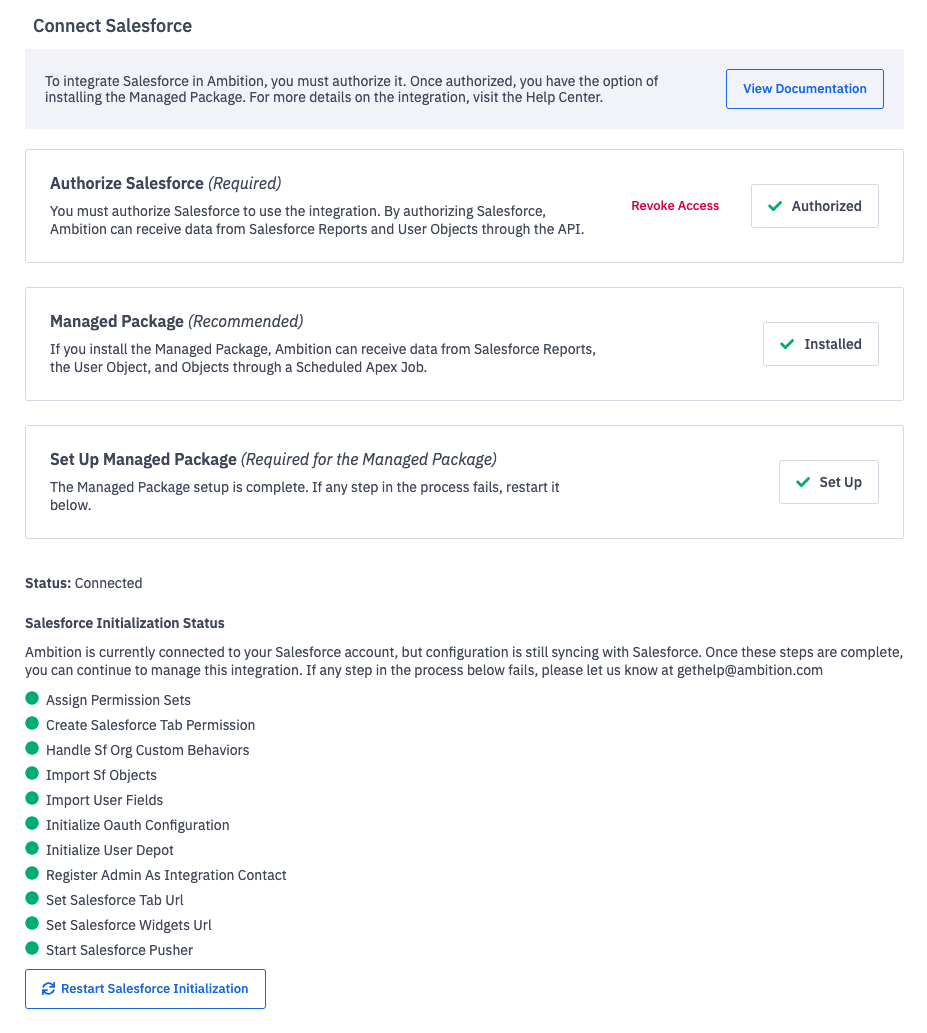
Successful authorization and install will be signaled by Status: Connected and all steps under Salesforce Initialization Status displaying with a green indicator.