How do I create a Message Slide?
Last updated: October 17, 2025
Message Slide
Display text and an optional countdown clock on the TV.
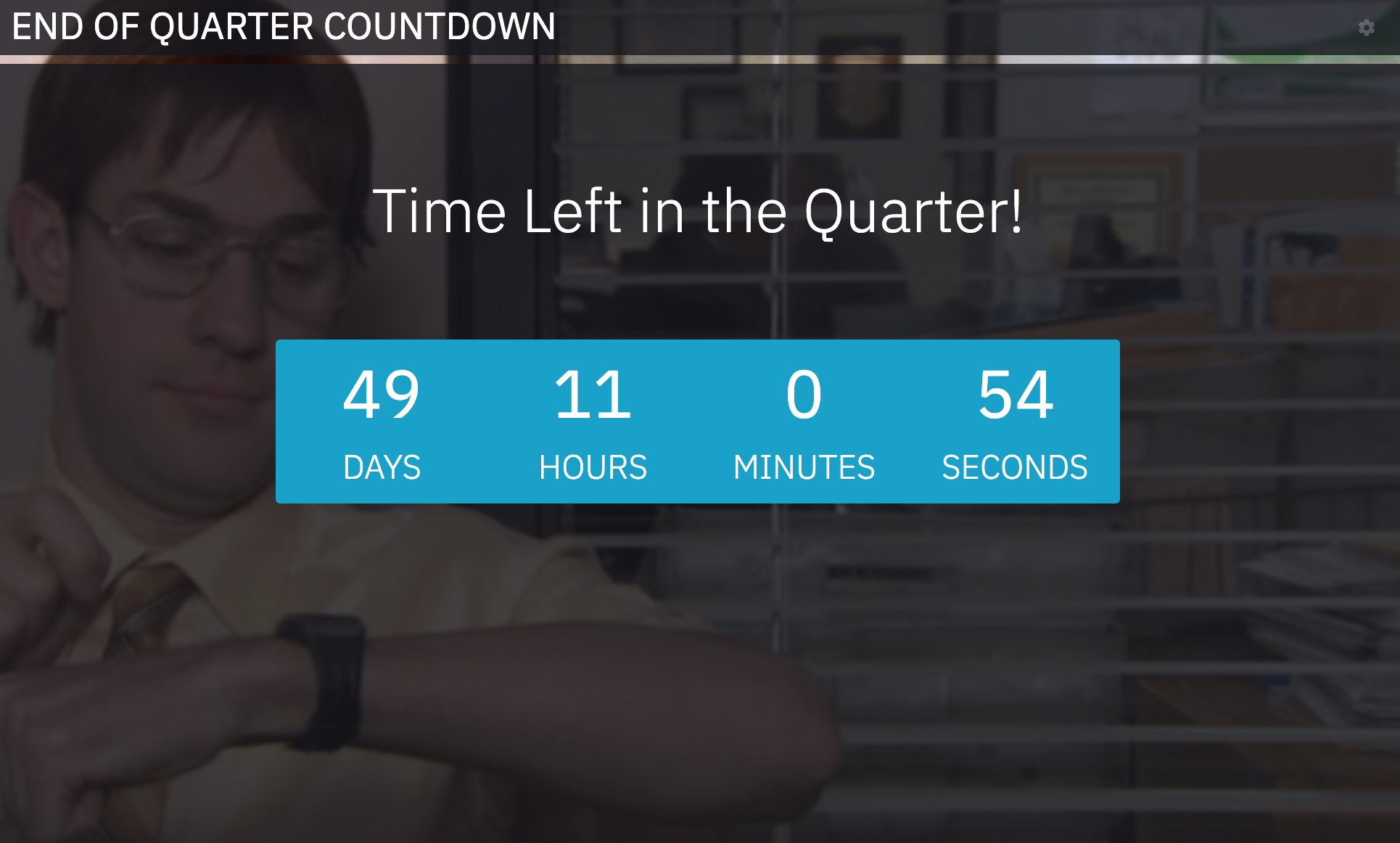
Create a Message Slide
Users with "TVs: Create" permission will be able to create, edit, and delete slides on TVs they've created.
Users with "TVs: Edit" permission will be able to create, edit, and delete slides on any TV.
1. Open the left navigation and click TVs.
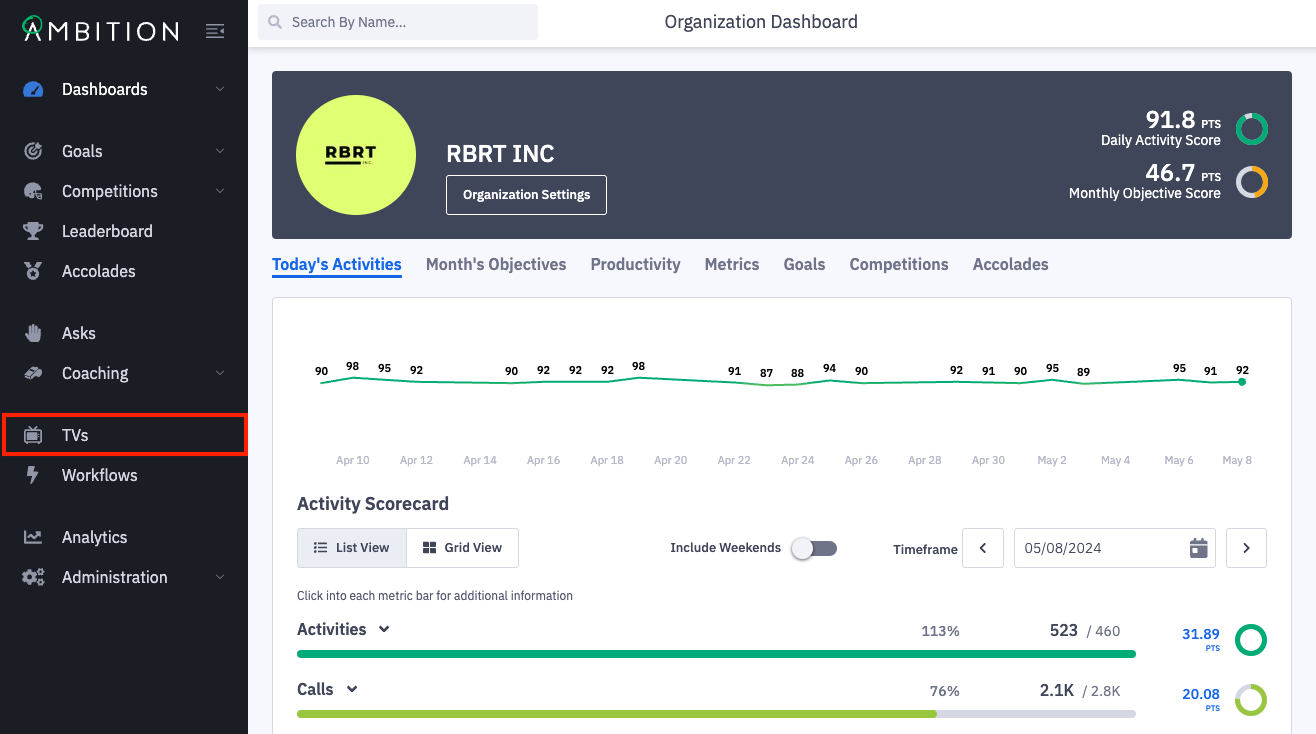
2. Click the number in the slides column on the TV you wish to edit. You can also click the ellipses icon, Edit, and Slides.
Upon clicking Slides, you will see a blank Create Slide form.

3. Complete the Create Slide Form.
Basic Settings
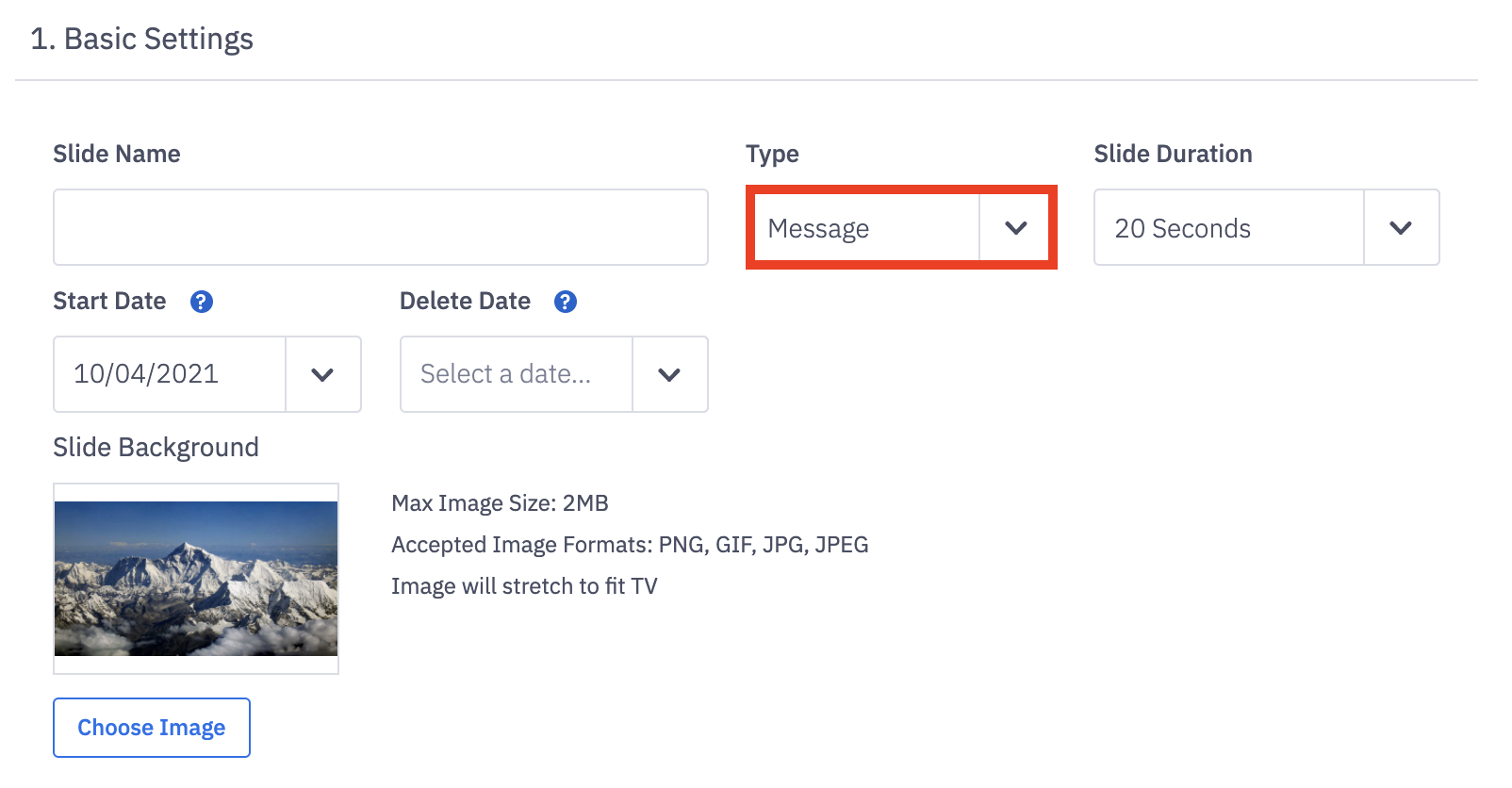
Field Name | Field Description |
Name | The slide name will be displayed on the TV to identify the slide. |
Type | Select Message from the dropdown. |
Slide Duration | Determine how long this slide will be displayed per carousel rotation. Options range from 10, 20, and 40 seconds to 1, 2, 3, 4 and 5 minutes. |
Start Date | When the slide will be visible on the TV. Date defaults to today. |
Delete Date | Optional. When the slide will be removed from the TV and deleted. |
Slide Background | Optional. Upload a background image for the slide. |
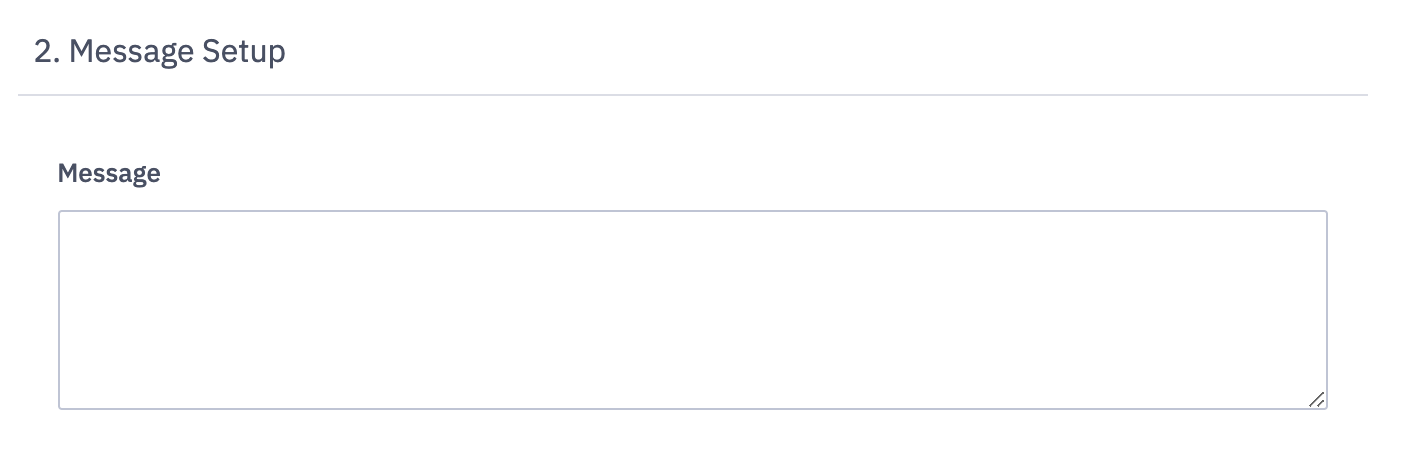
Message Setup
Input the message to be displayed on the TV.
Note: Currently the Message slide text does not offer rich text formatting options.
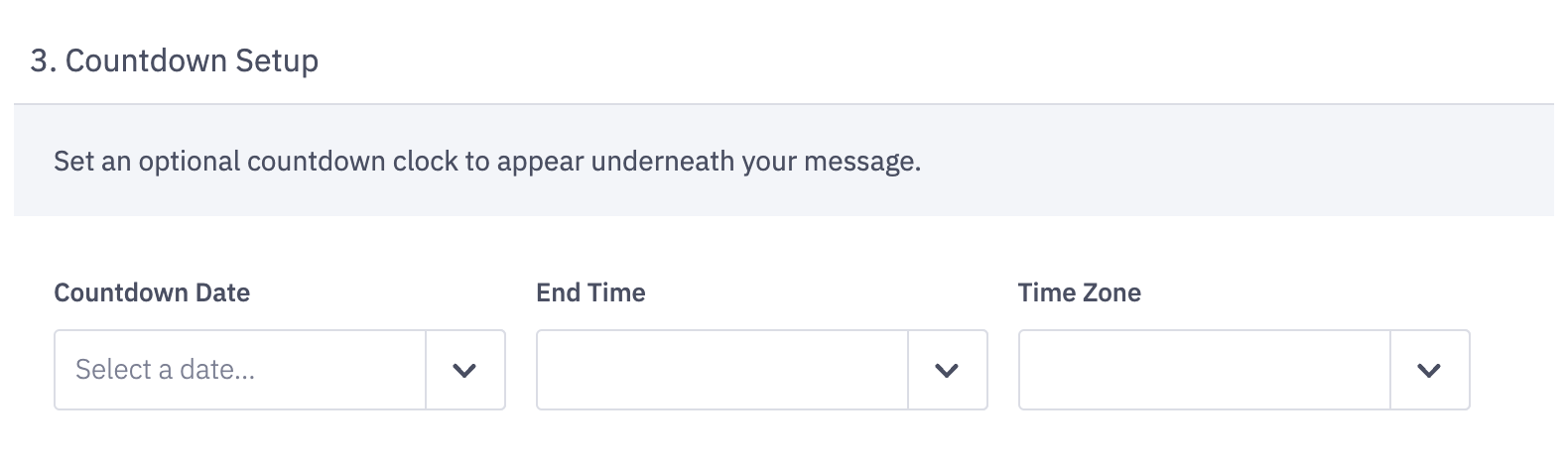
Countdown (Optional)
Set an optional countdown clock to be displayed underneath the message.
4. Optionally click the Preview button to preview your message slide.
Note: Uploaded slide background images will not be viewable through the Preview option.
5. Click the Save button.