How do I create and share a pipeline view template?
Last updated: December 16, 2025
Pipeline View Template
Pipeline Templates
Template views can be created and shared with managers to ensure everyone is looking at the same data and how it changes over time. Determine the type of data, the fields that need to be tracked, and any filter criteria, ex. Stage Not Equal to "Closed Won", that you want your team aligned on, and then share away! Managers will be able to further customize views shared with them if they wish to view a different date range, analyze changes to data since a specific date, or view data for specific users or groups.
Create Pipeline View Template
Creating pipeline views is dependent on the "Pipeline Intelligence: Pipeline Views" feature being enabled.
Users with "Pipeline: Manage Views" permission can create, edit, delete, view, and share all pipeline view templates.
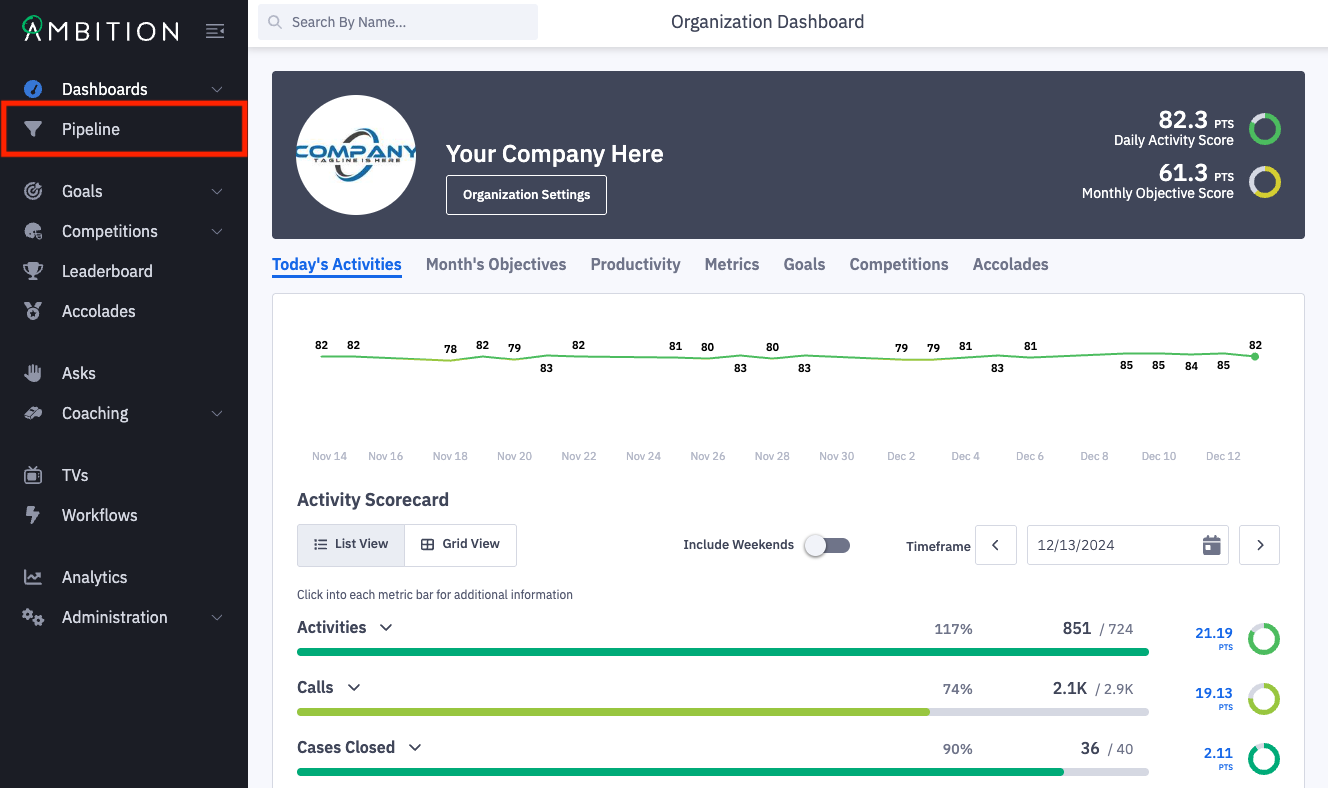
1. Open the left navigation and click Pipeline.
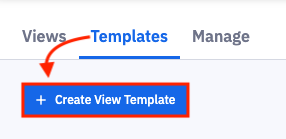
2. Click on the "Templates" tab and then + Create View Template.
3. Select the appropriate pipeline filters information:
Filters
Field Name | Field Description |
Record Type | The type of records-based data you wish to view. If selecting a Salesforce object, a metric will have to be created from it before it will appear on the manage page. Additionally, the Task object from Salesforce is not available for use within pipeline intelligence at this time. |
Date Field | The date field will be used to determine if a record occurs within the date range. |
Timeframe | Select rolling or fixed. A rolling time frame will not need to be updated as a new month or quarter begins, the time frame will "roll over" to the new month, quarter, etc. Select fixed if you wish to view a custom timeframe. |
Date Range (when rolling is selected) Start and End Date (when fixed is selected) | The date range will be used to filter down the records. The date field selected above will be used to determine if records fall within the desired date range. |
“Changes Since” | Record information that has "changed since" the range or specific date will be highlighted on the view. |
Employee Field | The user field will be used to filter records when searching for a specific employee or employees within specific groups. |
Employees (for preview) | Select the which employees or group of employees that you wish to preview on the view. Select all employees = Every active Ambition user who has data fitting the view's criteria will display. Select employees within specific groups = You will be prompted to select one or more groups within Ambition. All users within the selected group(s) who have data fitting the view's criteria will display. Only members, and not managers, of the selected groups will be included. Select specific employees = You will be prompted to manually select which specific users you wish to preview in the view. |
Fields | Select the fields you wish to include on your view. Each selected field will appear as a column on the view. |
Add Filter | Click on "Add Filter" if you wish to refine the data to a specific subset of data. Add Field, Operators, and Values as needed. Example filter would be limiting the opportunity data to records that are in Stage Equals SAL AND Stage Equals Demo. *Note about Salesforce picklist fields: If you are attempting to filter by a picklist field that has more than 100 picklist values, reach out to our support team through this form. |
4. Click Apply to generate your view.

Save Pipeline View Template
After you've generated a pipeline view template, if you wish to save your template:
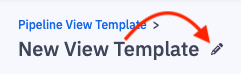
1. Click on the pencil icon by "New View Template" and give your pipeline view template a name so you can quickly find it next time you access Ambition. A name can be added after saving as well, and can be updated at any time.
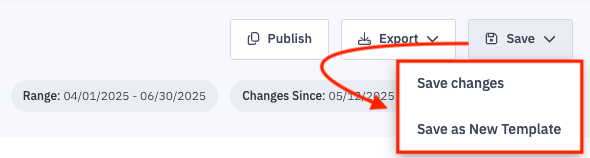
2. Click Save.

If you need to make changes after saving your view template, click Save again and select whether you'd like to save changes to your existing template or save your changes as a new template.
Publish and Share a View Template
Unpublished template views will still be visible and editable to users with “Pipeline: Manage Views” permission.
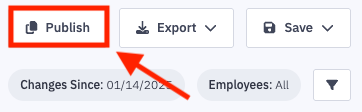
1. Click Publish.
2. Select all managers or select specific managers who should have visibility into the pipeline view.
If you've updated the "employee" permission set to have "Pipeline: Create Views" permission, you will be able to select all employees or specific employees to share with as well.
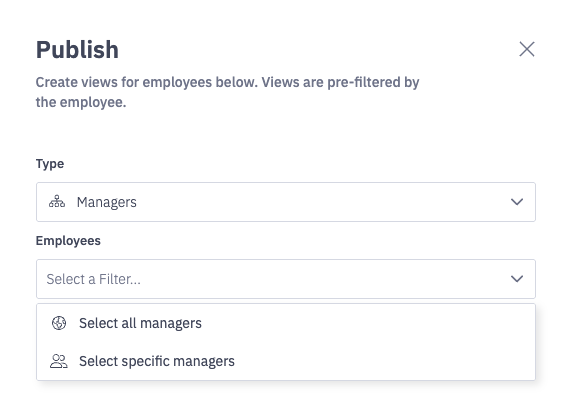
3. Click Apply to publish and share with the selected managers.