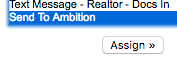
How do I set up Velocify's LeadManager?
Last updated: June 23, 2025
Velocify LeadManager
Post Setup
1. Sign into LeadManager
2. Click on Menu > Administration > Manage Posts
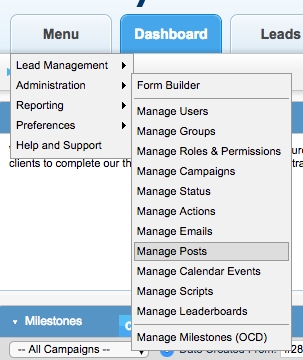
3. Click on Add New Post
4. Fill out and submit the Compost Post form
Title - We recommend "Ambition - "
URL - Set this to "https://ambition.com" for now, you will change this later
Type - JSON POST
Header - Leave empty for now, you will change this later
Success Regex Response - Leave empty
Update Lead From - Leave empty
Body: Create the JSON data structure for your desired metric, using the available Field Tags
See Example Metrics for inspiration.
Due to sporadic issues with Velocify's internal system where a Post will grab the previous record's data we highly recommend adding a small delivery delay.
For each Post Template click Settings and then set "When to Send a Post" to 15 seconds.
Activity Setup
There are two types of built-in activities that can trigger a Post being sent to Ambition:
Status
A lead's stage or state.
ex: New, Contact Attempt, Contacted, Qualified
Action
A user-driven activity or update to a Lead.
ex: Called: Left Message, Called: Contacted, Application Taken, Does Not Qualify
Workflow describes how statues and actions operate together so that a user can move a lead through the specified steps in a sales or enrollment cycle. An action is something a user does to update a lead, and a status is a description of where the lead is in the sales cycle.
An action may not necessarily trigger a status change.
1. Click on Menu > Administration > Manage "Desired Event"
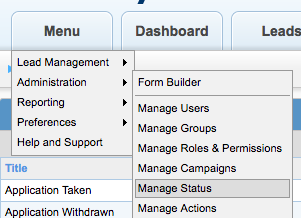
2. Find the desired status / action and click Posts
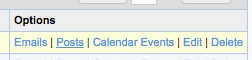
3. Assign your created post template to the "Posts Sent Upon Action" column.