How do I manually update a user?
Last updated: May 13, 2026
There are two methods you can use to update a user manually through Ambition.
The level of "User: Create" permission will control who you are able to edit - All Users, Subordinate Users, or Self.
Edit Through Employee Dashboard
Employee dashboards are accessible by clicking on a specific user from your own profile or searching for an employee through the Global Search.
1. Click Edit Profile on their employee dashboard.
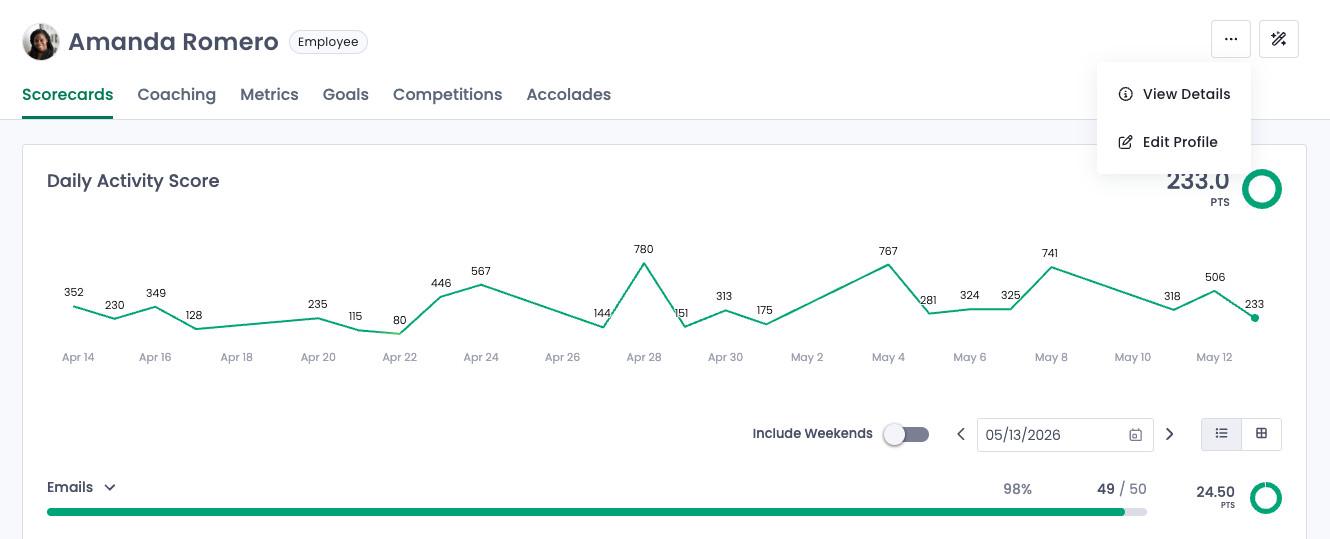
2. Make the necessary updates in the Users' profile.
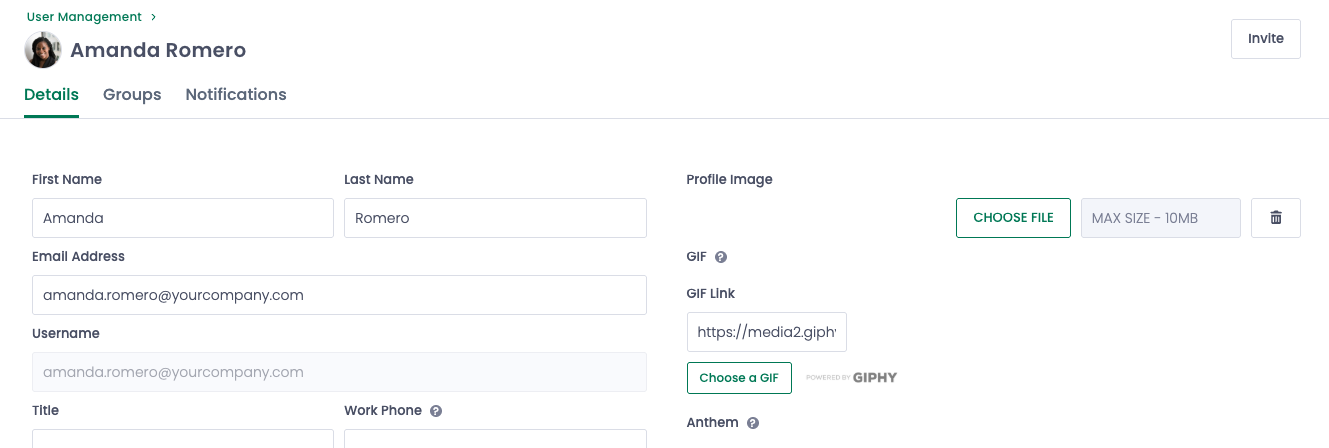
If your organization uses our Salesforce integration and find areas in the "Details" section of a user's profile grayed out (ex. email address) or unable to select the dropdown menus (ex. Time Zone), these fields were populated directly from Salesforce.
Updates must be first made in Salesforce and then will be reflected in Ambition.
While not grayed out, if your organization uses Single Sign-On with Ambition, any manual changes made to your First or Last name will be overwritten. Any needed updates must be first made in the Identify Provider and then will be reflected in Ambition.
4. Click the Save Changes button at the bottom of the user's settings.

Edit Through User Management
The user management page is accessible by clicking Admin > Users. This option will only be available if you have permission to edit a user.
1. Search for the user in the top right box labeled Search.
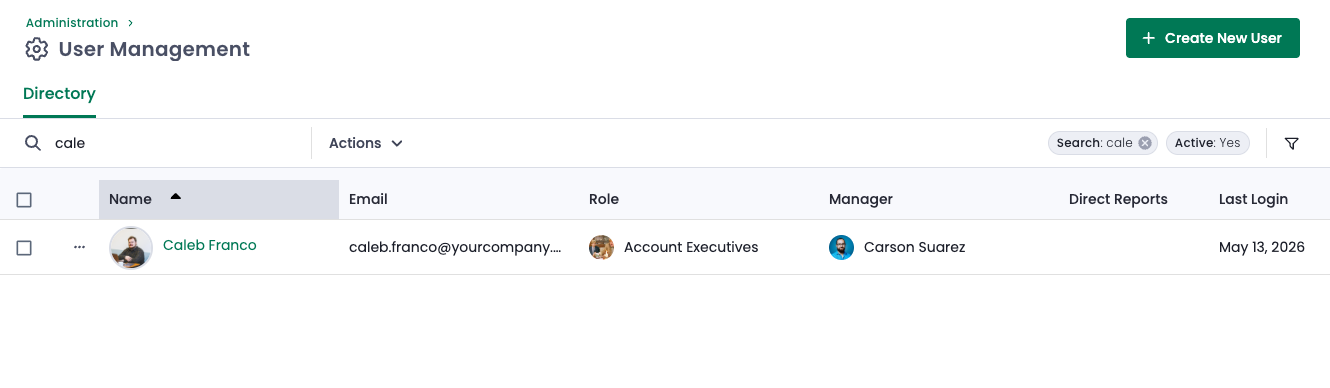
2. Once you've found the user you want to edit, either click on the User's name or the kabob menu (three dots) on the left and choose "Edit".
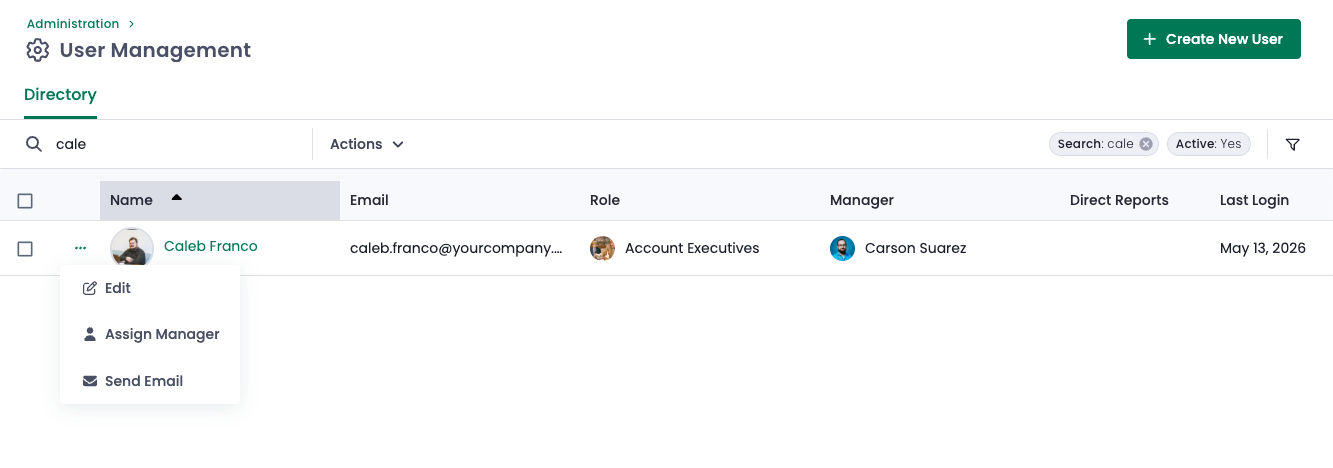
3. Make the necessary updates.
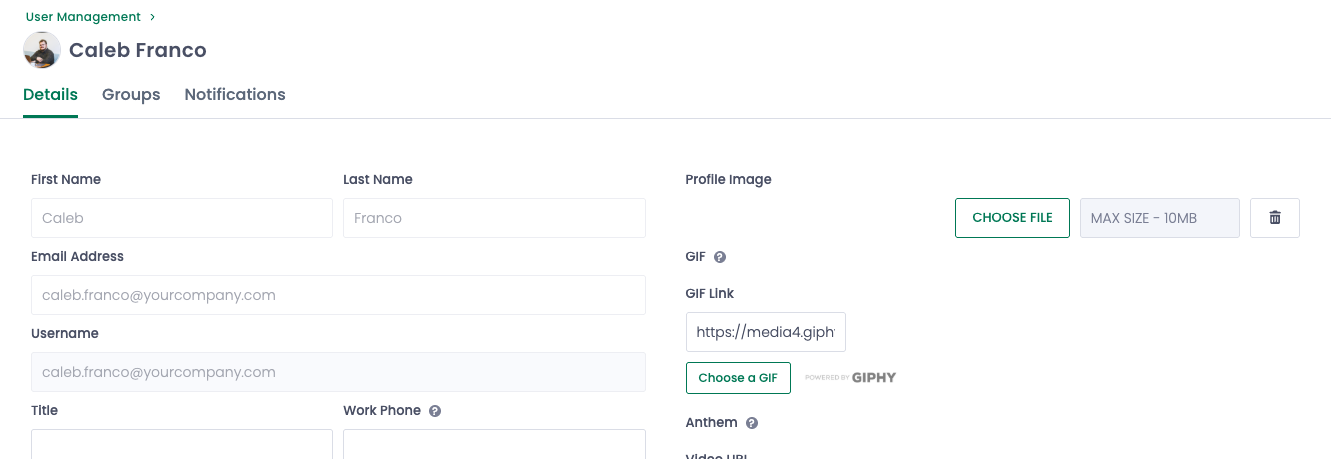
If your organization uses our Salesforce integration and find areas in the "Details" section of a user's profile grayed out (ex. email address) or unable to select the dropdown menus (ex. Time Zone), these fields were populated directly from Salesforce.
Updates must be first made in Salesforce and then will be reflected in Ambition.
While not grayed out, if your organization uses Single Sign-On with Ambition, any manual changes made to your First or Last name will be overwritten. Any needed updates must be first made in the Identify Provider and then will be reflected in Ambition.
4. Click the Save Changes button at the bottom of the user's settings.
If you need to update several users, save time by updating multiple users at once.