How do I add a new user manually?
Last updated: May 13, 2026
Manual user creation is the fastest way to add a single user to Ambition. Use this method when onboarding an individual new hire, creating a test account, or adding a user who isn't available through your active integration.
This action requires the "User: Create" permission.
1. Choosing Your Creation Method
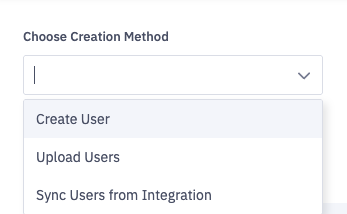
On the User Management page, click the Choose Creation Method dropdown and select Create User to open the manual entry form.
2. Complete the "Create User" Form
The form is divided into three sections: Basic Information, Memberships, and Permissions.
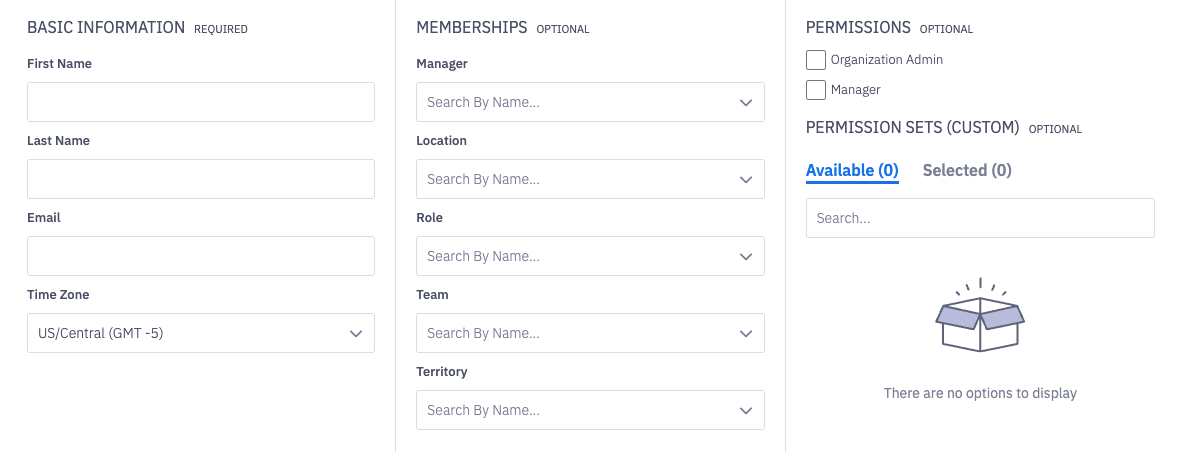
Basic Information (Required)
This section is required. Everything else is optional at creation time but recommended. Incomplete user records lead to gaps in scorecards, coaching assignments, and reporting.
Field | What To Enter | How It Is Used |
|---|---|---|
First Name | User's legal or preferred first name | Used in display names throughout the platform |
Last Name | User's last name | |
Work email address | This is the login credential and where the activation email is sent | |
Time Zone | User's local time zone | Defaults to US/Eastern (GMT -4). Update this for remote or distributed team members — it affects timestamp display and notification timing |
Memberships (Optional)
Used to define where this user sits in your org structure. Ambition uses these relationships to determine which scorecards apply, which coaching sessions are assigned, and how performance rolls up in reporting.
Field | What to Enter | How It Is Used |
|---|---|---|
Manager | The user's direct manager in Ambition | Drives coaching assignment, manager visibility, and rollup reporting |
Location | Office or region (e.g., Boston, MA) | Used for filtering and org-level reporting |
Role | The user's job role (e.g., Account Executives) | Maps to role-based scorecard and competition templates |
Team | The specific team within a role (e.g., Account Executives - East) | Determines group membership for competitions, leaderboards, and TV displays |
Territory | The sales territory this user covers (e.g., Eastern USA) | Used for segmenting pipeline and performance reporting by geography |
Permissions (Optional)
This section controls what the user can see beyond the standard end-user experience. Standard permissions for Org Admins or Managers can be applied.
Permission | What It Does |
|---|---|
Organization Admin | Full administrative access — user management, settings, integrations, and all data. Grant sparingly. |
Manager | Grants access to manager-level views including coaching queues, team scorecards, and direct report data. Assign to anyone who manages people in Ambition. |
Alternately, you can also select a custom permission set to allow more granular control. For example, granting a Sales Enablement leader read access to coaching data across teams without full admin rights. If your organization has configured custom sets, they'll appear in the Available tab.
3. Make Your Invite Selection
At the bottom of the form, you'll find the Invite Upon Creation checkbox.

Leave This Option Unchecked When...
You're pre-loading users ahead of a launch date, building out your org structure before go-live, or creating accounts for users who haven't been announced yet. This prevents premature notifications.
Check This Option When...
The user is actively starting and expects immediate access.
4. Create the User
Once all required fields are complete and optional fields are configured, click Create User. The user record is created immediately. If Invite Upon Creation was checked, they'll receive their activation email within a few minutes.
Manual creation works well for one-off additions, but it doesn't scale. Consider an alternative path if you:
Are onboarding 5+ users at once
Have users that already exist in Salesforce
Want new hires auto-added going forward