How do I change the owner of a cadence?
Last updated: June 17, 2025
Change Cadence Owner
Why Change The Owner of A Cadence?
The owner of a cadence can be thought of as the one who's "in charge" of the specific cadence or the point person for making any edits to a step's agenda, answering questions about the cadence, and enabling managers on the cadence's objective.
If the original creator of the cadence, and default owner, needs to "pass off" the responsibilities of owning the cadence to another user, the owner of the cadence can be updated.
Additionally, assigning a new owner to a cadence is helpful in the case where the original cadence creator no longer has Ambition access.
Who Can Be Set As A Cadence Owner?
Users with "Coaching Cadences: Create Cadence" or "Coaching: All Access" permission are eligible to be an owner of a cadence.
The owner of a cadence will be able to edit, close, or delete a cadence.
Users with "Coaching: All Access" permission will be able to edit, close, or delete a cadence without needing to be set as the cadence's owner as well.
Change Cadence Owner
The current owner the cadence or a user with "Coaching: All Access" permission will be able to change the owner of a Coaching Cadence.
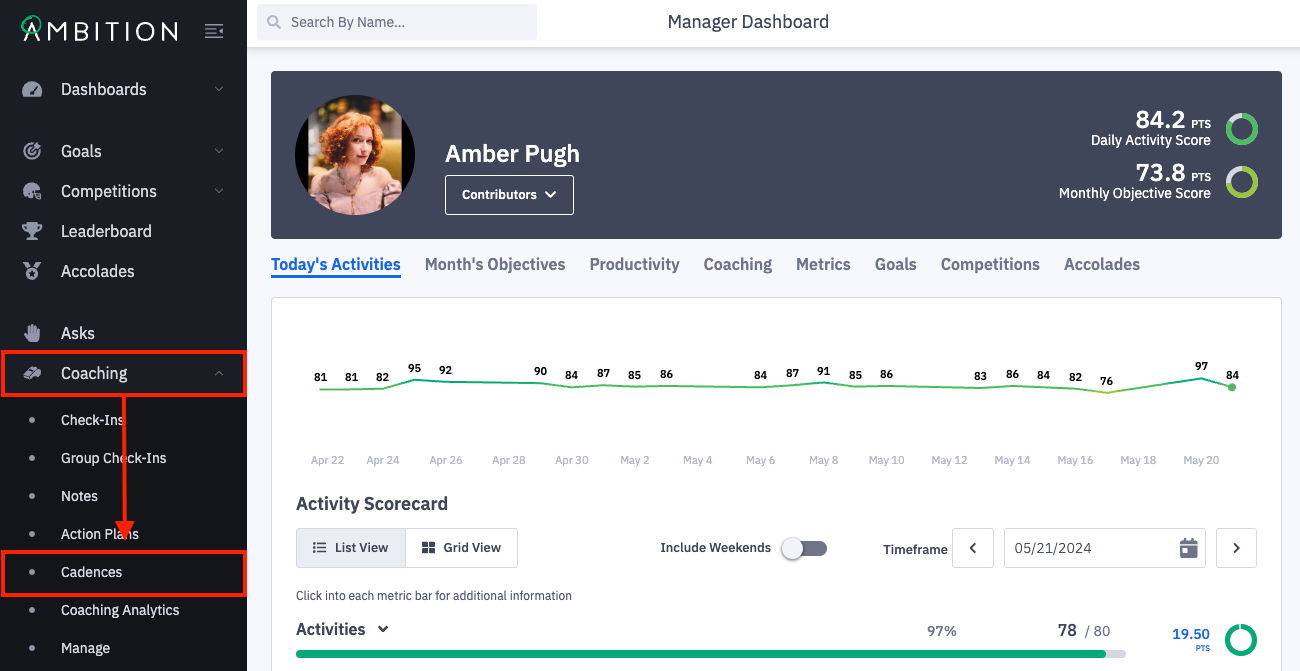
1. Open the left navigation and click Coaching > Cadences.
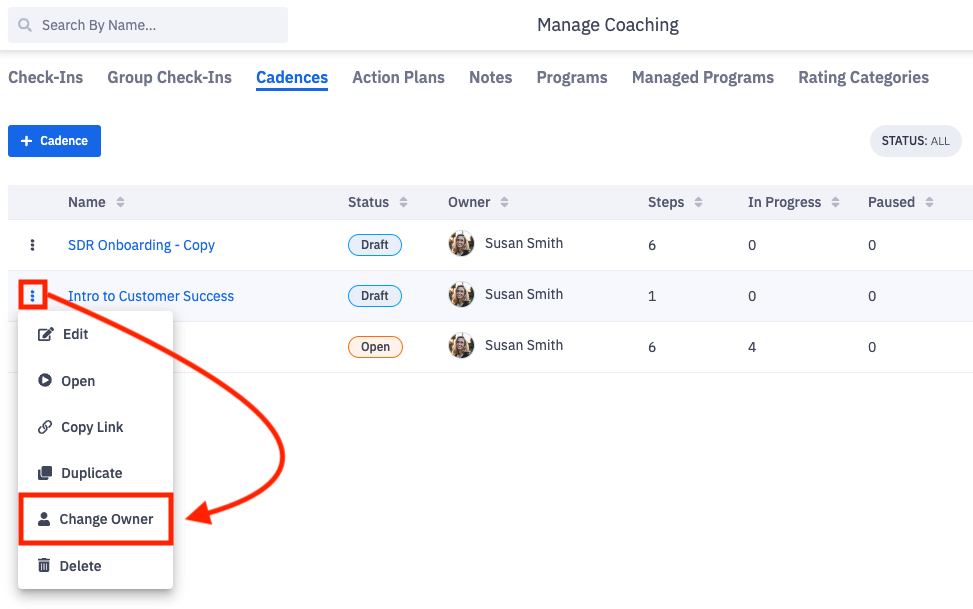
2. Click the ellipses icon and Change Owner on the cadence whose owner you wish to change.
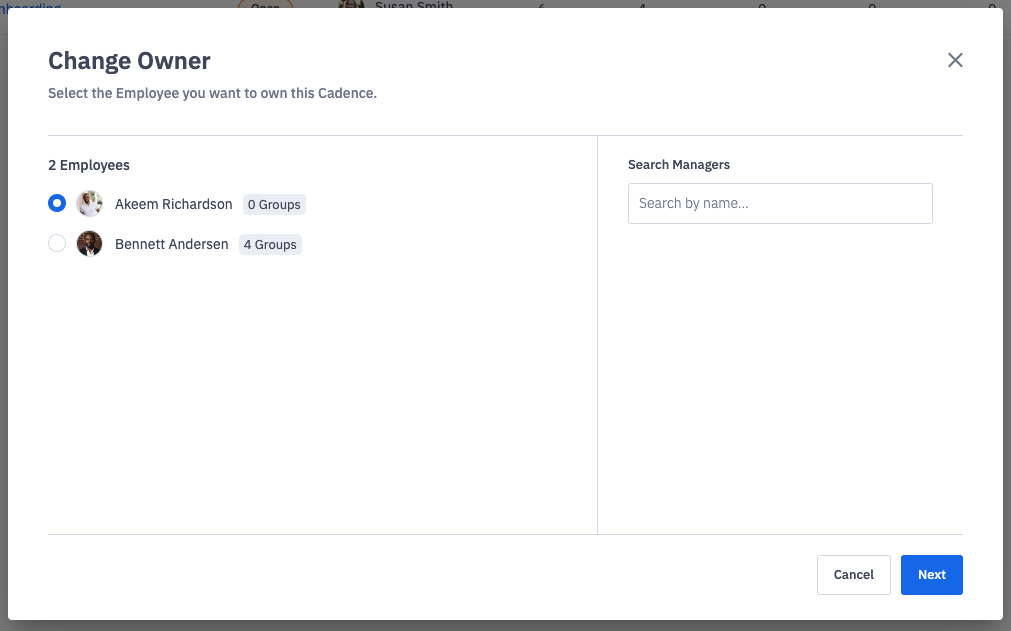
3. Select the new owner of the cadence.
Users with "Coaching Cadences: Create Cadence" or "Coaching: All Access" permission are eligible to be an owner of a cadence.
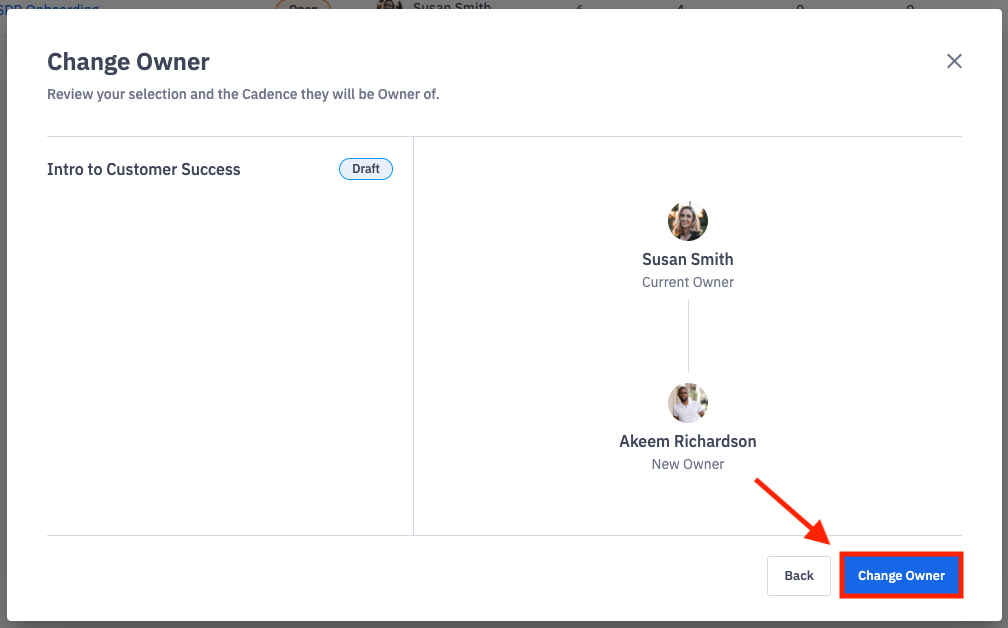
4. Review your selection and click Change Owner to change the owner of the cadence.