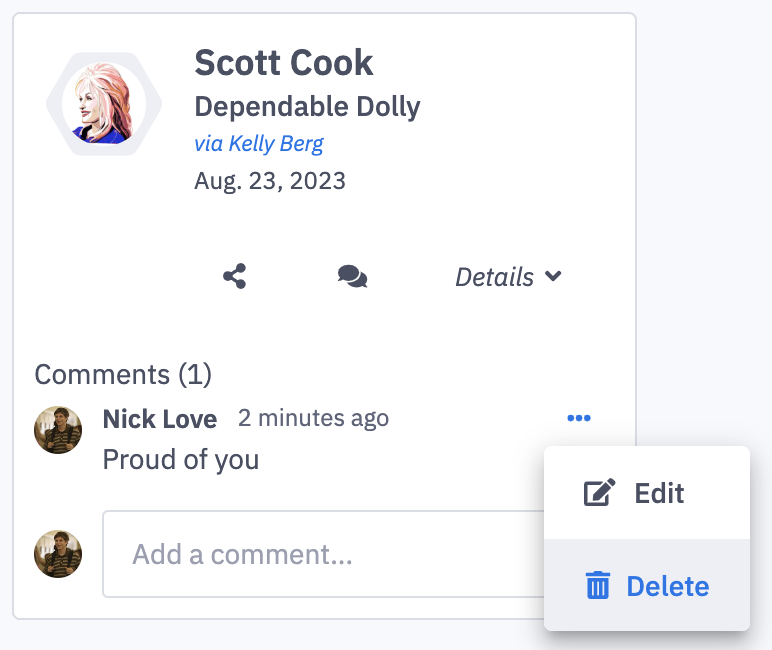
How do I leave a comment on an accolade achievement?
Last updated: June 17, 2025
Comments on Accolade Achievements
Leave a Comment on an Accolade Achievement
All users have permission to leave comments on all accolades.
Comments will be left on an individual accolade achievements.
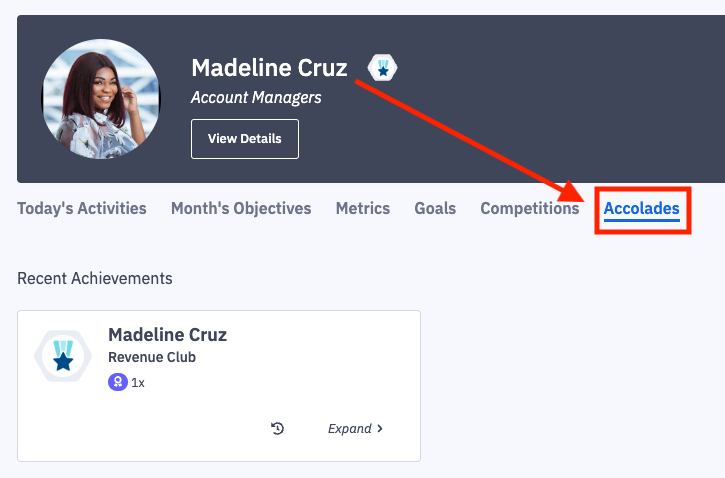
1. Navigate to the user's dashboard who has achieved an accolade that you wish to comment on. Click on the Accolades tab.
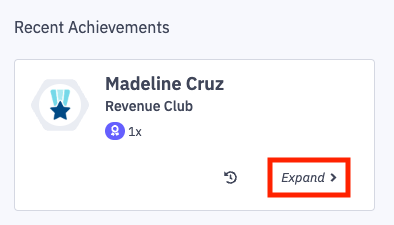
2. Click Expand on the respective achievement.
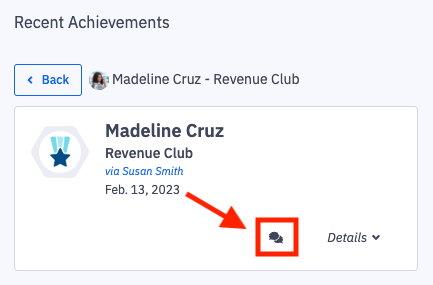
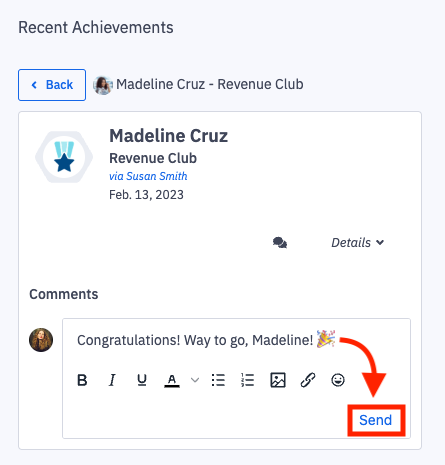
3. Click the conversation bubble icon on the achievement you wish to leave a comment on.
If a user has achieved the accolade multiple times, you will be able to view and comment on each respective achievement as desired.
4. Compose your comment and click Send.
Comment Notifications
An email notification is sent to the user who achieved the accolade when a comment is left on one of their achievements. You can unsubscribe from these notifications, but it will disable all comment emails across the platform including coaching comment notifications. Learn more about unsubscribing here.
Edit a Comment
Users are only able to edit their own comments. (comments they left)
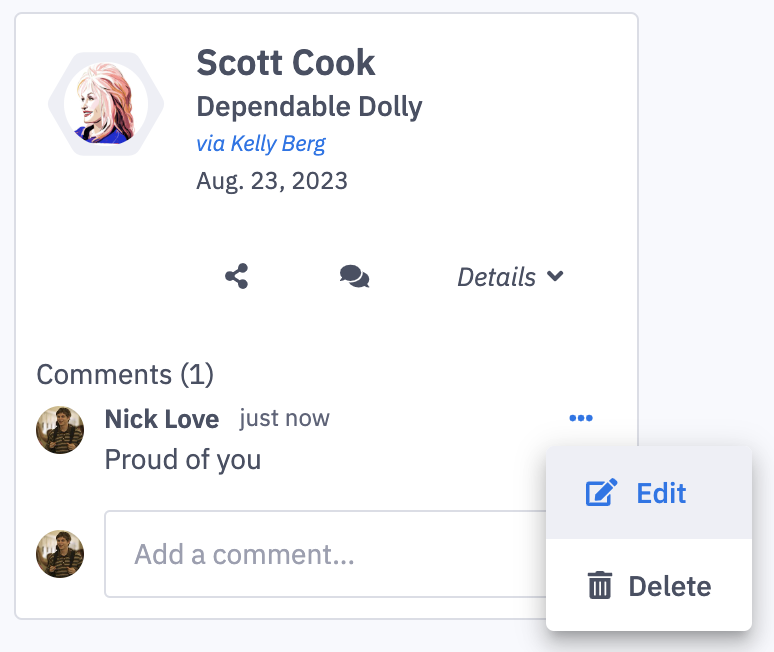
1. Click the ellipses icon and Edit on the respective comment you wish to edit.
Once edited, Ambition will show the edited date.
Delete a Comment
Users are able to delete their own comments (comments they left). Users with "Comments: Edit" permission can delete all comments.
1. Click the ellipses icon and Delete on the respective comment you wish to remove.