How do I export accolade achievement data?
Last updated: June 17, 2025
Export Accolade Achievements
Export Achievements for Multiple Accolades
Users with "Accolades: Create Accolade" permission can export aaccolade achievements.
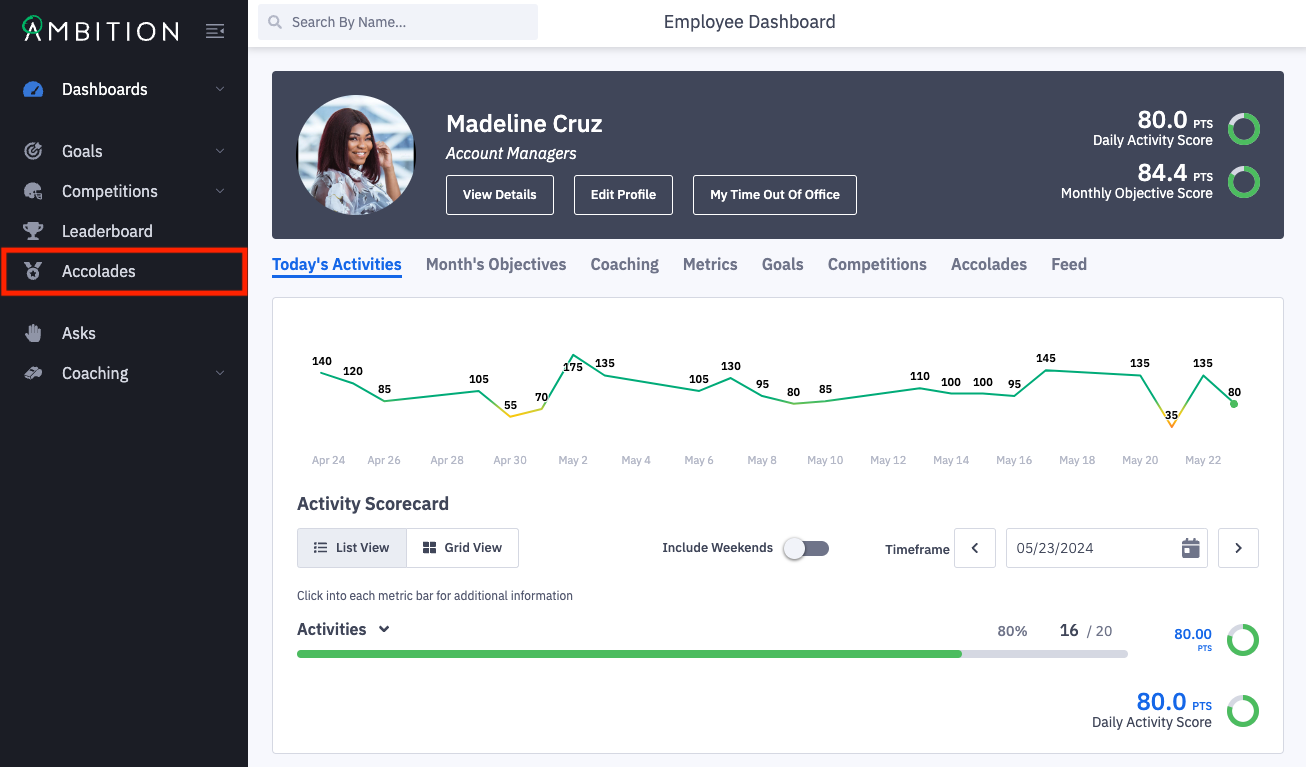
1. Open the left navigation and click Accolades.
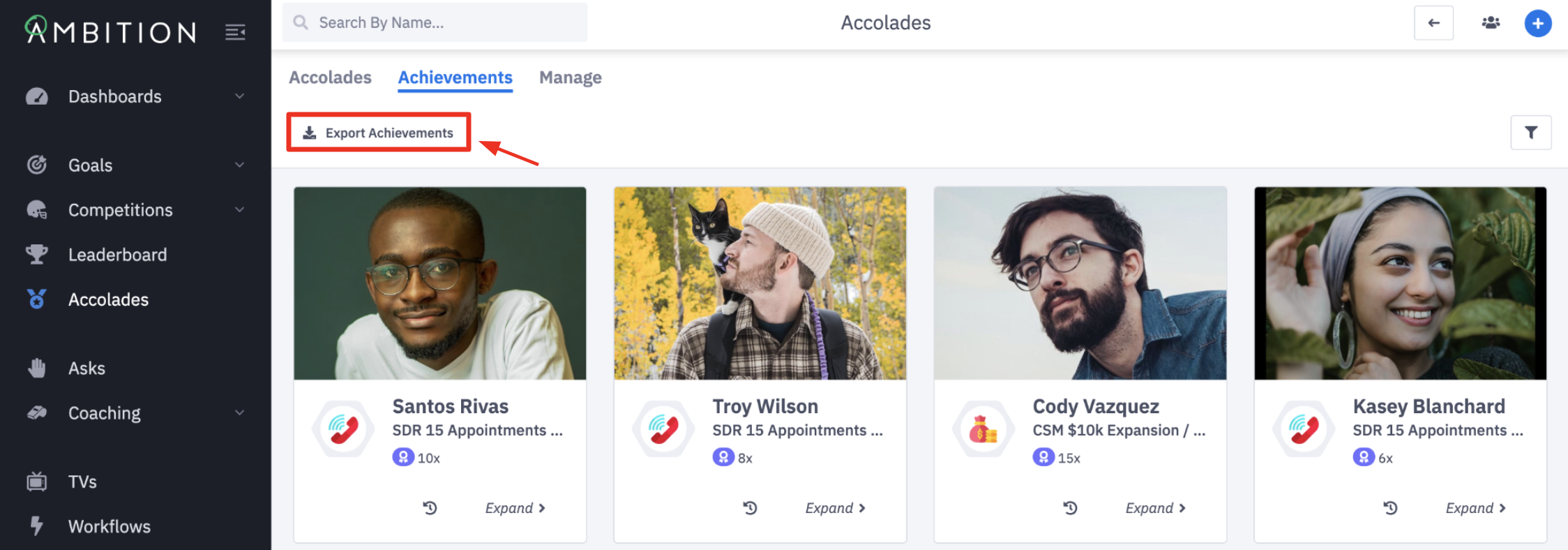
2. Click on the Achievements tab.

3. Click Export Achievements.
Up to 1,000 achievements can be exported at a time. The Export Achievements button will be disabled if more than 1000 achievements are present.
Customize your export or reduce the number of achievements to be exported by filtering, accessed through the filters icon. Filter for a specific accolade, employee, group, time frame, or reason.
Achievements for a single accolade can be exported through the "Achievements" tab as well if you filter for a single accolade through the filter options.
4. Open the downloaded CSV to view Achievement data.

Columns on Achievement Export | Column Contents |
Employee Name | Name of user in Ambition who achieved the accolade. |
Accolade Name | Name of the achieved accolade. |
Accolade Description | If provided upon creation of the respective accolade, the accolade description. |
Date Earned | The date and time the accolade achievement was earned or given. |
Incentive | If provided upon creation of the respective accolade, the incentive associated with achieving the accolade or respective level of an accolade. |
Accolade Type | Metric performance or employee discretion. Learn more about the types of accolades here. |
Configuration Type | Single or Multi-Level Accolade. |
Level | If applicable, the respective level of the accolade that was achieved. Metric performance type accolades support multi-level progression. Single level and employee discretion accolades will all be listed as "Level 1" since there is only a single level to achieve. |
Awarded By | If an employee discretion accolade, the name of the user who gave the accolade. |
Reason | If an employee discretion accolade, the reason for giving the accolade the awarding user provided. |
Export Achievements for a Single Accolade
Users with "Accolades: Create Accolade" permission can export accolade achievements.
Users with "Can Create Accolades for anyone" permission can export achievements for all accolades within the manage tab.
Users with "Can Create Accolades for Subordinate Users" permission will only be able to view and export accolades they've created within the manage tab. If they need to export achievements for a single accolade they did not create, follow the steps above while filtering for the single accolade before exporting.
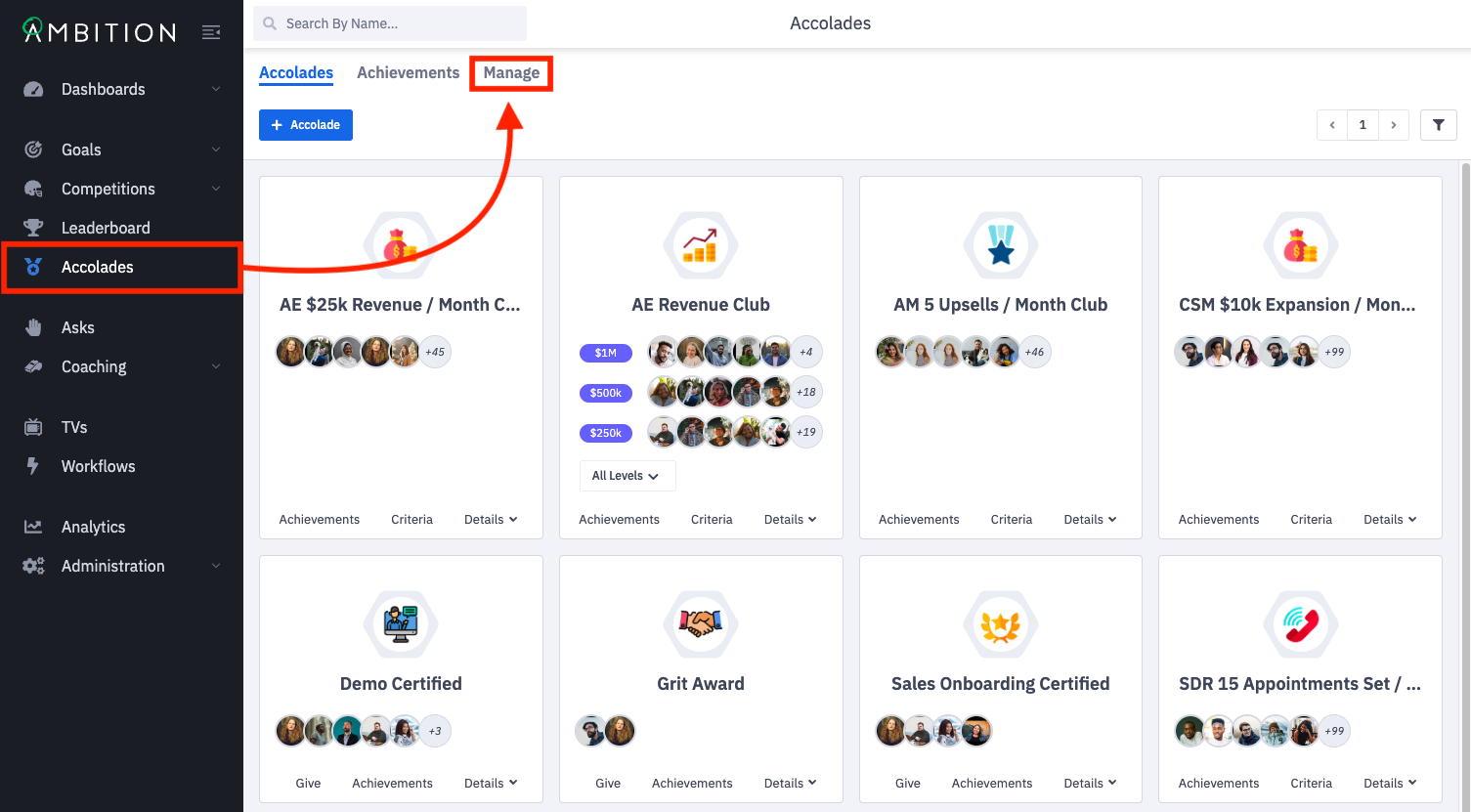
1. Open the left navigation and click Accolades.
2. Click on the Manage tab.
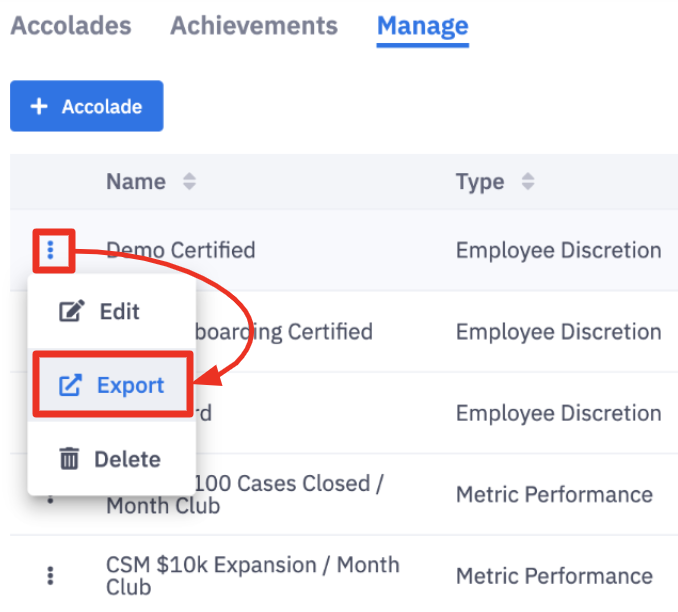
3. Click the ellipses icon in line with the appropriate accolade that you wish to export achievements for. Click on Export.
4. Open the downloaded CSV to view achievement data.

Columns on Achievement Export | Column Contents |
Employee Name | Name of user in Ambition who achieved the accolade. |
Accolade Name | Name of the achieved accolade. |
Accolade Description | If provided upon creation of the respective accolade, the accolade description. |
Date Earned | The date and time the accolade achievement was earned or given. |
Incentive | If provided upon creation of the respective accolade, the incentive associated with achieving the accolade or respective level of an accolade. |
Accolade Type | Metric performance or employee discretion. Learn more about the types of accolades here. |
Configuration Type | Single or Multi-Level Accolade. |
Level | If applicable, the respective level of the accolade that was achieved. Metric performance type accolades support multi-level progression. Single level and employee discretion accolades will all be listed as "Level 1" since there is only a single level to achieve. |
Awarded By | If an employee discretion accolade, the name of the user who gave the accolade. |
Reason | If an employee discretion accolade, the reason for giving the accolade the awarding user provided |