How do I manage the Ambition Connected App after the Salesforce Change to App Usage Restrictions?
Last updated: August 25, 2025
This information only applies to Ambition customers using our API-only connection with Salesforce.
This information does not apply if you have installed our managed package.
What did Salesforce change?
Starting in early September 2025, Salesforce will restrict the use of uninstalled connected apps. This usage restriction will block end users from using uninstalled connected apps.
We recommend reading through their preparation documentation here: https://help.salesforce.com/s/articleView?id=005132365&type=1
How do I install the Ambition Connected App?
In Setup, find and select Connected Apps OAuth Usage.
Review the Action column. If the Ambition app is uninstalled, the action column displays an Install button.
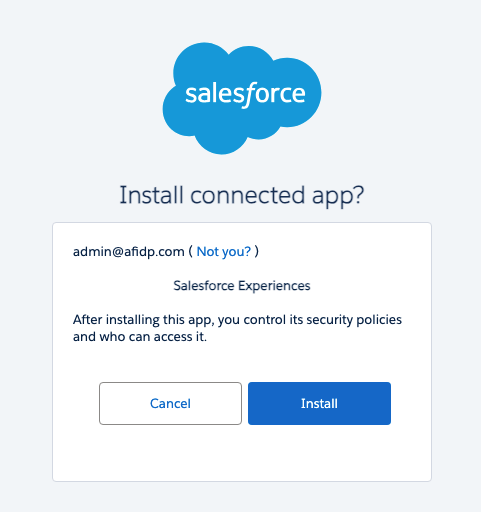
For the Ambition app, click Install. Salesforce displays an installation page.
Click Install again.

How do I manage permissions for the Ambition Connected App?
After installing, a Salesforce admin can manage the permissions for the Ambition Connected App following the steps below.
From Setup, enter Connected Apps in the Quick Find box, then select Manage Connected Apps.
Click Edit next to the connected app that you are configuring access for.
Under OAuth Policies, click the Permitted Users dropdown menu and select one of the following options.

All users may self-authorize—Default. Allows all users in the org to authorize the app after successfully signing in. Users must approve the app the first time they access it.
Admin approved users are pre-authorized—Allows only users with the associated profile or permission set to access the app without first authorizing it. After selecting this option, manage profiles for the app by editing each profile’s Connected App Access list. Or manage permission sets for the app by editing each permission set’s Assigned Connected App list.
Salesforce recommends the Admin approved users are pre-authorized setting as this provides the most control over who can access the connected app by allowing the Admin to explicitly grant access through profiles and permission sets, restricting access to only authorized users.