How do I assign a co-coach to a cadence check-in?
Last updated: June 17, 2025
Assign Co-Coach to Cadence Check-In
What is a Co-Coach?
A co-coach can be any Ambition user, regardless of their permission level.
Being assigned as a co-coach gives the user managerial access to the coaching check-in.
Co-Coaches are a great fit for assistant managers or HR professionals who play a role in the coaching cadence process.
The manager assigned to approve the check-in can add as many co-coaches as required. Participants of a cadence check-in cannot also be assigned as a co-coach for their own check-ins.
Cadence Co-Coaches
Co-Coaches can either be assigned per employee for the entirety of the cadence or co-coaches can be assigned to a specific individual check-in that is created from a cadence.
Adding and managing co-coaches at scale can be done while adding employees to a cadence or from the "Employee" table within a cadence.
Adding and managing co-coaches for a specific check-in can be done while accessing the specific check-in. Learn how here.
Assign a Co-Coach to a Specific Cadence Check-In
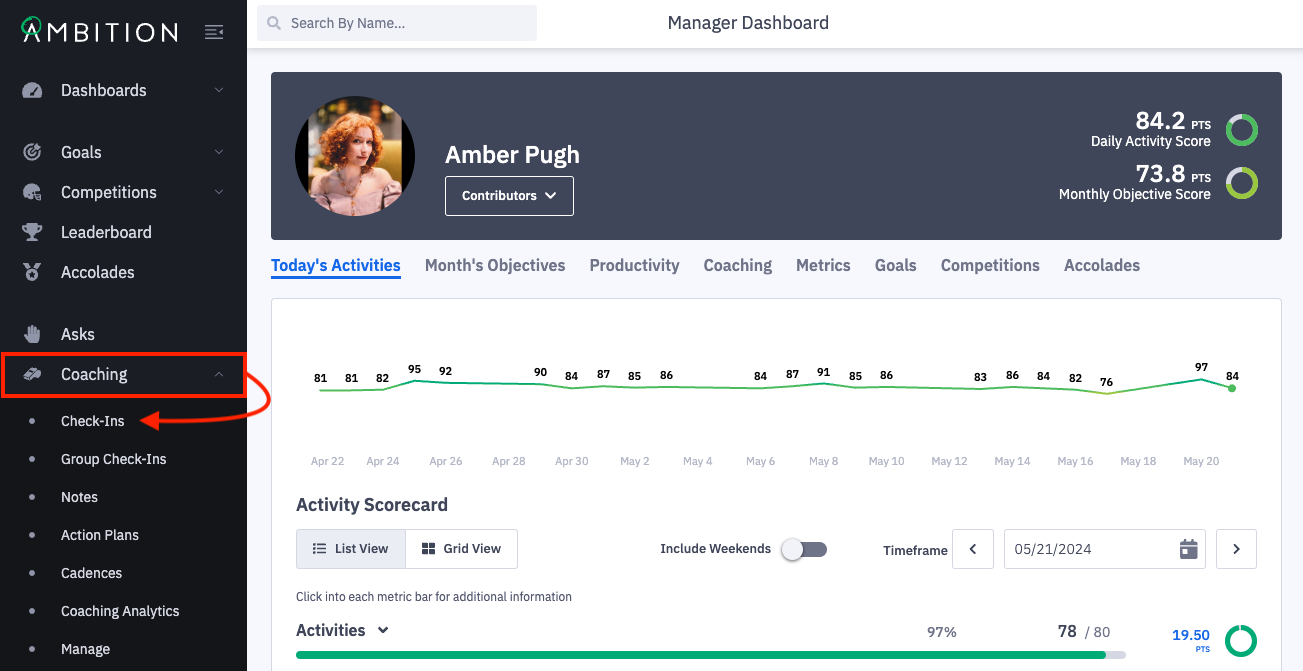
1. Open the left navigation and click Coaching > Check-Ins.
Alternatively, locate the cadence check-in through Coaching > Manage > Check-Ins.
2. Locate the cadence check-in where you wish to assign a co-coach.
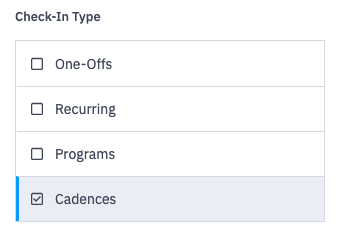
Clicking the filters icon will allow you to sort by "Check-In Type". Selecting "Cadences" will display only check-ins created from a cadence.
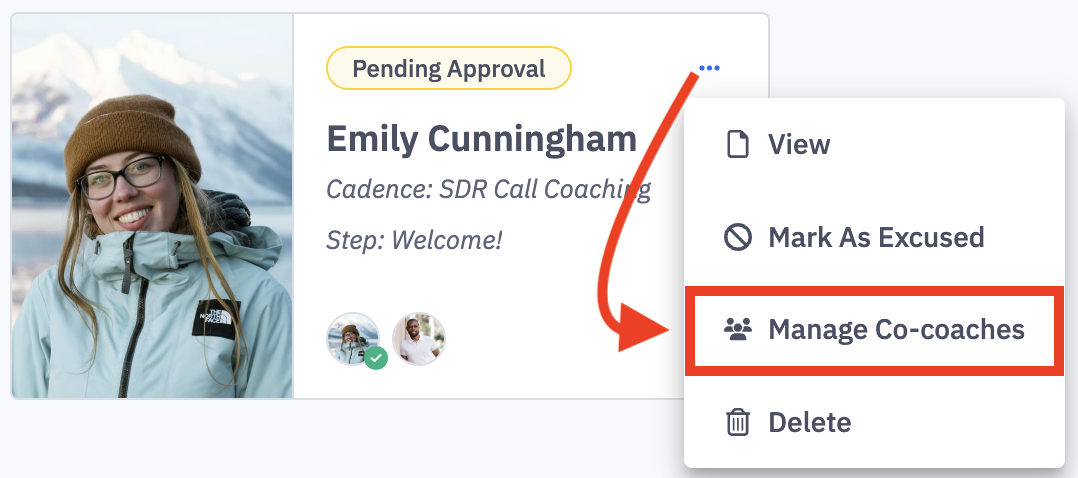
3. On the cadence check-in, click the ellipses icon and Manage Co-coaches.
Alternatively, from within a cadence check-in, click the ellipses icon and "Manage Co-coaches" to update co-coaches.
Don't see the Manage Co-Coaches option? If your package supports co-coaches, the feature can be enabled by any user with Admin permissions. Left navigation > Administration > Features. Locate the "Coaching: Co-Coaches" feature, and toggle "On".
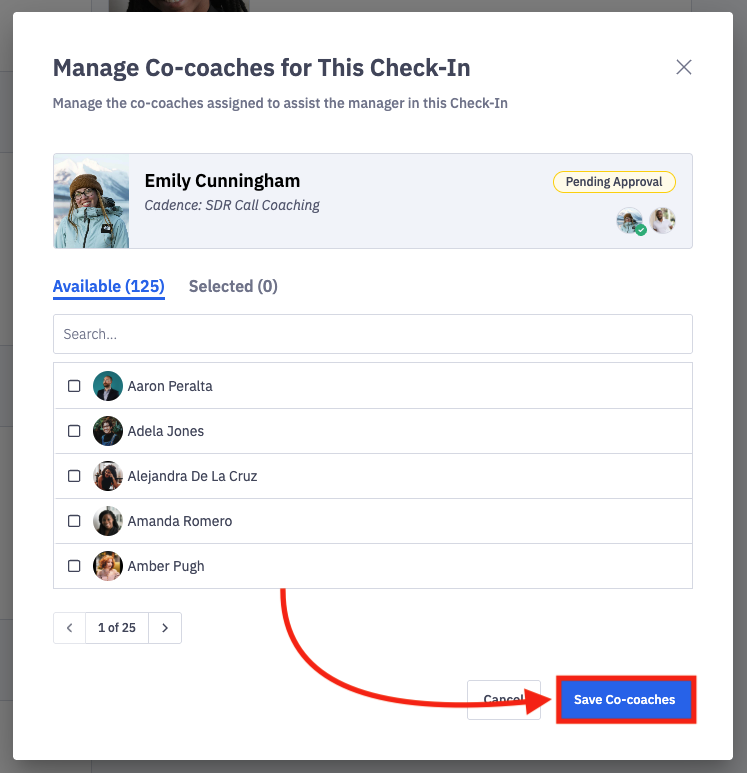
4. Select the users you wish to assign as a co-coach to the check-in, and click Save Co-coaches.
Multiple co-coaches can be assigned to a single check-in.
Participants of a cadence check-in cannot also be assigned as a co-coach for their own check-ins.
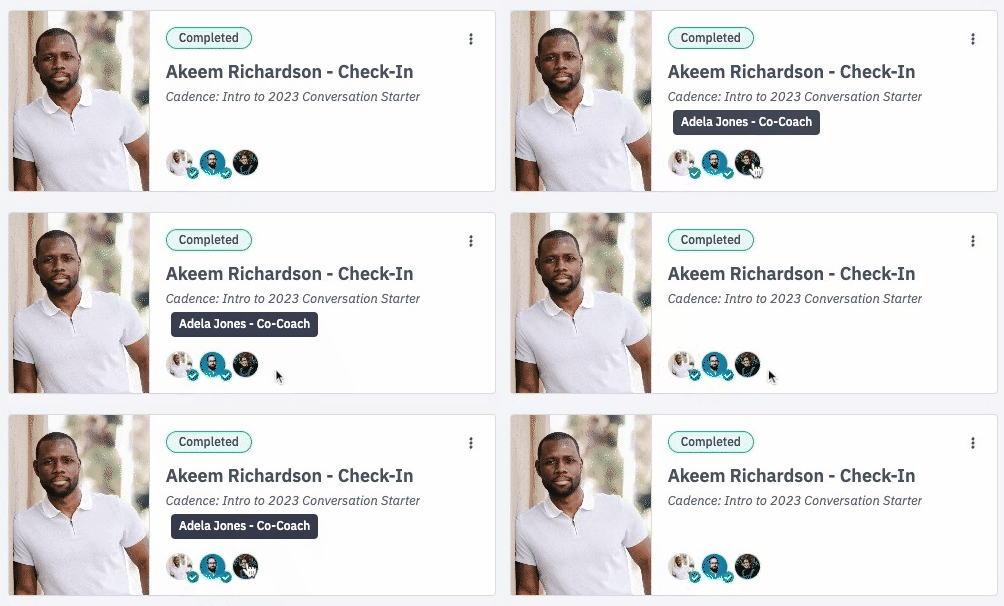
Co-Coaches are listed in the check-in header and on the check-in card. Adela is the co-coach here, and a co-coach designation will be see when Adela is hovered over.