How do I access coaching reports & insights?
Last updated: August 4, 2026
Coaching Analytics
Access Coaching Analytics Tab
Users with the "Coaching: All Access" or "Coaching Analytics" permission will be able to access the Coaching Analytics tab.
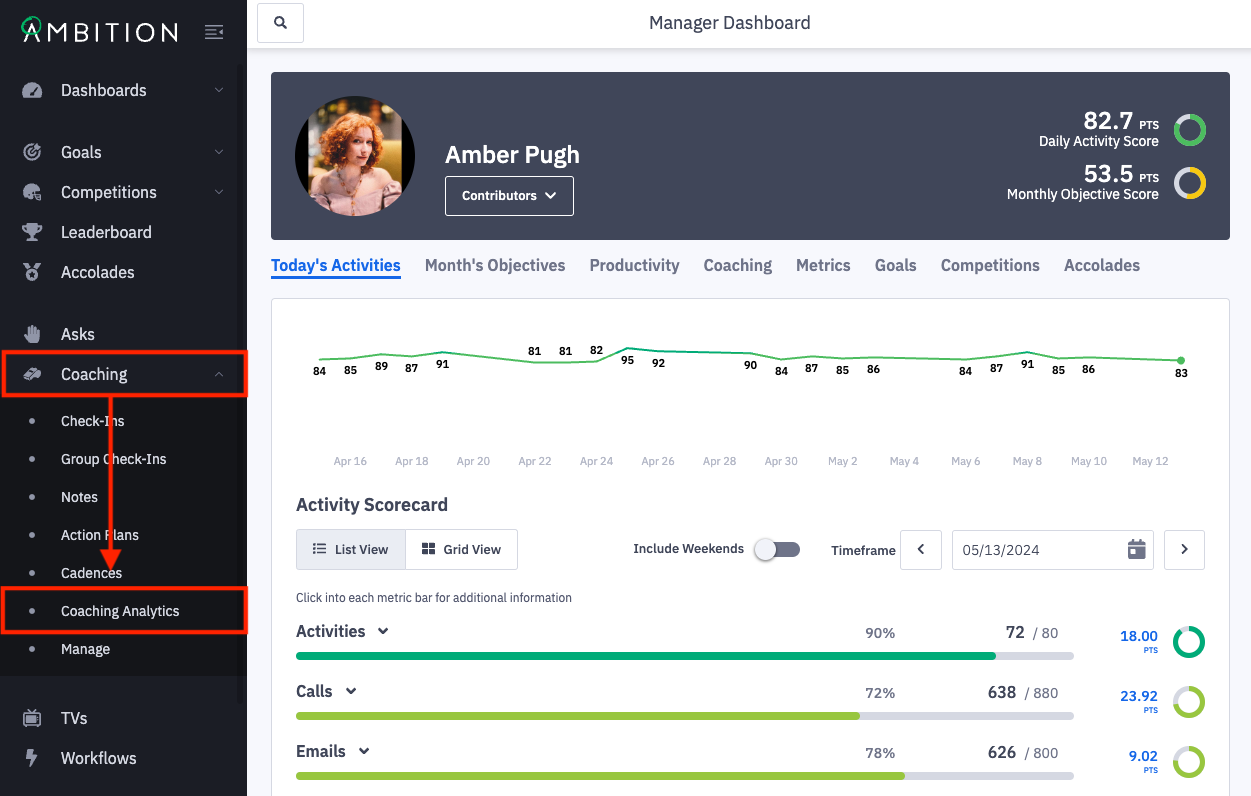
1. Open the left hand navigation and click Coaching > Coaching Analytics.
Accountability
Users with the "Coaching: All Access" or "Coaching Analytics" permission will be able to access the Accountability tab.
Users with "Coaching: All Access" or "Coaching Analytics: Can View Coaching Analytics and Reports for the Entire Organization" will be able to view check-in stats for everyone.
Users with "Coaching Analytics: Can View Coaching Analytics Only for Themselves and Direct Reports" will have a scoped experience and will only be able to view check-in stats for relevant users.
Executive-Level coaching visibility must be enabled in order for managers of other managers to be able to see coaching data for everyone in their hierarchical tree.
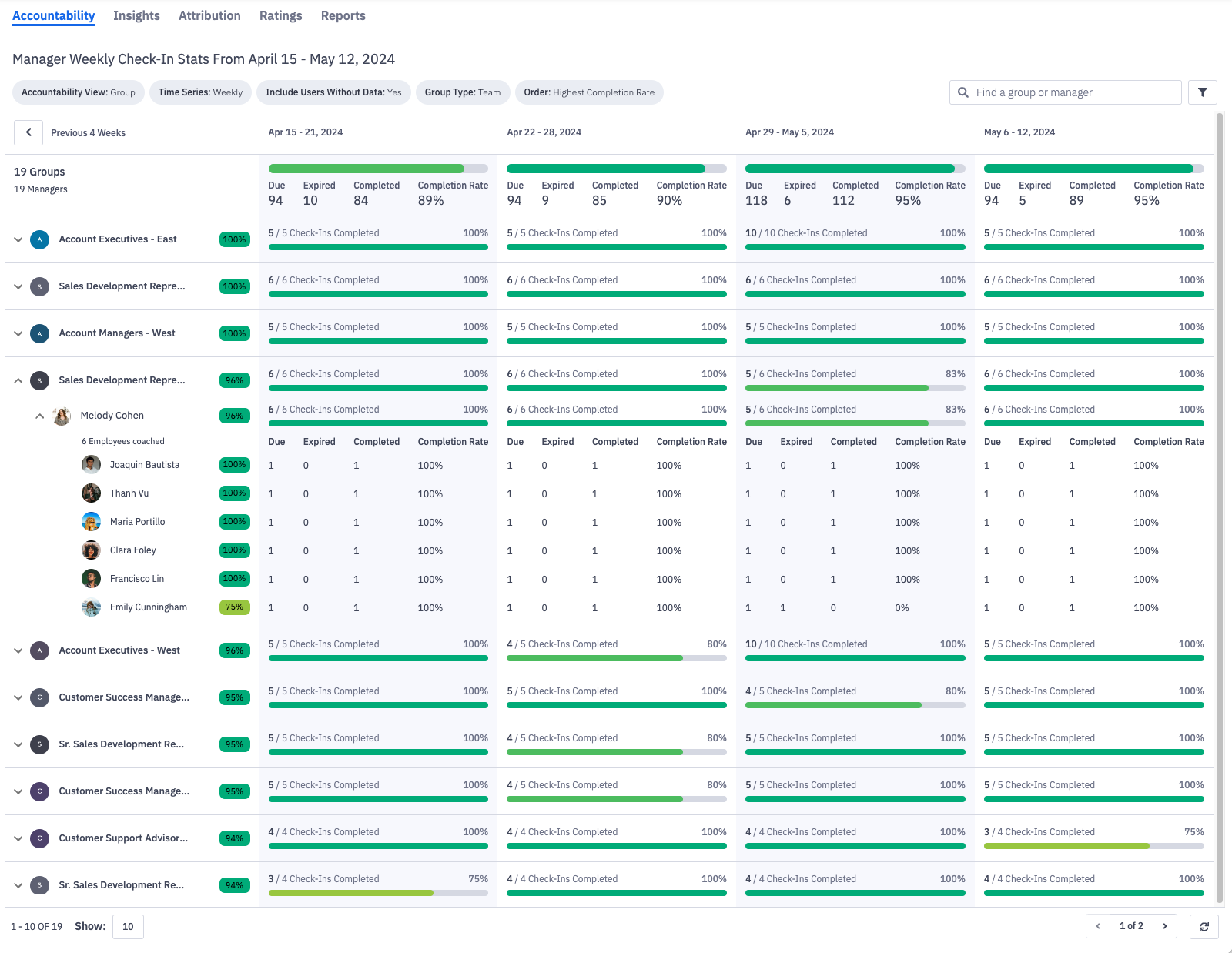
The accountability tab helps answer the questions: "Are Managers coaching?" and "Which groups are coaching?"
View weekly or monthly check-in stats for managers, filter to a specific manager/group of managers, and sort by completion rates.
If viewing data by "group", any manager who is either a manager of the particular group or are a member of the particular group will display under the group's name and be visible when expanding.
Check-in stats will include check-ins created though cadences, programs or through 1:1 check-ins. Group check-ins and check-ins where a manager serves as a co-coach are not included in a manager's stats at this time.
If a manager is deactivated in Ambition, they will not be represented in the accountability tab. The check-ins started, completed, expired, and check-in completion rate on the accountability tab will not include coaching data of deactivated managers.
Manager Check-in Stat | Description |
Manager | The manager of the check-in. |
Check-Ins Due | The number of non-excused check-ins that have a due date within the respective week or month time frame. |
Check-Ins Expired | The number of non-excused, incomplete, closed check-ins that have a due date during the respective week or month time frame. |
Check-Ins Completed | The number of non-excused, completed check-ins that have a due date within the respective week or month time frame. |
Check-In Completion Rate | Number of check-ins completed / number of check-ins due
When filtering by highest or lowest completion rate, the completion rate will be calculated across the entire time range being viewed:
|
Have "Coaching: All Access" or "Coaching Analytics" permission, but don't see the Accountability tab? The feature can be enabled by any user with system admin permissions. Enable Feature: Open the left navigation and click Administration > Features. Locate the Coaching: Accountability feature, and toggle "On". Click the Update Features button to save.
Coaching Insights
Users with the "Coaching: All Access" or "Coaching Analytics" permission will be able to access the insights tab.
Weekly Coaching Activity
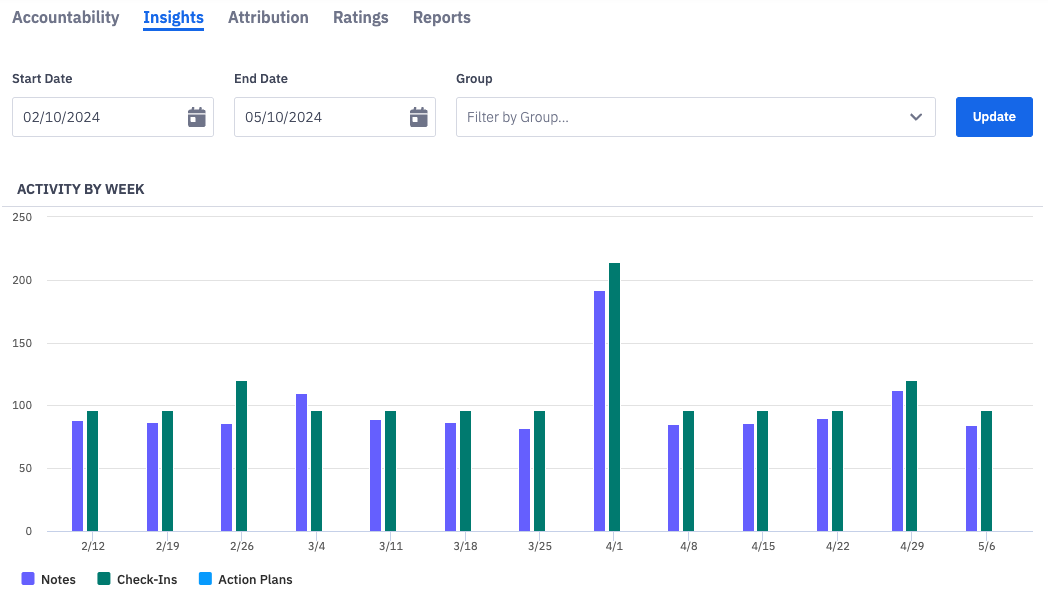
The insights tab provides details into coaching events for a selected time frame and group.
The "Activity by Week" graph will display counts of notes, check-ins, and action plans.
Before filtering for a specific group, the counts shown on the "Activity by Week" graph will represent notes, check-ins, and action plans for the entire organization. Notes, check-ins, and action plans associated with deactivated managers will count towards the organizational totals.
Use the start date, end date, and/or group filters to view coaching activity week by week for a specific time frame of group of users.
Utilization Metrics
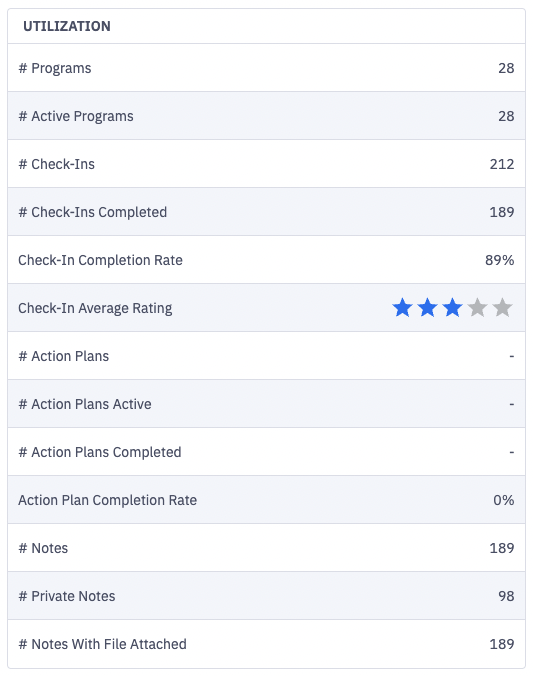
Updating the start date, end date, and/or group filters also provides insights into general coaching analytics, including the number of active programs, check-ins, action plans, and notes.
Employees Without 1 Completed Check-In
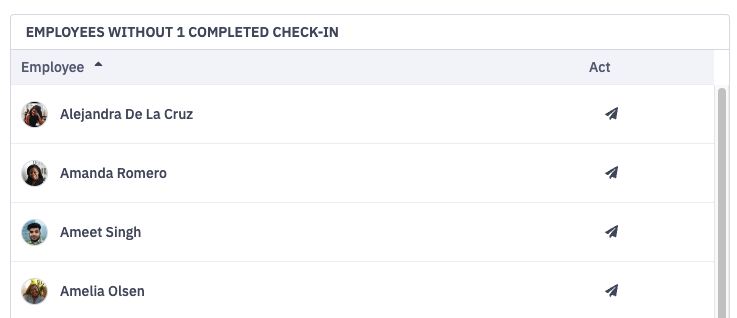
Based on the filters used above, employees who have not completed a check-in within the selected time frame will be featured in the "Employees Without 1 Completed Check-In" table.
The "Act" button can be used to alert the employee's manager to create a check-in for the employee. If the employee asks feature is enabled, the user can complete a pre-filled coaching ask for the manager.
Program Attribution Metrics
Users with the "Coaching: All Access" or "Coaching Analytics" permission will be able to access the attribution tab.
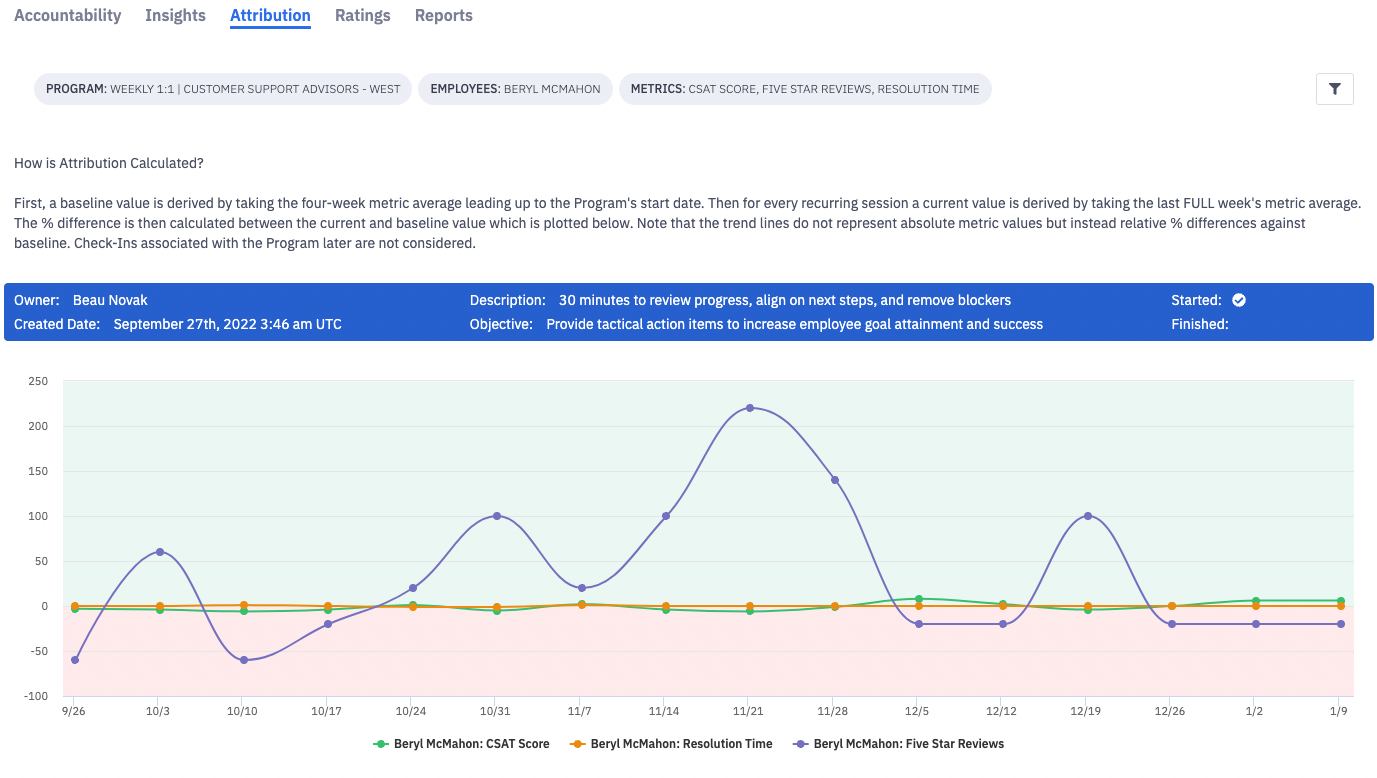
The attribution tab provides in-app visualization of the attribution metrics that are assigned to a coaching program. Selecting a program, employees, and the individual metrics will display a historical line graph for the coaching program's performance.
Have "Coaching: All Access" or "Coaching Analytics" permission, but don't see the Attribution tab? The feature can be enabled by any user with system admin permissions. Enable Feature: Open the left navigation and click Administration > Features. Locate the Coaching: Attribution feature, and toggle "On". Click the Update Features button to save.
Check-In Ratings
Users with "Coaching: All Access" permission can view the ratings tab. Users with "Coaching Analytics" permission will not have access to the ratings tab.
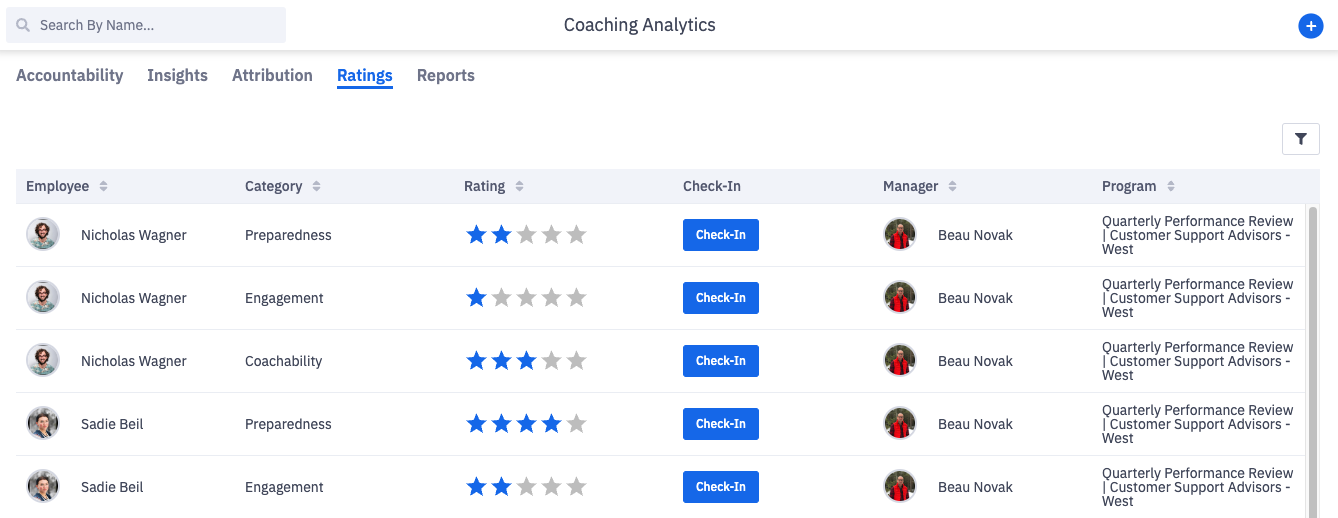
If the "Coaching: Rating Categories" feature is enabled, the ratings tab provides historical ratings across the organization's coaching check-ins. Ratings can be filtered by program, group, manager, employee name, and rating category. Each column in the ratings table can also be sorted.
For deeper context or troubleshooting, the user can click on the check-in button to be taken directly to the check-in where the manager provided the rating.
Have "Coaching: All Access" permission, but don't see the Ratings tab? The feature can be enabled by any user with system admin permissions. Enable Feature: Open the left navigation and click Administration > Features. Locate the Coaching: Check-In Ratings feature, and toggle "On". Click the Update Features button to save.
Coaching Reports / Exports
Users with "Coaching: All Access" permission can view and export all report types.
Users with "Coaching Analytics" permission can view and export employee and manager utilization reporting. Those with "Coaching Analytics" permission cannot view and export program information.
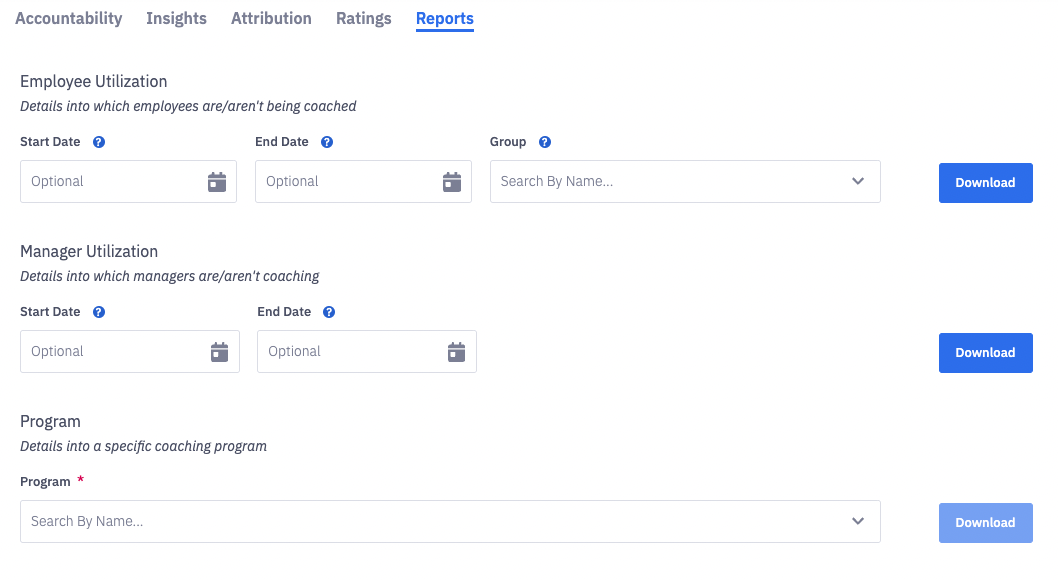
From the reports tab, coaching reports containing information about employee utilization, manager utilization, and specific programs can be downloaded though CSV.
Learn more about exporting coaching data and the specific of each reports type here.