How do I use the Warehouse tab?
Last updated: July 22, 2026
Ambition's Performance Graph management page allows you to view the data tables, visibility and permission settings, and configurations that influence where, how, and by whom data is viewed in Ambition.
You can learn more about the other two Performance Graph tabs -- Sources and Pipeline -- in the articles below.
📄 How do I use the Source tab?
📄 How do I use the Pipeline configuration tab?
What is the Warehouse tab?
The Warehouse tab is where you can view all data tables that are tracked in Ambition.
The Warehouse tab shows data tables in their rawest form. The Sources tab shows "cleaned up" versions of this data with explanations of which users can view this data and why.
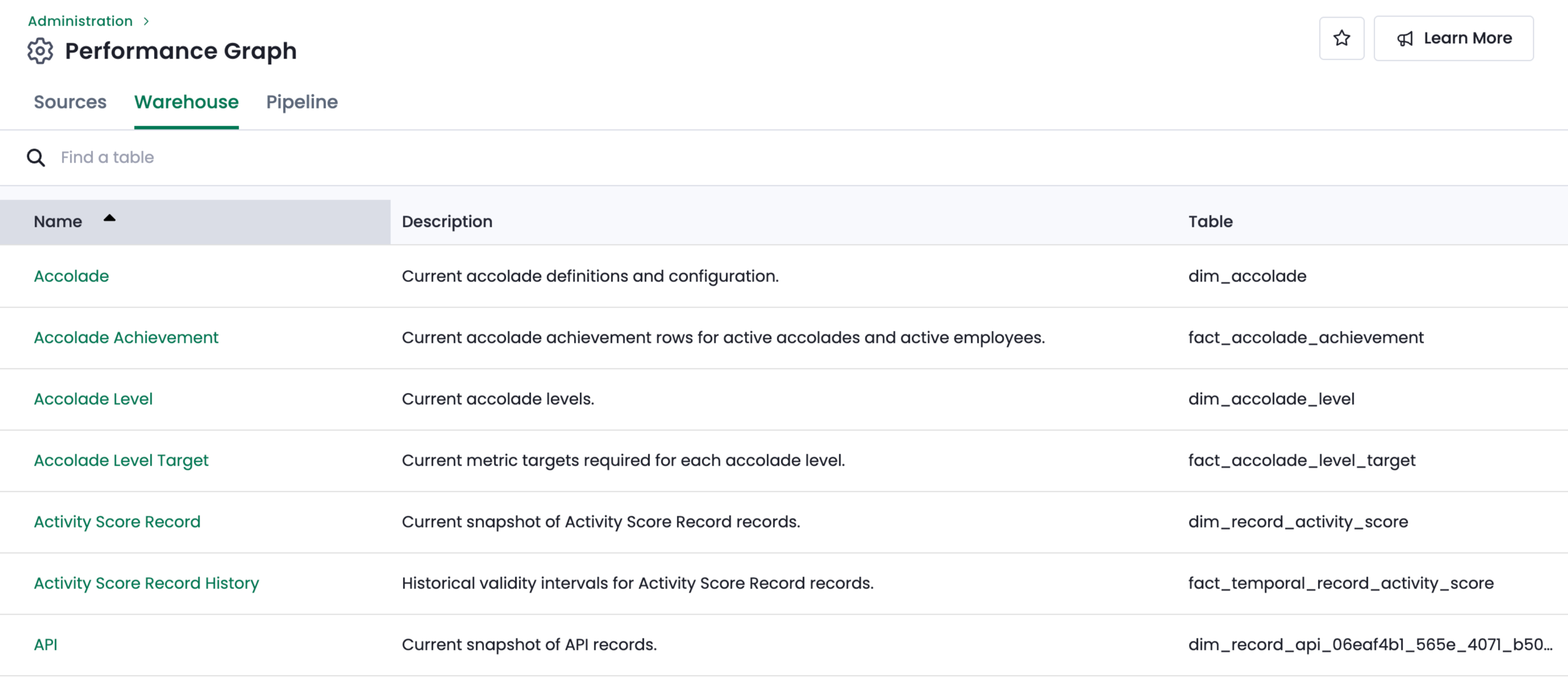
How do I access the Warehouse tab?
Go to Administration --> Data --> Performance Graph.
Click on the Warehouse tab in the upper left corner.
A hyperlinked list of all data tables will appear in alphabetical order.
When you click on a table name, you'll be taken to a new page with two tabs: Overview and Data.
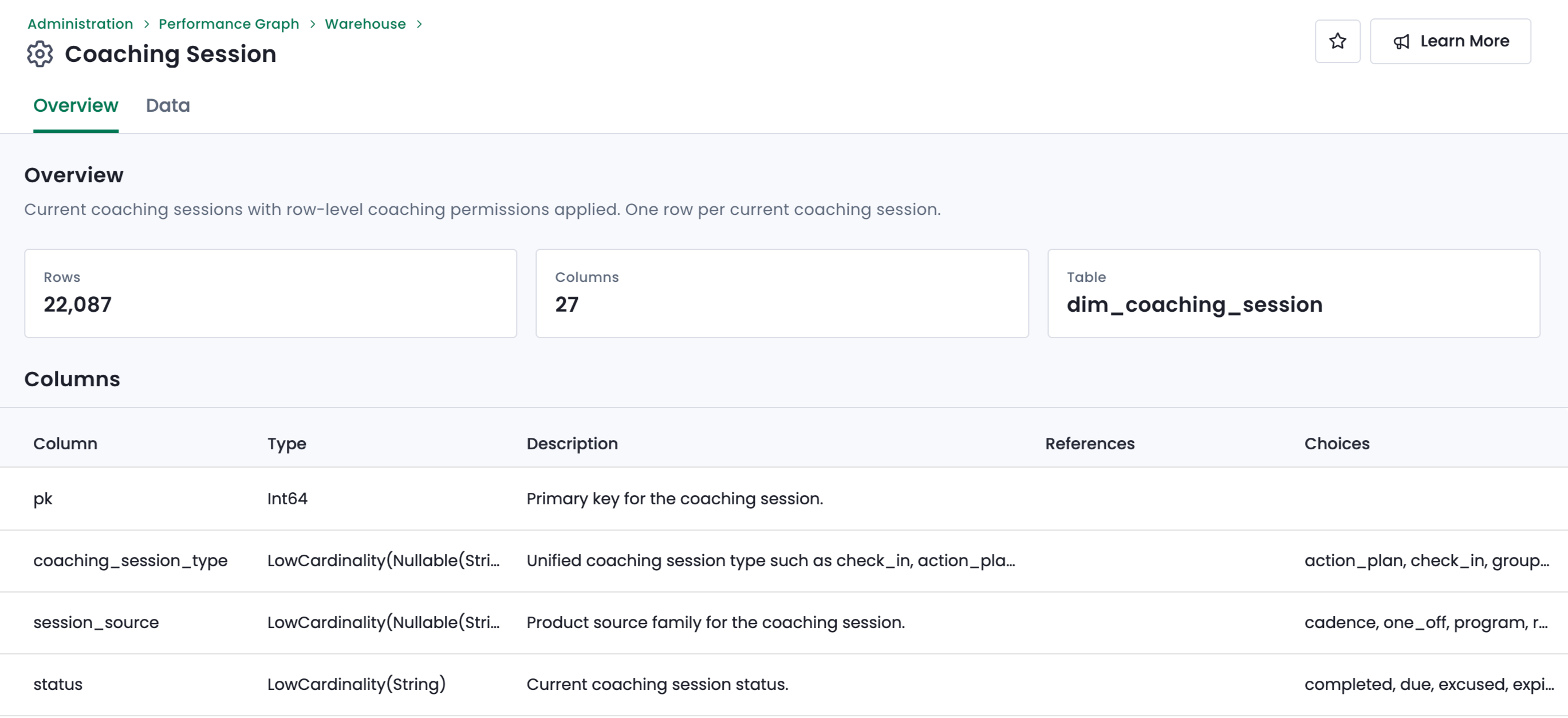
The Overview tab gives a brief summary of the most important fields for that particular table, as well as how many total rows and columns are available in the full table. The screenshot below is from the Overview page of the Coaching Session data table.
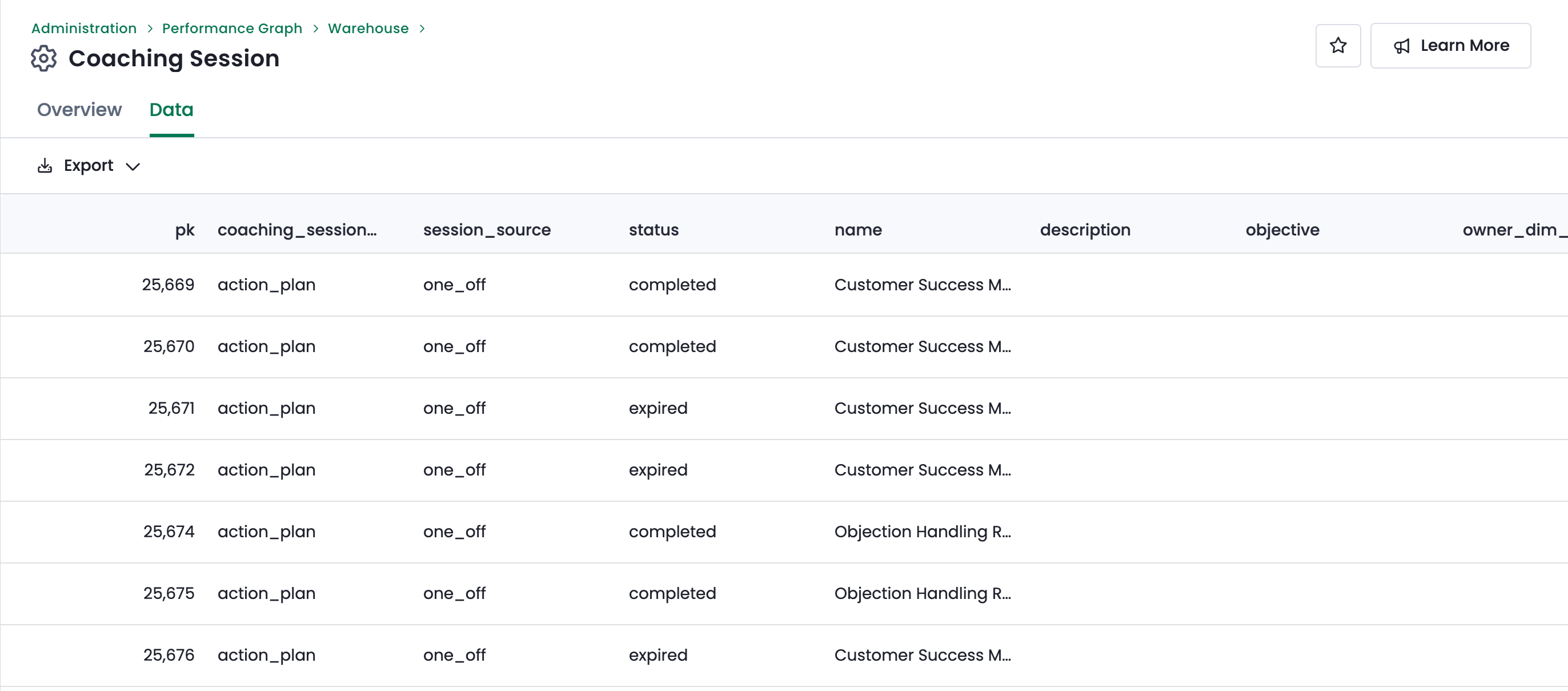
The Data tab shows all extant rows within the table. The screenshot below shows the rows for the Coaching Session table, listed in reverse chronological order.
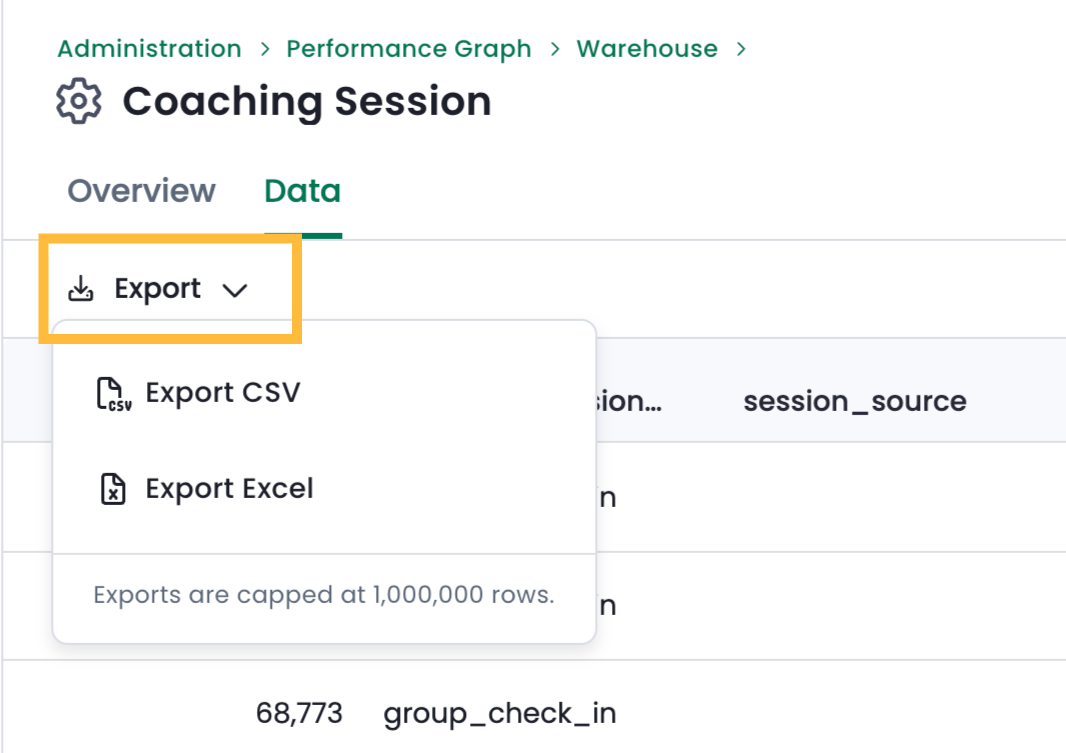
You can also manually export each individual table by using the Export button on the Data tab of a given table.
At this time, the Warehouse tab is largely a reference tool -- you cannot edit any fields, headers, or row values that appear on this page.
Eventually customers will have the ability to sync Ambition Warehouse data to their external data warehouses.