How do I use the Sources tab?
Last updated: July 22, 2026
What is the Sources tab?
The Performance Graph's Sources tab lists all data sources that Ambition uses when calculating and analyzing your company's data anywhere in the Ambition platform, from employee and group dashboards to Pipeline Views and the AI agent.
📄 How do I use the Warehouse tab?
📄 How do I use the Pipeline configuration tab?
How do I access the Sources tab?
Go to Administration --> Data --> Performance Graph.
Click on the Sources tab in the upper left corner.
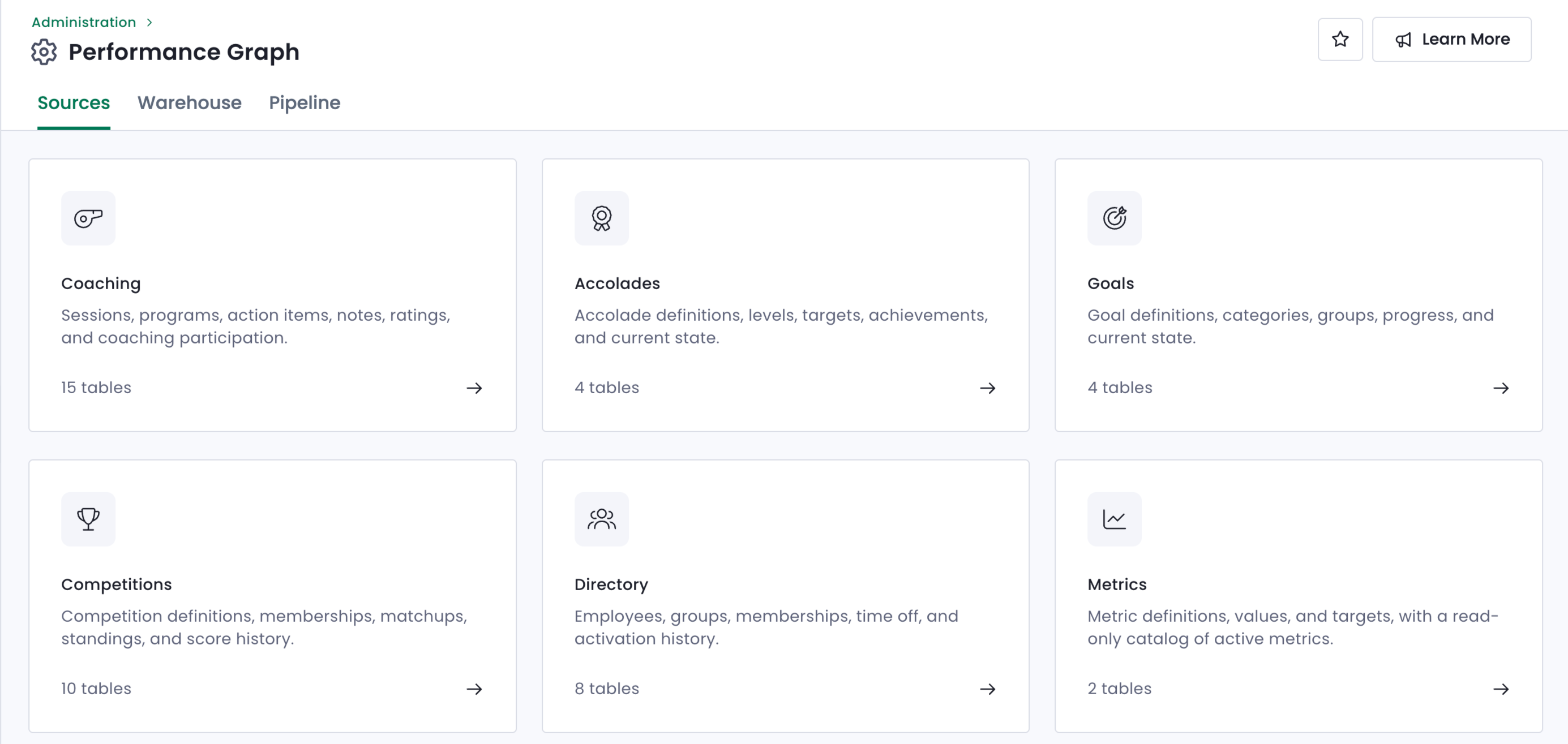
You'll then see a list of cards showing all data sources in Ambition.
What data can I see on the Sources tab?
The Sources tab shows cards for the following data collections:
Coaching
Accolades
Goals
Competitions
User Directory (including groups, out-of-office, and activation history)
Metrics
Records
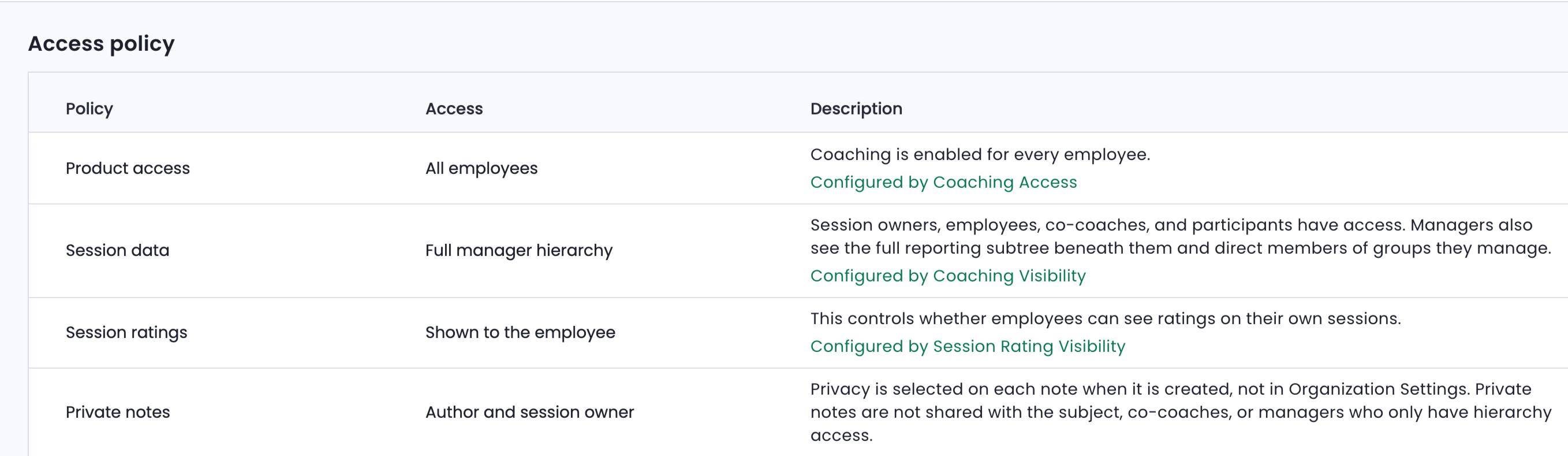
When you click into each card, you'll see two sections: Access Policy and Tables.
The Access Policy outlines who in your organization is able to view each piece of data and where in Ambition they can view it.
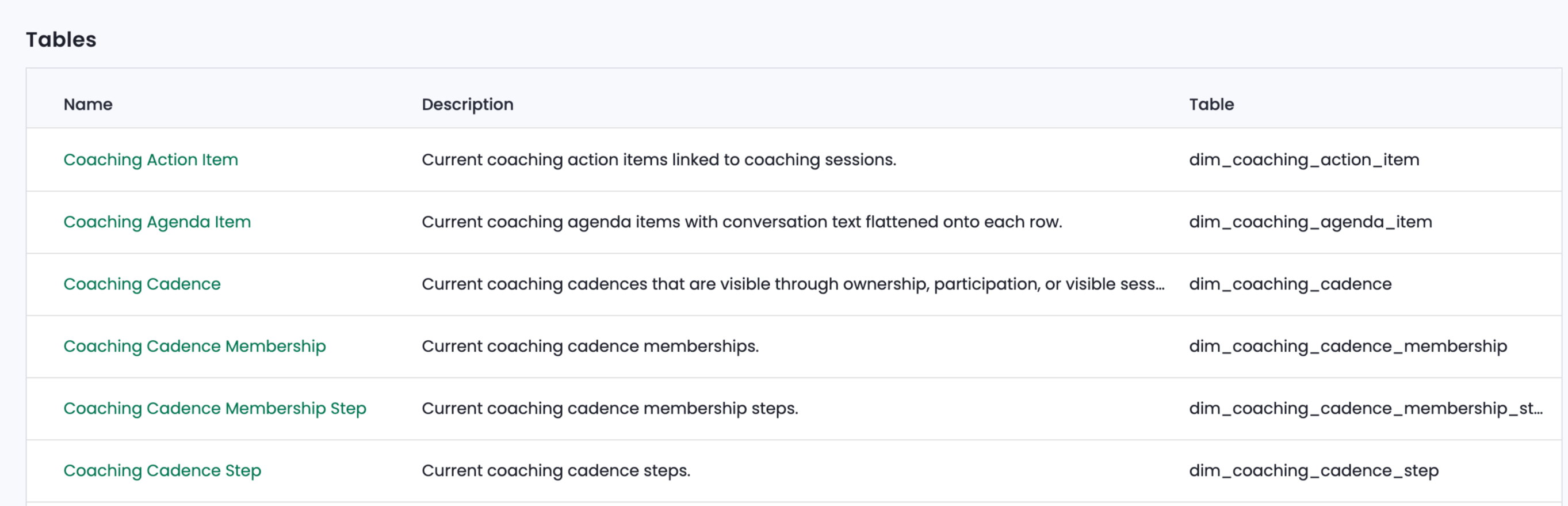
Tables refers to a sub-collection of data points from each of the larger data groups -- you can think of these as being like different tabs on a spreadsheet.
As an example, the Coaching "spreadsheet" has tables ("tabs") on data groups like coaching notes, programs, cadence steps, and rating categories.
What can I learn from the Sources tab?
Broadly speaking, the Sources tab shows you:
What data is being tracked in Ambition ("tables")
Which users can view that information ("access policy")
How to edit which users can view certain data points (the Access Policy's "description" column).
Tables
Clicking on any of the cards on the Sources tab will show each of the data tables relevant to each of the major product areas in Ambition.
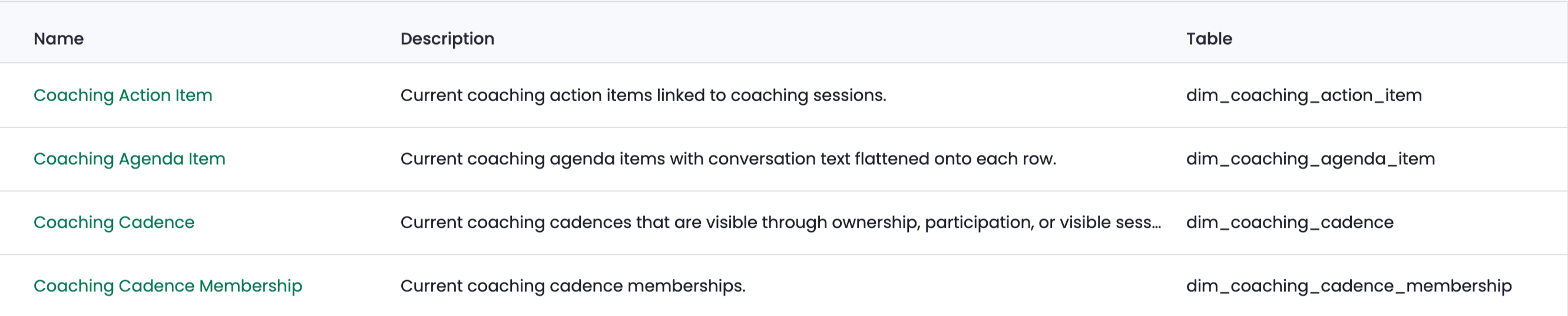
Each collection's Tables grid shows three columns:
Name
Description
Table
The Name column lists the human-readable name for each of the data subsets while the Description column gives a brief description of what each subset tracks.
The Table column lists the name of the table as it appears in Ambition's backend. The names in the Table column cannot be changed.
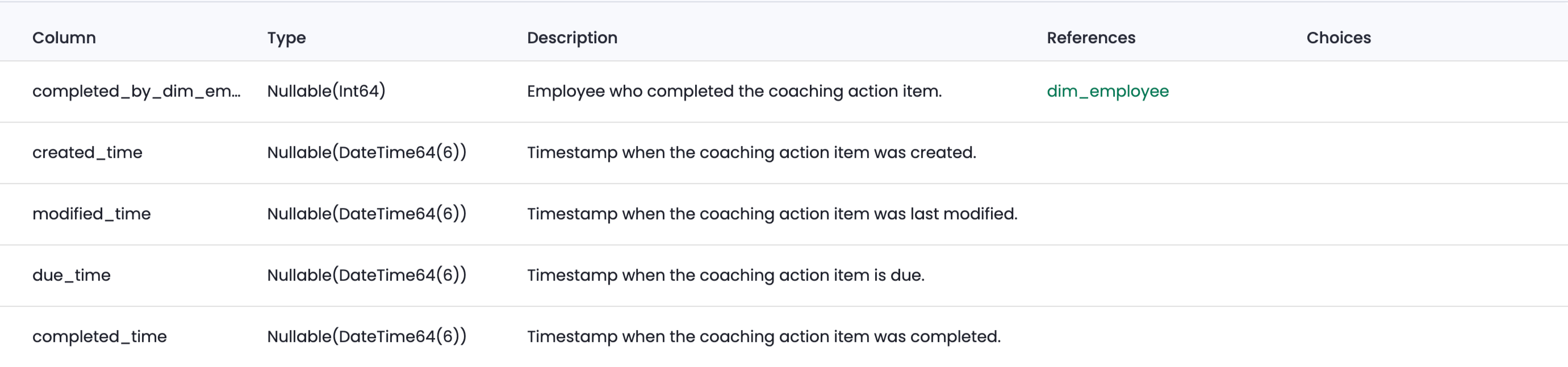
The Name column values are hyperlinked. Clicking on a name will show each of the data points that contribute to each individual table's totals. For example, the Action Item tab contains the fields below:
Completed_by_dim_employee: The employee who completed the action item
Created_time: The date on which the action item was created
Modified_time: The date on which the action item was modified
Due_time: The action item's due date
Completed_time: The date on which the action item was completed
Access Policy and Description
The Access Policy section outlines which Ambition users have access to a certain feature and its corresponding data points.
Here's a breakdown of the Access Policy chart for the Coaching Action Item feature:
Product access: This feature is accessible to all employees.
Session Data: Data about the session is only available to session managers, co-coaches, and admins.
Session ratings: The employee can see rating data for their own sessions.
Private notes: The note creator and session manager can see private notes.
Coaching: All Access: The Coaching: All Access permission is limited to four employees.
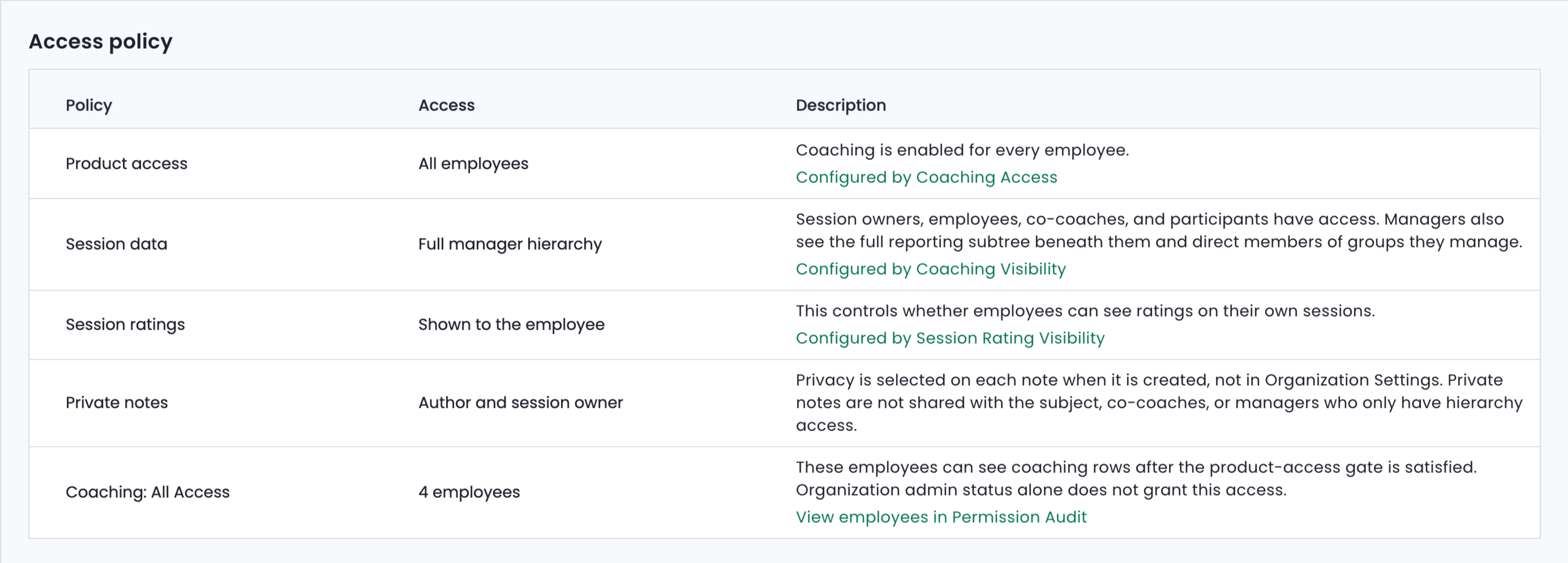
You can click the green hyperlinked text in the Description column for additional information, such as to see your company's Coaching Visibility settings or employees with Coaching: All Access Permission.
📄 How are permissions defined?
📄 What types of permission sets are available?