How do I access and use spreadsheet reporting?
Last updated: June 18, 2025
Spreadsheet Reporting
Spreadsheet Overview
Ambition offers a single pane of glass look into all your metrics for all users. You can even export and save spreadsheets for your internal reporting needs.
Access Spreadsheet Reporting
Users with the permission "Analytics Reporting: View" will be able to view all analytics data aside from saved reports created by others that are not explicitly shared with them.
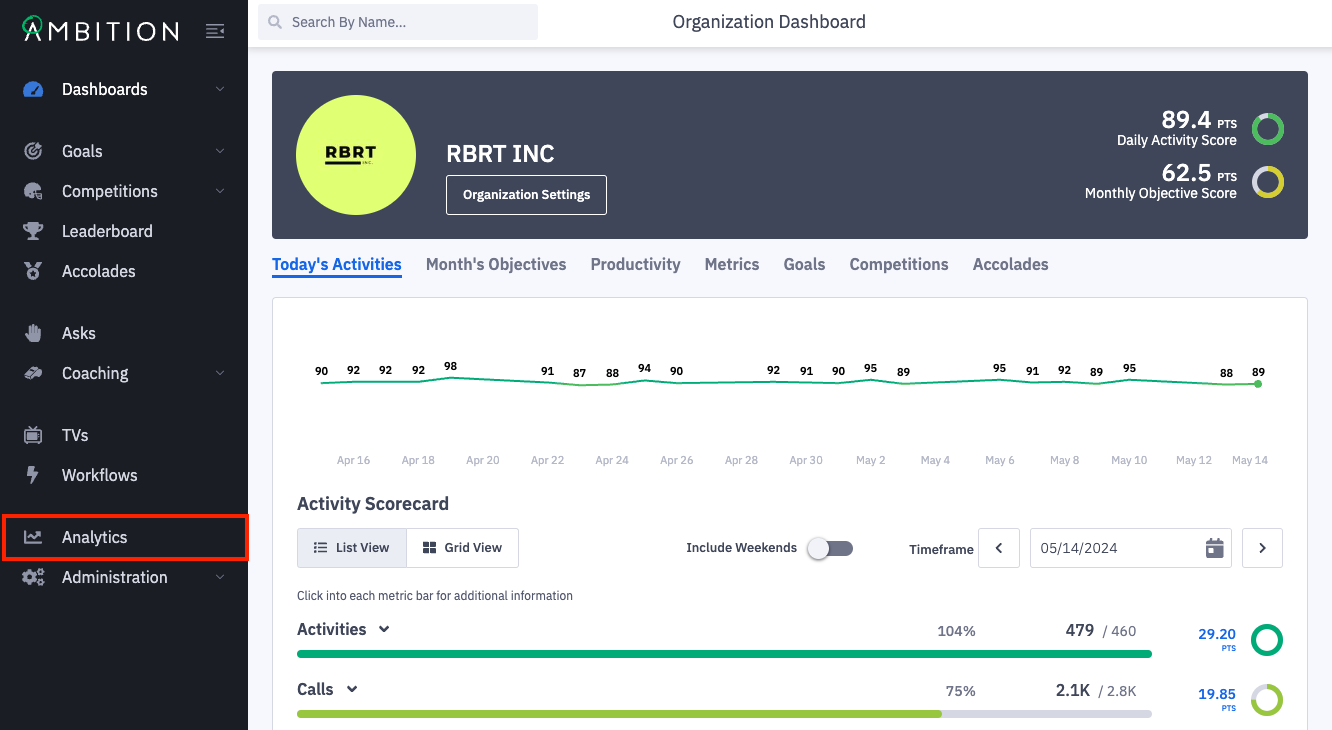
1. Click the left navigation and click Analytics.
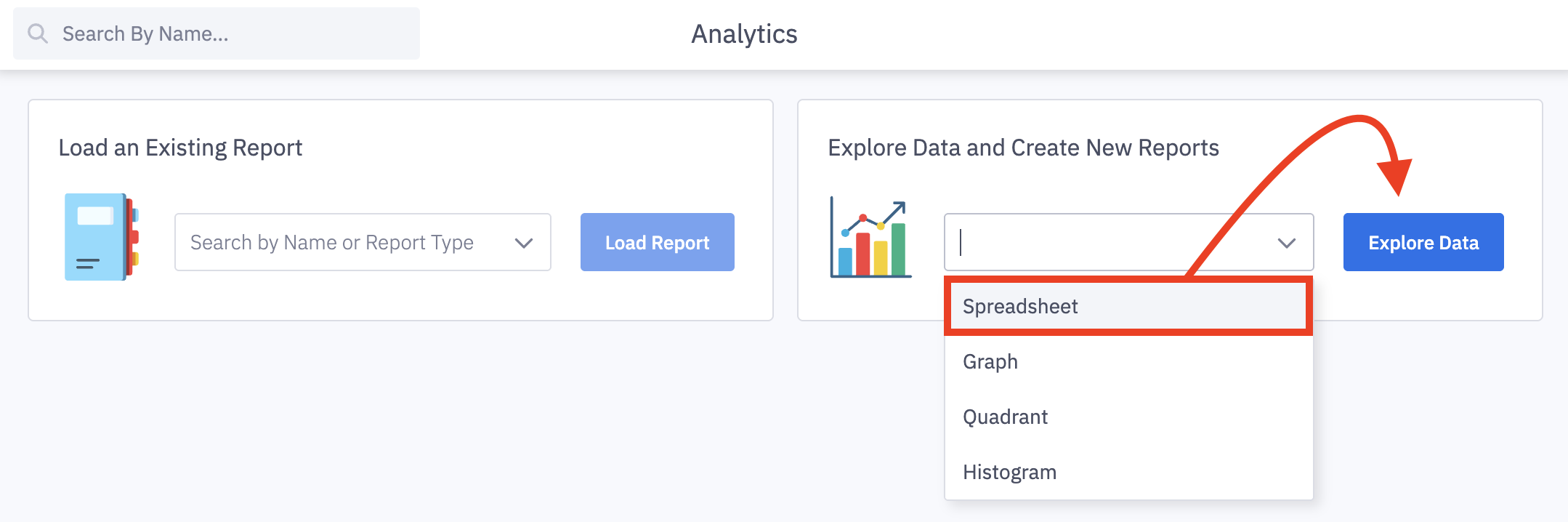
2. From the analytics' home page, you can open any previously saved reports or open a new report type.
Spreadsheet is selected by default from the dropdown. Click Explore Data to open a spreadsheet report.
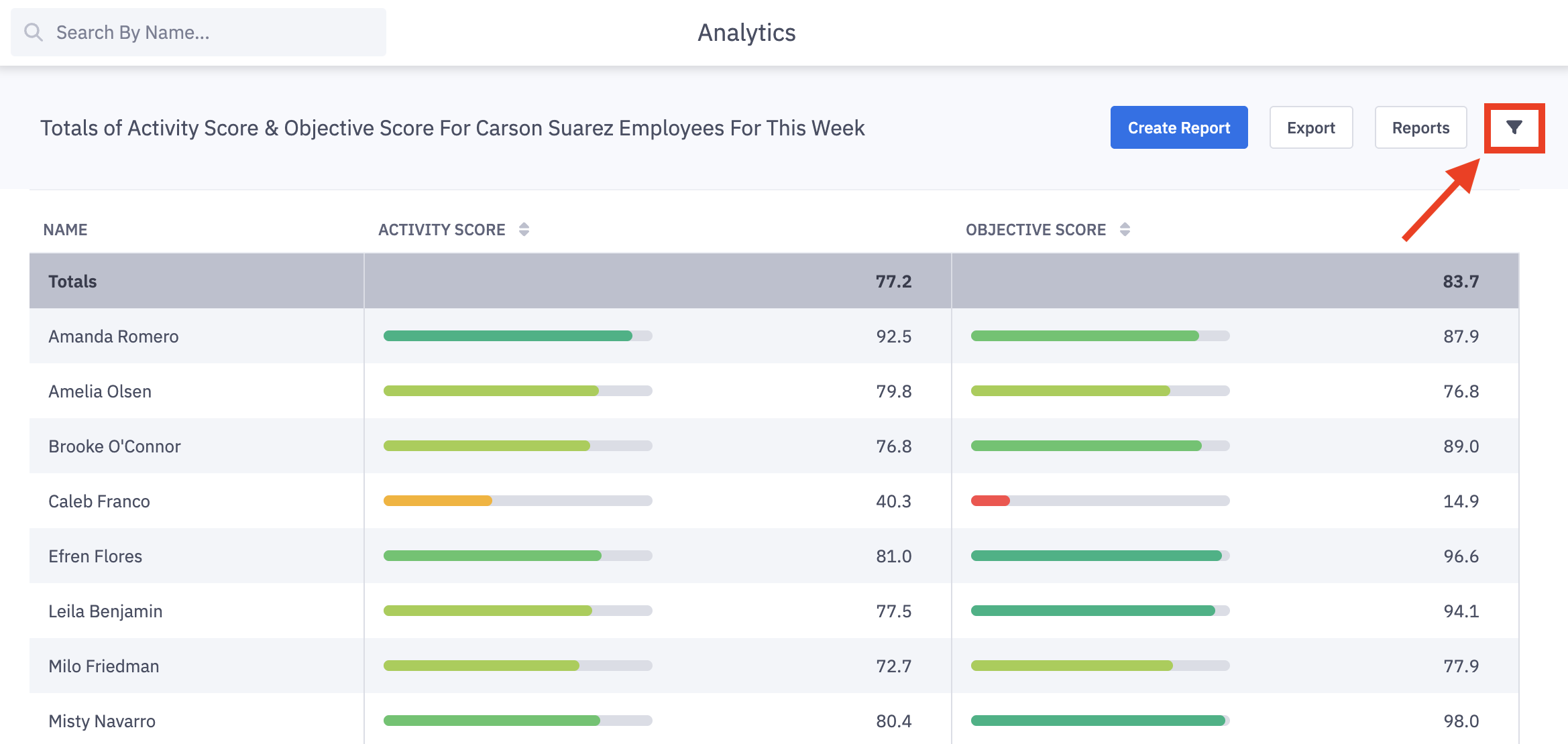
If your organization does not use both Activity and Objective Score, a "No Data" message will render upon loading. Adjusting the filters in the next step will resolve the no data message!
3. Click the filters icon to slide out the filter panel, allowing you to have drill-down capabilities to capture the exact Data, Metrics, Time Frame, and Hierarchy Levels you are desiring to see.
Data
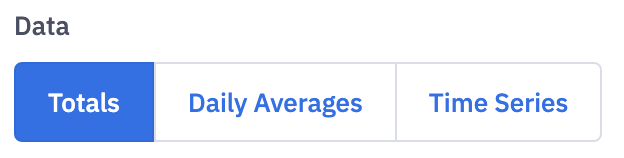
4. Select the type of data you would like to view.
Ambition has 3 options for viewing your data in spreadsheet mode.
Data Type Option | Data Type Behavior |
Totals | Sums your sum and count type metric data over time |
Daily Averages | Averages your data over time |
Time Series | Displays your data at successive times over equal intervals |
Timeframe
5. Select the Timeframe that you are wanting to view data across.
Note: UTC is used as the time standard when using time frame selections. To view data in your respective time zone or across several time zones, we recommend using the "Custom" time frame option.
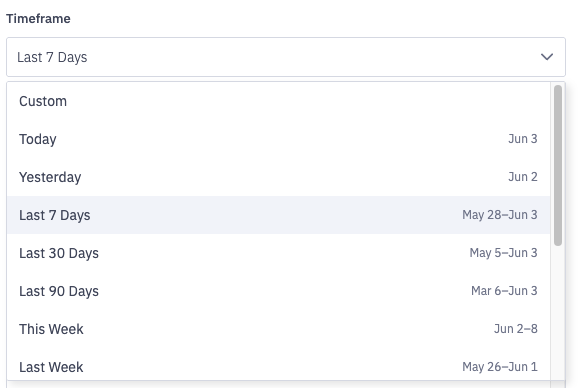
Timeframe options include:
Custom*
Today
Yesterday
Last 7 Days
Last 30 Days
Last 90 Days
This Week
Last Week
This Month
Last Month
This Quarter
Last Quarter
This Year
Last Year
*Selecting Custom -> Date Range will allow you to choose a specific date range through a calendar picker. The exception is Time Series reporting where you won't pick a custom range, but rather pick the custom time series you wish to view.
A custom end date can be selected as well.
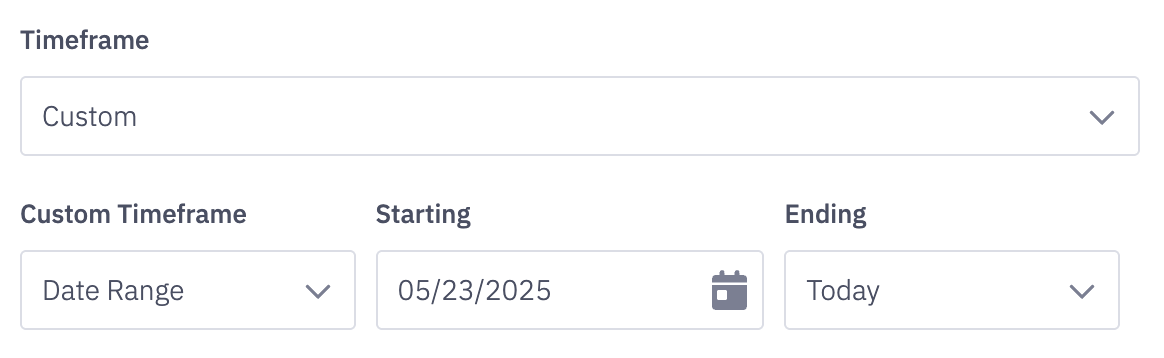
At the current time, the custom time frame option can display data for a time range of up to 3 years. ex. January 1st, 2020- January 1st, 2023.
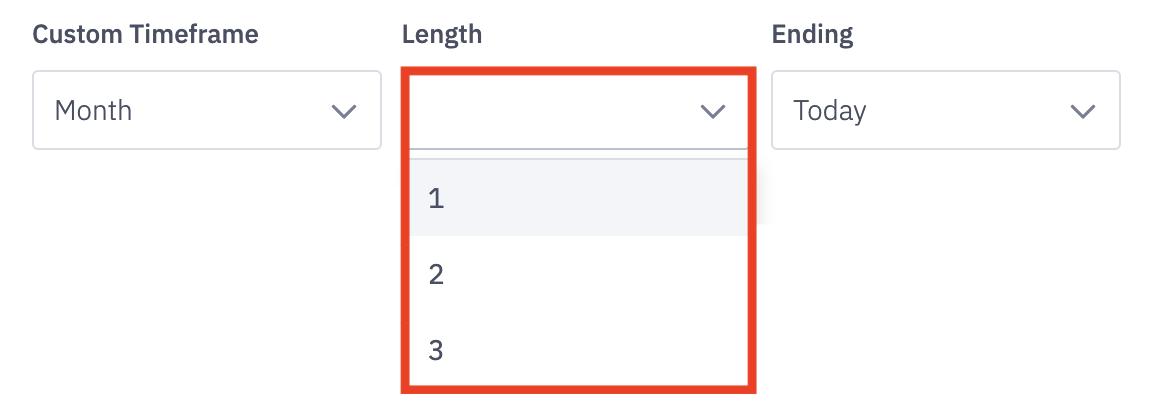
If you select "custom" as the timeframe, select the custom time frame - day, week, month, quarter, or year - and also select the length of time you'd wish to view.
Select between 1-100 units of time.
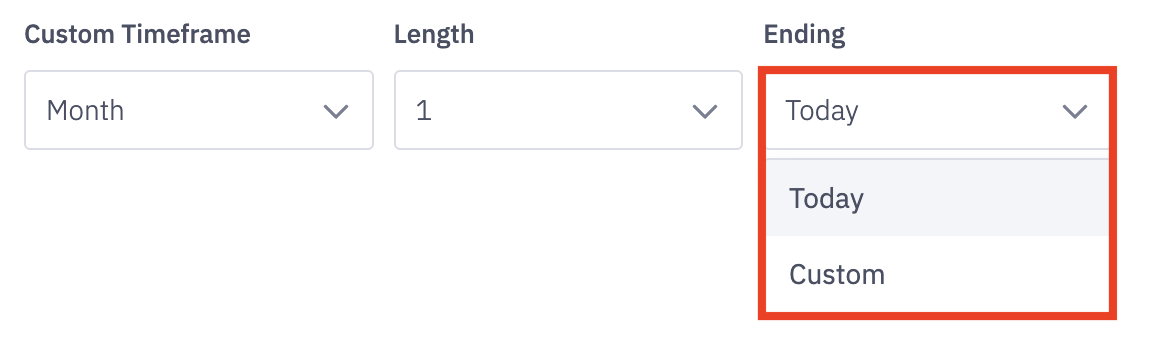
Determine the end range of your data set by selecting either today or a custom ending time.
*Selecting Custom will allow you to choose a specific end date through a calendar picker.
Learn mode about the spreadsheet's time frame and methods of analytics your data here.
Metrics
6. Next, select the metric(s) you are looking to analyze.
Each selected metric will be added to the spreadsheet's columns.
Note about Formula Builder Metrics: If you are viewing formula builder metrics that have been combined with other formula builder metrics, view data for the combination metrics on day, week, month, quarter, or year time frames.
Find metrics by searching or scrolling, and select them by clicking on each respective metric.
Optionally choose to Select All or Unselect All.
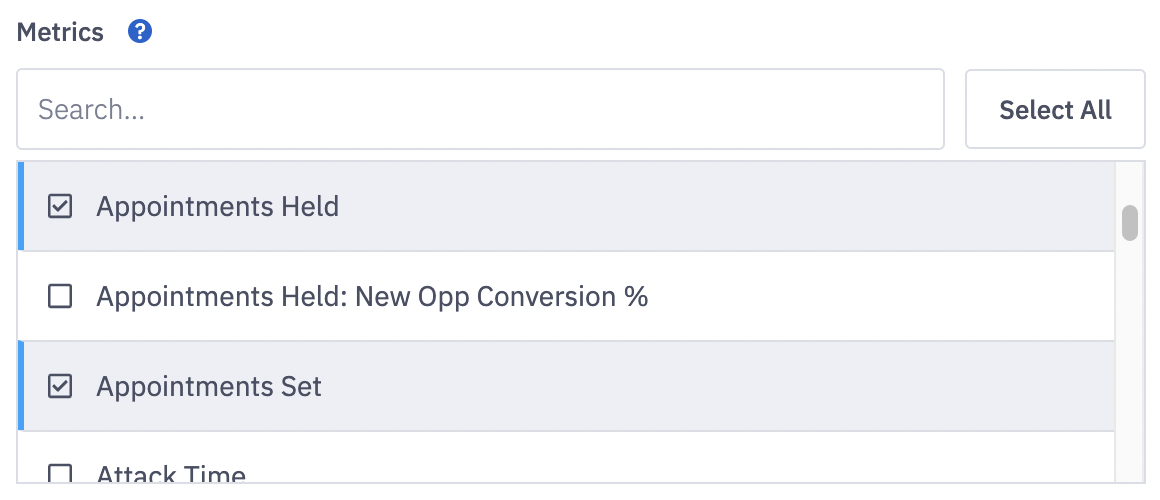
Note: You can only select 1 metric at a time within time series mode
Hierarchy Level
7. Select the appropriate hierarchy level for the data you are looking to analyze.
Read more about Ambition hierarchy levels here.
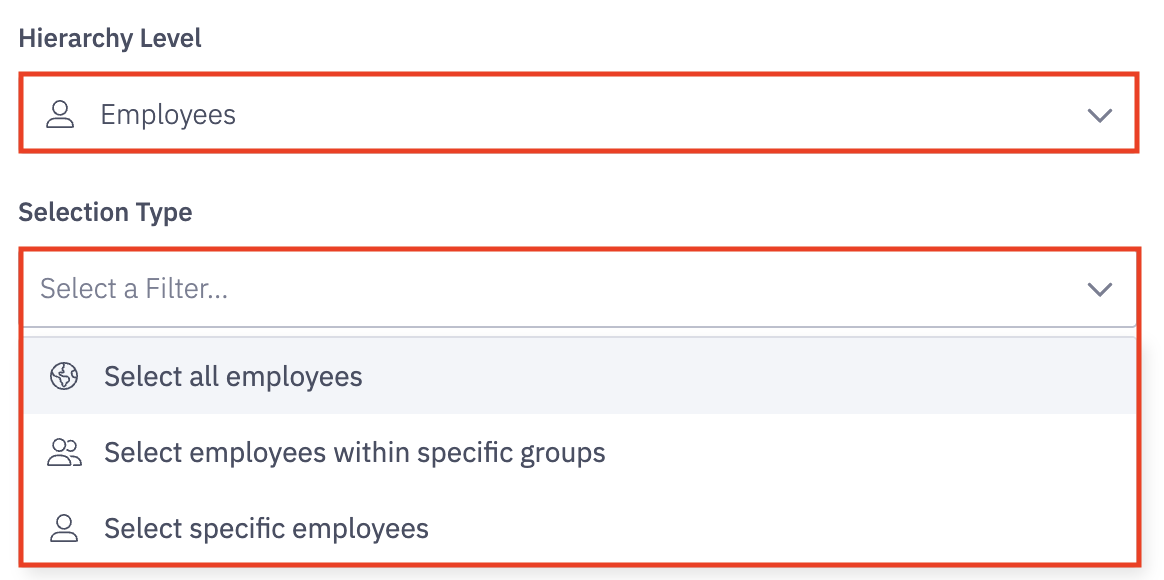
Hierarchy Level is the level of employee, team, role, etc that you wish to view their data
Do I want to view data for employees? Do I need data for all of my teams?
Selection Type will display options of All, Within Specific Groups (if employee was selected), and Specific Employee or Group.
Is this data for Employees > All? Employees > Within > BDR Role? Employees > Custom > Joe Smith?
Special Note when using the Employee > Within > "Manager" or the "Manager" Hierarchy Level in cases where a manager manages other managers.
If Manager A is listed as a Manager B's manager within their user settings, any of Manager B's direct reports will also be considered as users Manager A manages, or Manager A's subordinates.
Display Smart Values
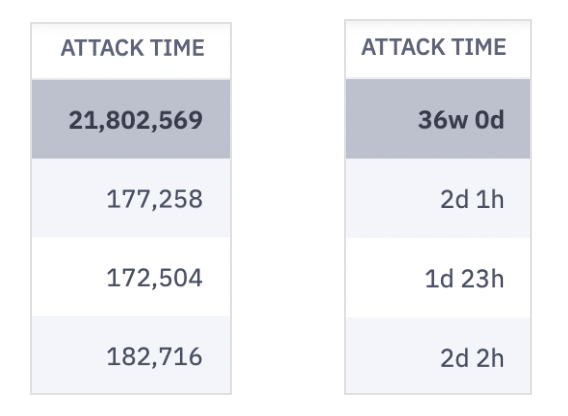
8. For duration based metrics, optionally select whether you want to display smart values, converting seconds into days, hours, and minutes, by clicking the Display Smart Values toggle.
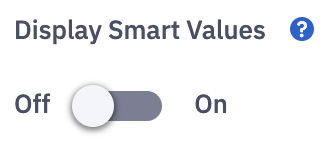
Smart values will convert your duration based metrics into an easily-readable format as shown below:
Include Weekends
9. Include or exclude weekends in your data through the Include Weekend toggle.
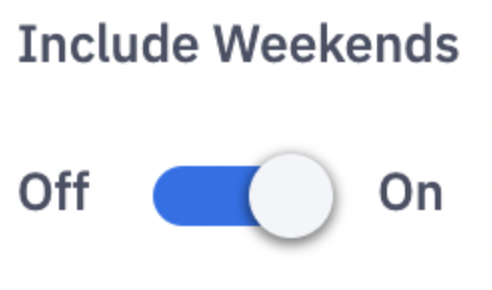
Note: Time series mode will always include weekends
Include Users Without Data
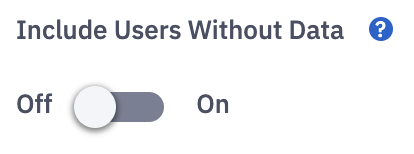
10. Include or exclude users without data through the Include Users Without Data toggle.
By default, users who have not contributed to the selected metric(s) during the chosen time frame will be excluded from your reporting.
Additional Columns (groups)
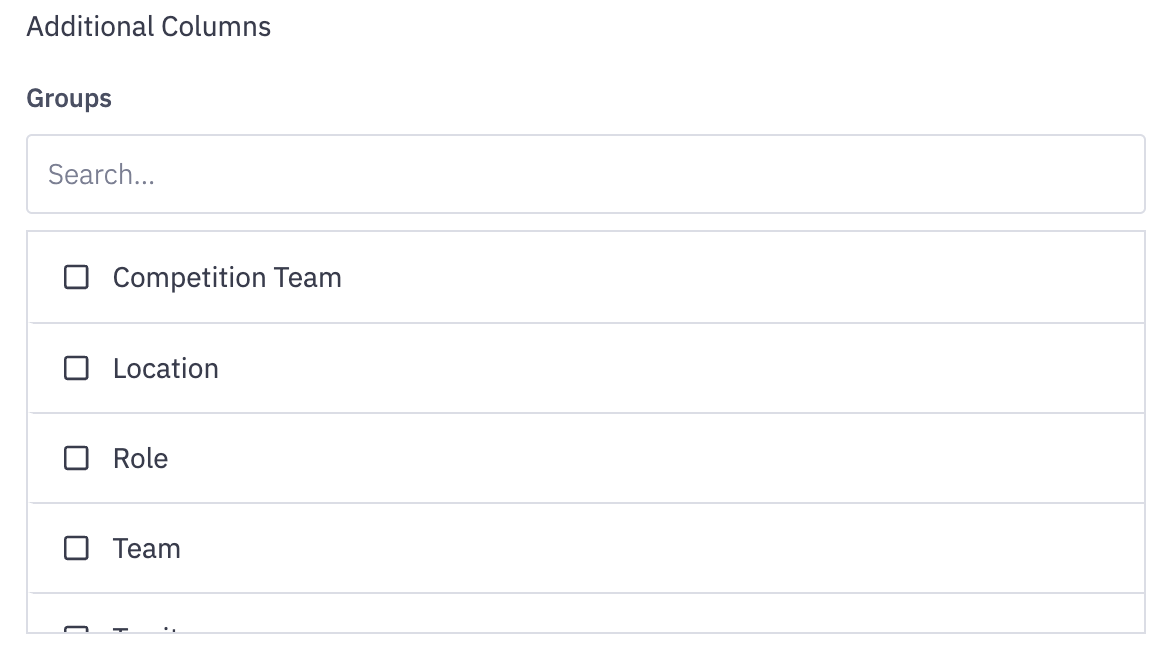
11. If "employee" is selected as the hierarchy level, optionally include additional columns that include information about the groups the user is a member of.
Apply Filters
12. Select the Apply Filters button to update the spreadsheet with your filter changes. Applying filters will reload your spreadsheet report with the newly selected filters.