How do I automate Salesforce user creation?
Last updated: August 28, 2025
Salesforce User Auto-Activation
Custom filter rules can be implemented to auto-activate and deactivate in Ambition based on user profile attributes in Salesforce.
Using Auto-Activation will remove the standard option to sync users from Salesforce into Ambition.
Configure User Auto-Activation Filters
Users with Integrations: Edit permission will be able to access the integrations tab.
1. Open the left navigation and click Administration > Data > Integrations.
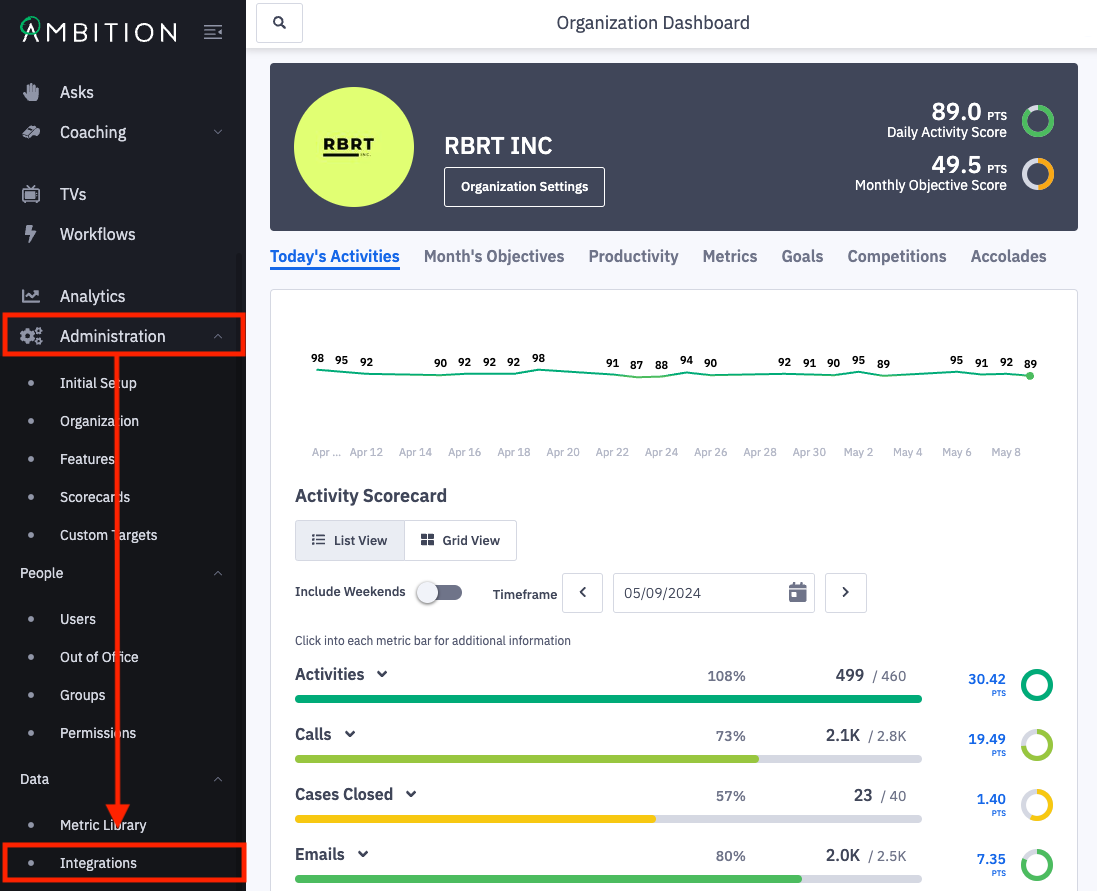
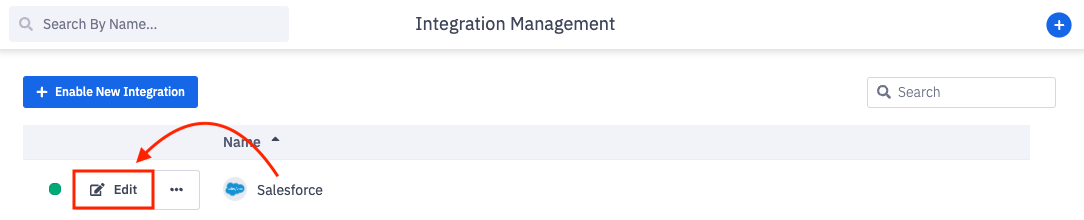
2. Click Edit in line with the Salesforce integration.
3. Click on User Sync Configuration.
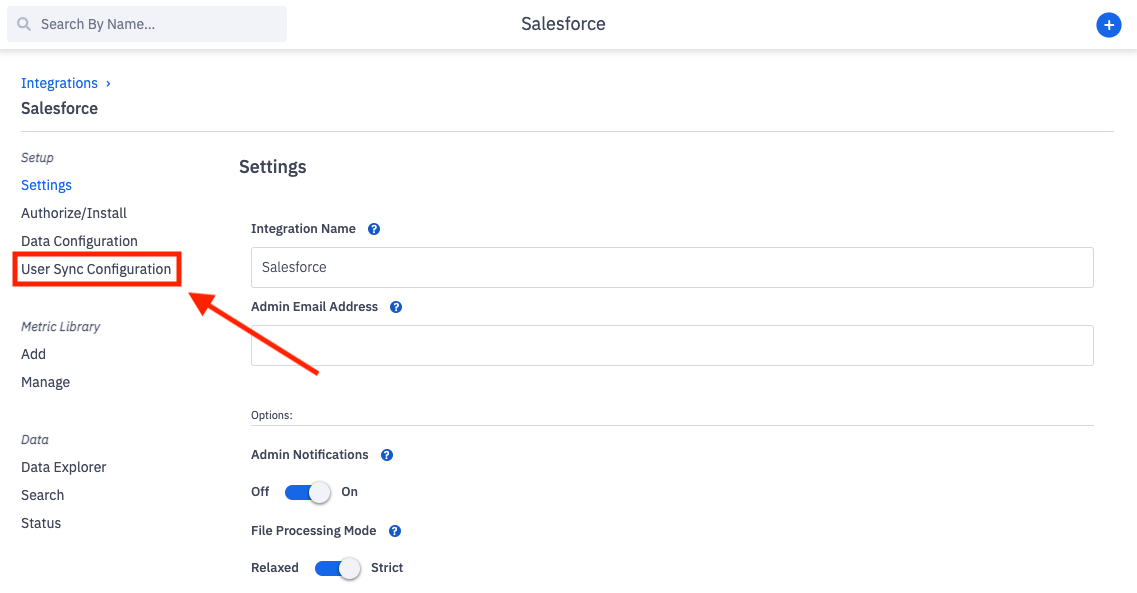
Don't see the User Sync Configuration tab or the User Auto-Activation option? The feature can be enabled by any user with system admin permissions. Enable Feature: Open the left navigation and click Administration > Features. Locate the Salesforce User Activation Management feature, and toggle "On". Click the Update Features button to save.
4. Click on the User Auto-Activation section and toggle to Custom.
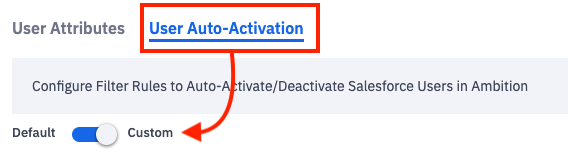
5. Once Custom is selected, add a new filter by clicking the Add Filter button.
Using Auto-Activation will remove the standard option to sync users from Salesforce into Ambition.
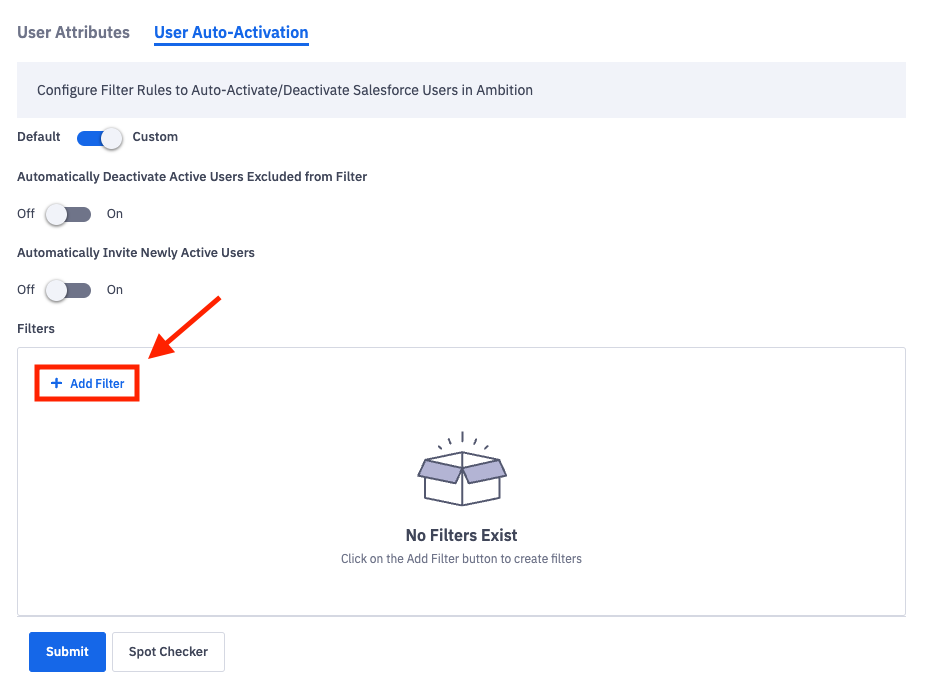
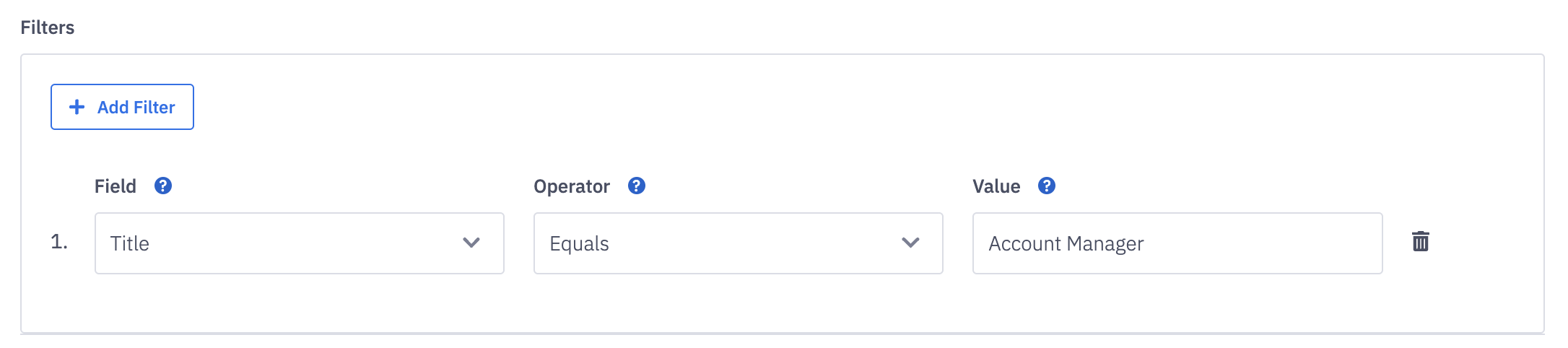
6. Select the fields that are relevant to this User Auto-Activation:
Field = Select the Salesforce field to filter on. (In the example below, we chose Title.)
Operator = Define how you want to filter the selected field. (In the example below we chose Equals)
Value = Select the value to filter the selected field by. (In the example below we chose Account Manager.)
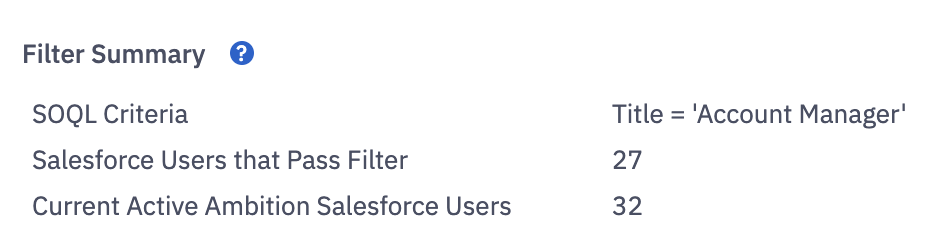
Clicking on the Spot Checker button will reveal a Filter Summary and a User Check.
The Filter Summary provides a summary of the modifications that would be applied by the given filters, compared with the current number of active Ambition Salesforce users.
By selecting Title, Equals = Account Manager, the filter configuration loads a spot checker showing how many users in Salesforce will pass that criteria (27 Users in Salesforce pass this criteria, and there are 32 active Ambition user licenses).
The User Check provides a search bar to see if a specific user would pass the user activation filters. Type a user's name into the search bar and click Check to see if their respective username passes the filter configuration.

8. Add and alter additional filters as needed.
To deactivate Ambition users who also have inactive Salesforce accounts, you must add a filter in Ambition which reads as follows: "Active Equals True."
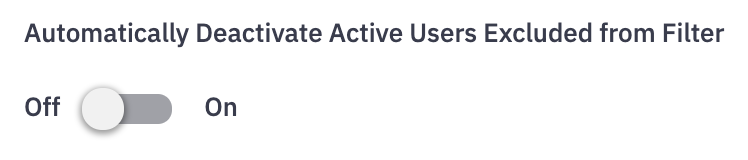
9. Automatically Deactivate Active Users Excluded from Filter.
Setting up custom auto activation filters will set the "Automatically Deactivate Active Users Excluded from Filter" toggle to "Off."
If you want to use custom activation filters and have active users automatically deactivated if they fail the filter, click on the toggle below so that it turns blue, indicating "On."
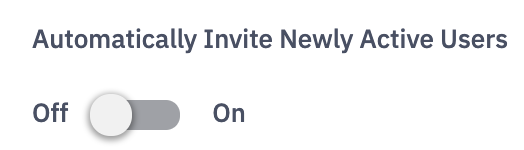
10. Automatically Invite Newly Active Users.
This setting is On by default, ensuring that any new users who pass the criteria are automatically invited to their Ambition profile.
Update the toggle to Off if you wish for new users to not be invited upon add.
11. Once your organization has enabled the appropriate the Auto-Activation configuration, click the Submit button.
12. These settings can be revisited at any time. The filters can be removed or changed as needed.
By default, newly created filters will only be applied to Salesforce users that were edited or created after the filter changes. If you need filters applied to existing Ambition users, reach out to gethelp@ambition.com