How do I create an integration health status alert?
Last updated: February 2, 2026
Integration Health Status Alert
What is an integration health status alert?
An integration health status alert is an email alert that will notify the selected users anytime there is a change in an integration's status, ex. the status changes to failed or a failed status changes back to operational. A single integrator or an entire technical team can be proactively notified of integration status changes so any issues can be quickly identified and resolved.
Create an Integration Health Status Alert
Users with "Workflows: All Access" or "Workflows: Create" permission will be able to create workflows.
Creators will be able to edit and delete workflows they create.
Users with "Workflows: All Access" permission will be able to edit and delete all workflows. Users with "Workflows: Edit" permission will be able to edit all workflows or edit workflows that users they manage created depending on the level of access.
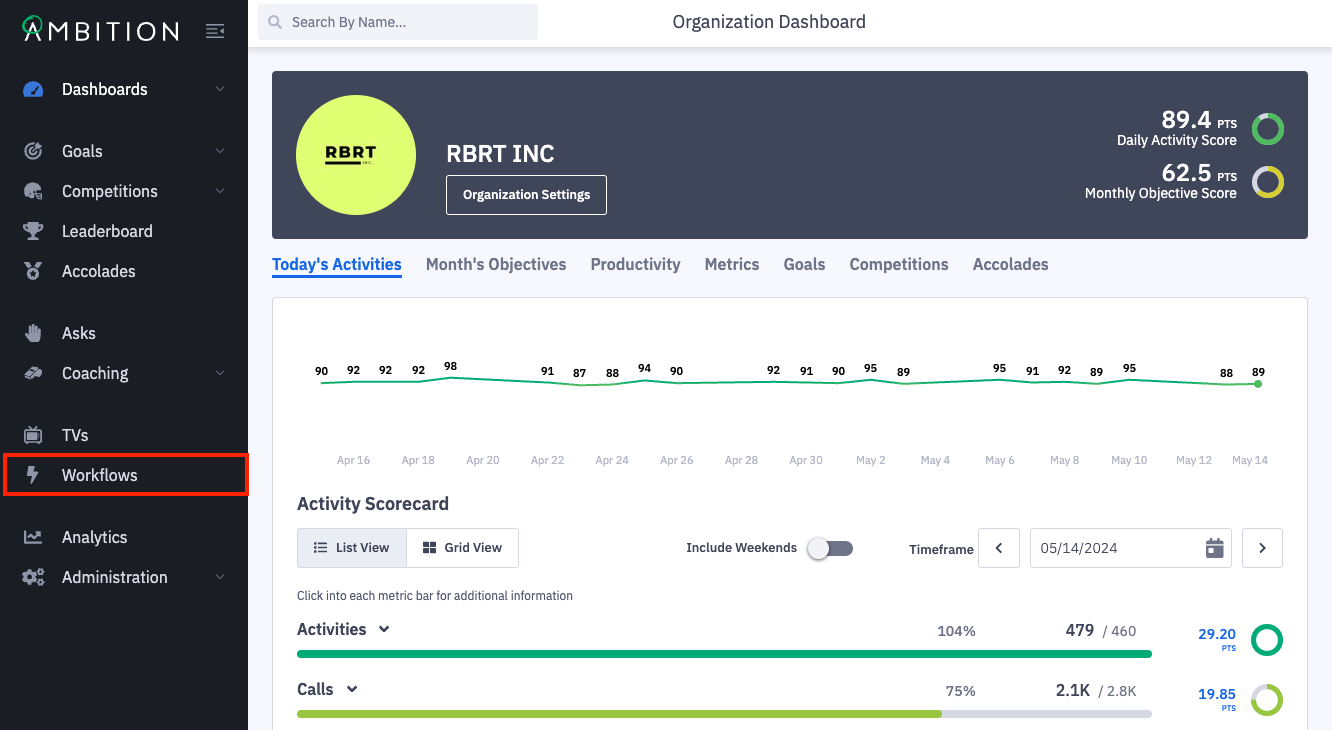
1. Open the left navigation and click Workflows.
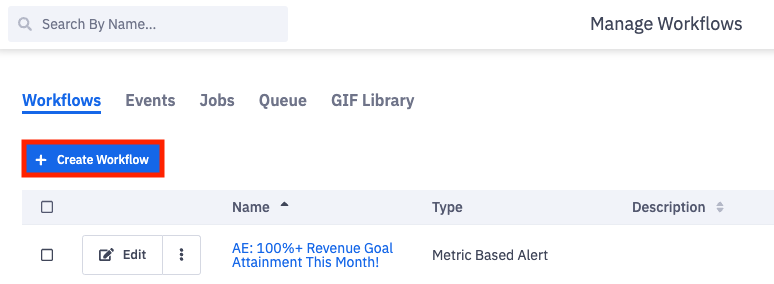
2. Click the + Create Workflow button.
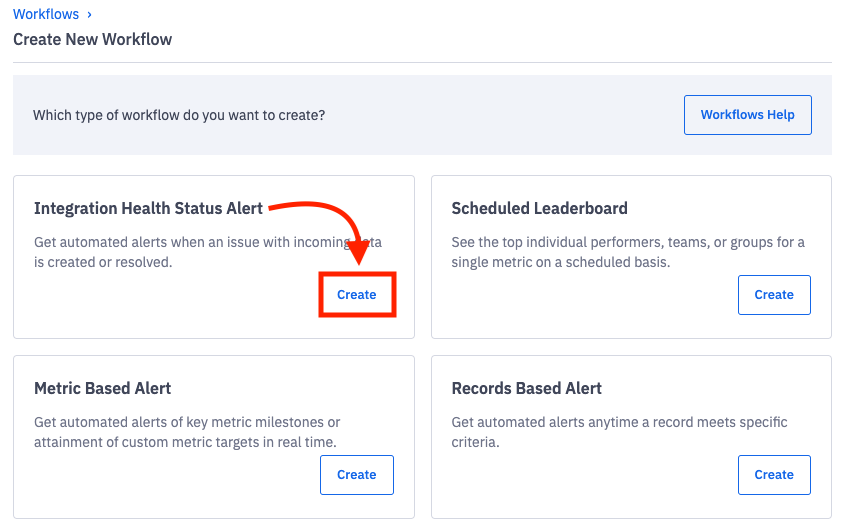
3. Click Create on the Integration Health Status Alert tile.
4. Complete the create workflow form:
Details
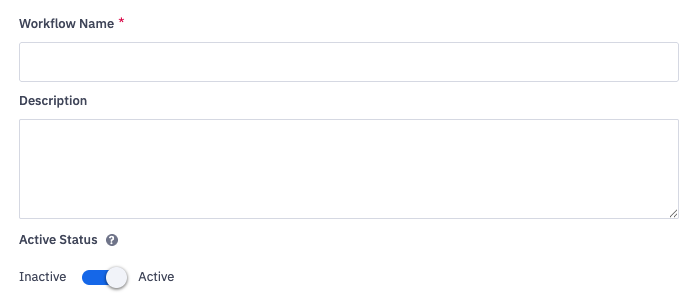
Workflow Name
The name will be displayed within Ambition and on the email alert notifications.
Description
Optional. Description is visible on the manage workflows page and can be helpful to provide context.
Active Status
Active = the integration health status alert workflow will run any time there is a status change within an integration.
Inactive = the integration health status alert will be disabled and no alerts will be provided. Inactive workflows are not deleted and can be set back to active at the appropriate time.
Message
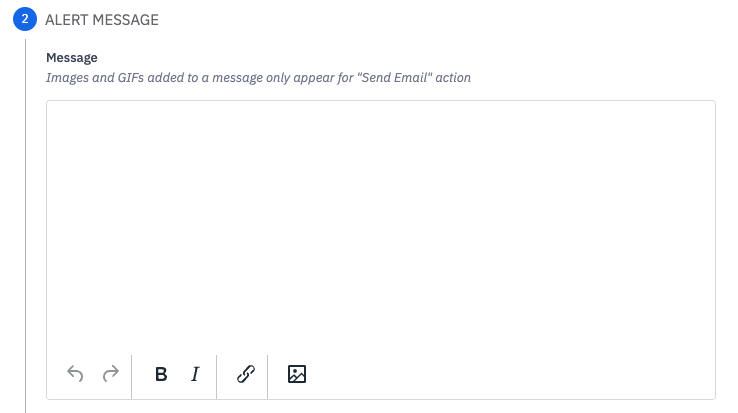
Optionally provide a message to accompany the alert, ex. link to or detail internal troubleshooting steps or include contact information of integrators.
Actions
A single workflow can support multiple actions.
View an example of an integration health status alert here.
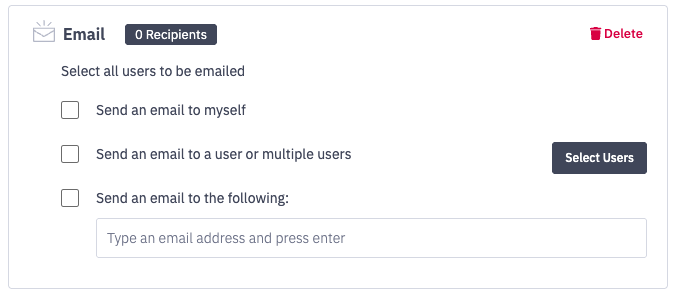
A single email will be sent to everyone selected in the same "Email" action creating a CC, reply-all behavior within the workflow email alert.
To create a BCC behavior within the workflow email alert, enable multiple "Email" actions.
Email - Action Options | Action Description |
Send an email to myself | Workflow will be sent to the workflow creator's email address. |
Send an email to a user or multiple users | Workflow will be sent to the selected user's email address. Additional hierarchy options will appear to allow you to designate which group(s) of Ambition users you want to receive the email alert. Learn more about hierarchy options here. Select all employees = Every active Ambition user will be notified of the workflow by email. Select employees within specific groups = You will be prompted to select one or more groups within Ambition. All users within the selected group(s) will be notified by email. Only members, and not managers, of the selected groups will be notified. Select specific employees - You will be prompted to manually select which specific users will be notified will be notified of the workflow by email. |
Send an email to the following (Custom Email Address) | An email will be sent to the input email address. Use for anyone/any group/distribution list who needs to receive workflow updates, but DOES NOT have an Ambition account. ex. technicalteam@yourcompany.com or integrator@yourcompany.com. Pro Tip: Ensure that any distributions lists have the proper protocols adjusted to allow Ambition emails to be received. If an Ambition user has unsubscribed from integration health status alert workflow emails, they will still receive an email notification if their email is input as a custom email address. |
Log

Log - Action Options | Action Description |
Log | Send workflow to internal log for troubleshooting purposes. Logs can be viewed under the "Jobs" tab in the manage workflow view. (Workflows: All Access permission required) You will be able to see the workflow name and the time the workflow ran. 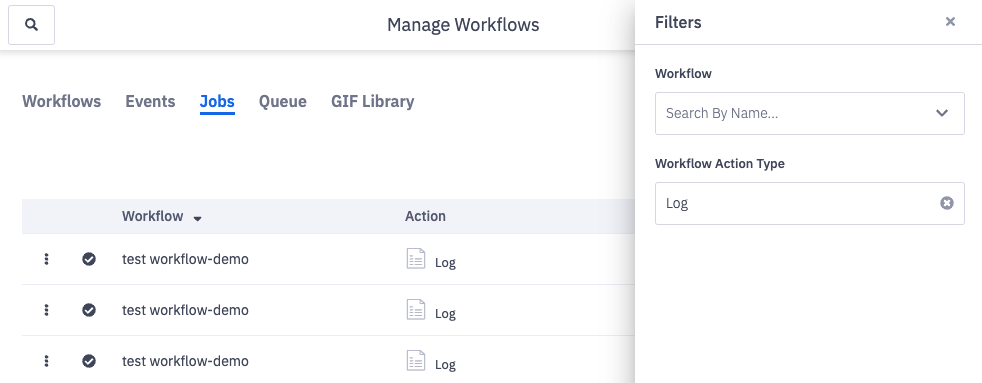 |
5. Click Create Workflow.