How do I upload custom targets (single target, per metric, per row)?
Last updated: June 20, 2025
Upload Custom Scorecard Targets
Prerequisite
Your organization has established scorecards within Ambition and both the "Scorecards: Custom Targets" and "Scorecards: CSV Upload" features are enabled.
Access Custom Target Upload
Users with the "Ambition Scores: Edit" or "Ambition Scores: Custom Targets" permission will be able to upload custom scorecard targets.
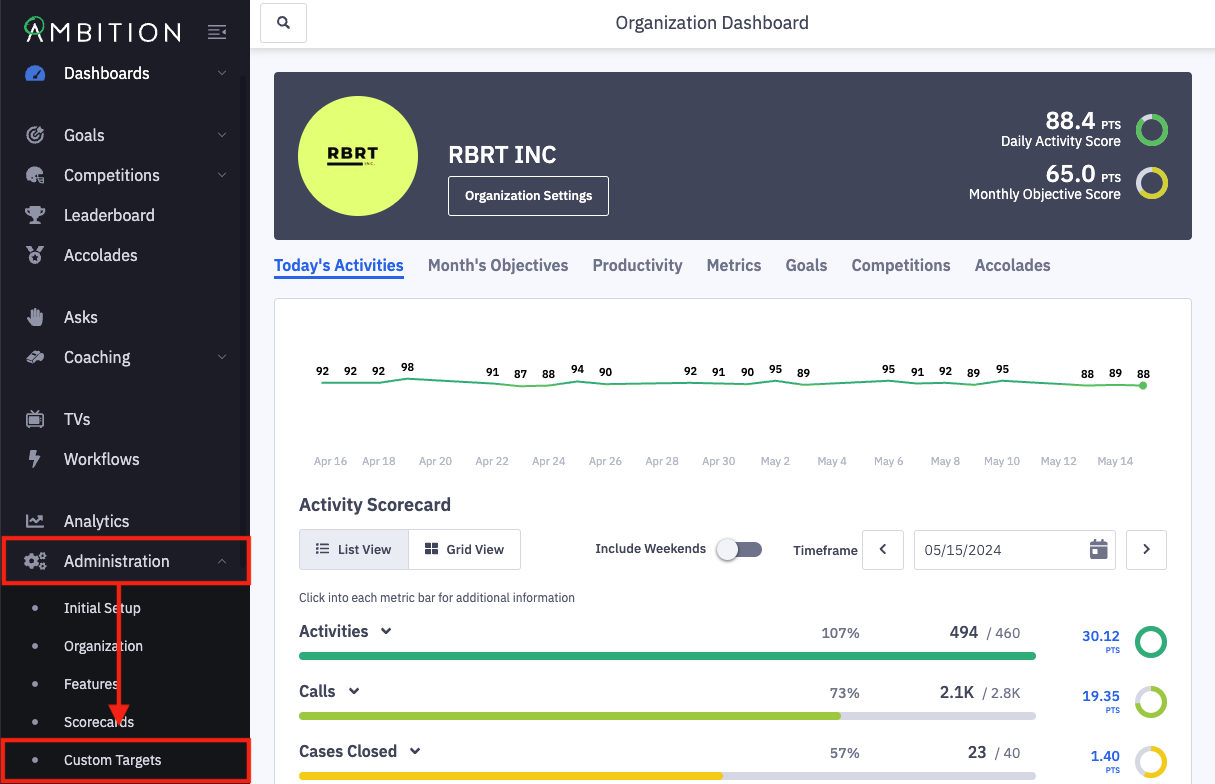
1. Open the left navigation and click Administration > Custom Targets.
2. Click on the Upload Targets button.
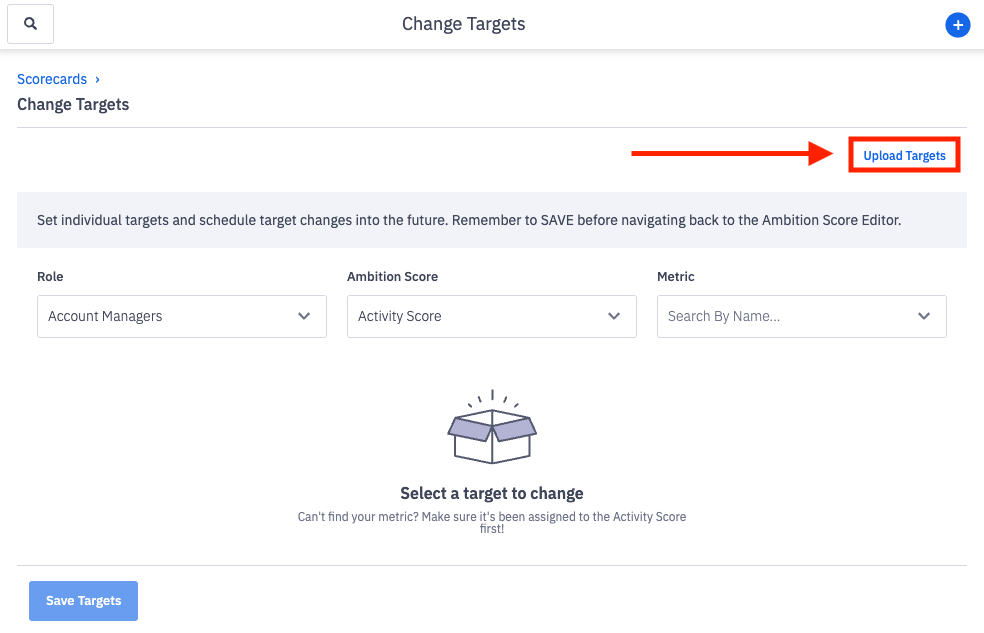
Don't see the Upload Targets button? The feature can be enabled by any user with system admin permissions. Open the left navigation and click Administration > Features. Locate the Scorecards: CSV Upload feature, and toggle "On". Click the Update Features button to save.
Generate and Download a Scorecard Import Template
Generating a template is an optional step, but it's recommend to better understand the upload format that is required.
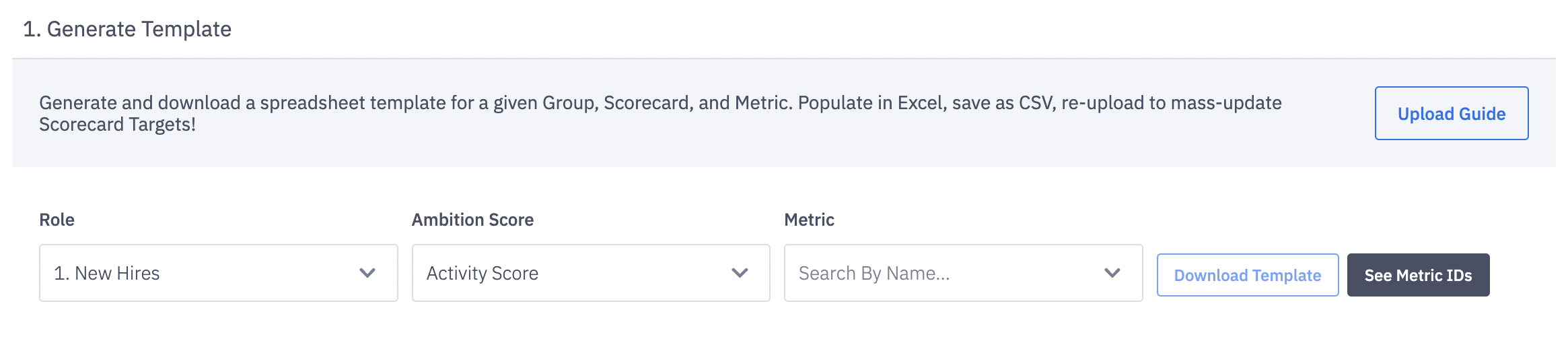
1 . Select the appropriate Role, or other group type used for scoring, you wish to generate a template for from the "Role" dropdown.
You can either search or scroll through your organization's list of roles. If you have permission to only update targets for users you manage, you will only be able to select Roles where users you manage are members.
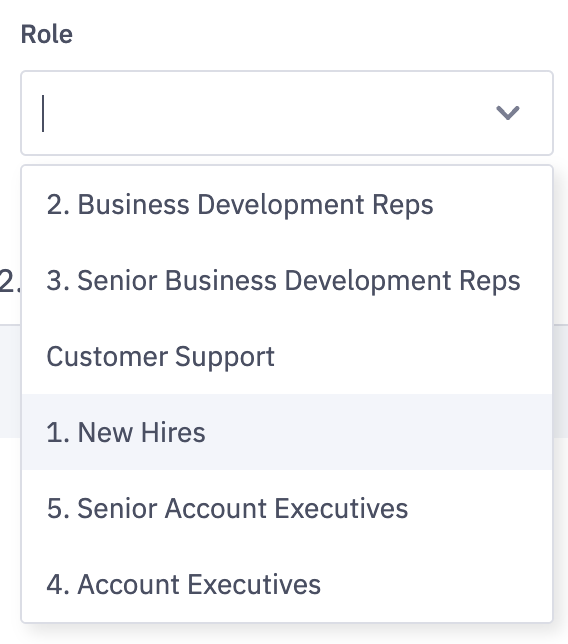
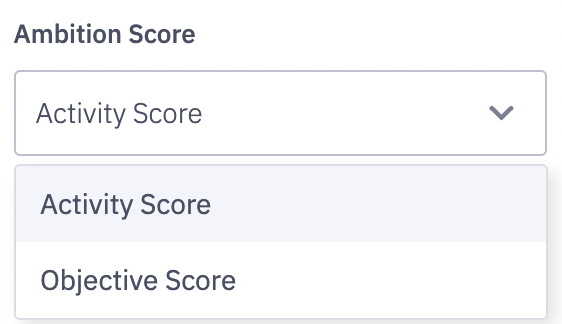
2. Select which Ambition Score, Activity Score or Objective Score, you wish to export.
Remember, each score consists of different metrics, which are selected in the next step.
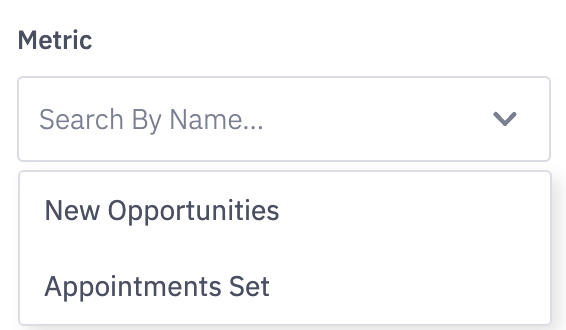
3. Select a Metric from the selected scorecard.
The list of metrics that are available in the selected Activity Score or Objective Score will be based on your selections in steps 1 and 2. Only metrics that are on the respective Role's, from step 1, scorecard configuration, from step 2, will appear in the drop down.
4. Click the Download Template button
Note: Role, Ambition score, and metric selections must be complete before attempting to download a template.
If you'd like to update multiple groups, scorecards, or metrics you'll need to stitch together multiple exports containing all relevant information. If you need help, reach out to gethelp@ambition.com!
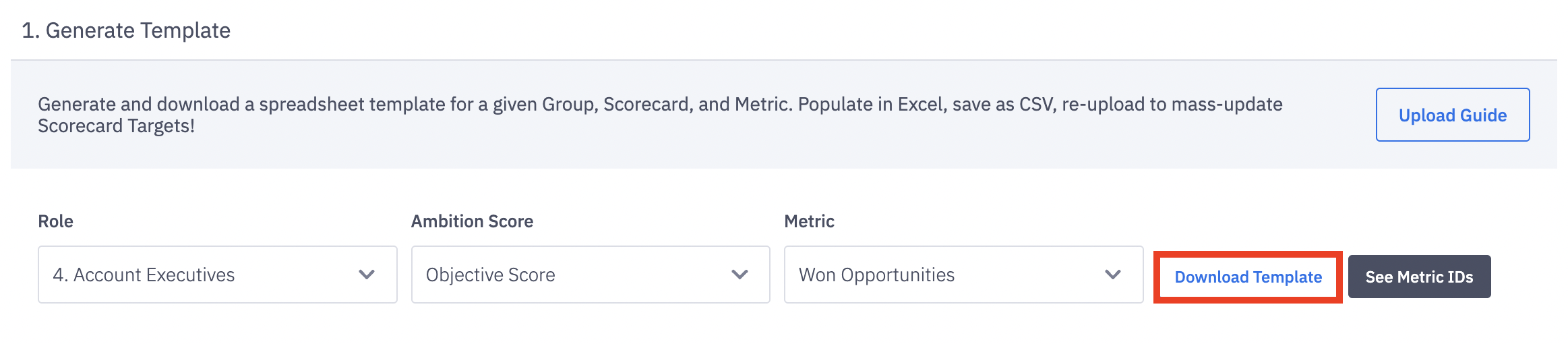
Now that you have a template, you can upload targets for the selected role, score, and metric.
Template Format
Once a template is exported and opened in a spreadsheet editor, you will see the following format.
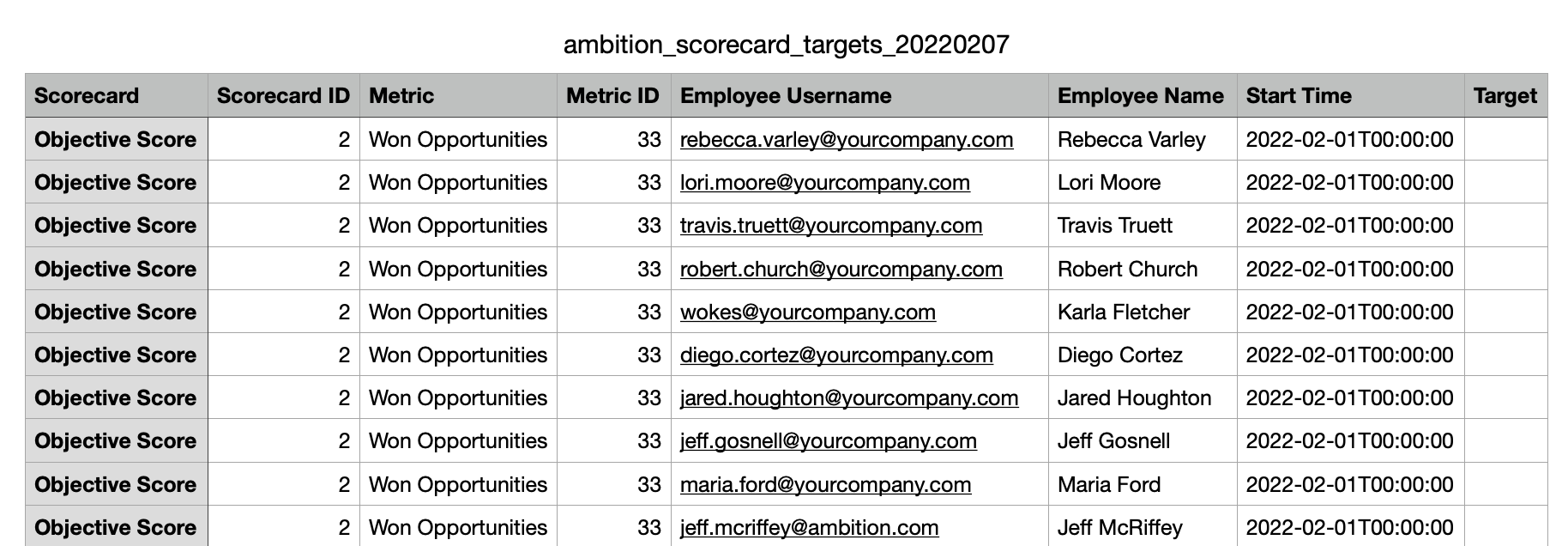
Format Definitions
Note: All columns are required for re-upload
Column Name | Row Data |
Column A: Scorecard | Either shows Activity Score or Objective Score |
Column B: Scorecard ID | Activity Score = 1 and Objective Score = 2 |
Column C: Metric | Name of metric as it appears in Ambition |
Column D: Metric ID | Metric Number, can also be found via the 'See Metric IDs' button |
Column E: Employee Username | User's username in Ambition. If your organization does not use the Salesforce Integration, an employee's username will be the same as a user's email. If your organization uses the Salesforce Integration, the employee username will correlate to the Salesforce username that correlates to the user's Ambition account. |
Column F: Employee Name | User's full name |
Column G: Start Time | When the new target should take effect? The date(s) must align with the cadence defined by your organization's settings. (i.e Weekly Activity Scores begin on the Monday of each week). Format: yyyy-mm-dd |
Column H: Target | What is the new target for the user's metric in question? Must only include numbers: 45000 instead of 45,000 or $45000. |
Upload Custom Targets Through .CSV File
1. Finalize the template with the custom targets.
If you opted to bypass the template, ensure that each of the required columns listed above are included on your file.
In addition to the required columns, note that:
the "target" column must only include numbers, ex: 45000 instead of 45,000 or $45000.
Ambition will ignore "0" targets as our system requires a number to be set.
Ambition WILL NOT delete scorecard targets, only update.
ex. If Susan has a target of $45,000 and you erase that value in your spreadsheet, save, and upload, Susan's target will still be $45,000.
2. Update and save the new targets in the template, column H.
Saved file must be in csv. format.
3. Click the Upload CSV button.
4. Find the saved file on your device and open.
The upload will not be successful if the data cannot be matched to:
Users with an active Ambition account
Existing scorecard configuration
Existing metrics in Ambition
A red error message will appear if the file is missing a Scorecard ID or Metric ID OR if the file is not saved as a .csv.
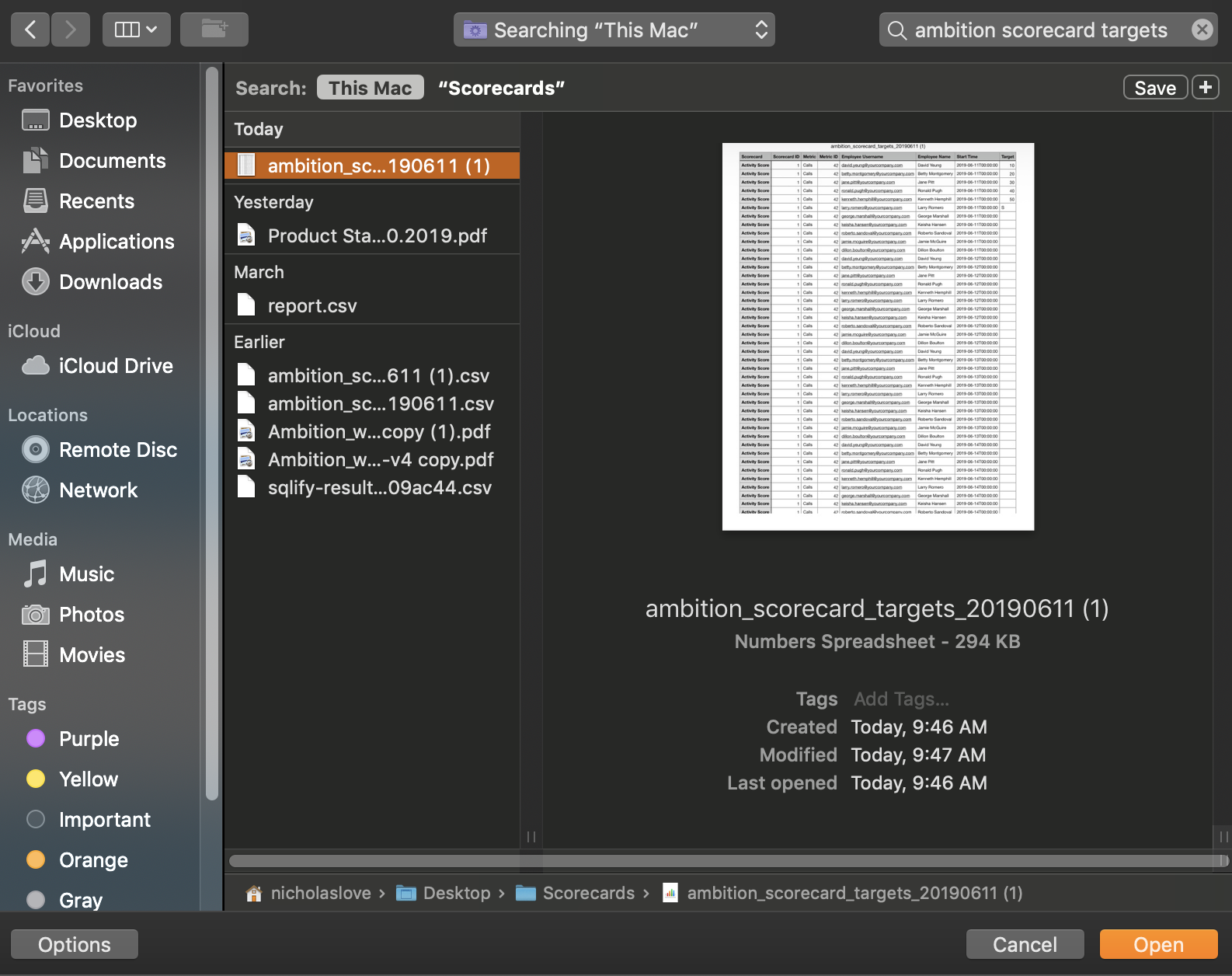
Based on the contents of the uploaded file, Ambition will display the user's name, the score impacted (Activity/Objective), metric name, start time (Year, Month, Date when the new target will be in place), and the new target.
5. Verify the accuracy of the new targets.
If the upload is successful, the "Verify Accuracy" screen will show the uploader a full list of the new targets to ensure that the intended targets are being updated correctly.

6. If applicable, review any errors.
If your upload has an incorrect employee username, those rows will appear in the "Review Errors" screen. If this happens, re-open your .csv file to correct the errors prior to re-upload.

In the example above, Betty has moved Roles resulting in the error, "Cannot Find Valid Scorecard + Metric + Start Time Combination for Betty Montgomery"
7. Click the Create/Update Targets button and when prompted click Confirm.