How do I create and edit users through the User API?
Last updated: June 23, 2025
User API to Create and Edit Users
Transmitting data involves making a POST request to an Ambition endpoint.
Important to Note
There is a 15MB file size limit.
Either CSV or JSON formatted files can be utilized.
CVS file must be a flat file with headers
JSON must be flat (unnested)
The file must contain the CSV headers or JSON keys that are included in the User API Field Mappings.
Locate User API Credentials
Users with the "Integrations: Edit" permission will be able to access the Integrations tab.
1. Log in to your Ambition instance.
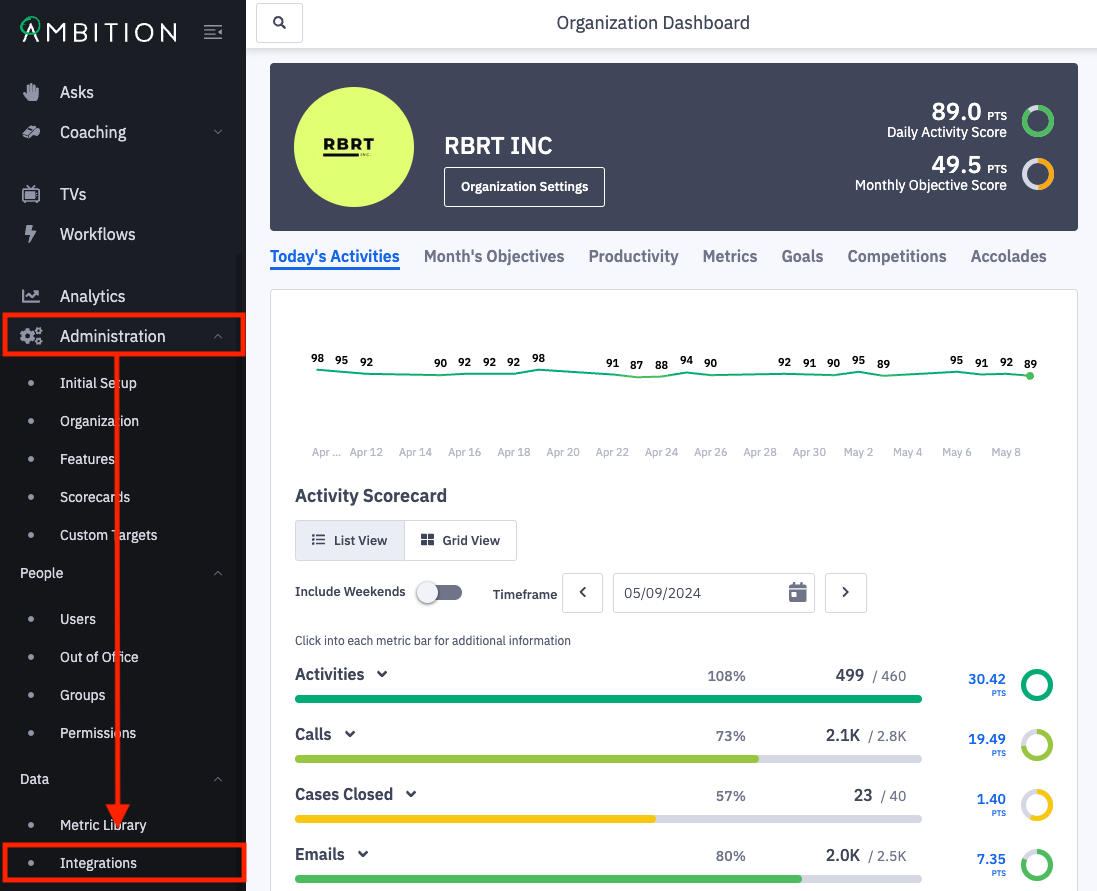
2. Open the left navigation and click Administration > Data > Integrations.
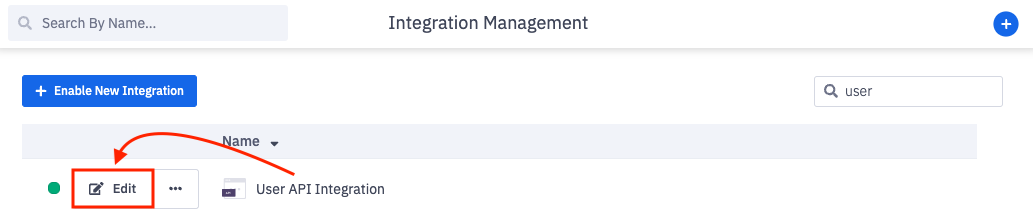
3. Click Edit in line with the appropriate User API integration.
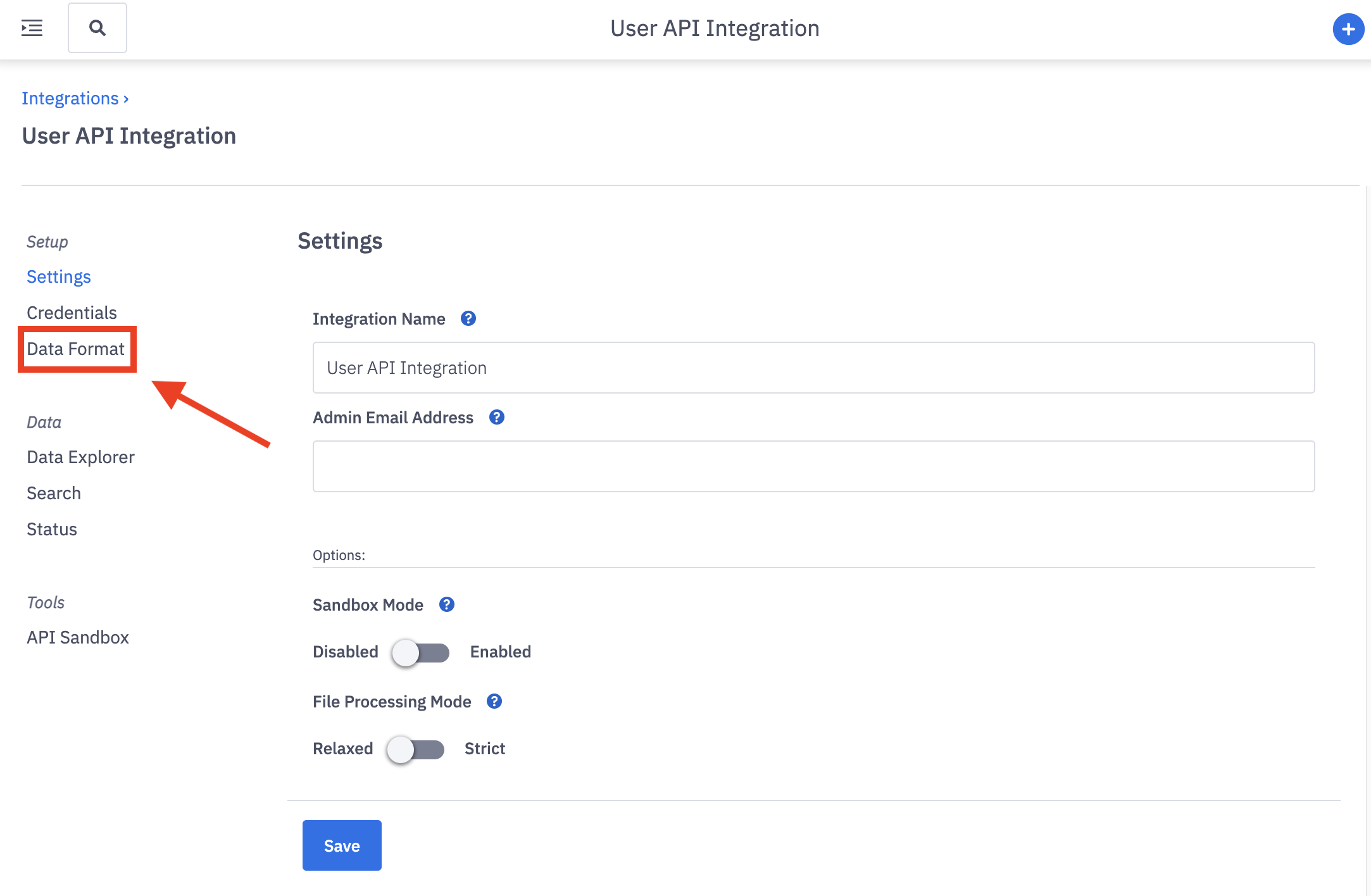
4. Click the Data Format tab to find your DATA_FORMAT labeled as File Format. Confirm the file set to be transmitted, is formatted in the set File Format.
Required API Fields for your file can also be found here.
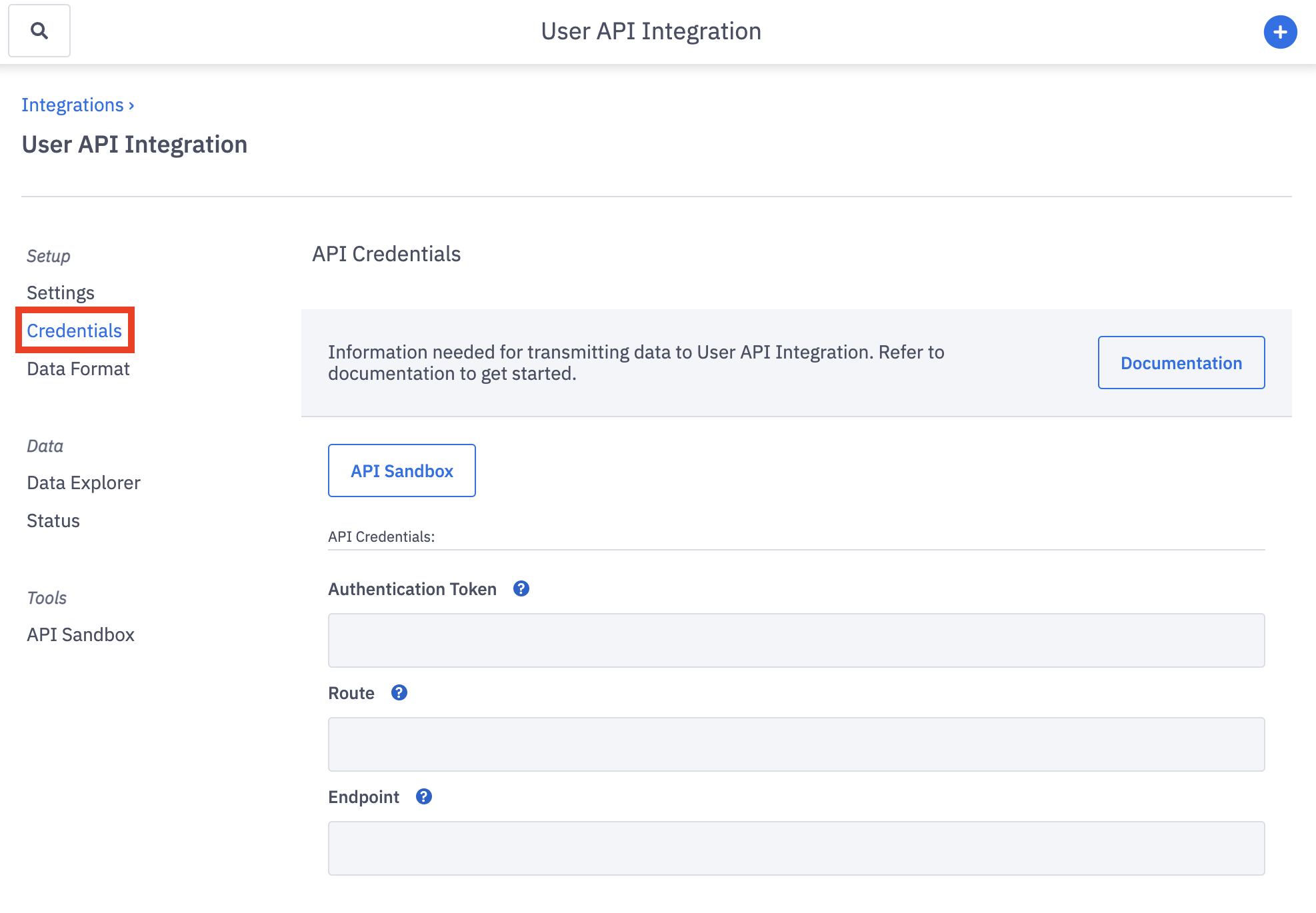
5. Click the Credentials tab to find your AUTH_TOKEN and ENDPOINT.
POST Request
You will need to construct a POST request consisting of three parts: Authorization Header, Content Type Header, and Body.
Authorization Header
Authorization: Token AUTH_TOKENContent Type Header
CONTENT_TYPE | DATA_FORMAT | CONTENTS |
application/json | JSON | JSON Formatted Data |
text/csv | CSV | CSV Formatted Data |
application/vns.ms-excel | CSV | Excel Formatted Data |
Content-Type: CONTENT_TYPEBody
The body will consist of either JSON or CSV data, dependent on selected DATA_FORMAT.
Refer to "How do I set up the User API Integration?" for constructing the body's data.
Endpoint
Once constructed, you will send your POST request to the ENDPOINT found within the Credentials tab.
You must include the trailing "/" when uploading data to the ENDPOINT, otherwise you will receive an error stating that the connection has been closed.
If the POST is successful you will receive a 201 response code.
Example Upload
Using cURL to upload
curl \
-H "Authorization: Token AUTH_TOKEN" \
-H "Content-Type: CONTENT_TYPE" \
-X POST \
-d '[{"email": "jason@yourcompany.com", "first_name": "Jason", "last_name": "Smith"}]' \
https://SUBDOMAIN.ambition.com/api/v1/data/ROUTE/
Errors
If a POST fails for any reason, all data contained within the request will be discarded.
For example, if you send 10 records and the 8th record is malformed and causes the request to fail, the 7 preceding records will be discarded.
If a request fails, the response will contain error messages consisting of IDs and Descriptions. Check both the response.status_code and response.content.
ID | DESCRIPTION |
import_parse_json | The JSON request body is improperly formatted. |
import_parse_csv | The CSV request body is improperly formatted. |
import_transform_data | The request body does not match the DATA_FORMAT. |
View User Records
After your POST is successful, you can view the records transmitted within the User API Integration.
1. Click the Data Explorer tab.
Here you will be able to view each respective upload of data including the time the file was received and how many records were included in the file.
2. Click View in line with any upload to view the actual contents of the uploaded file. A pop up will be generated that displays the actual content of each individual upload.
At this time, only step 1 of the Data Explorer, 1. Uploads, will be available to display records level information within the User API Integration.
To view the changes made to user information, group memberships, permissions, or any other data points transmitted through the User API, view the user management page or the group editor.
Note: If the integration is in sandbox mode, the upload of new user data will still create new users in Ambition.