How do I set up the User API Integration?
Last updated: June 23, 2025
User API Integration
We advise working through the entire document if this is the first User API integration that your organization has set up within Ambition as this serves as a comprehensive guide to setting up the User API integration.
Enable the User API Integration
Users with the "Integrations: Edit" permission will be able to access the integrations tab.
1. Log in to your Ambition instance.
2. Open the left navigation and click Administration > Data > Integrations.
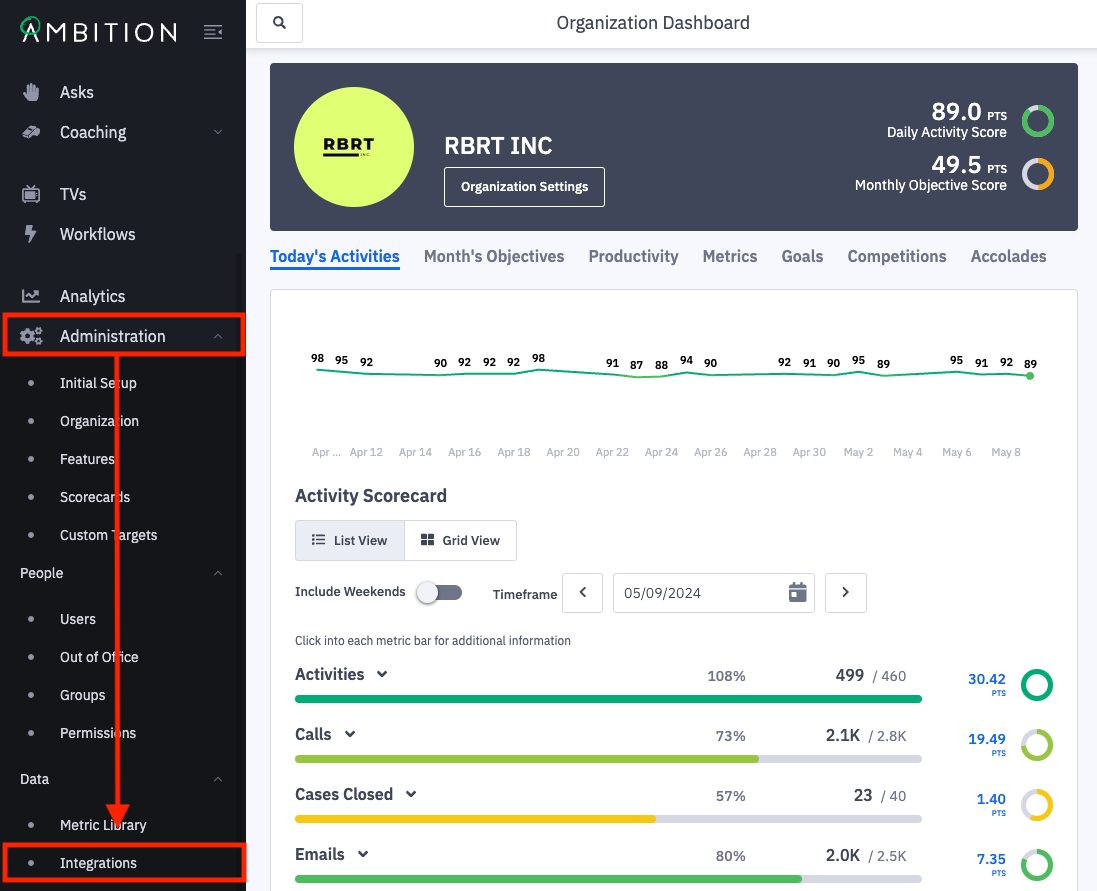
3. Click the + Enable Integration button.
If this is the first integration enabled in your instance, you will skip this step and begin at step 4.

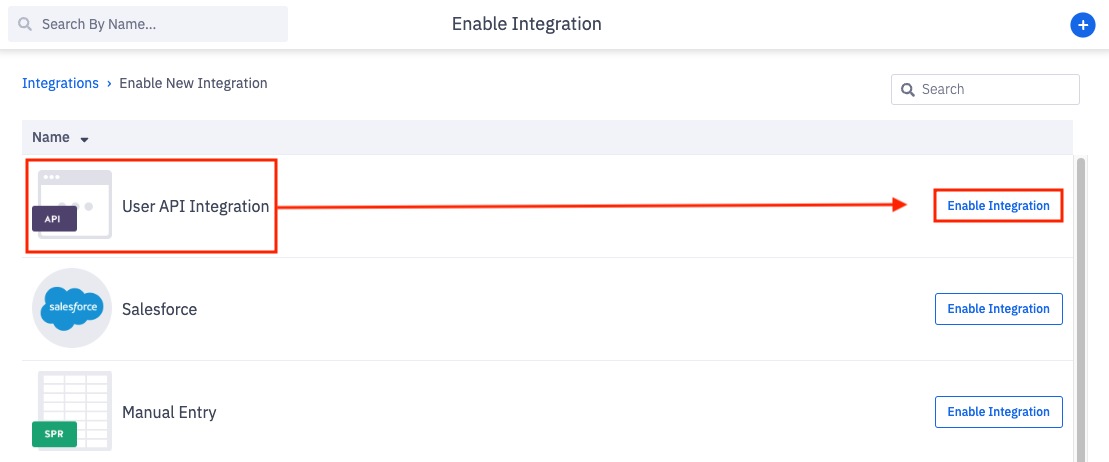
4. Locate the API integration and click "Enable Integration" in line with the User API integration name and icon.
You will be redirected into the newly enabled User API integration.
Two User API integrations can be enabled with the same Ambition instance. If your organization has a use case for needing three or more User API endpoints, reach out to gethelp@ambition.com for more information.
Upon enabling you will be redirected within the integration. To enter the User API integration anytime after original enabling:
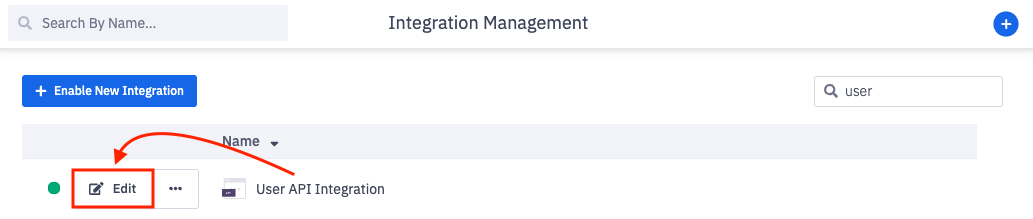
Once enabled, the User API integration will appear on the integration management page.
5. Click Edit in line with the appropriate User API integration.
6. Set a descriptive name for Integration Name. The default name is User API Integration. If multiple User API integrations are being used, we recommend an explicit name, typically the data being transmitted. Ex. NA Sales Team User API, EMEA User API.
7. Provide an Admin Email Address. This email will be contacted if and when integration issues arise.
8. Click the Save button.

Set the File Format
You've now enabled the User API Integration, but Ambition needs to be instructed on how to handle your data.
Here you will indicate what type of file format will be sent to Ambition. CSV or JSON.
1. Within the User API Integration, click on Data Format.
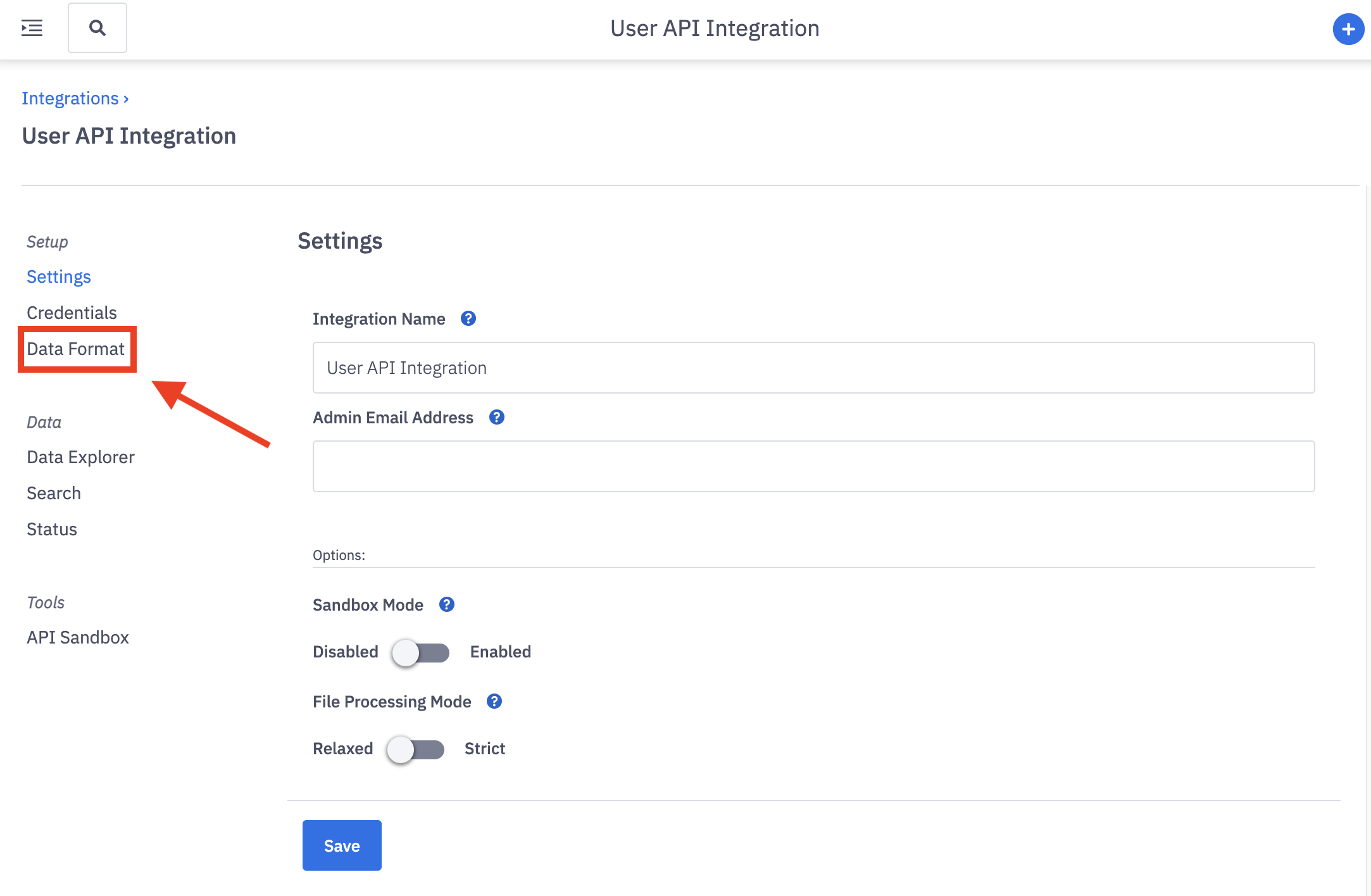
2. Locate the File Format options. Set the File Format to either CSV or JSON.
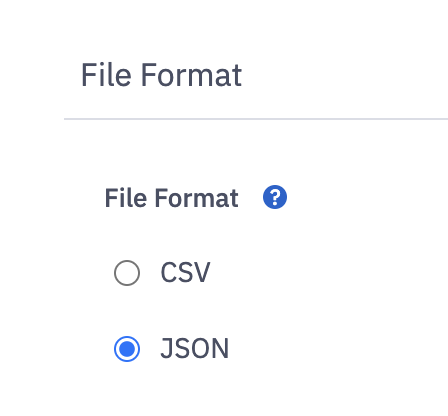
3. Click the Save File Format button.
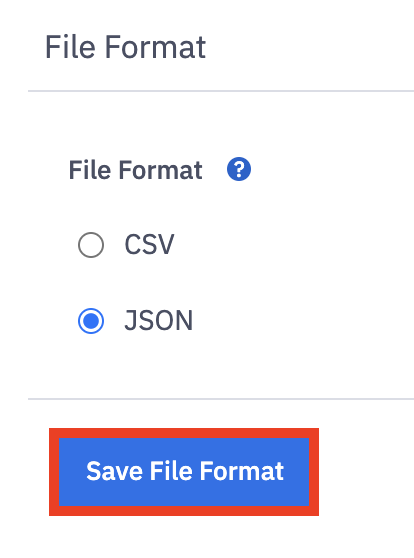
API Field Mappings
You will define and map the data to be transmitted.
If your File Format is CSV, then you will be mapping your spreadsheet's named column headers.
If your File Format is JSON, then you will be mapping your key names.
Ensure that these Field Keys are updated to match the formatting, including capitalization, of your actual headers or keys.
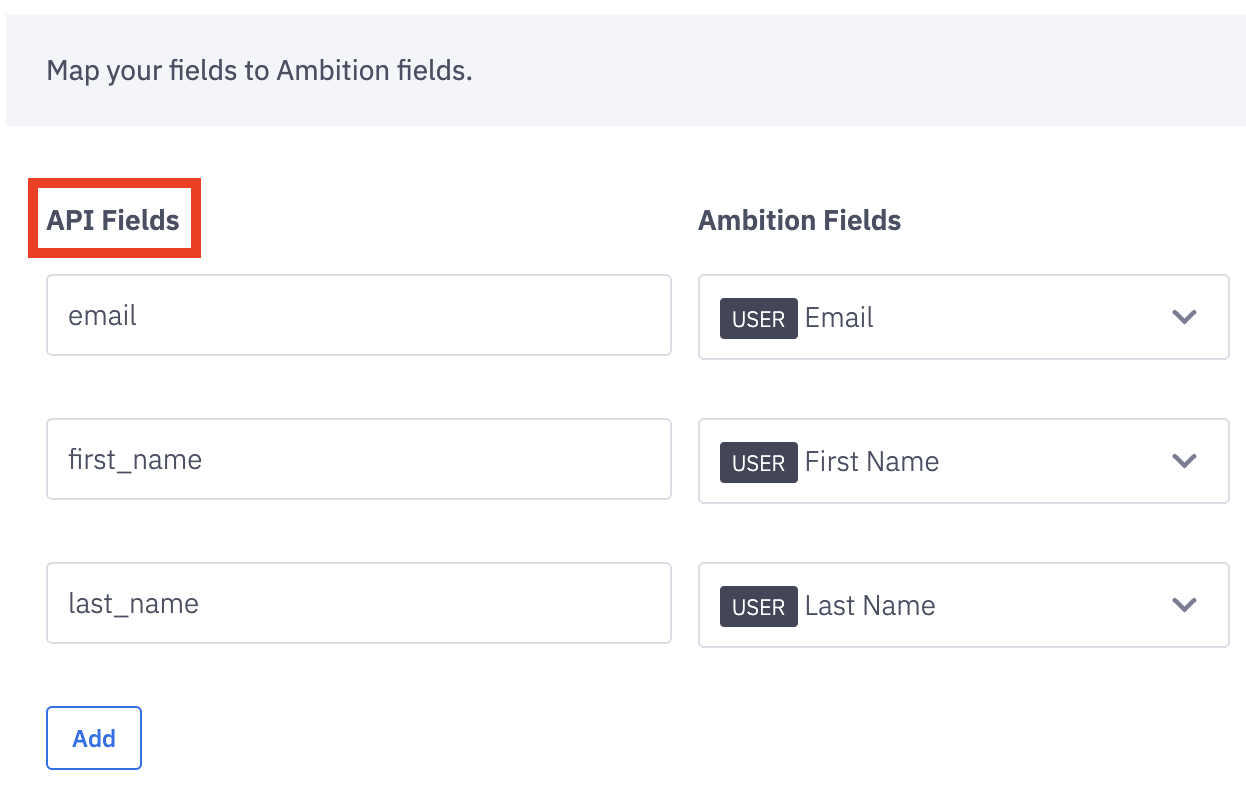
API Fields: How the field is identified within your file, either a key or column header. 43 character limit.
↳ email, first_name, and last_name are mapped upon enabling as Email, First Name, and Last Name are required to create and update users. Update the respective API fields to match your CSV columns or JSON keys.
Ambition Fields: Ambition data point that API Field represents.
Ambition Field Mapping Options
Pro Tip → If your organization has already created users, referencing a downloaded user management CSV can provide examples of each Ambition Field and the CSV that can be amended, optionally converted into JSON, and then used as the file to be transmitted through the User API.
To access user management, open the left navigation and select Administration > Users, then locate the Actions button. Click Export CSV.
Ambition Fields | Field Type Descriptions |
User - Email | Required. Field containing the user's email as it should appear in Ambition. Ex: susan.smith@yourcompany.com ____ Ambition will use email as a uniqueness constraint for users. If a user has multiple @company email addresses (ex. susan@yourcompany.com and susan.smith@yourcompany.com), select a single, most reliable email to be tied to that user. Ambition will not overwrite a user's email address via the User API, but create a new account for each email address. If a user's email needs to be updated, you can make those changes in their settings |
User - First Name | Required. Field containing the user's first name as it should appear in Ambition. |
User - Last Name | Required. Field containing the user's last name as it should appear in Ambition. |
User - Username | Required for organizations using the Salesforce Integration. Field containing a user's Salesforce Username ____ If your organization uses our Salesforce integration, include an additional column/key containing Salesforce usernames as they appear in your Salesforce org. Salesforce usernames must in the form of an email address, xxxx@xxx.com. |
User - Time Zone | Optional. Field containing the respective time zone for where the user is located. ____ If CSV file format, if this column is included every row must have a value. |
User - Manager | Optional. Field containing the email* of the user's respective manager. *If your organization uses our Salesforce integration, provide the manager's Salesforce username instead of email. Manager will update the manager field in a user's Ambition settings. ____ To be assigned as a user's manager, the manager must have an active account in Ambition. If the username in the manager field belongs to a user that does not have the "Is Manager" permission, Ambition will automatically assign it during the upload process. If the cell is empty, it will clear an existing manager if previously set. If the username in the manager field does not belong to a user with an active Ambition account, Ambition will clear the user's existing manager if previously set. |
User - Is Active | Optional. Field containing True or False that can be used to deactivate users. |
User - Is Manager | Optional. Field containing True or False to assign manager permissions to a user in Ambition. ____ If CSV file format, if this column is included every cell must have a value. If you are updating an existing user from True to False ensure that the user is no longer managing any groups, otherwise Ambition will not make a change. |
User - Is Admin | Optional. Field containing True or False to assign admin permissions to a user in Ambition. ____ If CSV file format, if this column is included every cell must have a value. |
Integration | Optional. Field containing the respective Integration ID for a specific integration other than Salesforce. ↳ Ex: Phone Extension, Employee ID. ____ Correlating data integrations must be established first before Integration IDs can be uploaded. Reach out to gethelp@ambition.com with questions. Since Integration IDs are a 1:1 mapping, you are unable to map a single column/key to multiple Integration IDs. We recommend adding a separate column/key for each respective Integration ID.
To ensure proper mapping, the following naming convention will be used in the Ambition Field mapping options. "Integration ID Field Name (Integration Name)" Ex.  |
Group Membership | Optional. Field containing the name of an existing or new group that the user is a member of. ____ Set column name(s) to reflect group types existing within Ambition. Each cell value will be the name of an existing or new group. The cells will contain the name of the group where the user should be made a member. Ambition will automatically create groups that do not currently exist in Ambition. Group types will not be created through this process. Only existing group types can be selected as mapping options. Group membership is a case sensitive field. Differences in spelling and capitalization from existing group names will create net new groups. Group names cannot contain semicolons. |
Group Manager | Optional. Field containing the name of an existing or new group(s) that the user is a manager of. ____ Set column name(s) to reflect group types existing within Ambition. The cells will contain the name of the group(s) where the user should be made a manager. Group managers are made a manager over all group members. If a manager manages multiple groups in the same group type, separate the group names with semicolons. Ex. Account Executive;Sr. Account Executive. Differences in spelling and capitalization from existing group names will create net new groups. Group names cannot contain semicolons. If the user being assigned as a group manager does not have the "Is Manager" permission, Ambition will automatically assign it during the upload process. If the manager manages multiple groups, the manager can be removed as a manager from a specific group by omitting that group name from the upload. If the cell is empty, it will remove the manager from managing all groups in that group type. |
Create Field Mappings
1. Click the Add button.
2. Fill in the API Fields for each CSV column header or JSON key, and select the appropriate Ambition Field mapping.
API Fields: How the field is identified within your file, either a key or column header.
Ambition Field: Ambition data point that API Field represents.
As noted above:
Ensure that these Field Keys are updated to match the formatting, including capitalization, of your actual headers or keys.
Update the email, first_name, and last_name API fields as needed to fit your Data Format.
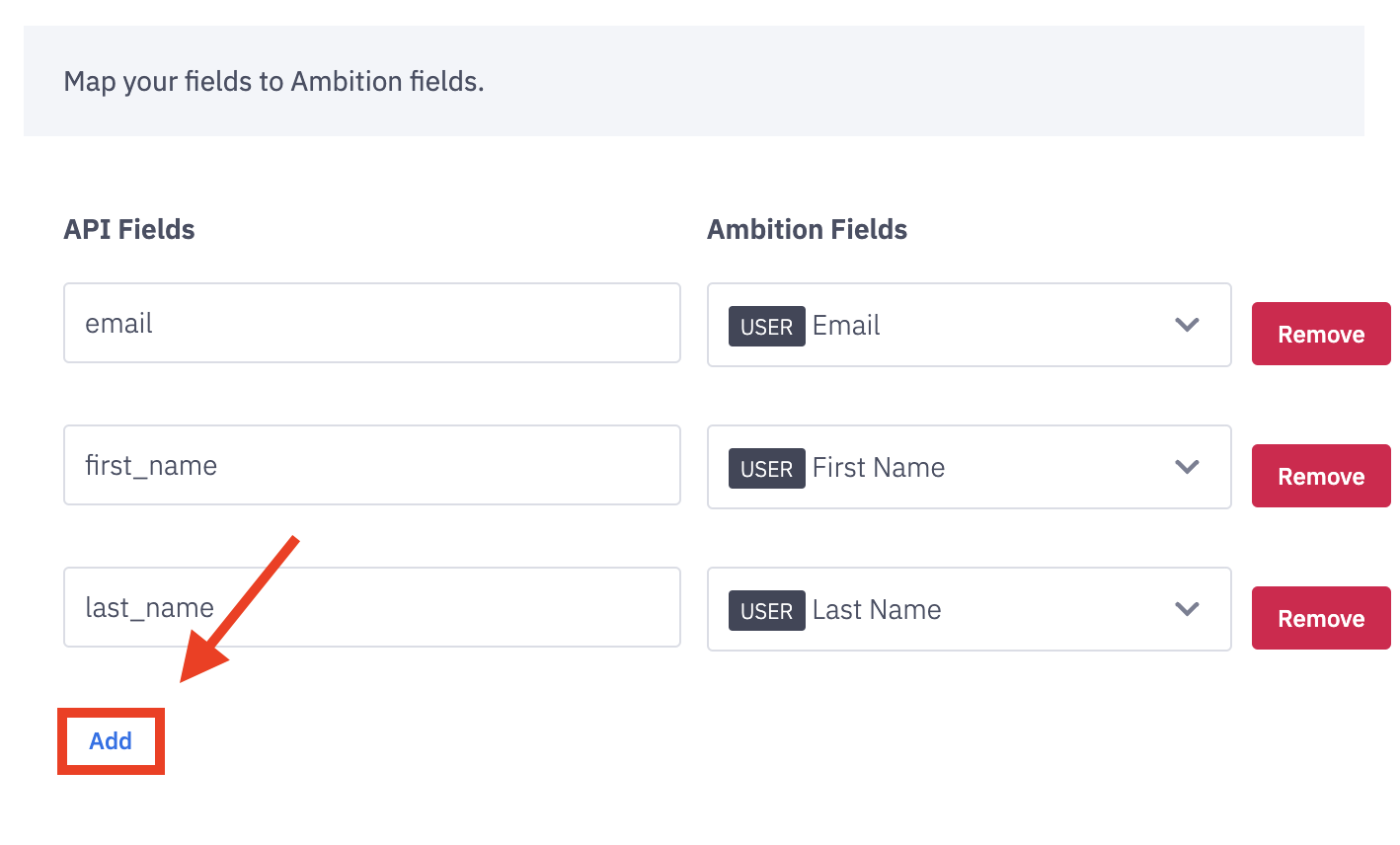
3. Once the Data Format is complete, click the Save API Field Mappings button.
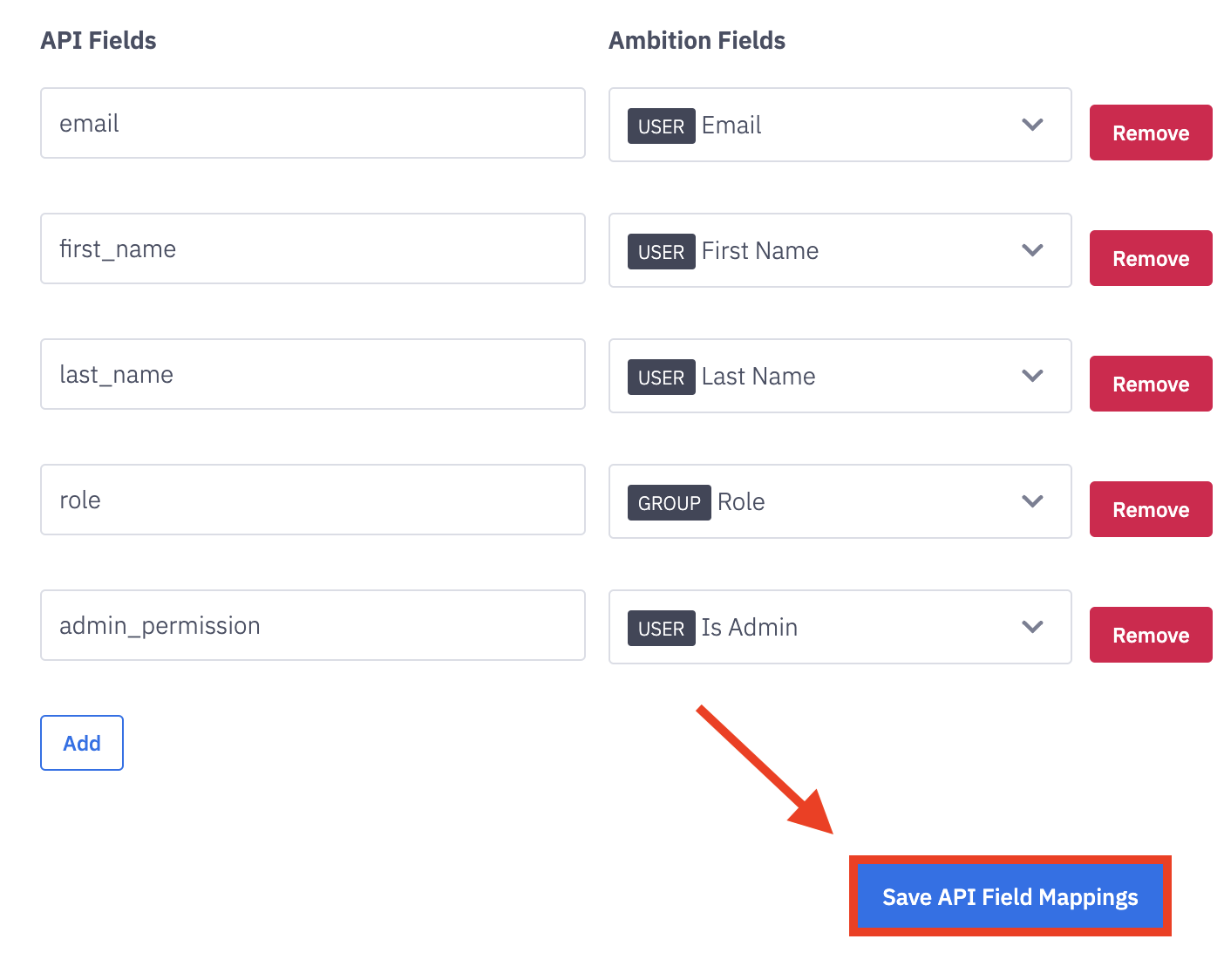
Users can now be managed through the User API Integration.
Learn how to transmit data to the User API Integration here.
Example File with Corresponding Ambition Mappings
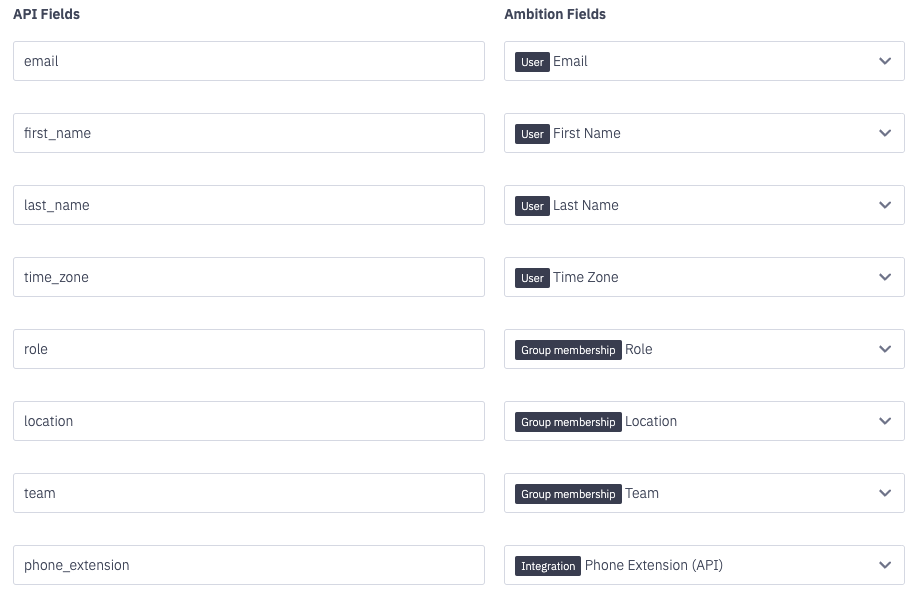
Example file to be sent to Ambition.
First Name | Last Name | Time Zone | Role | Location | Team | Phone Extension | |
Joey | Freshwater | joey@freshwater.com | America/New_York | Account Executive | East | Alpha Dogs | 4233 |
Agnes | Goodman | agnes@goodman.com | America/Los_Angeles | Account Manager | NW | Omega Cats | 1233 |
Mappings of Example File above to Ambition Fields.