How will workflow notifications be formatted?
Last updated: June 20, 2025
Workflow Notifications
Workflows can be used to notify users and groups of everything from a single meeting set to the largest closed won deal.
Workflow notifications can be sent through Ambition TVs, Slack channels and direct messages, Microsoft Teams public and private teams, Webex spaces and users, Zoom public channels and users, and emails.
Scheduled Leaderboard Examples
Scheduled Leaderboard Email
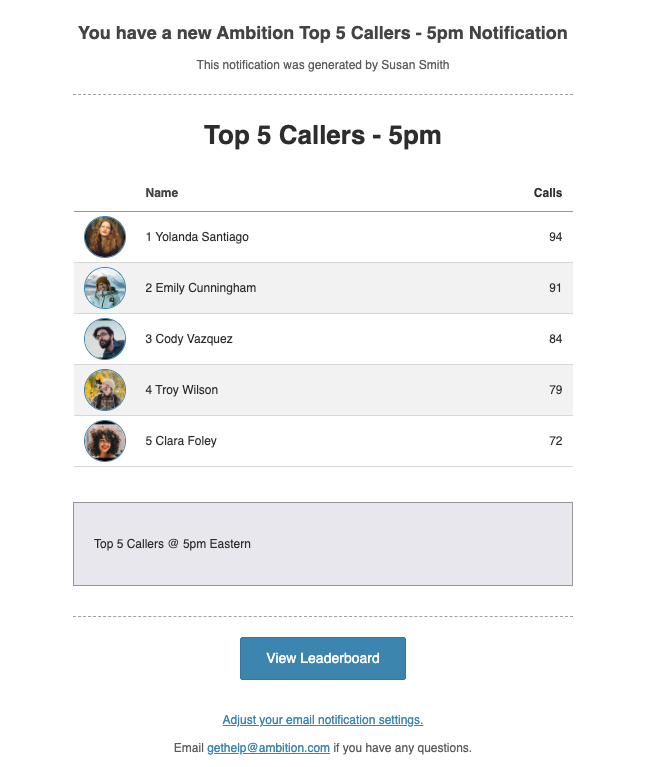
A scheduled leaderboard email will be sent to the respective users as set in the workflow actions.
The email will contain:
The user's name who created the workflow
The workflow's name
The user or group names, their respective metric value, and their Ambition image as applicable
If set, the workflow's message, and optional image/GIF
Example Email
Scheduled Leaderboard Slack Message
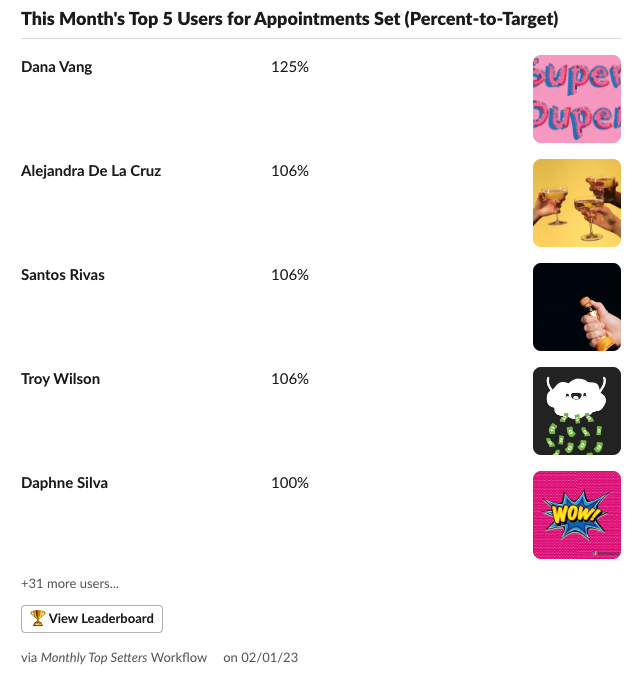
A scheduled leaderboard Slack message will be sent to the respective channels and/or direct messages as set in the workflow actions.
The Slack message will contain:
A description of the leaderboard - the time frame of the leaderboard, the # of users included on the leaderboard, the metric name, and in parenthesis what type of leaderboard is being shown: value, percent-to-target, or most improved
The user or group names, their respective metric value, and their Ambition image/GIF as applicable
If set, the workflow's message
The name of the workflow that generated the leaderboard and the date
Example Slack Message
Leaderboards can also be shared in Slack at anytime through our leaderboard slash command. Learn more here.
Scheduled Leaderboard Microsoft Teams Message
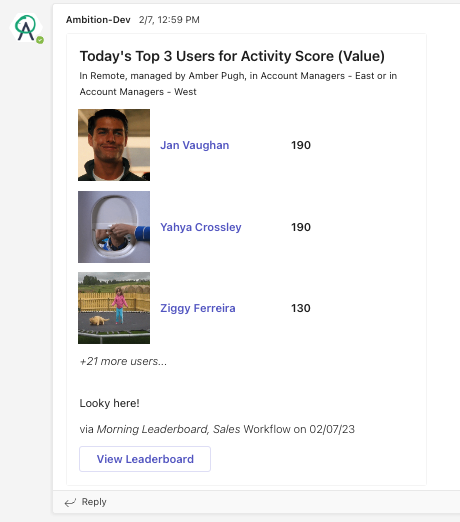
A scheduled leaderboard Microsoft Teams message will be sent to the respective team/channel and/or user as set in the workflow actions.
The Microsoft Teams message will contain:
A description of the leaderboard - the time frame of the leaderboard, the # of users included on the leaderboard, the metric name, and in parenthesis what type of leaderboard is being shown: value, percent-to-target, or most improved
The user or group names, their respective metric value, and their Ambition image/GIF as applicable
If set, the workflow's message
The name of the workflow that generated the leaderboard and the date
Example Microsoft Teams Message
Leaderboards can also be shared at anytime through our "Share a Leaderboard" option. Learn more here.
Scheduled Leaderboard Webex Message
A scheduled leaderboard Webex message will be sent to the respective space and/or user as set in the workflow actions.
The Webex message will contain:
A description of the leaderboard - the time frame of the leaderboard, the # of users included on the leaderboard, the metric name, and in parenthesis what type of leaderboard is being shown: value, percent-to-target, or most improved
The user or group names, their respective metric value, and their Ambition image as applicable
If set, the workflow's message
The name of the workflow that generated the leaderboard and the date
Example Webex Message

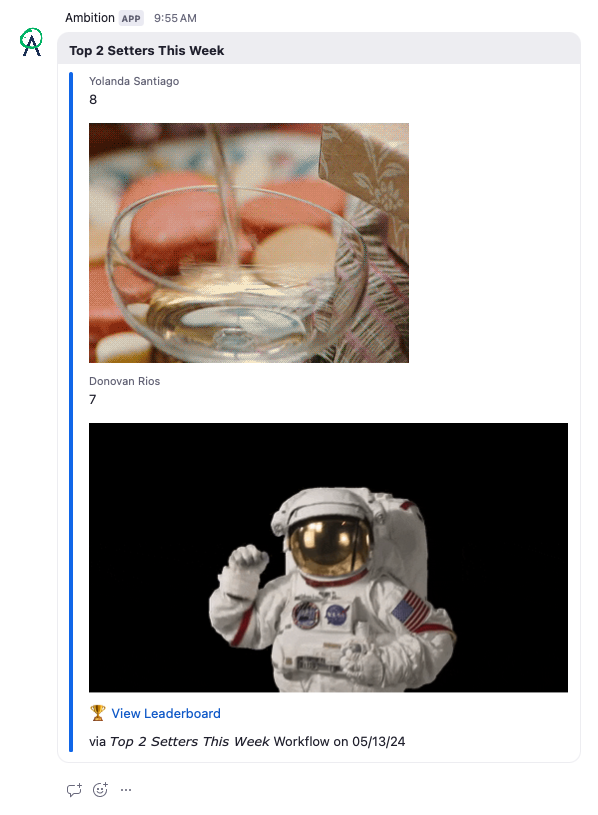
Scheduled Leaderboard Zoom Message
A scheduled leaderboard Zoom message will be sent to the respective channel and/or user as set in the workflow actions.
The Zoom message will contain:
The workflow's name
The user or group names, their respective metric value, and their Ambition image/GIF as applicable. Zoom doesn't support displaying animated GIFs, so the GIF will display as a still image
The name of the workflow that generated the leaderboard and the date
Example Zoom Message
Metric Based Alert Examples
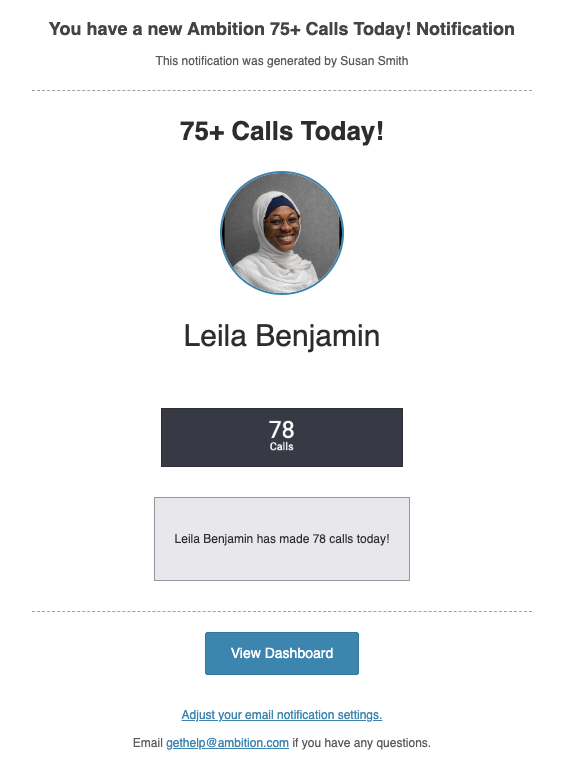
Metric Based Alert Email
A metric based alert email will be sent to the respective users as set in the workflow actions.
The email will contain:
The user's name who created the workflow
The workflow's name
The user or group names, their respective metric value, and their Ambition image as applicable
If set, the workflow's message, and optional image/GIF
Example Email
Metric Based Alert Slack Message
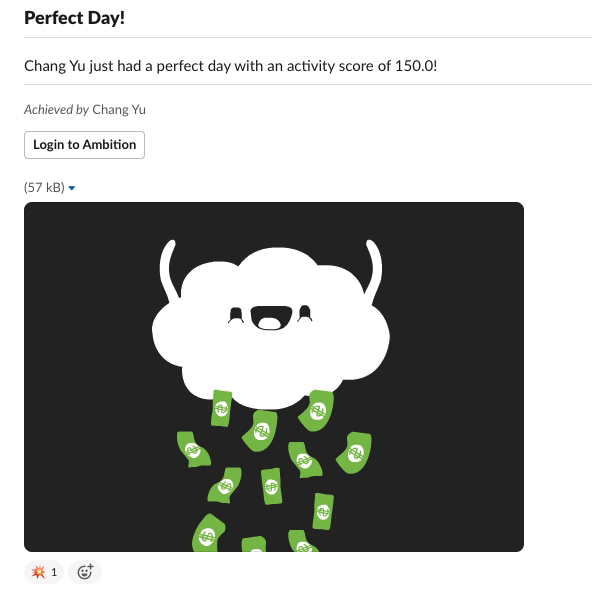
A metric based alert will be sent to the respective Slack channels and/or direct messages as set in the workflow actions.
The Slack message will contain:
The workflow's name
The user or group name who triggered the workflow and their Ambition image/GIF as applicable
If set, the workflow's message
Example Slack Message
Metric Based Alert Microsoft Teams Message
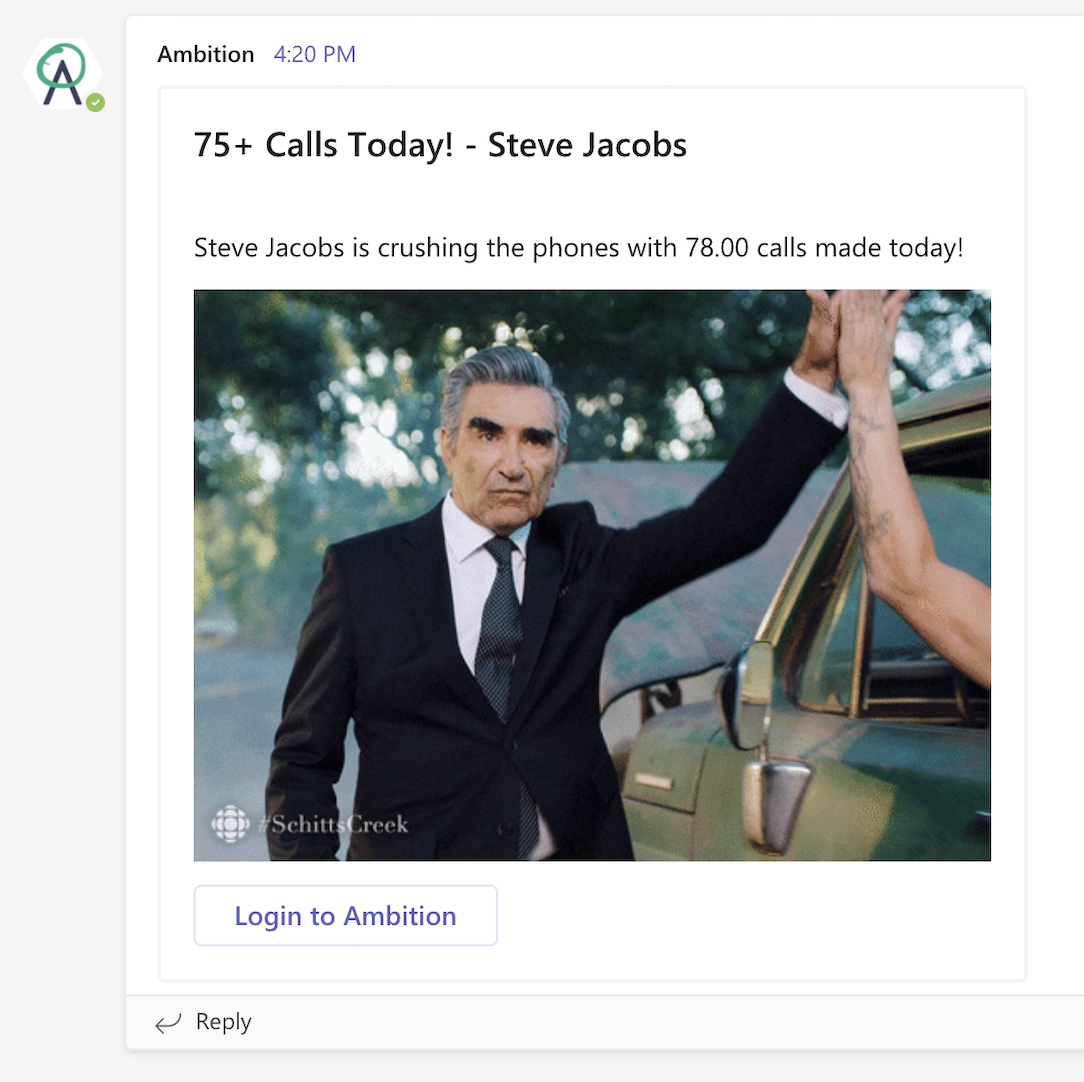
A metric based alert will be sent to the respective team/channel and/or user as set in the workflow actions.
The Microsoft Teams message will contain:
The workflow's name
The user or group name who triggered the workflow and their Ambition image/GIF as applicable
If set, the workflow's message
Example Microsoft Teams Message
Metric Based Alert Webex Message
A metric based alert will be sent to the respective space and/or user as set in the workflow actions.
The Webex message will contain:
The workflow's name
The user or group name who triggered the workflow and their Ambition image as applicable
If set, the workflow's message
Example Webex Message

Metric Based Alert Zoom Message
A metric based alert will be sent to the respective channel and/or user as set in the workflow actions.
The Zoom message will contain:
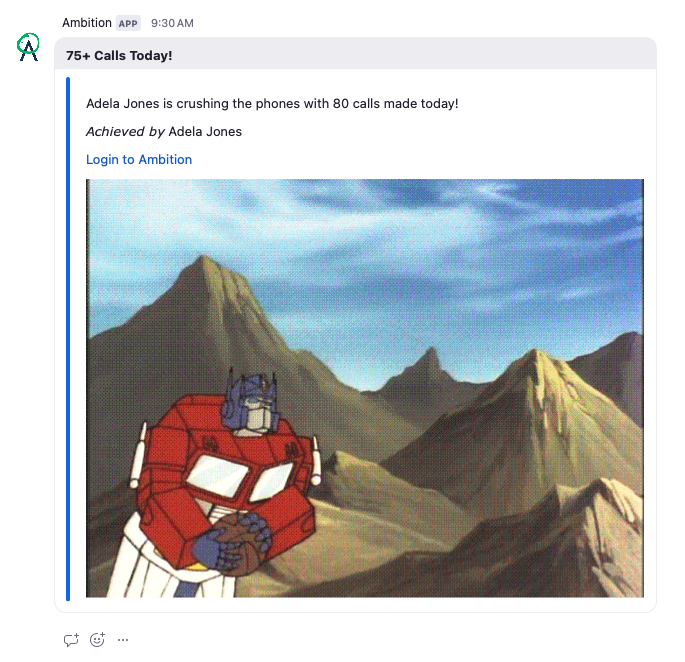
The workflow's name
The user or group name who triggered the workflow and and their Ambition image/GIF as applicable. Zoom doesn't support displaying animated GIFs, so the GIF will display as a still image
If set, the workflow's message
Example Zoom Message
Metric Based Alert TV Notification
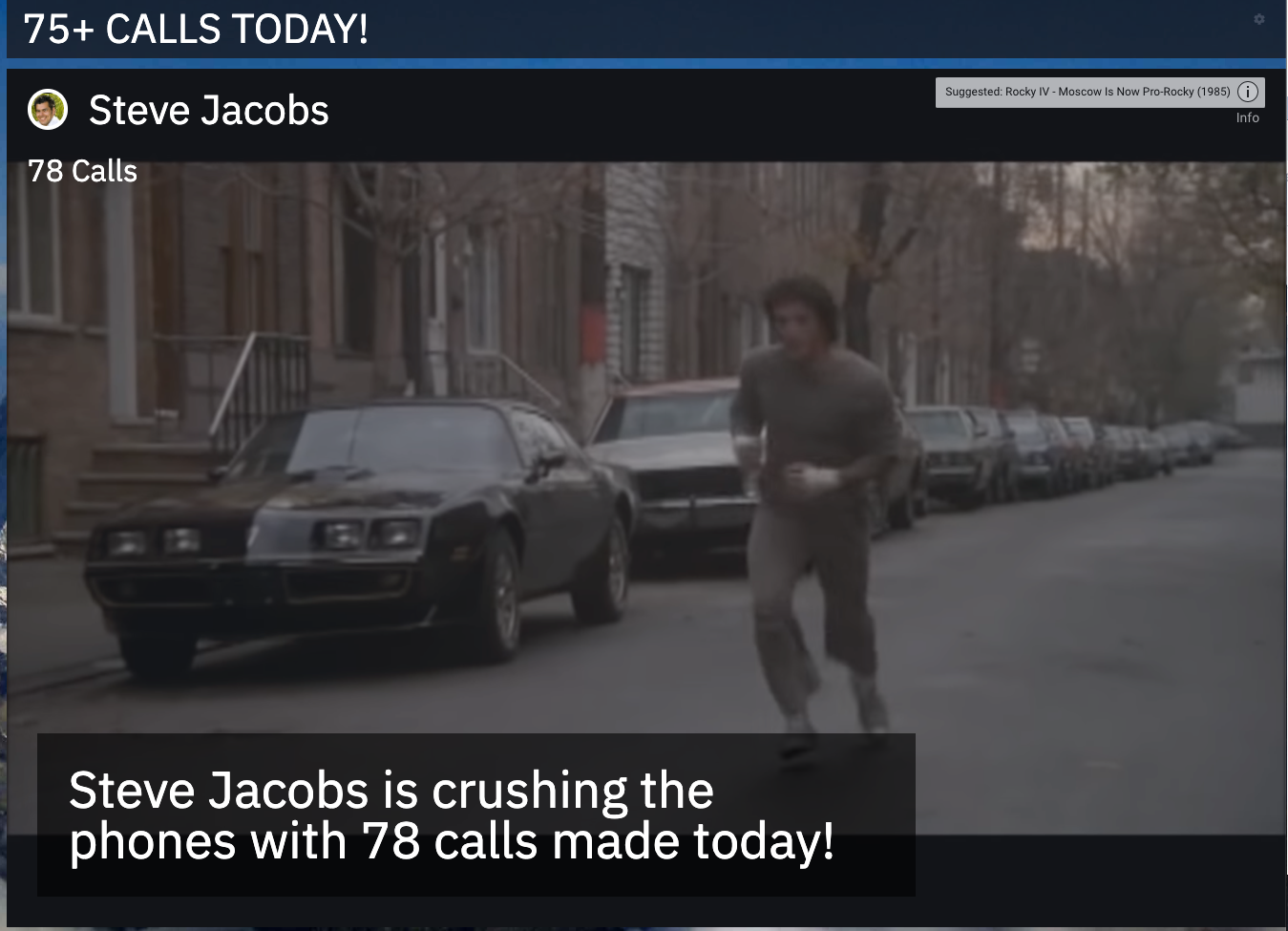
A metric based alert will be sent to the respective TV/TVs as set in the workflow actions.
The TV notification will contain:
The workflow's name
The user or group name, their respective metric value, and their Ambition image as applicable
If set, the workflow's message
Example TV Notification
Records Based Alert Examples
Records Based Alert Email
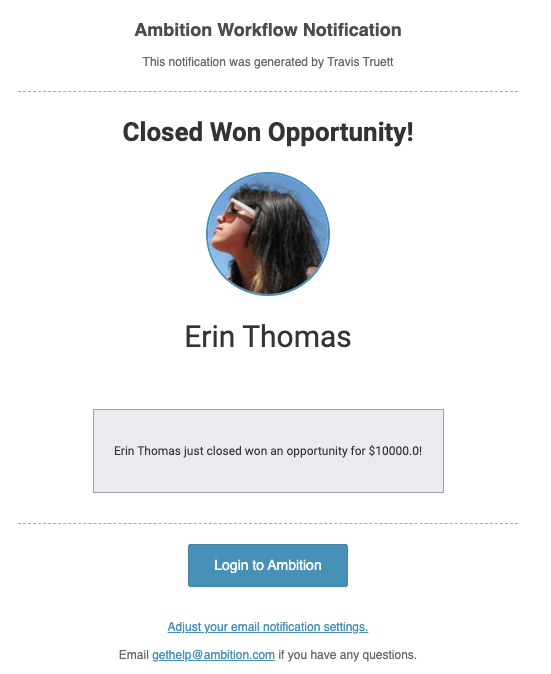
A records based alert email will be sent to the respective users as set in the workflow actions.
The email will contain:
The Ambition user's name who created the workflow
The workflow's name
The user's name and their Ambition image as applicable
If set, the workflow's message, and optional image/GIF
Example Email
Records Based Alert Slack Message
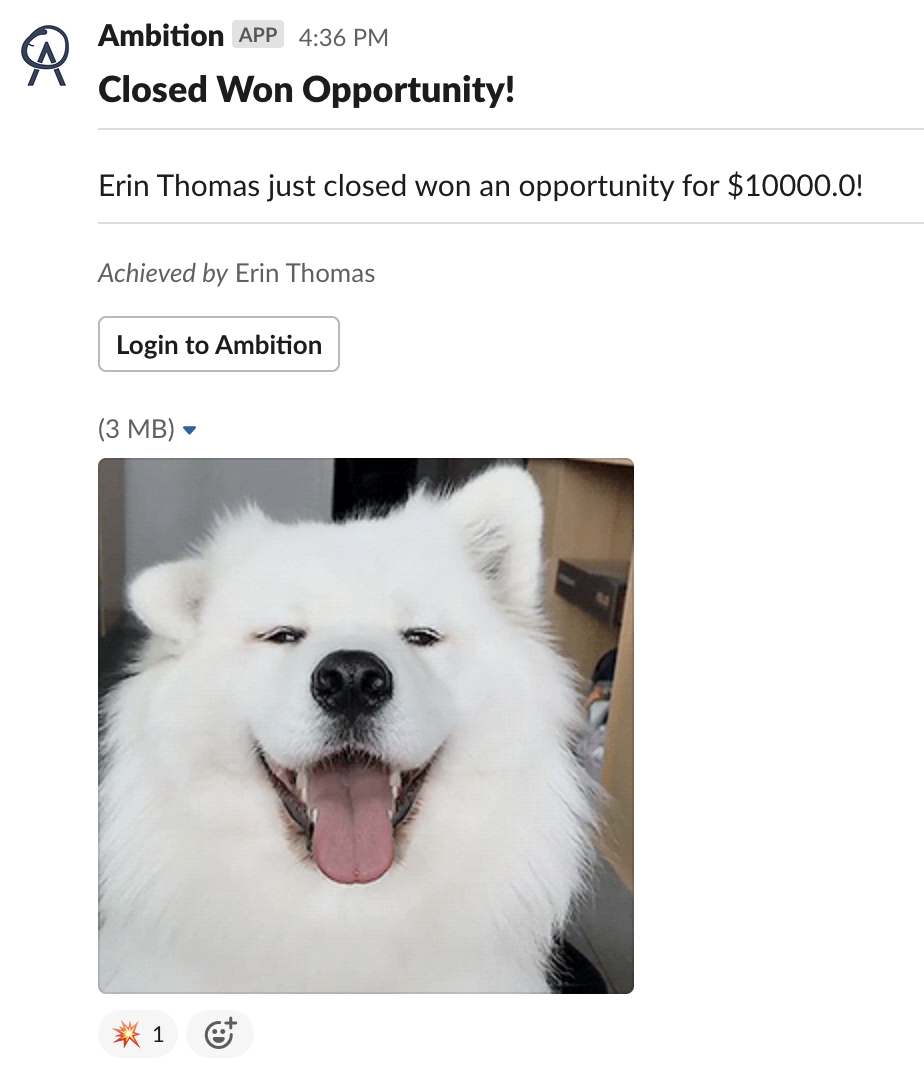
A record based alert will be sent to the respective Slack channels and/or direct messages as set in the workflow actions.
The Slack message will contain:
The workflow's name
The user's name who triggered the workflow and their Ambition image/GIF as applicable
If set, the workflow's message
Example Slack Message
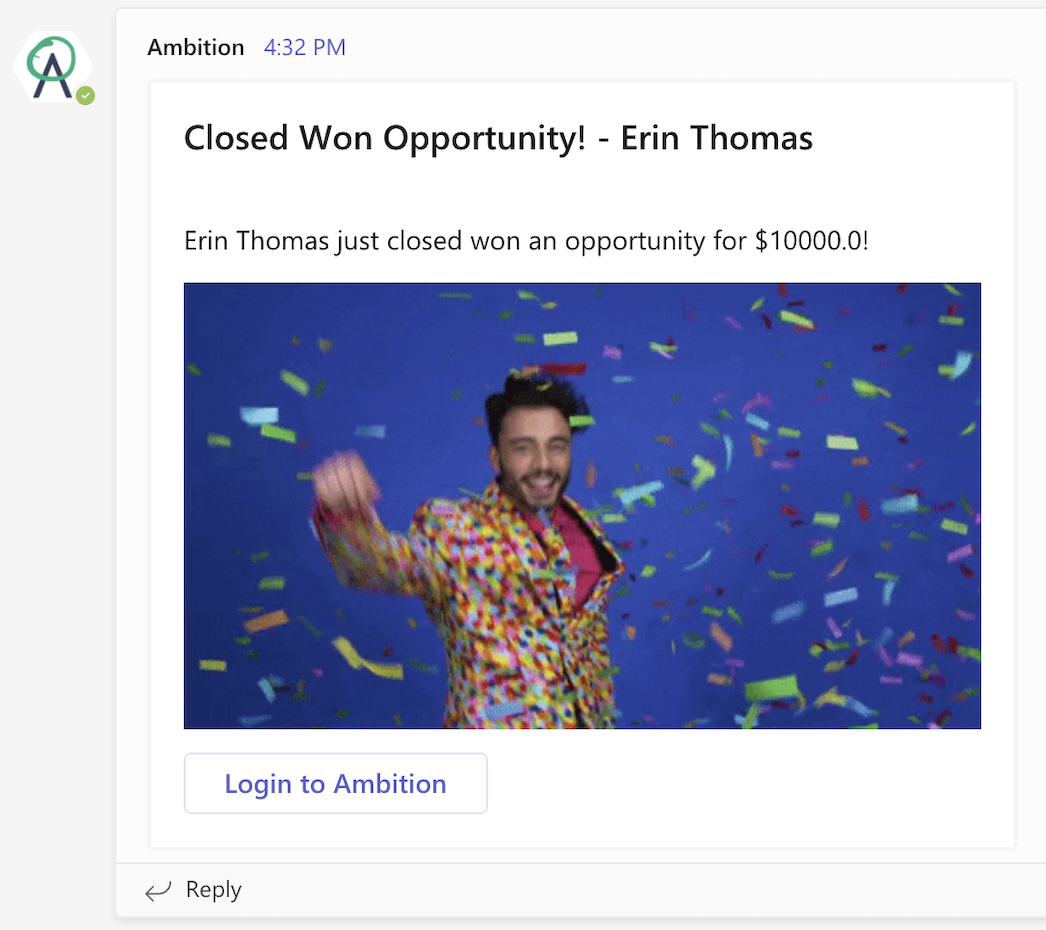
Records Based Alert Microsoft Teams Message
A record based alert will be sent to the respective team/channel and/or user as set in the workflow actions.
The Microsoft Teams message will contain:
The workflow's name
The user's name who triggered the workflow and their Ambition image/GIF as applicable
If set, the workflow's message
Example Microsoft Teams Notification
Record Based Webex Message
A record based alert will be sent to the respective space and/or user as set in the workflow actions.
The Webex message will contain:
The workflow's name
The user's name who triggered the workflow and their Ambition image as applicable
If set, the workflow's message
Example Webex Notification

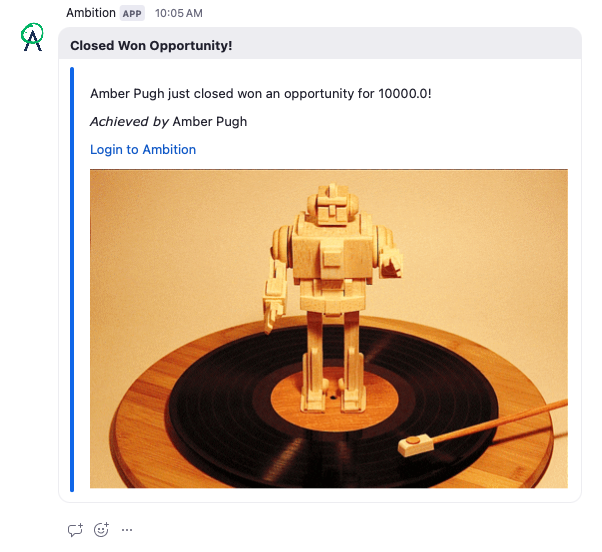
Records Based Zoom Notification
A record based alert will be sent to the respective channel and/or user as set in the workflow actions.
The Zoom message will contain:
The workflow's name
The user's name who triggered the workflow and their Ambition image/GIF as applicable. Zoom doesn't support displaying animated GIFs, so the GIF will display as a still image
If set, the workflow's message
Example Zoom Notification
Records Based Alert TV Notification
A record based alert will be sent to the TV/TVs as set in the workflow actions.
The TV notification will contain:
The workflow's name
The user's name who triggered the workflow and their Ambition image as applicable
If set, the workflow's message
Example TV Notification

Integration Health Status Alert Examples
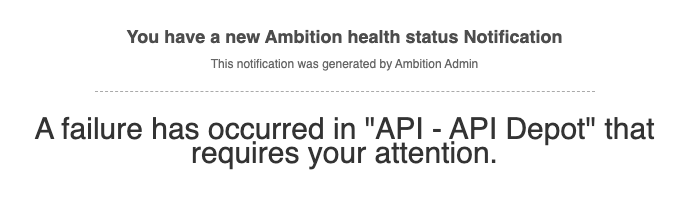
Failure is Detected
The failure detected email will contain:
The workflow's name
The Ambition user's name who created the workflow
If set, the workflow's message
The name of the integration and specific object/report as applicable
Example Email
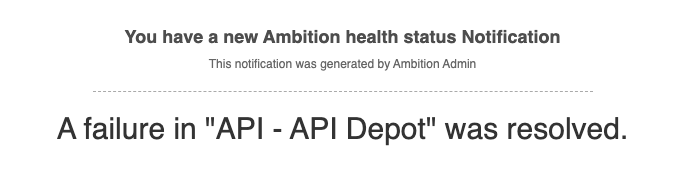
Failure is Resolved
The failure resolved email will contain:
The workflow's name
The Ambition user's name who created the workflow
If set, the workflow's message
The name of the integration and specific object/report as applicable
Example Email
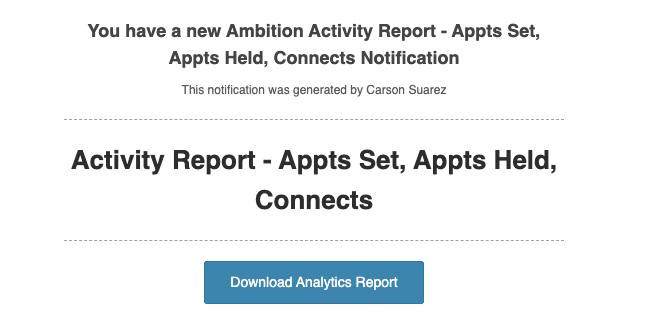
Scheduled Analytics Report Example
A schedule report email will be sent to the respective users as set in the workflow actions.
The email will contain:
The workflow's name
The Ambition user's name who created the workflow
Option to download the report as a .CSV file
Example Email
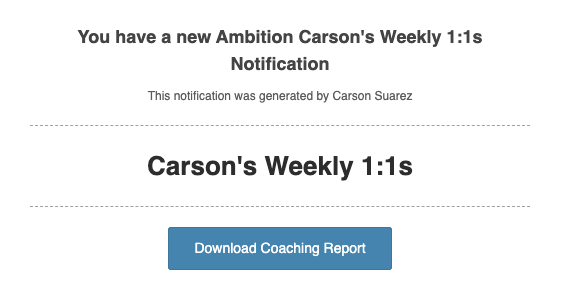
Scheduled Coaching Report Example
A schedule report email will be sent to the respective users as set in the workflow actions.
The email will contain:
The workflow's name
The Ambition user's name who created the workflow
Option to download the report as a .XLSX file
Example Email
Scheduled Pipeline Report Example
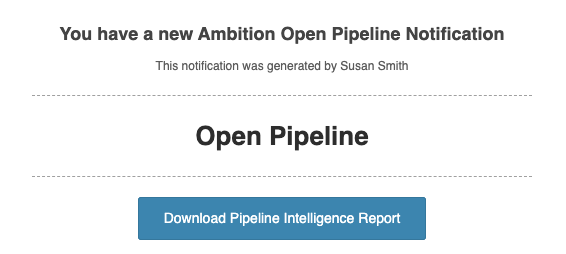
Pipeline Report Email
A schedule report email will be sent to the respective users as set in the workflow actions.
The email will contain:
The workflow's name
The Ambition user's name who created the workflow
Option to download the report as a .CSV or .XLSX file based on the selected format in the workflow
Example Email
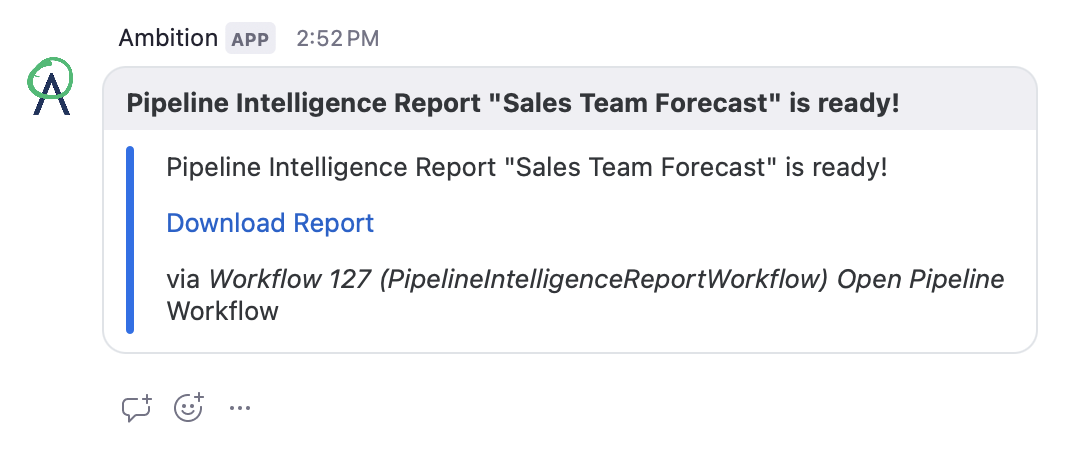
Pipeline Report Slack Message
A pipeline report will be sent to the respective Slack channels and/or direct messages as set in the workflow actions.
The Slack message will contain:
The name of the pipeline report
Download report button to download the report as a .CSV or .XLSX file based on the selected format in the workflow
Example Slack Message

Pipeline Report Microsoft Team Message
A pipeline report will be sent to the respective team/channel and/or user as set in the workflow actions.
The Microsoft Teams message will contain:
The name of the pipeline report
Download report button to download the report as a .CSV or .XLSX file based on the selected format in the workflow
Pipeline Report Webex Message
A pipeline report will be sent to the respective space and/or user as set in the workflow actions.
The Webex message will contain:
The name of the pipeline report
Download report button to download the report as a .CSV or .XLSX file based on the selected format in the workflow
Pipeline Report Zoom Notification
A pipeline report will be sent to the respective channel and/or user as set in the workflow actions.
The Zoom message will contain:
The name of the pipeline report
Download report button to download the report as a .CSV or .XLSX file based on the selected format in the workflow