How do I create a coaching template?
Last updated: January 26, 2026
Coaching Templates
Coaching Templates can be created for quick and consistent coaching. Templates can be editable or locked as needed for flexibility or compliance needs.
Create Coaching Template
Users with "Coaching: Create Template" or "Coaching: All Access" permission will be able to create coaching templates.
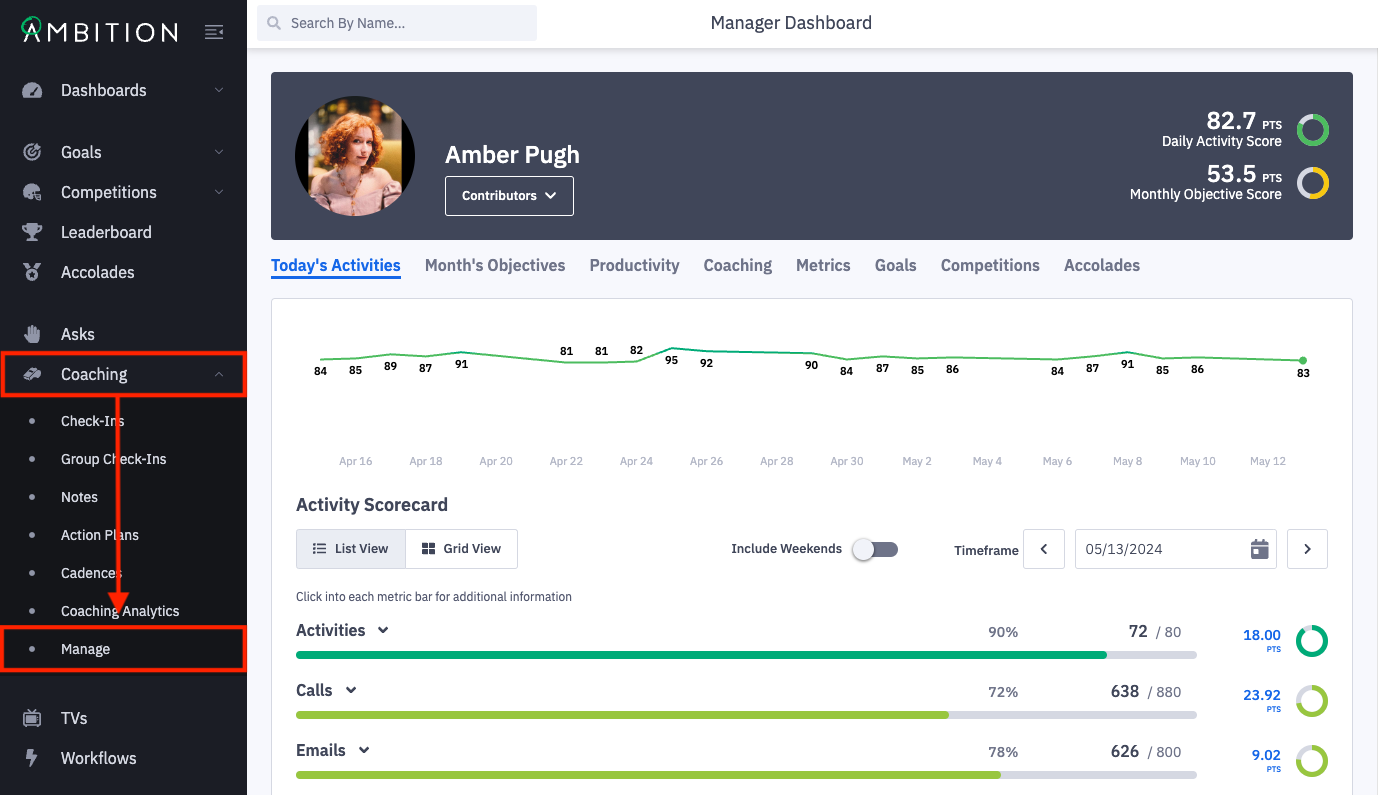
1. Open the left navigation and click Coaching > Manage.
2. From the manage coaching page, select the Templates tab.
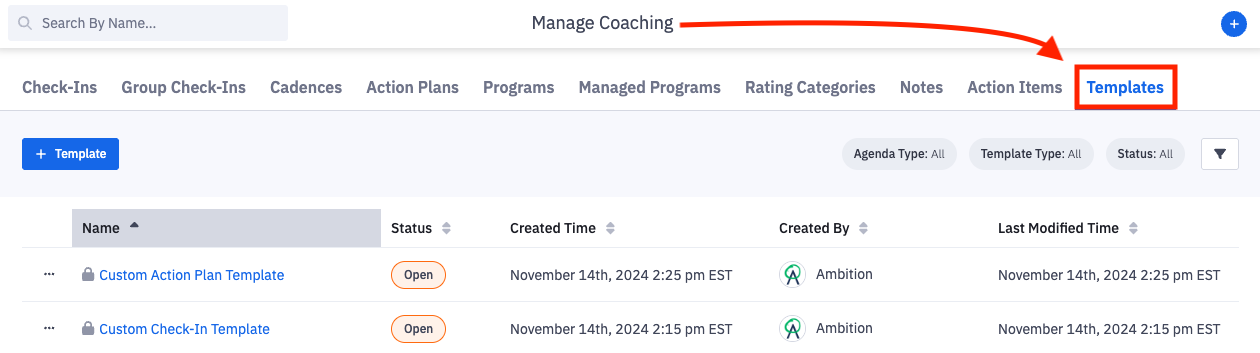
3. Click the + Template button.

4. Complete the create template form.
Details
Field | Field Description |
Name | The name of the template, which will be selected from a dropdown menu when a manager creates a new coaching event. Example: Call Review |
Template Type | Locked When a manager creates a coaching event with a locked template, they cannot edit or remove the template's agenda items. They can add additional questions. Any edits made to the base template will be applied to all active coaching events. Unlocked When a manager creates a coaching event with an unlocked template, they can edit or delete any of the template's agenda items and add any additional items. When edits are made to the base template, active coaching events will not be updated with the new agenda items. |
Description | Optional. Describe the template. |
Coaching Instructions | Optional. Provide specific instructions, resources, and other details to guide managers on how to use this specific template. Coaching Instructions will not be visible to the employee being coached. To support reviewing coaching events that contain instructions while screen sharing with an employee, the manager can collapse the coaching instructions section. |
Objective | Optional. If the template has a specific purpose, we recommend defining an objective. |
Managers
Select which managers have access to this template.
Allow all managers to have access to using the template, or choose specific managers and search for and select the specific managers who should have access to using the template.
Agenda
Create the template's agenda by determining if the agenda is for an individual or group and compiling agenda items.
For group agendas, the only available agenda items will be content block and embed media
Agenda items can be optional or required, but at least 1 agenda item must be required (not optional) in order to save.
Agenda Item | Item Description | Employee View of Agenda Item |
Question | A question for the employee to answer with fill in answer format. Check out our list of recommended questions. | 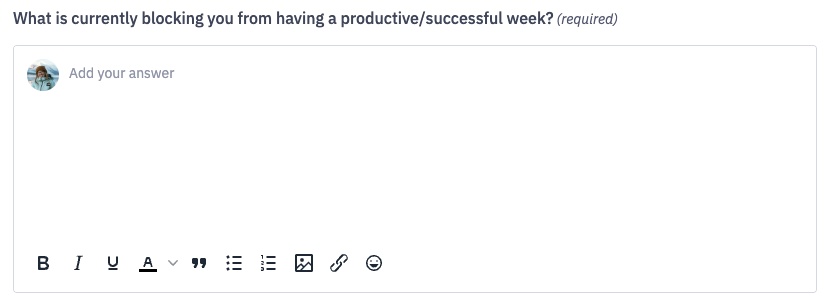 |
Metric Snapshot | Available if the "Coaching: Metric Snapshot Item" feature has been enabled. A question for the employee to answer that is built upon preselected metrics and time frames. A snapshot can capture up to 8 metrics across a single timeframe or one metric across two timeframes. | 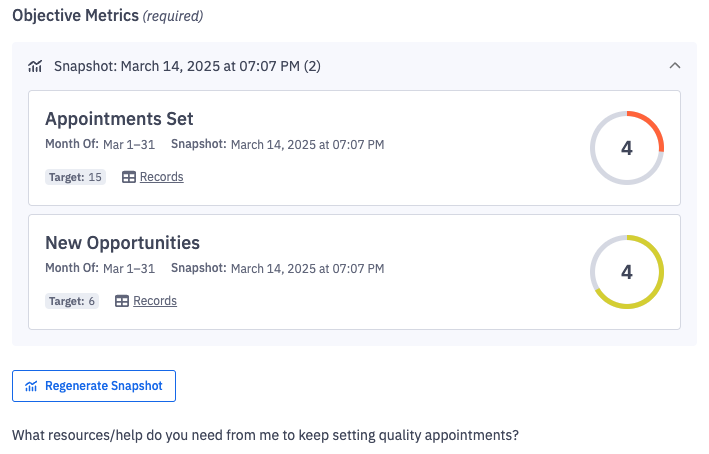 |
Pipeline Snapshot | Available if the "Pipeline Intelligence: Pipeline Views" feature has been enabled. A question for the employee to answer that is built upon a preconfigured pipeline view or template. | 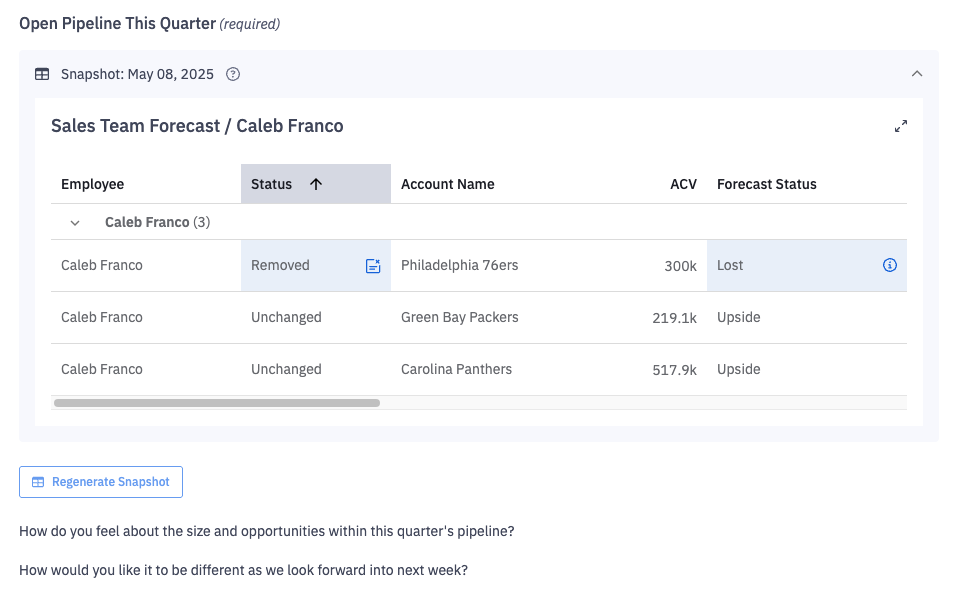 |
Feedback | Employee will be prompted to acknowledge the manager's feedback. | 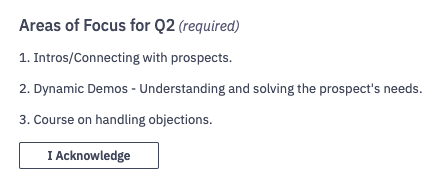 |
Content Block | Rich text editor that can provide additional information or context to a coaching agenda. No action for the user to take. | 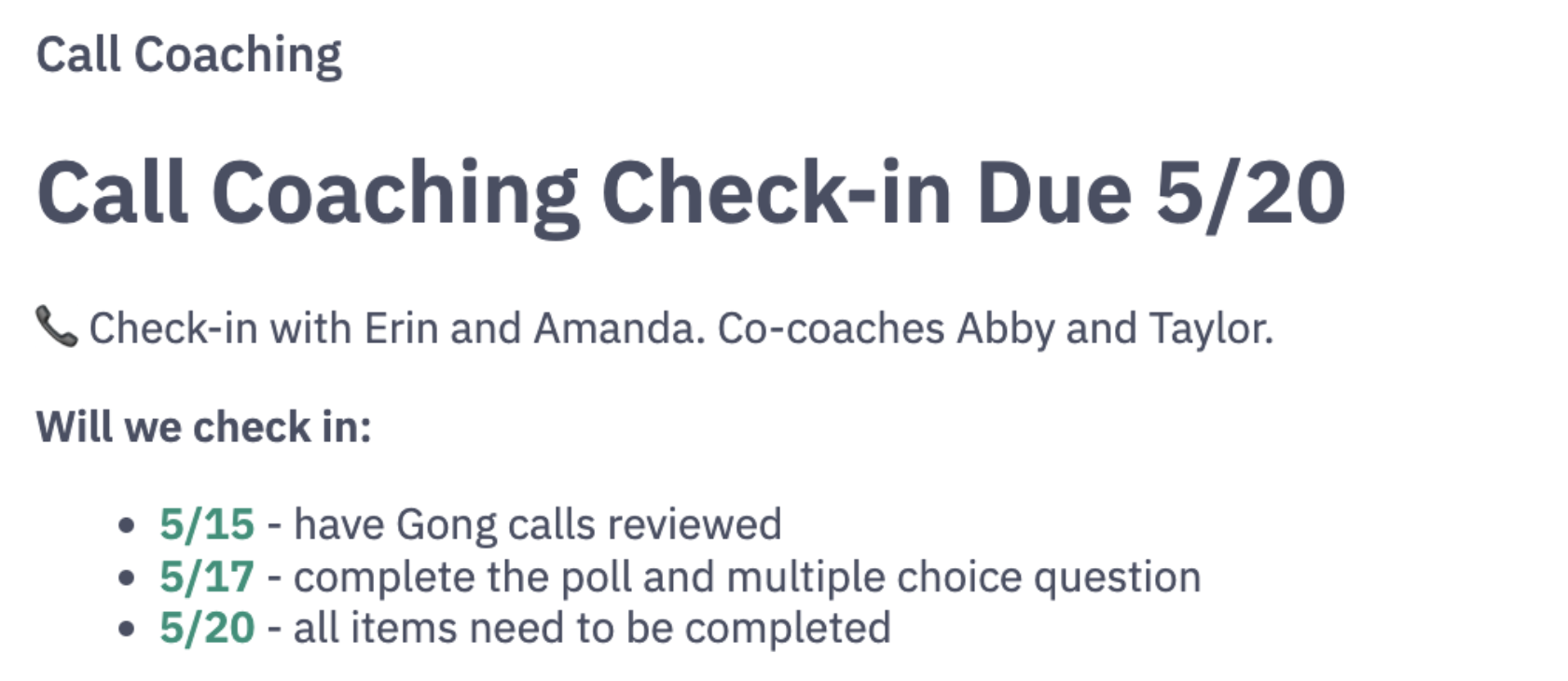 |
Poll | A question that is answered by the employee on a 1-5 point scale. Example: On a scale from 1-5 (1=low & 5= high) what's your level of confidence in your product knowledge? |  |
External URL | A link to a third-party item for the employee to review, complete, etc. Example a LMS module. Note - The employee and manager will both be responsible for marking this Item as complete. | 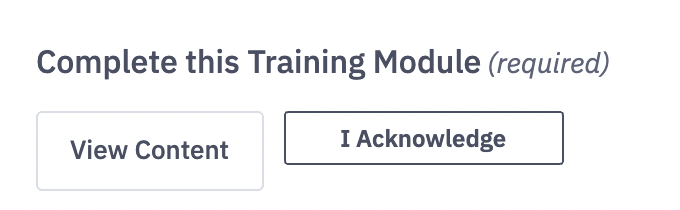 |
Embed Media | Iframe a YouTube or Vimeo video or 3rd party website directly into the coaching agenda. No action for the user to take. Be aware that not all platforms allow 3rd party embedding. For embedding a video from YouTube or Vimeo, you can input the share URL or iframe embed code. If you are embedding a Google Sheets URL, we recommend embedding a URL generated through the "Publish to web" share option rather than "Share with others". Learn more here. | 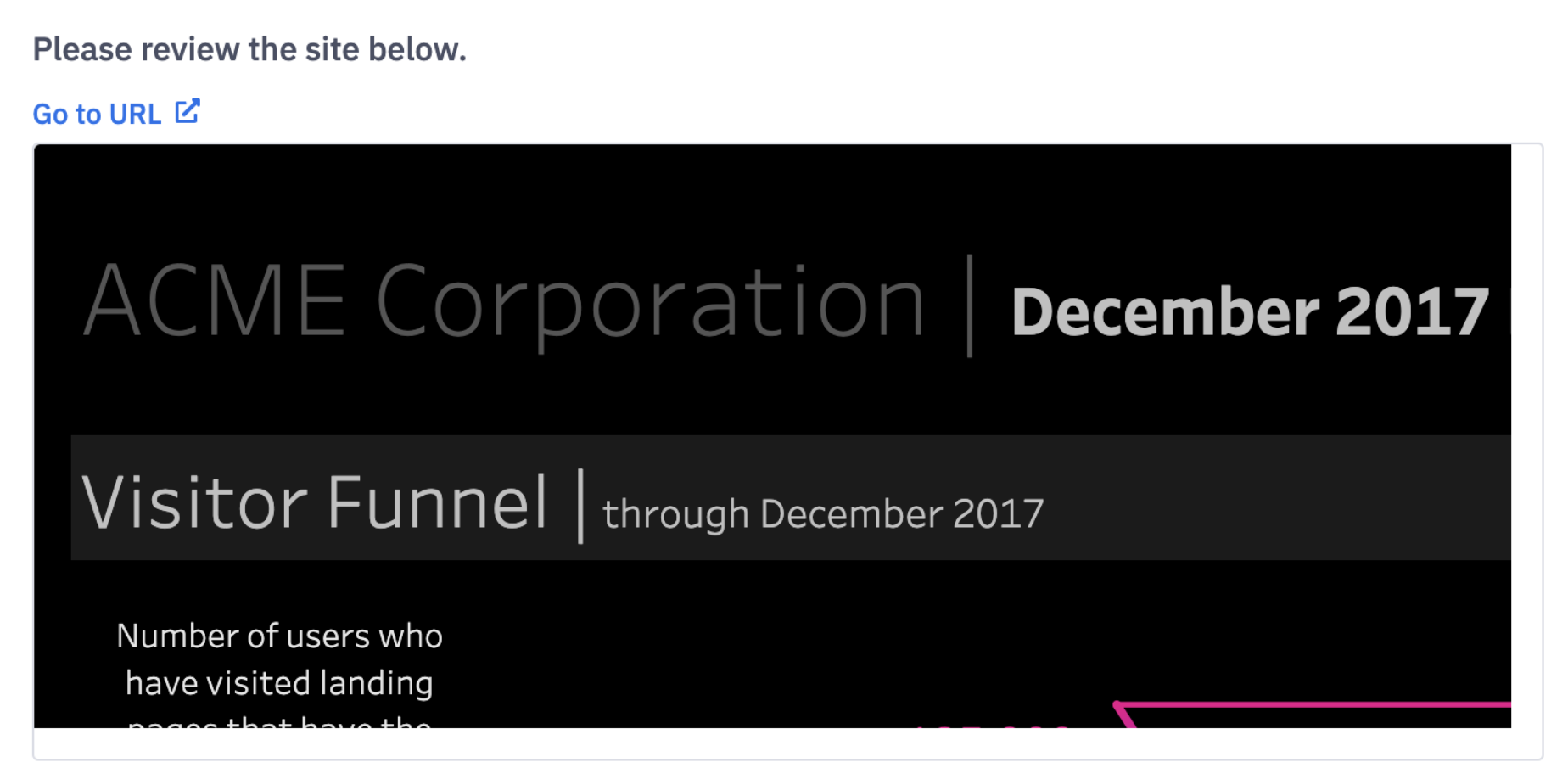 |
File Upload | An action for the employee to take and an accompanying file. Employee will be prompted to acknowledge the uploaded file. | 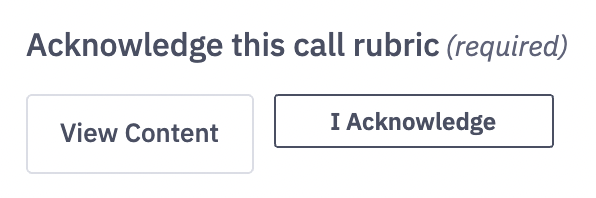 |
Checkboxes | A list of options for the employee to select, choosing all that apply. An "Other" option is available as well. Example: Which products would you like additional training on? Choose all that apply. | 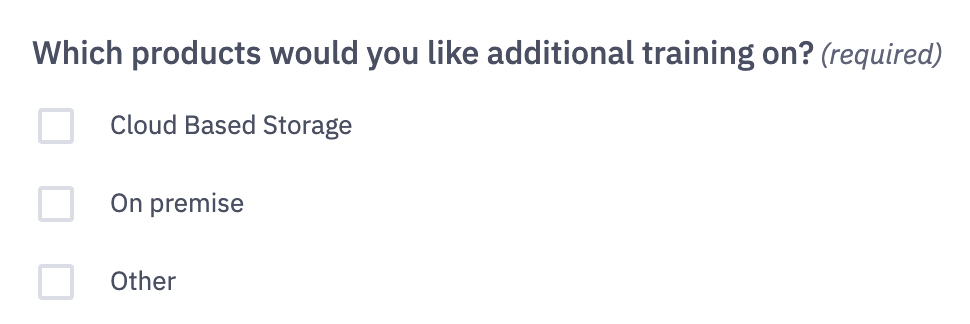 |
Multiple Choice | A list of options for the employees to select, choosing only one. An "Other" option is available as well. Great fit for True/False or Yes/No type questions. Example: Have you completed your monthly review? Yes or No. | 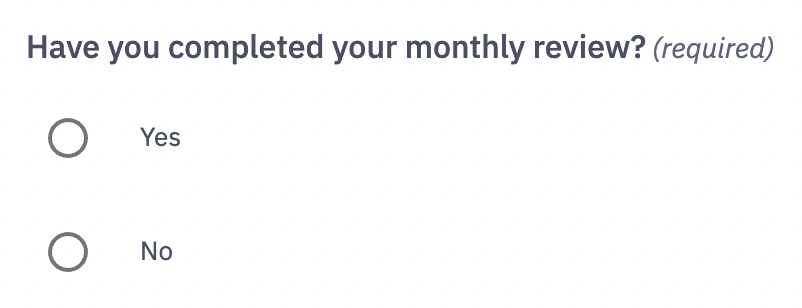 |
Gong Calls | Available if the Gong integration is enabled and authorized. Employees attach one or more of their Gong calls when the coaching event opens. | 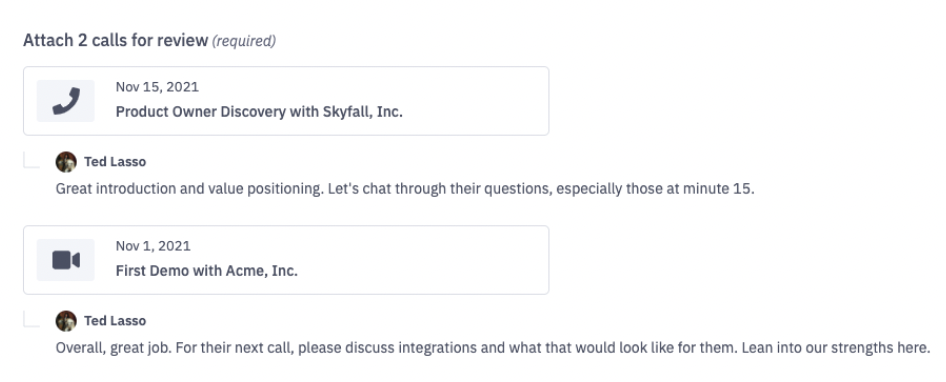 In this example the employee attached calls and the manager left comments. |
Zoom Calls | Available if the Zoom integration is enabled and authorized. Employees attach one of more of their Zoom calls when the coaching event opens. | 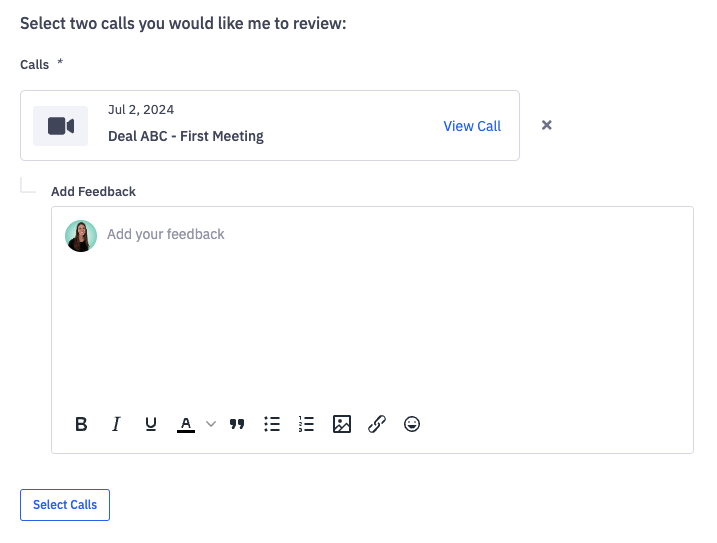 |
Seismic Learning | Available if the Seismic Learning API within the Seismic integration is authorized. Select from any public, published Seismic Learning lessons and add them to coaching agendas. When selecting a lesson, there is no filtering for lessons assigned to a particular employee(s), but rather you will be presented with a list of all public, published lessons that can be added into the coaching agenda. | 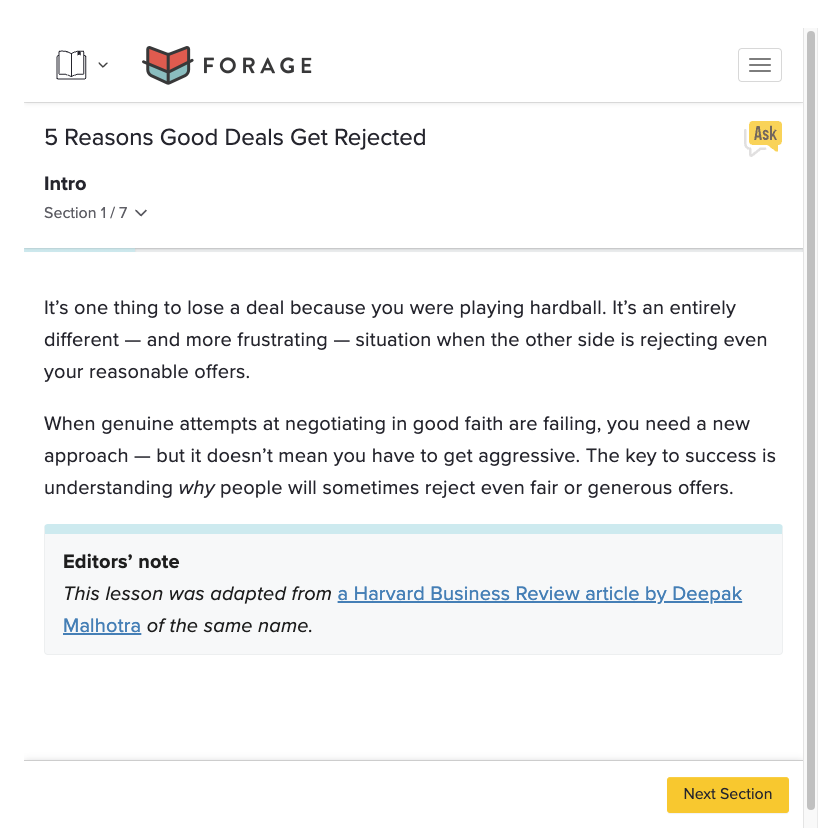 |
Attribution Metrics (optional)
Define up to ten metrics that you would like tracked and correlated with coaching programs that are created from this template.
If programs that will be created with this template have a specific purpose (and typically, an explicit start and end date) we recommend establishing attribution metrics.
For example, if the template's objective is for an eight week long program around setting great appointments, you can define "Appointments Held" and "Appointments Set" as your attribution metrics to determine the program's effectiveness over time, per-person.
How is Attribution Calculated?
First, a baseline value is derived by taking the four-week metric average leading up to the program's start date. Then for every recurring session, a current value is derived by taking the last FULL week's metric average. The % difference is then calculated between the current and baseline value.
We do not recommend using metrics typically measured on a monthly/quarterly basis for attribution given the attribution's usage of weekly averages.
Rating Categories (optional)
If the template will be used to create check-ins or programs, select rating categories you wish to track and correlate with this template.
Rating categories can be added or removed after template creation.
Note: If more than one rating is present, Ambition will take an average of the submitted ratings. This average can be helpful when searching for specific check-ins, as it's a filter in the manage check-in page and exportable in the coaching reports.
If you'd like to add additional rating categories, learn more about creating categories here.
Don't see the Rating Categories option? If your package supports rating categories, the feature can be enabled by any user with admin permissions. Left navigation > Administration > Features. Locate the "Coaching: Check-in Ratings" feature, and toggle "On".
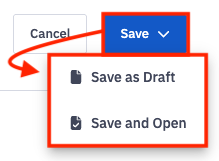
5. If the template is finalized and ready for managers to use, click Save > Save and Open.
If the template is still in progress, click Save and then Save as Draft. Your template will not be available to create coaching events with until the template is "Open". You must have at least one required item and have selected managers in Step 2 before being able to save your template as a draft.