How do I enable and authorize the Slack integration?
Last updated: July 31, 2025
Slack Integration
Permission Prerequisites
Slack Account - Authorization will require Admin or Member Permissions within Slack
Ambition - Authorization will require "Integrations: Edit" permission.
Slack Overview
Slack is a popular team-chat solution used by companies large and small to increase communication and collaboration at work.
Through Ambition's Slack integration you can send Workflow notifications directly to your Slack channels to further drive employee engagement and recognition. Enabling the Slack integration will also allow users to use Ambition's slash commands.
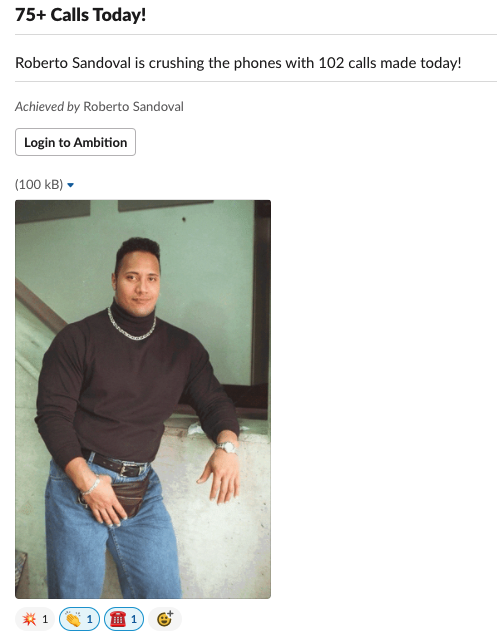 Metric Based Workflow in Slack | 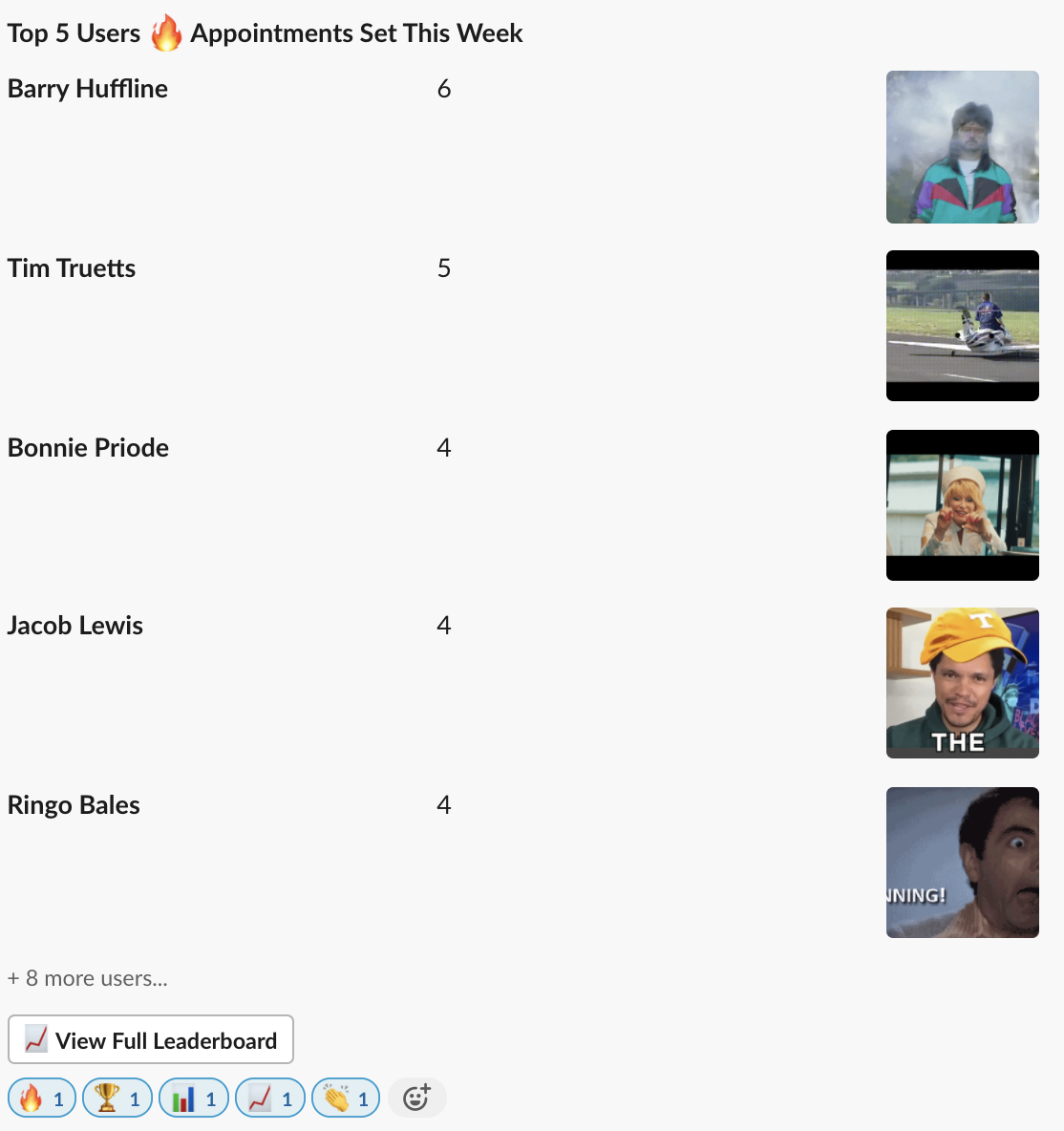 Ambition Leaderboard in Slack |
Enable and Authorize Slack Integration
Users with the "Integrations: Edit" permission will be able to access the Integrations tab.
1. Open the left navigation and click Administration > Data > Integrations.
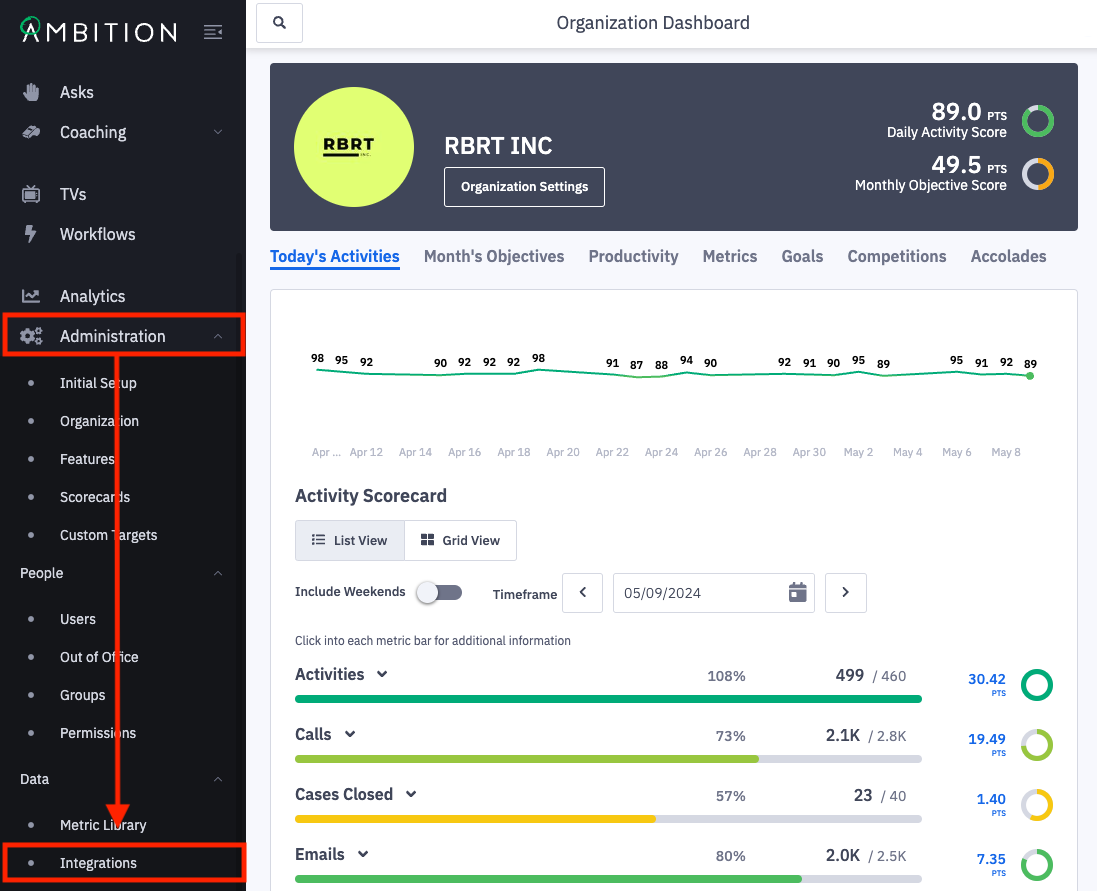
2. Click the + Enable Integration button.
If this is the first integration enabled in your instance, you will skip this step and begin at step 3.

3. Locate the Slack integration and click "Enable Integration" in line with the Slack integration name and icon.
You will be redirected into the newly enabled Slack Integration.
At this time, Ambition can only be authorized into a single Slack domain.
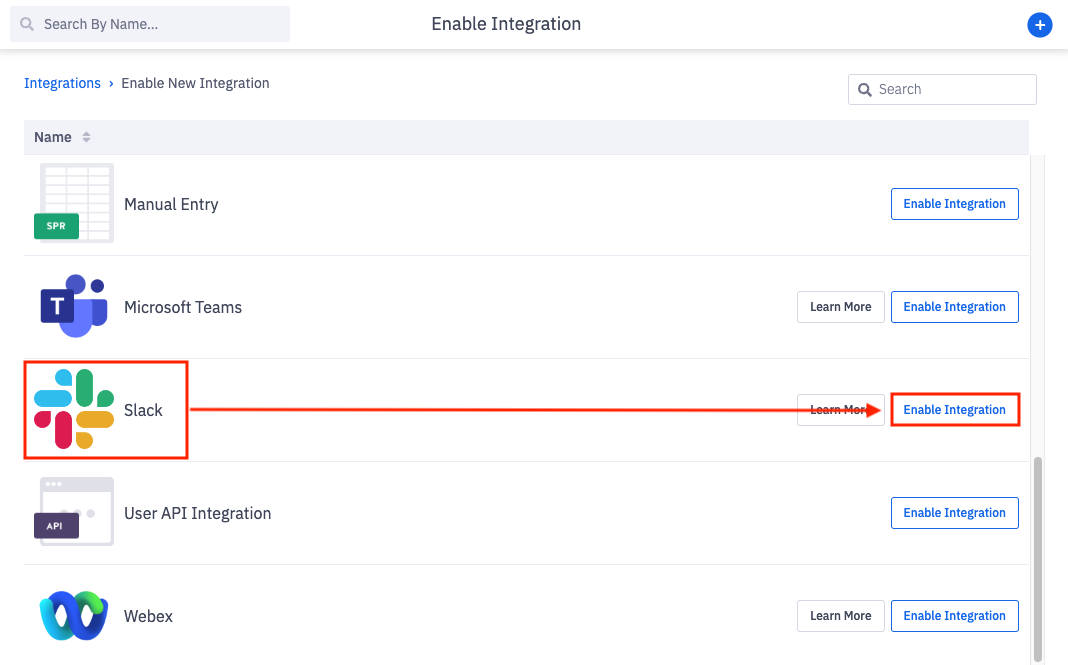
Upon enabling you will be redirected into the integration. To enter the Slack integration anytime after original enabling:
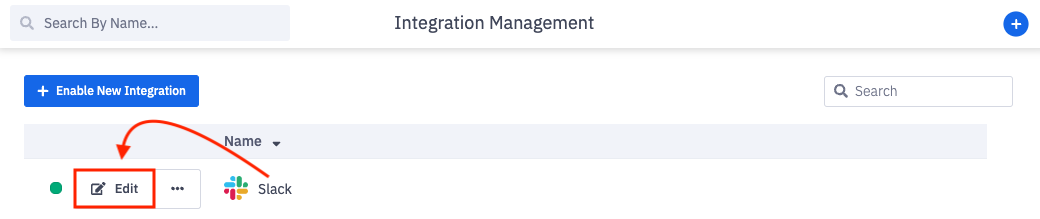
Once enabled, the Slack integration will appear on the Integration Management page.
4. Click Edit in line with the Slack integration.
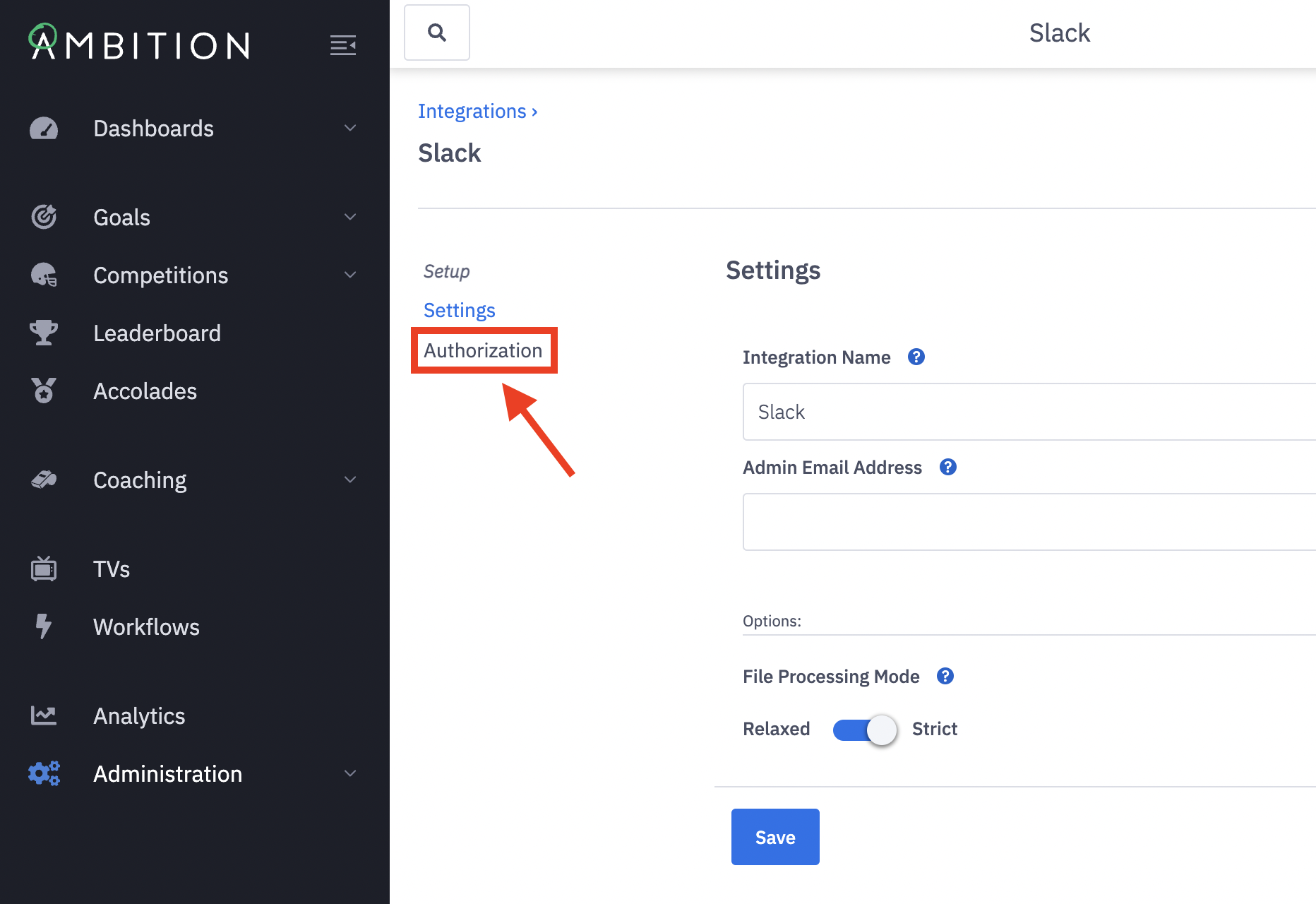
5. Click on Authorization.
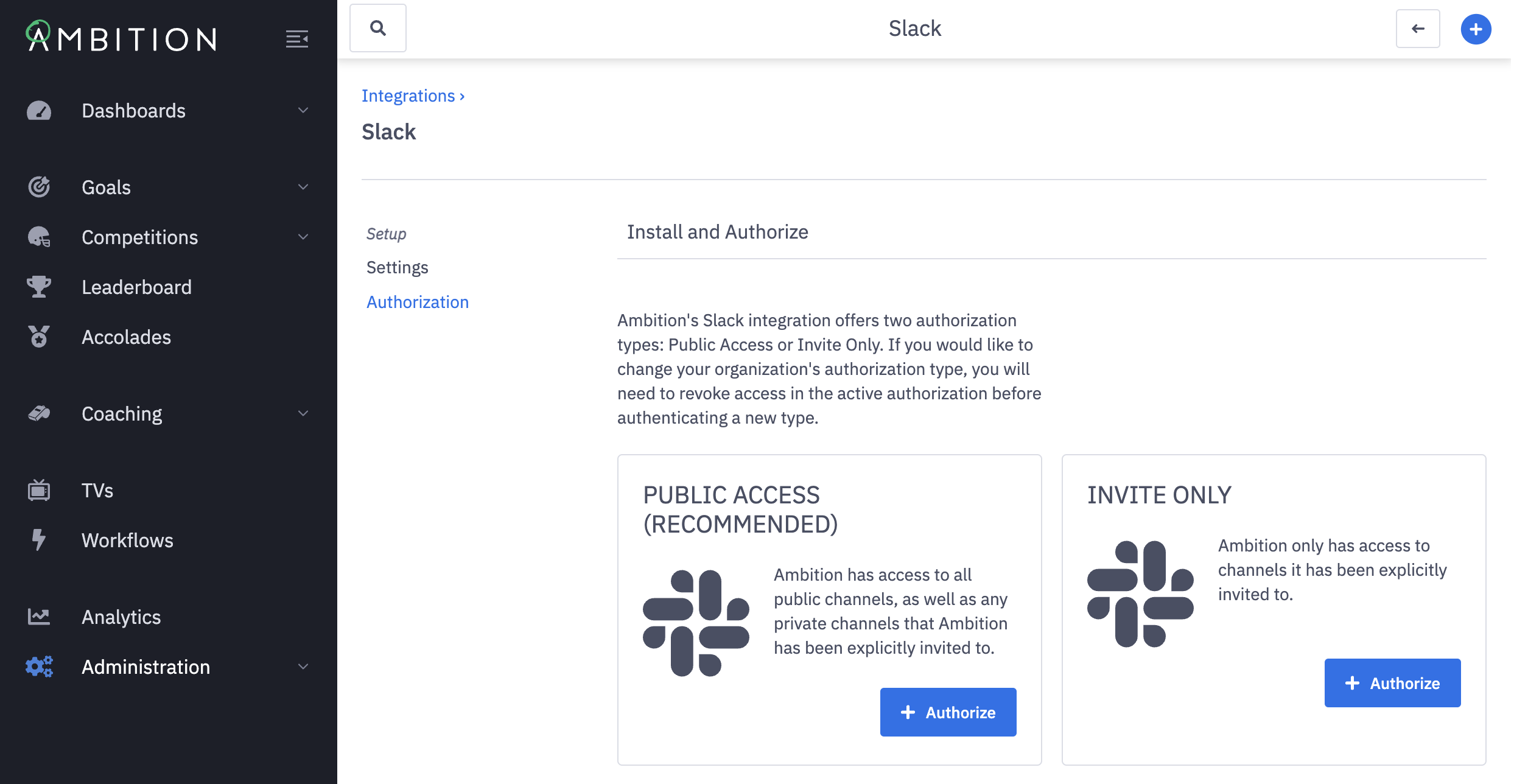
6. Choose an Authorization Type.
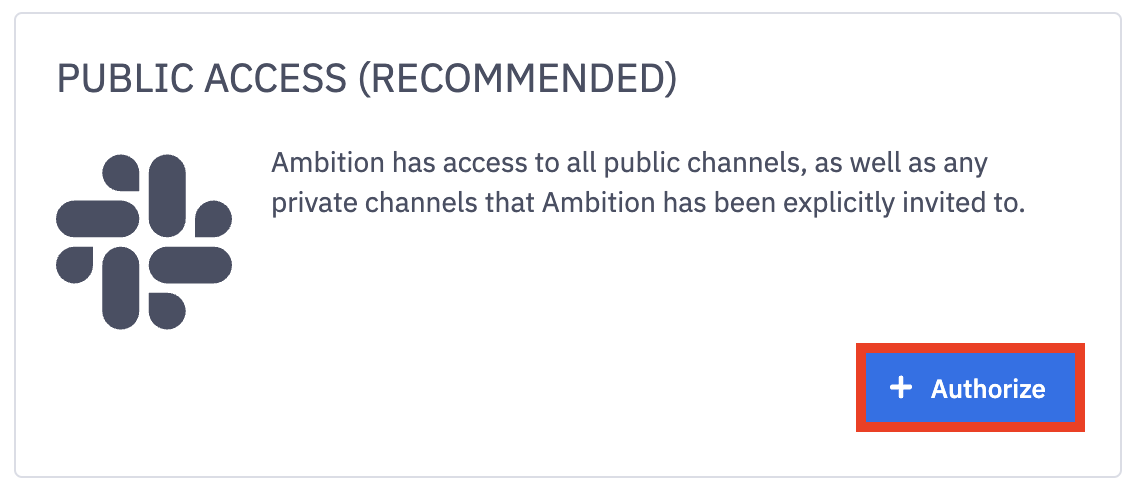
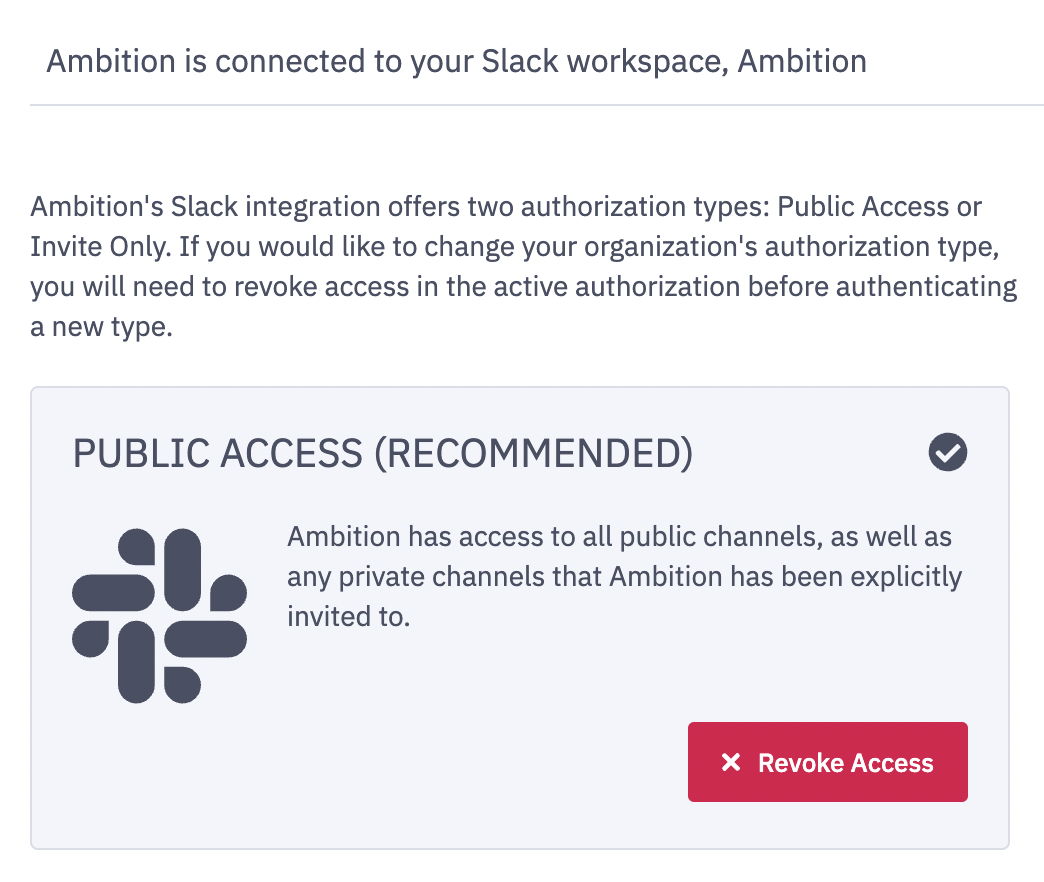
Public Access (Recommended): Ambition will have access to all public channels, as well as any private channels that Ambition has been explicitly invited to.
Invite Only: Ambition only has access to channels it has been explicitly invited to.
7. Click the + Authorize button on the preferred authorization type. This will redirect you to a new page.
If you use Ambition within Salesforce, log into your organization's stand-alone instance of Ambition, yourcomanyname.ambition.com, as attempts to be redirected to sign in to Slack within the Salesforce UI will be blocked.
If you are unsure of your organization's Ambition domain, reach out to gethelp@ambition.com.
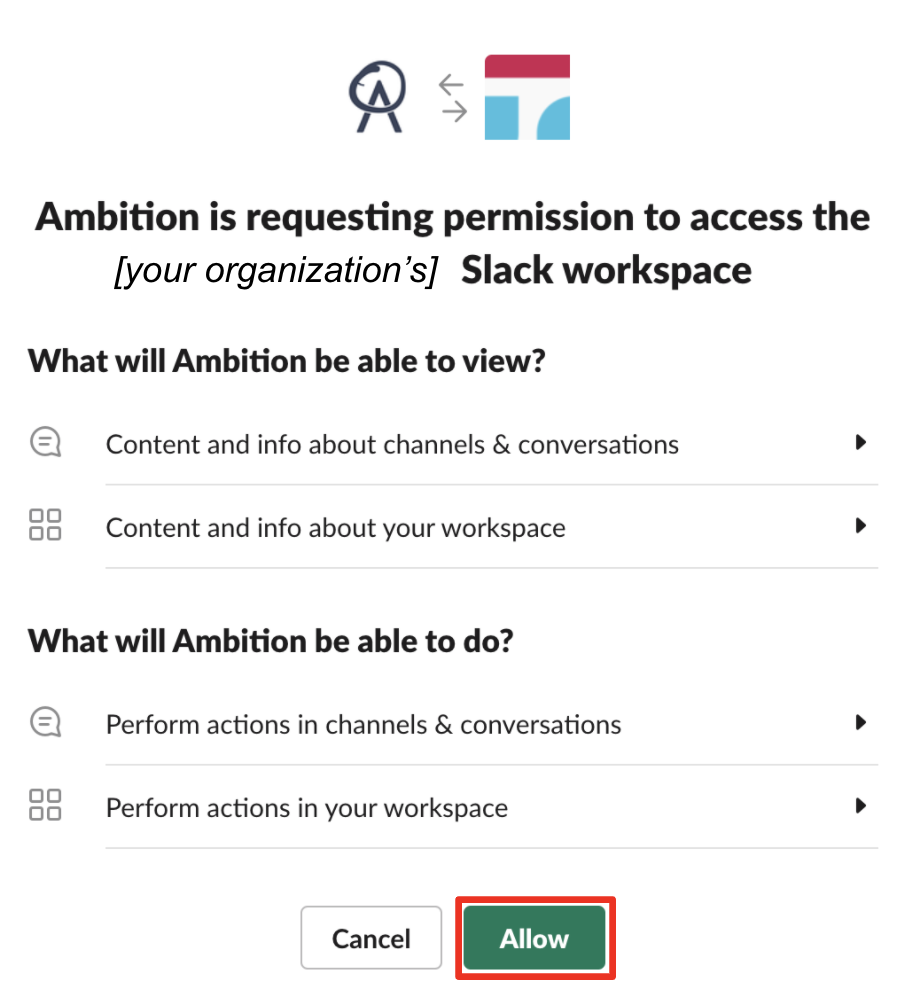
8. Click the Allow button.
9. Upon successful authorization, you will be redirected to the Slack integration overview. Here you'll see a checkmark on the authorization and the ability to revoke access if needed.
As noted above, authorization will require Admin or Member permissions within Slack.
10. Slack users can now invoke Ambition slash commands and view Workflows.
Troubleshooting Slack Channels and Workflows
If you are unable to search for and find a newly created Slack channel in Ambition, please contact gethelp@ambition.com.
Reauthorize Existing Slack Integration
Only a Admin User (Slack Workspace Admin & Ambition Admin) can reauthorize the Slack integration.
Important Notes:
If the integration is reauthorized as Invite Only mode, a Slack Admin will need to re-invite the Ambition Slackbot to each channel individually to ensure that there is no disruption in Slack Workflows. Learn how to invite here.
If the integration is reauthorized as Public Access, this will not deactivate or delete any pre-existing Slack Workflows. They will continue to fire once the integration is reauthorized.
1. Open the left navigation and click Administration > Data > Integrations.
2. Click Edit in line with the Slack integration.
3. Click on Authorization.
4. Click the Revoke Access button.
5. Once the page reloads, you'll see the two Authorization types, Public Access and Invite Only. Click the Authenticate button on the preferred Authentication type.
6. Authorize Ambition to communicate with Slack to finish installation.
As noted above, authorization will require Admin or Member permissions within Slack.
7. Slack users can now invoke Ambition slash commands and view Workflows.
If you have any questions, please contact gethelp@ambition.com.