How do I set up the Writeback Connector to push Domo data to Ambition?
Last updated: June 24, 2025
Domo Dataset Pusher Writeback Connector
The Ambition Dataset Pusher Writeback Connector allows mutual customers of Domo and Ambition to schedule and push updates from Domo datasets to Ambition.
Prerequisites
An API integration within Ambition must be enabled. You will need the route and token from the API integration in Ambition before being able to complete the Connector form in Domo.
The API integration must be set to JSON File Format and use the Daily Totals Data Format.
The DataSet must be owned by or shared with the respective user in Domo.
Admin, Privileged, or Editor permissions are required within Domo as the user will need access to the metadata of the DataSet in order to select and customize the fields that will be sent to Ambition.
Enable the Connector in Domo
1. Login to Domo.
2. Access the Appstore.
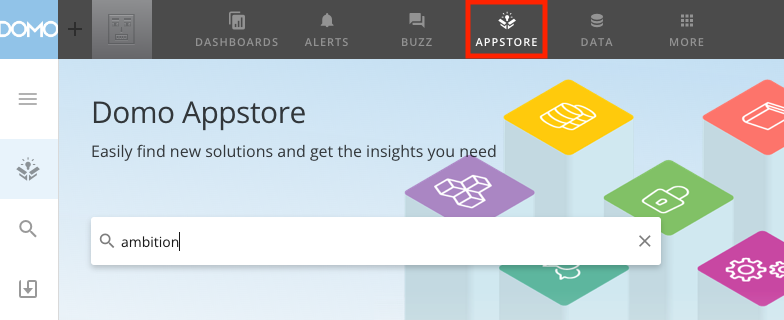
3. Search for Ambition and select the "Ambition Dataset Pusher Writeback Connector".
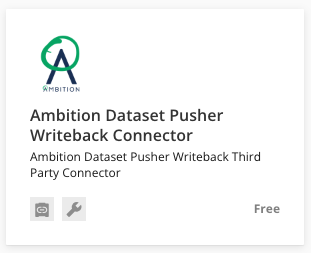
4. Click on Get the Data.

Setup the Connector in Domo
Credentials
1. Under the "Select Account" dropdown, select Add account.
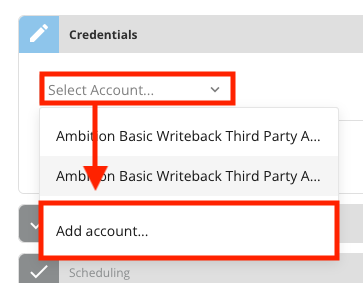
After adding your account, complete the Credentials section of the form.
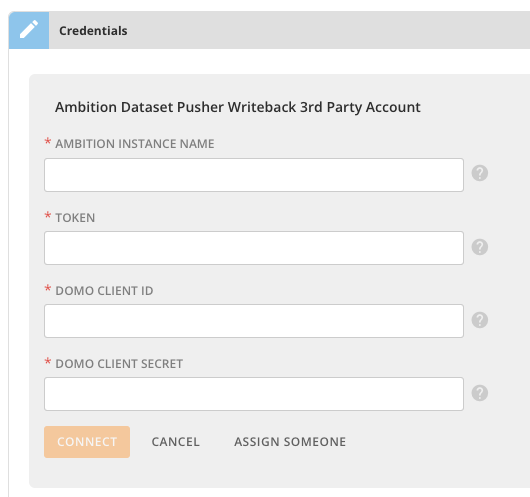
2. For Ambition Instance Name, input your Organization's Ambition Subdomain.
https://subdomain.ambition.com
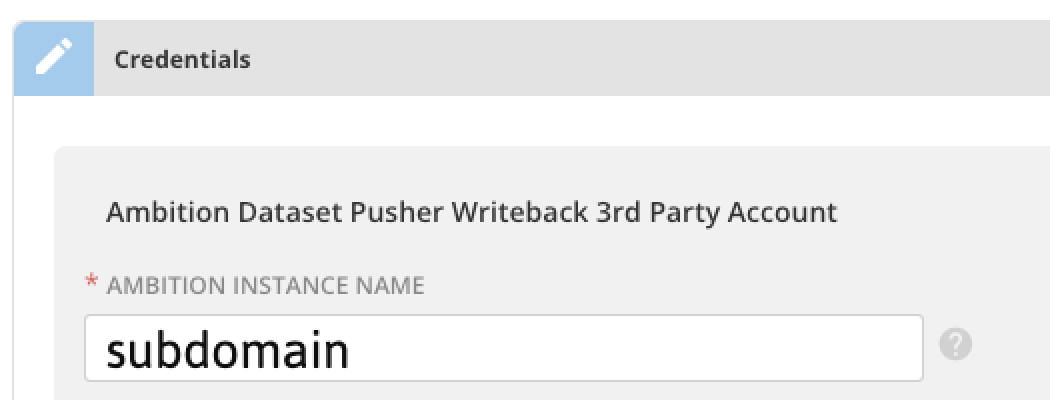
3. For Token, you will input the Authorization Token for the respective Ambition API Integration where you wish to send Ambition Data.
Steps for locating the Authorization Token can be found here.
4. For Domo Client ID and Domo Client Secret, input your Domo Client ID and Domo Client Secret.
You can generate a new Client ID and Secret at developer.domo.com.
The Client will need "Data" Application Scopes.
5. Click Connect. After successfully connecting, click Next.
Details
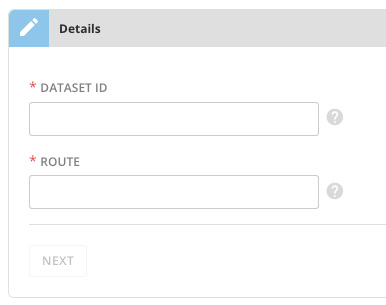
6. For DataSet ID, you will locate the Data Set which you wish to push to Ambition. The Data Set ID will be found in the Data Set's URL.
After inputting the DataSet ID, the form will render the corresponding data columns present on the respective DataSet.
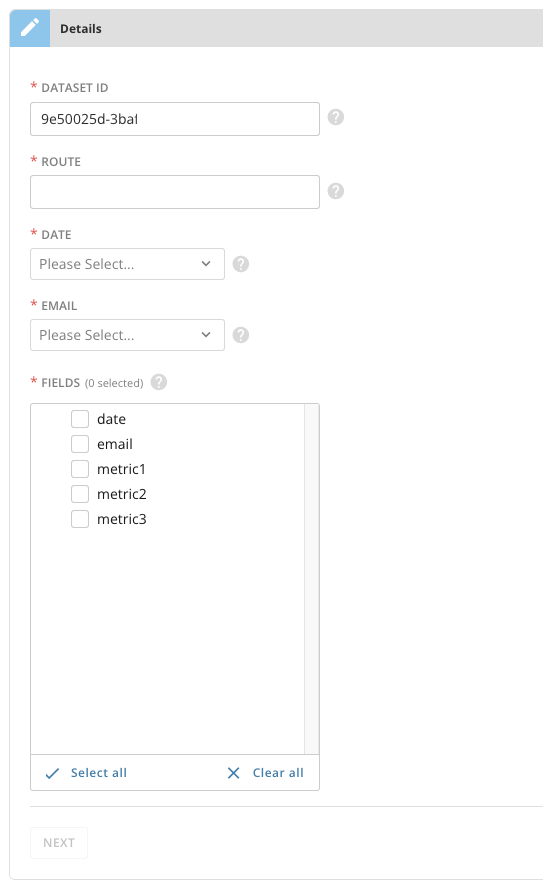
7. For Route, you will input the Route for the respective Ambition API Integration where you wish to send Ambition Data. You will access the same Credentials tab where you just located the Token.
Steps for locating the Route can be found here.
8. Select the field from your DataSet that will be used as the Date Field in Ambition.
9. Select the field from your DataSet that will be used as the Email Field in Ambition.
10. Select the field(s) from your DataSet that you wish to be pushed to Ambition. Date and Email do not have to be selected here as they are mapped through the Date and Email steps above.
11. Click Next.
Scheduling
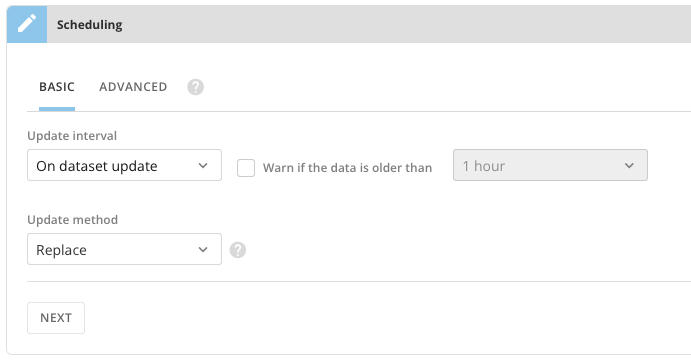
12. Select the appropriate Scheduling option, either Basic or Advanced.
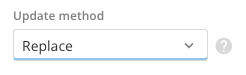
13. Select the most appropriate Update Method for your DataSet.
Due to the nature of a Daily Totals integration, Ambition recommends "Replace", but select the Update Method that best fits how the DataSet handles updates to records.
14. Click Next.
Name and Describe Your DataSet
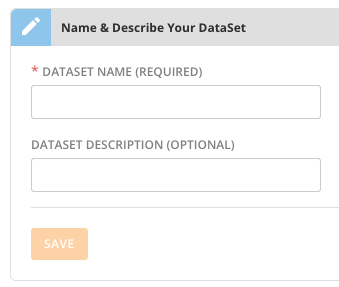
15. Input a DataSet Name.
16. Optionally input a DataSet Description.
17. Click Save.