How do I set up the Coaching Quickstart and access check-in visualizations within Domo?
Last updated: June 24, 2025
Domo - Ambition Coaching Quickstart
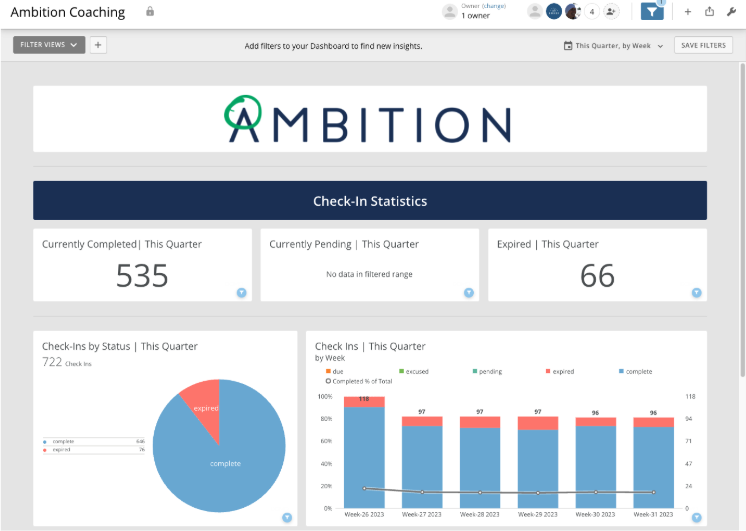
The Ambition Coaching Quickstart allows mutual customers of Domo and Ambition to use the scheduled and exported Ambition coaching and account data from the Ambition Coaching Connector to power an Ambition coaching dashboard with prebuilt cards highlighting a variety of check-in statistics.
The exported Ambition data will exist in Domo as DataSets. 8 prebuilt cards (data visualizations) will be on the Coaching dashboard, and they can be added to, edited, or removed to fit your reporting needs.
Prerequisites
Data Sets Needed to Power the Quickstart Dashboard
The Ambition Coaching Quickstart is setup to combine the Check-in and Account reports accessed within the Ambition Coaching Connector through a Domo Magic ETL.
In order to setup the Ambition Coaching Quickstart, first follow the steps here for setting up the Check-In and Account reports.
As noted in the documentation for the Ambition Coaching Connector, the scheduling of updates for the Check-In and Account reports will be set at your discretion.
Enable the Connector in Domo
1. Login to Domo.
2. Access the Appstore.
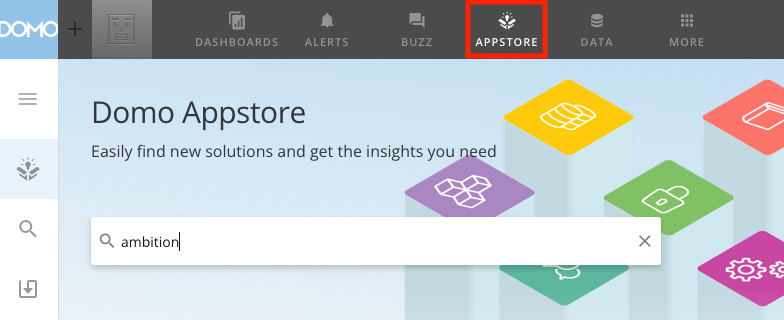
3. Search for Ambition and select the "Ambition Coaching Quickstart".
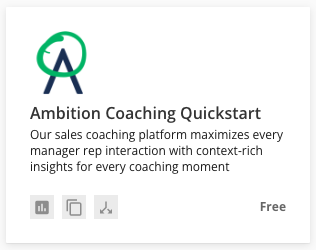
4. Click Get.

The app will be created and you will be redirected when it's ready. Optionally select "Notify Me" if you wish to continue working while the app is being created.
Connect Ambition Data to Domo
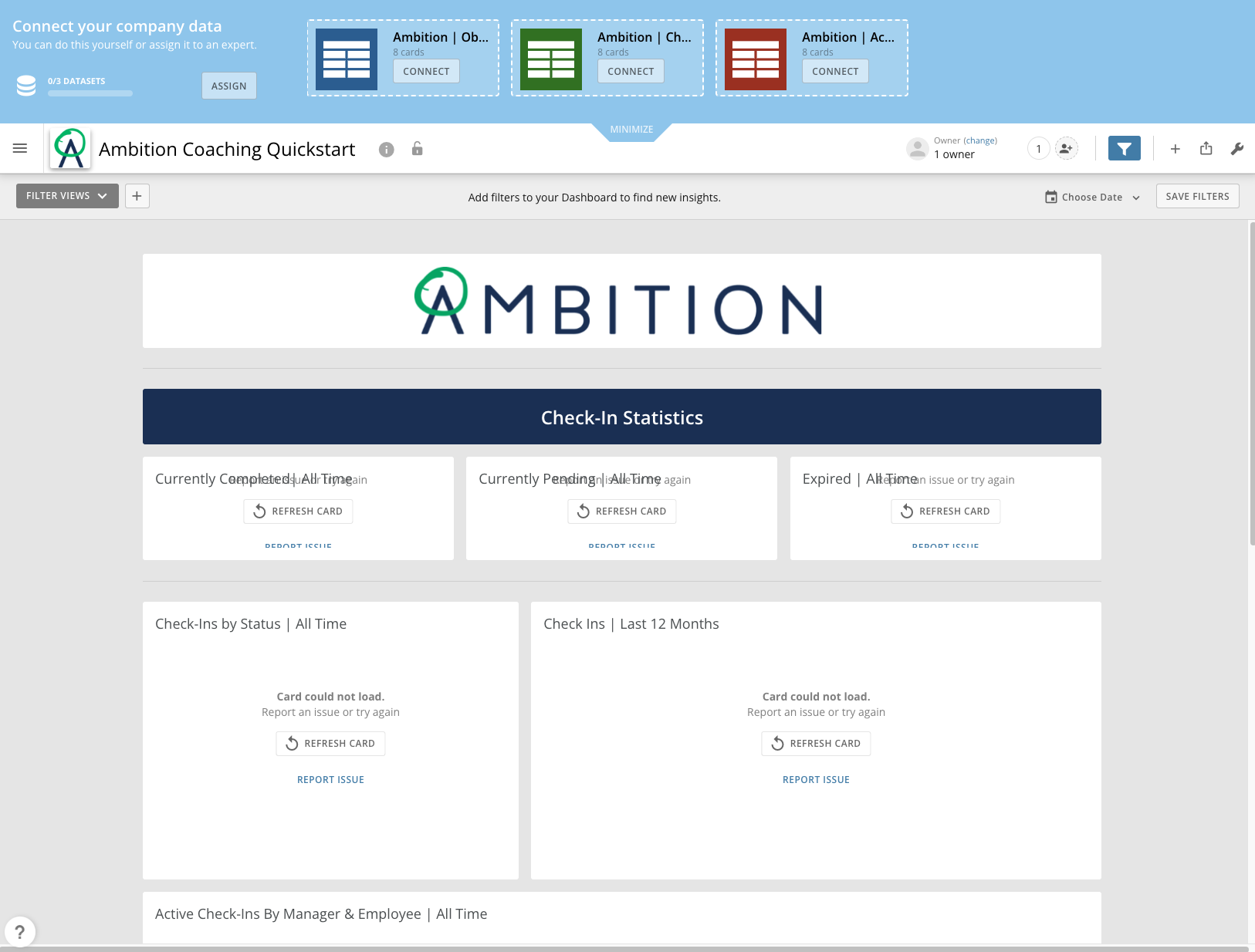
After creation, you will be redirected to the Ambition Coaching Quickstart dashboard. The cards will all be blank as you will need to connect your Ambition data to Domo.
With the creation of the dashboard, you will find that three data sets were also created:
Ambition | Check-In Report
Ambition | Account Report
Ambition | Objective Score Report
These datasets are powered by the Ambition Demo Site and are not your organization's data. If you wish to visually test out the dashboard, you can connect these data sets to the dashboard to see the card options and interactions.
If you do not wish to visually test out the dashboard, these data sets can be deleted as you will be connecting the Check-in and Account reports that you created in the prerequisites step.
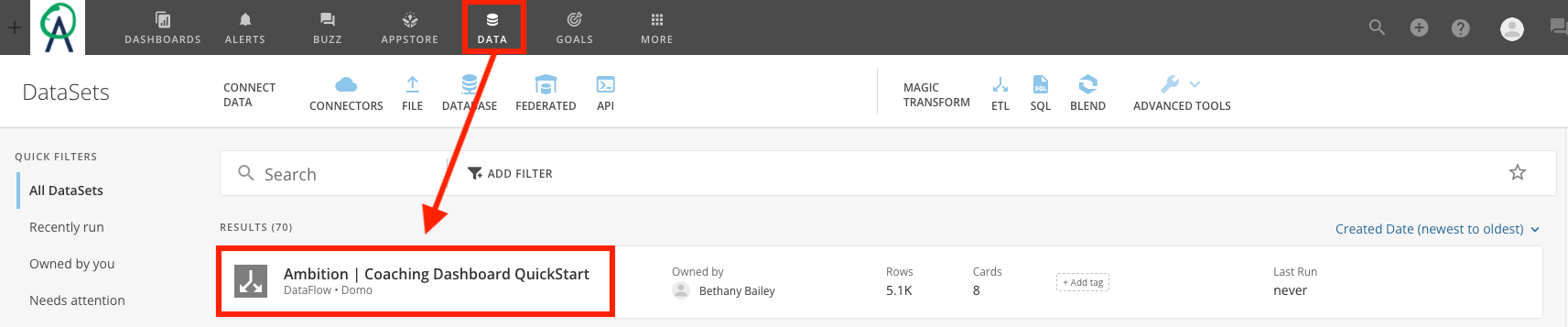
5. Click on Data and locate the Ambition | Coaching Dashboard Quickstart DataFlow.
6. Click on Edit ETL.
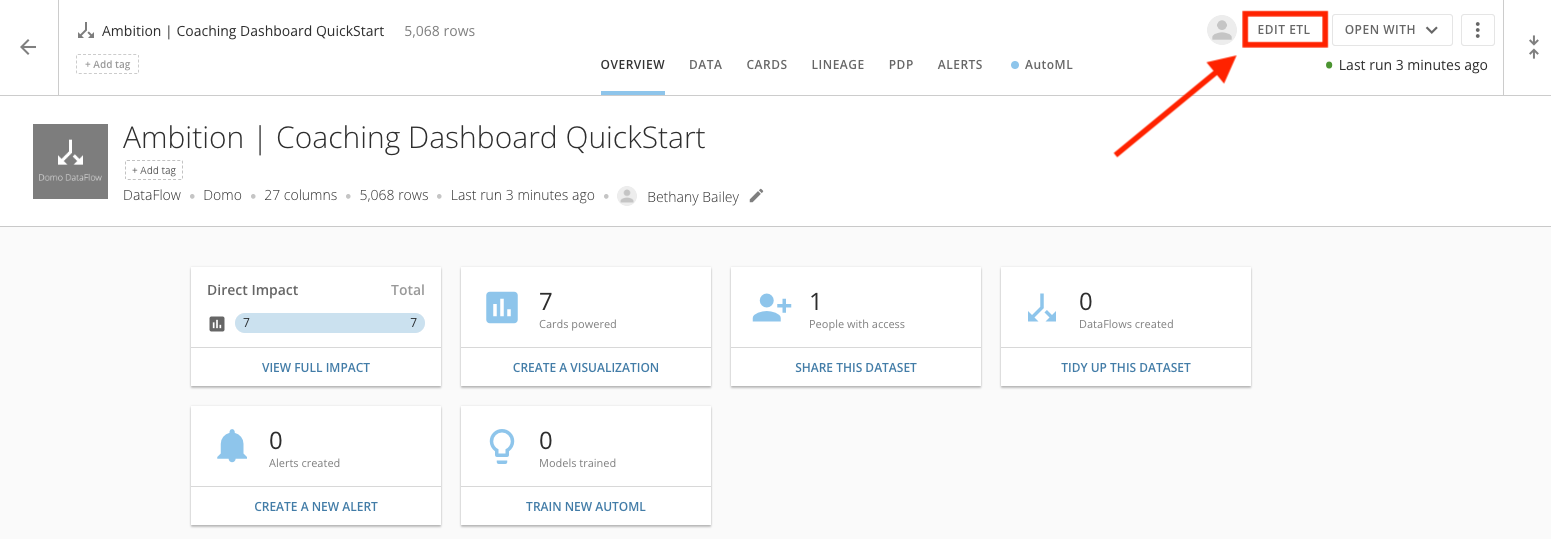
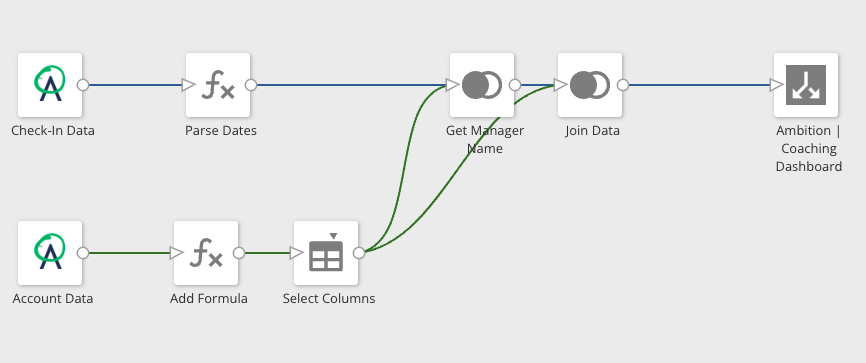
Here you will connect the Check-In and Account reports you created during the prerequisites.
Connect Check-In Data
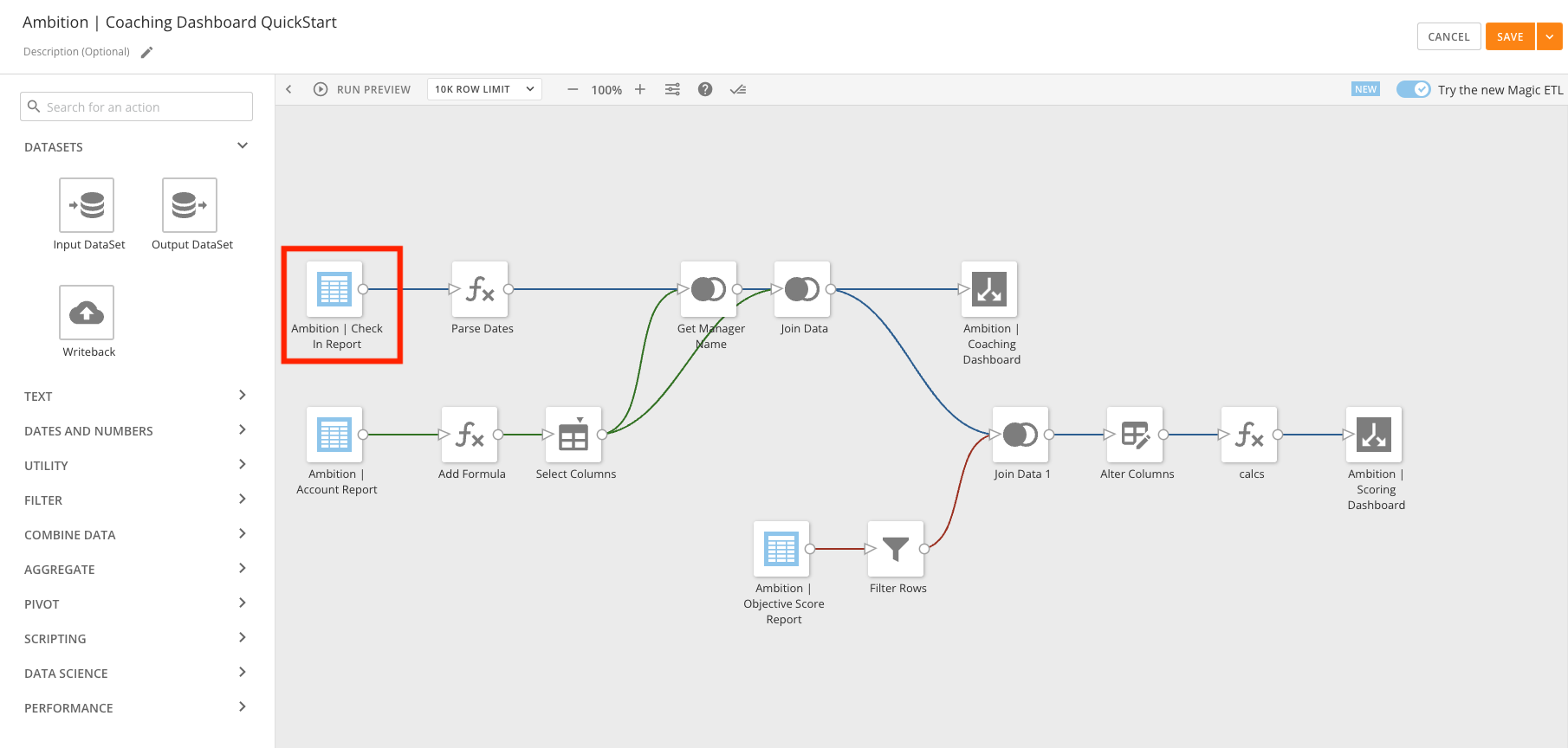
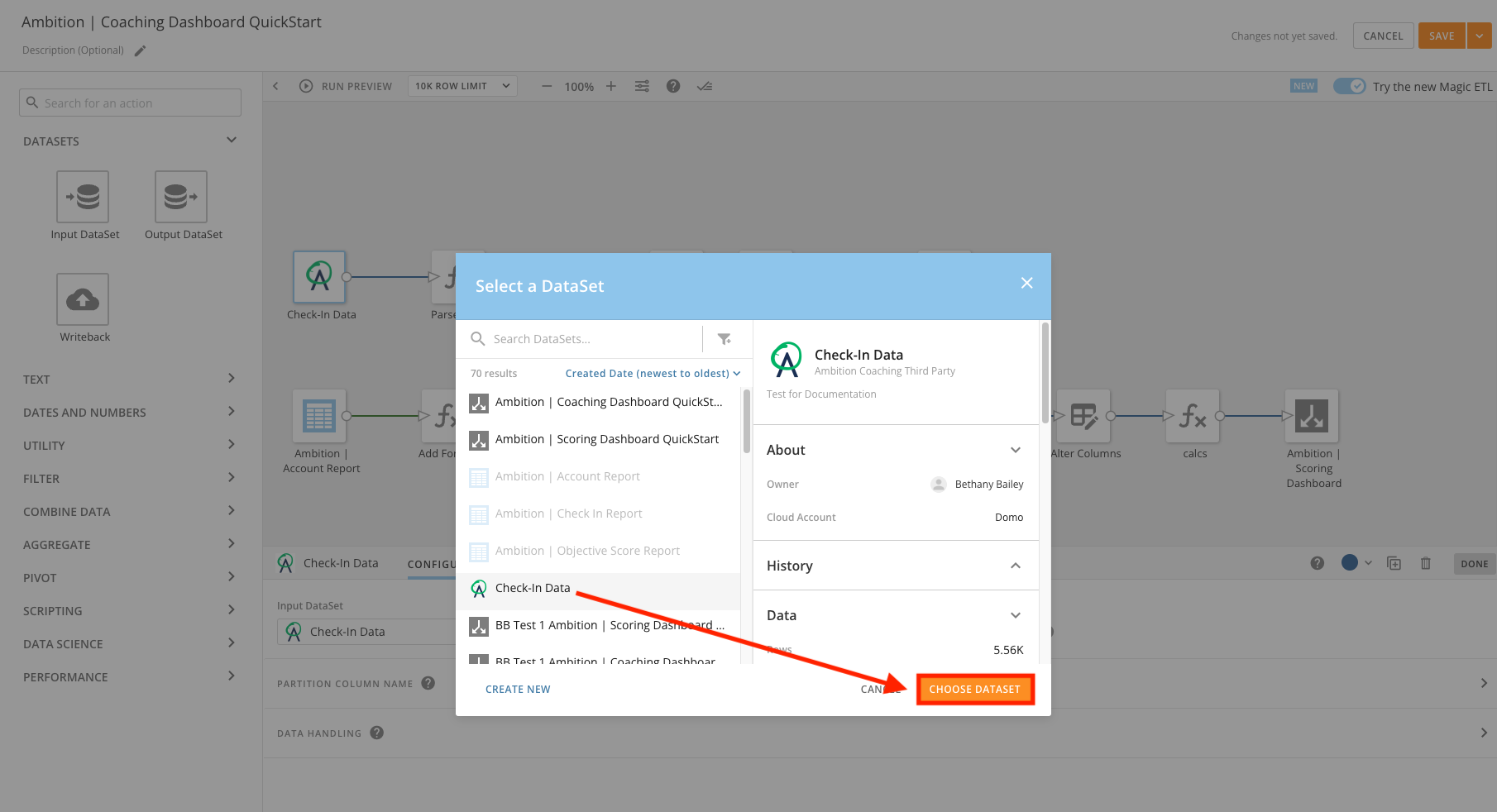
7. Click on the Ambition | Check In Report DataSet.
8. Select Change DataSet.
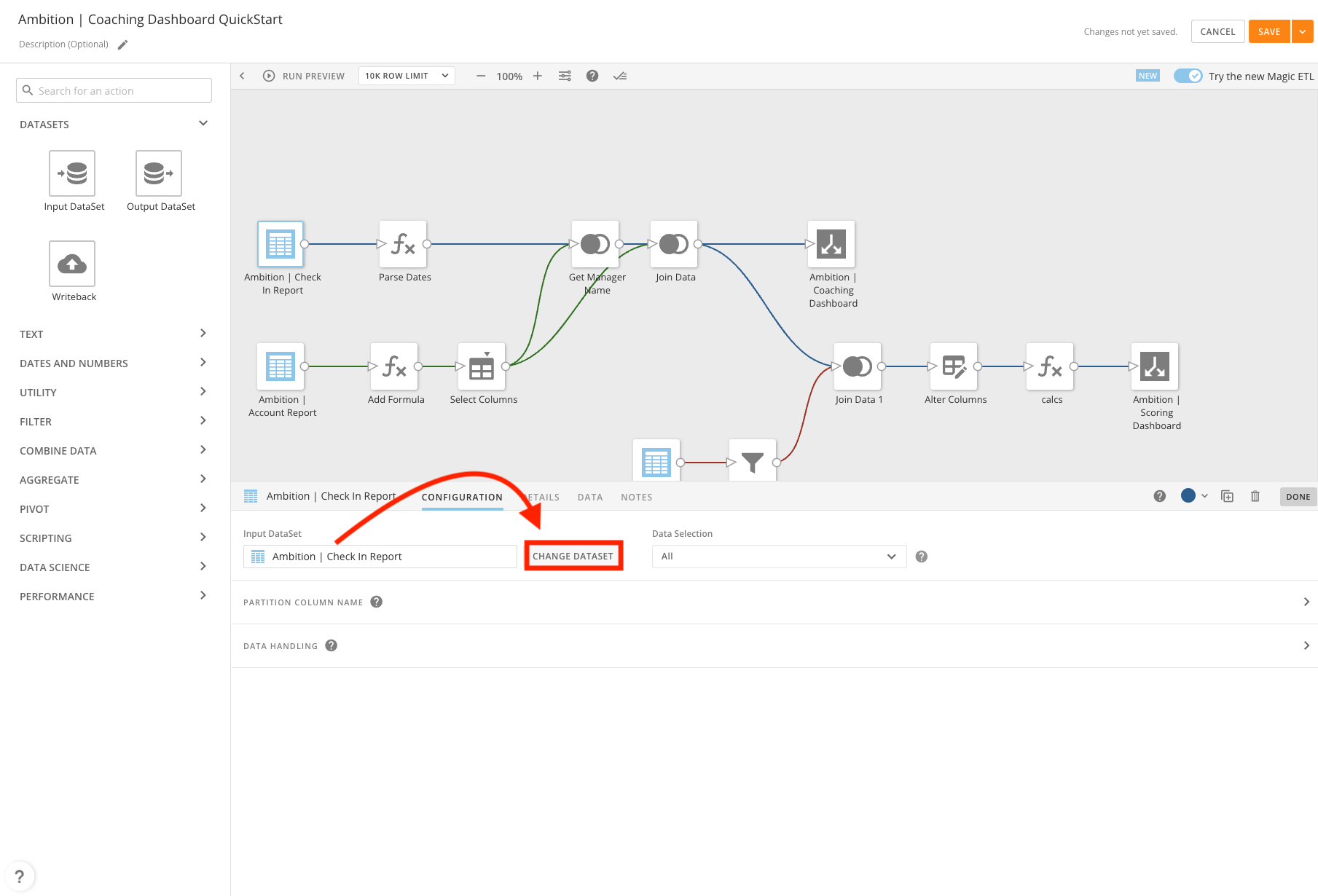
9. Select the appropriate Check-In report DataSet you created during the prerequisites.
10. Click Choose DataSet.
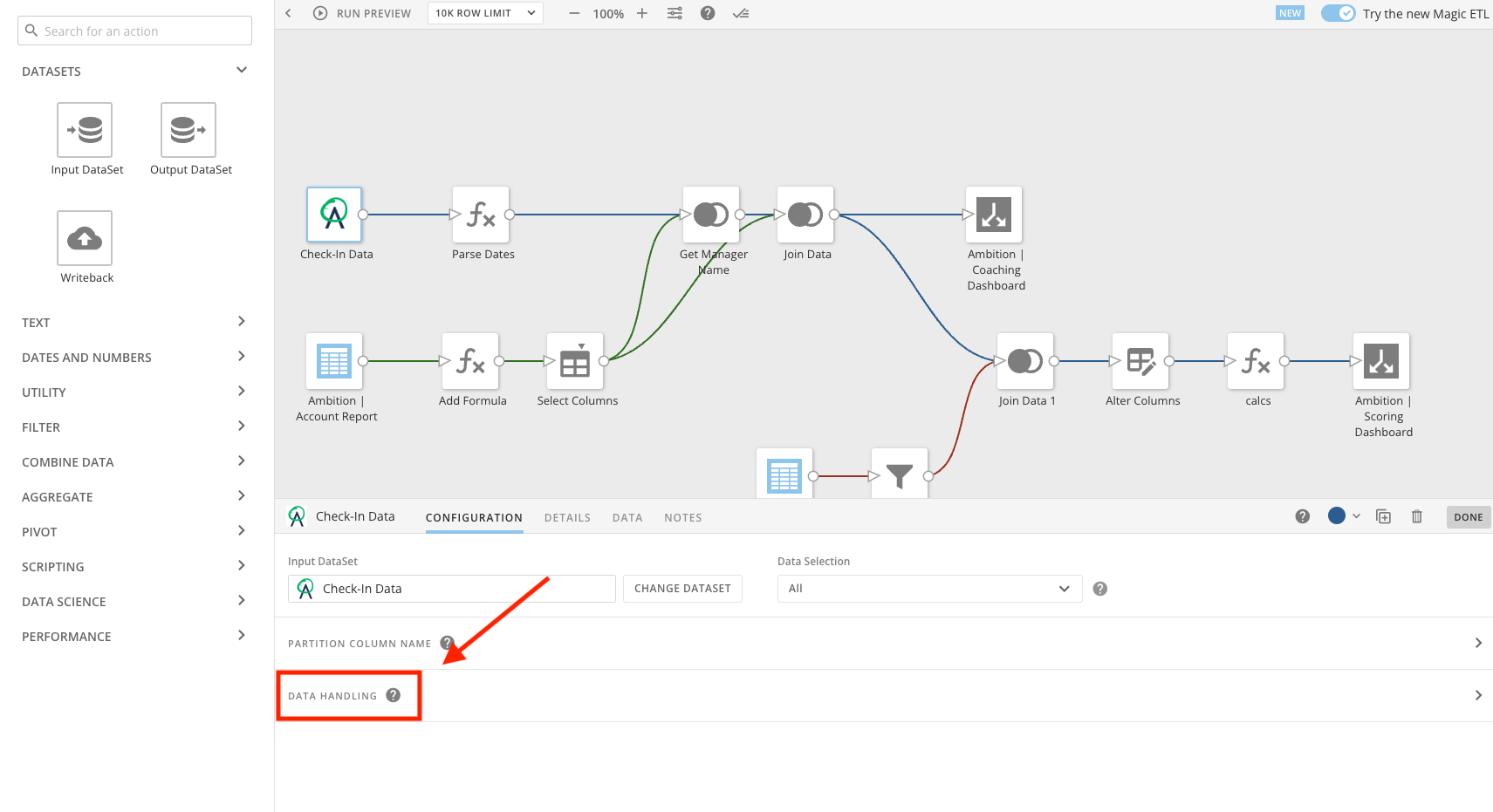
11. Click on Data Handling.
In order to successfully connect the DataSet to the dashboard, you will need to update a few of the data types. We know this step is not ideal and are working looking to resolve. Thank you for your patience in the interim!
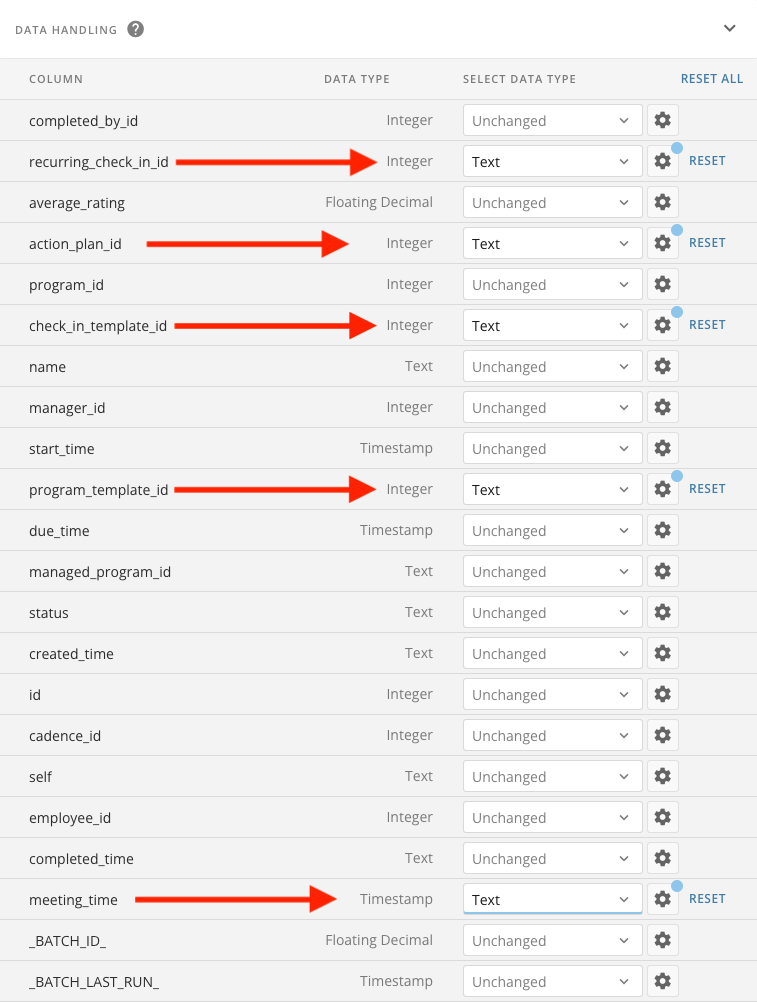
12. Update the Data Type of the following columns from Integer to Text:
recurring_check_in_id
action_plan_id
check_in_template_id
program_template_id
13. Additionally, update the Data Type of "meeting_time" from Timestamp to Text.
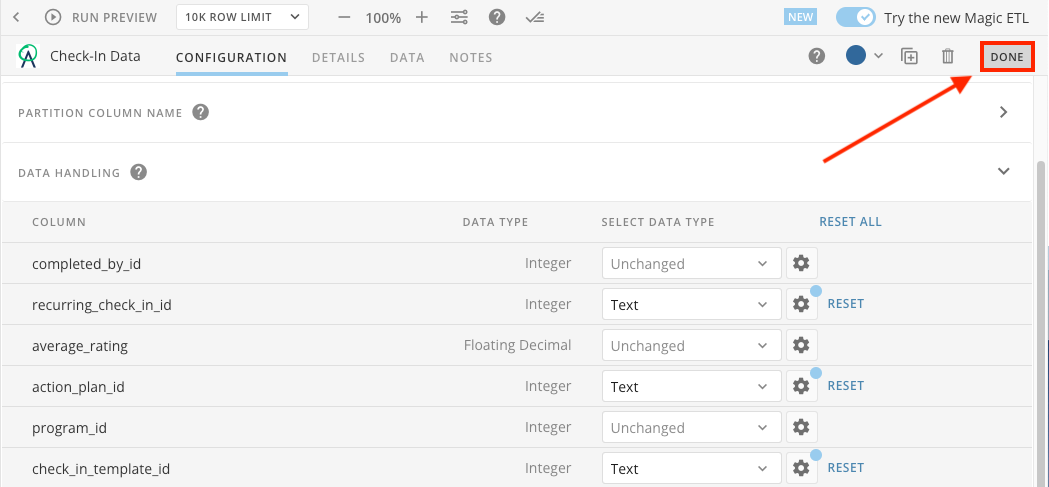
14. After updating data types for the 5 columns, click Done.
Connect Account Data
15. Click on the Ambition | Account Report DataSet.
16. Select Change DataSet.
17. Select the appropriate Account report DataSet you created during the prerequisites.
18. Click Choose DataSet.
19. Click Done.
Connect Objective Score Data
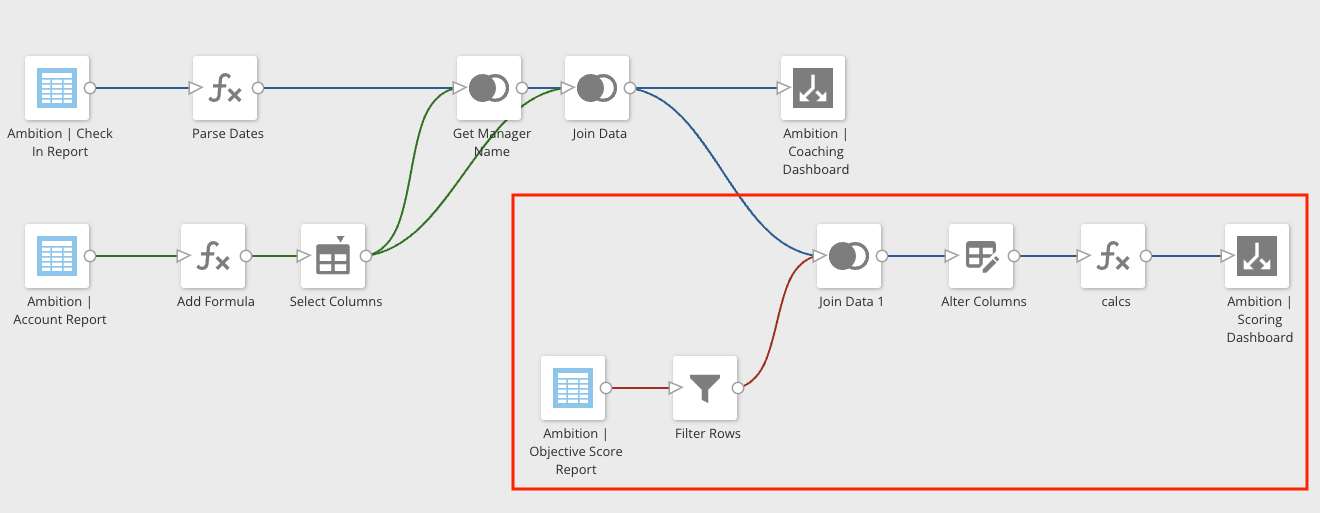
You will see that there is an Ambition | Objective Score Report that's mapped to an Ambition Scoring Dashboard. If desired, you can simplify the Magic ETL and delete the Objective Score -> Ambition Scoring Dashboard.
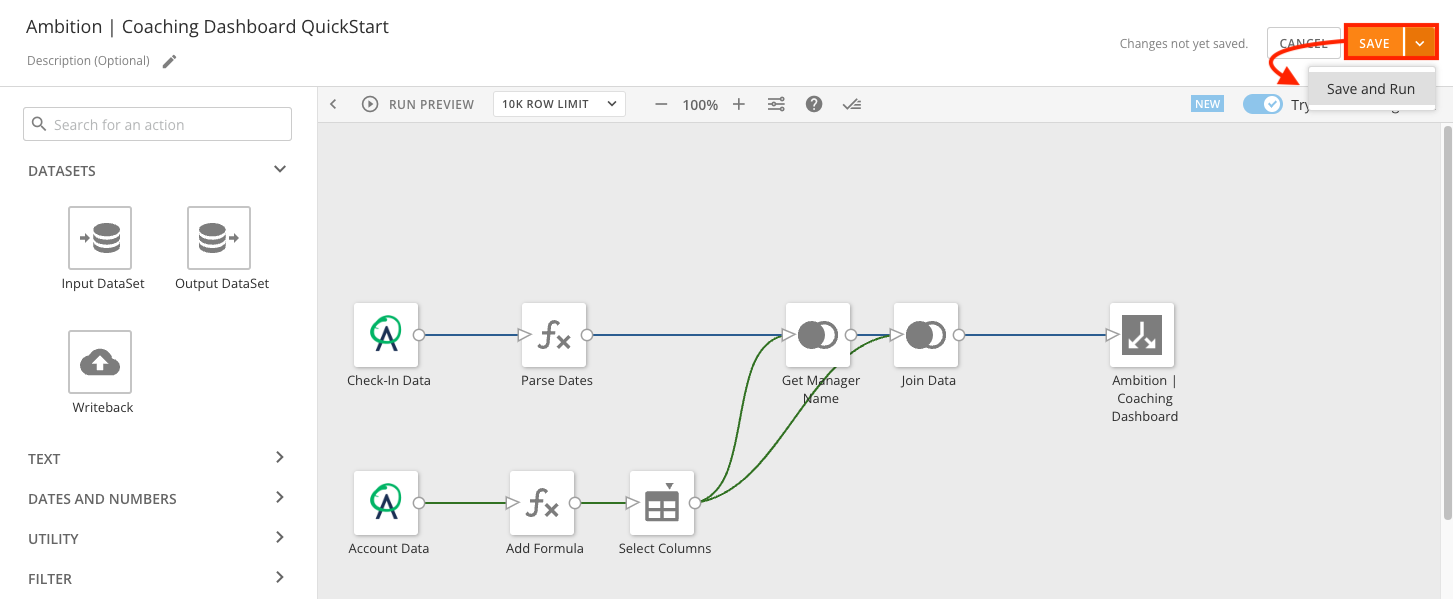
20. Click Save or select Save and Run.
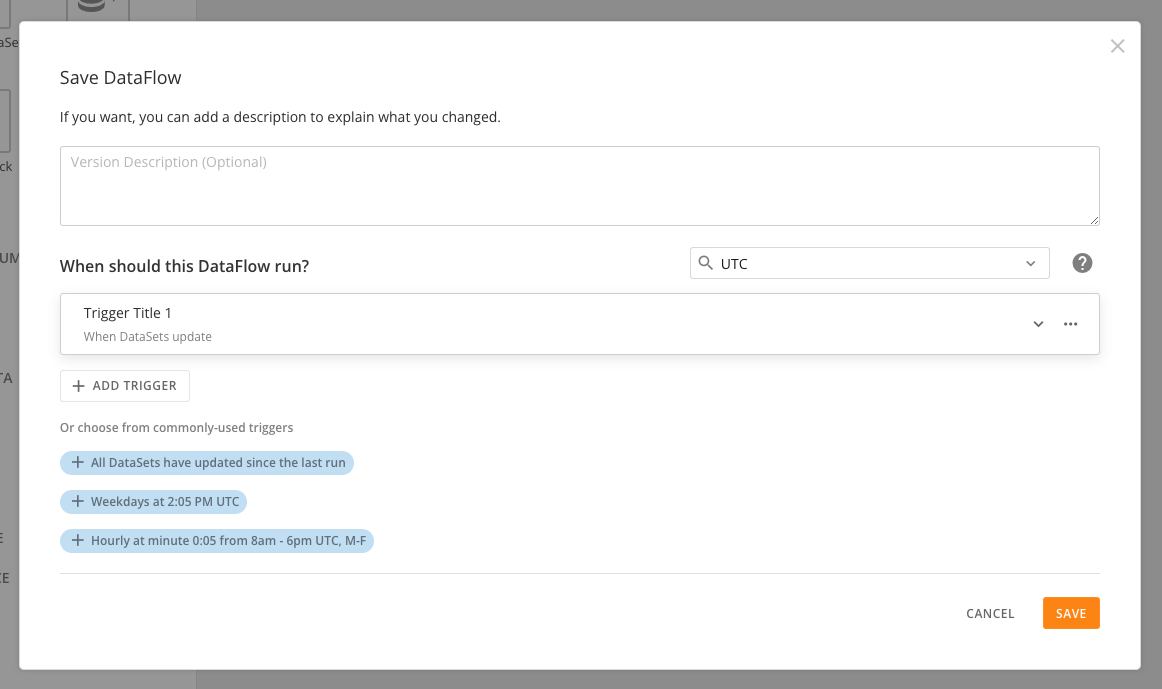
21. Determine when you wish the DataFlow to run by establishing the appropriate triggers.
22. Click Save.
Your Ambition Coaching Quickstart dashboard will now be powered by your organization's data!