How do I set up and use Procedures in Ambition?
Last updated: July 20, 2026
Procedures are the definitions, frameworks, rubrics, and playbooks the Ambition AI agent can use when conducting certain analyses.
From pipeline views to QBR prep and BANT qualification, Procedures allow the Ambition AI agent to intelligently review data based on your company's preferred methodologies.
You can easily create a custom Procedure in just a few minutes, or customize one of the following templates from the Procedure template library:
Sales Definition Procedures
MEDPICC
BANT
SPIN Selling
Challenge Sale
Command of the Message
CHAMP
GPCT
Rubric Procedures
SPICED
Sandler
Gap Selling
Value Selling
Strategic Selling
QBR
One-on-one/Coaching session
Pipeline Review
Forecast Categories/Commit Criteria
Opportunity Stage Exit Criteria
Lead Qualification/Handoff
Account Planning
Deal Review
Performance Review
Escalation / Risk Definitions
Operating Processes
Mutual Action Plan/Close Plan
CRM and Pipeline Hygiene Standards
Win, Loss, and No-Decision Review
Renewal and Expansion Review
Territory Planning
Discovery Call Review
How to access Procedures
Go to the Administration tab and click on Ambition Agent.
Procedures will be the second tab once you click into the Ambition Agent card.
Click on "+ Procedure" to create a Procedure.
You'll then see the list of preloaded Procedures and a form to build a custom Procedure.
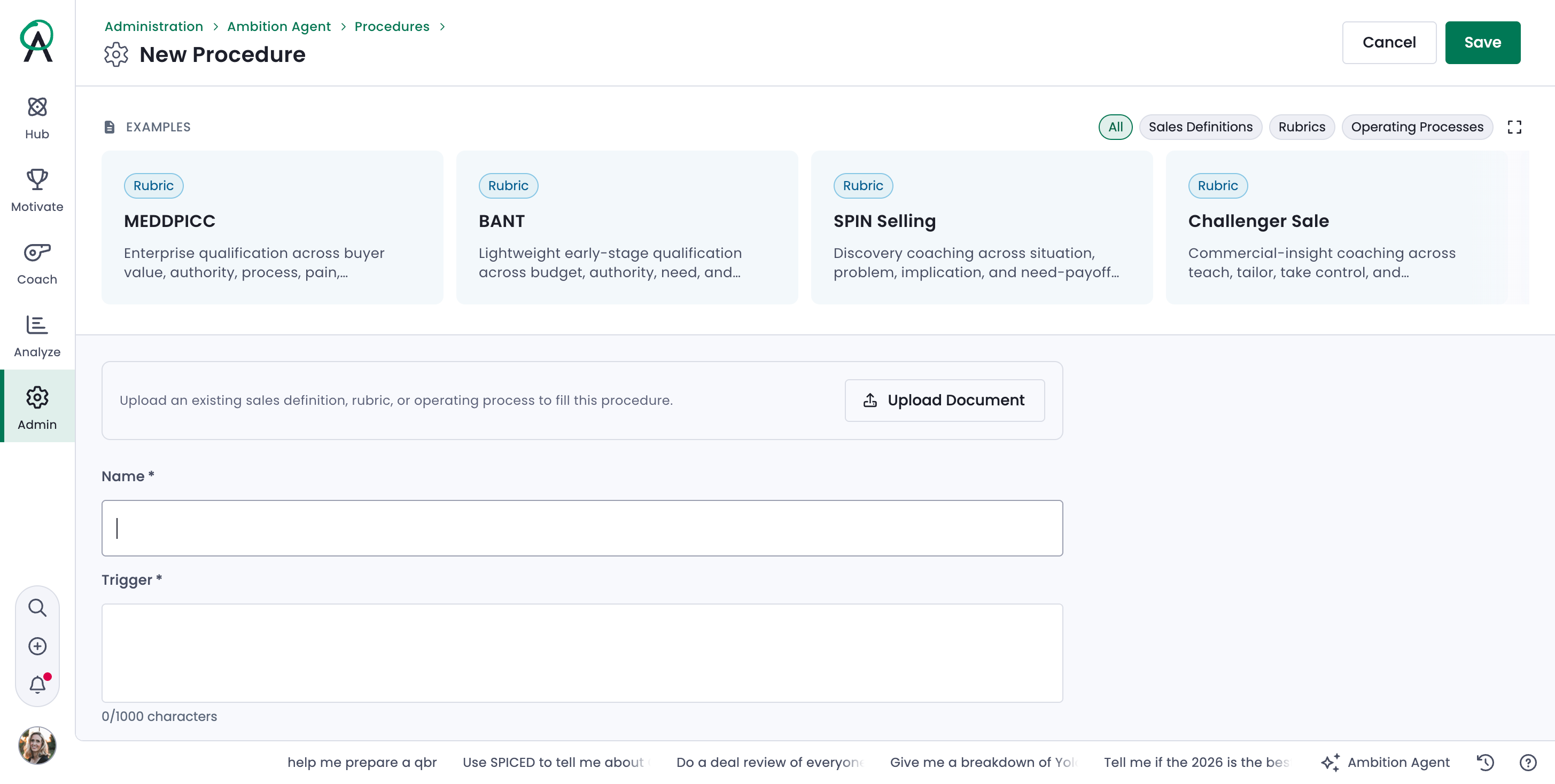
How to create a Procedure
Using a preloaded Procedure
Hover your mouse over the blue Procedure cards at the top of the page and scroll through them until you find the Procedure you would like to add.
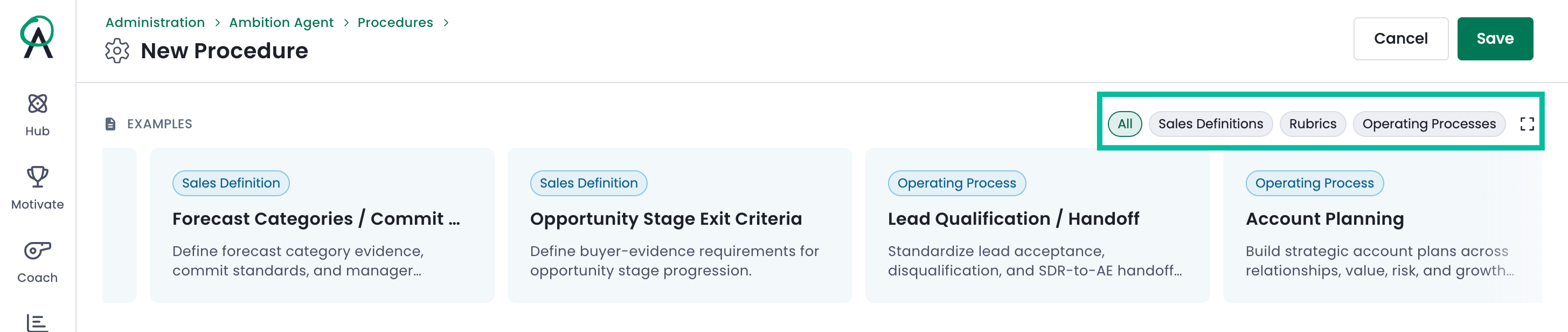
You can also use the Procedure tags to find a Procedure by type: Sales Definitions, Rubrics, or Operating Processes.
Once you click on a card, the Procedure creation template will populate a name, trigger, and instructions.
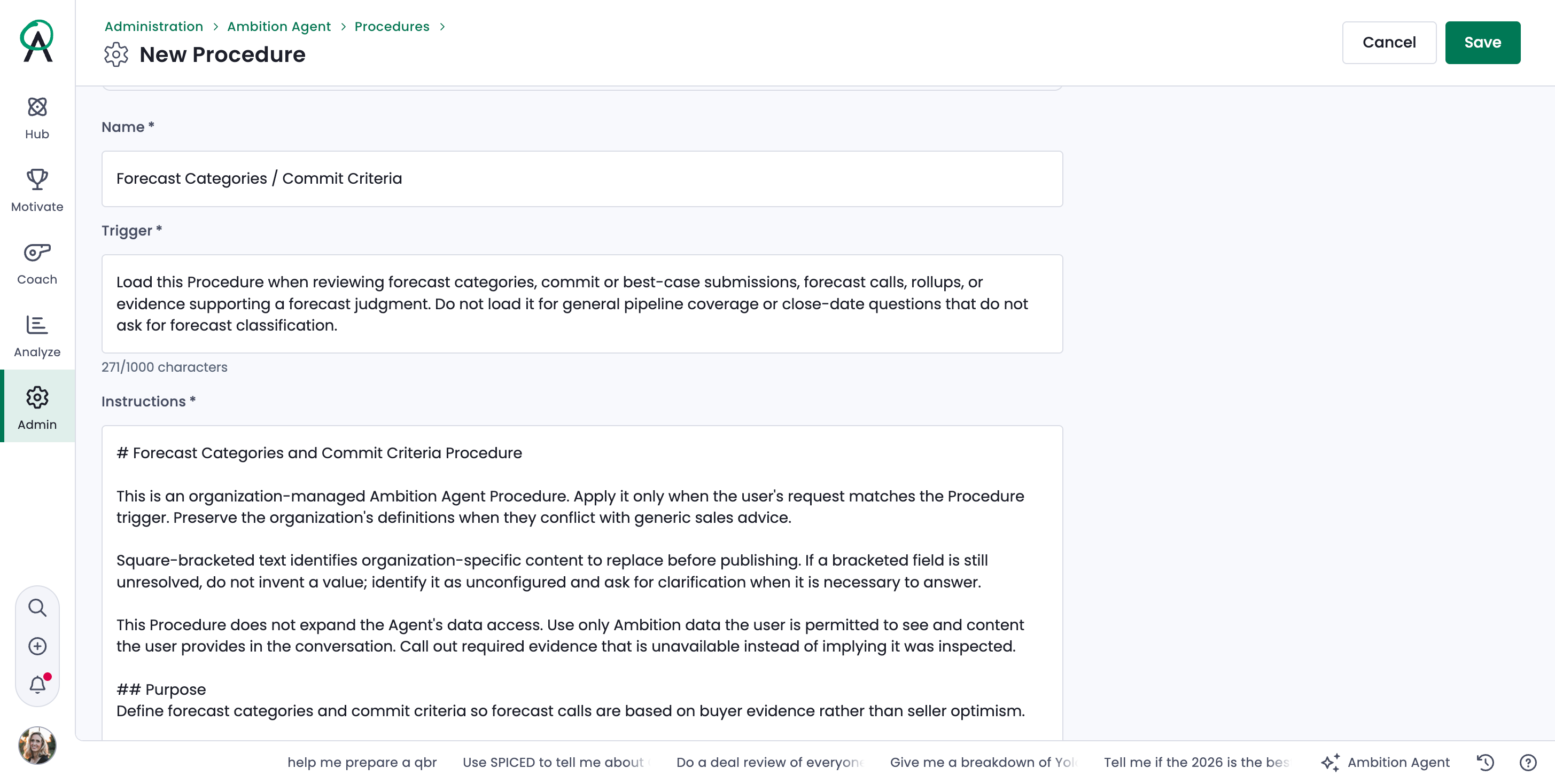
You can make edits to any part of the Procedure, including its name, trigger, or instructions.
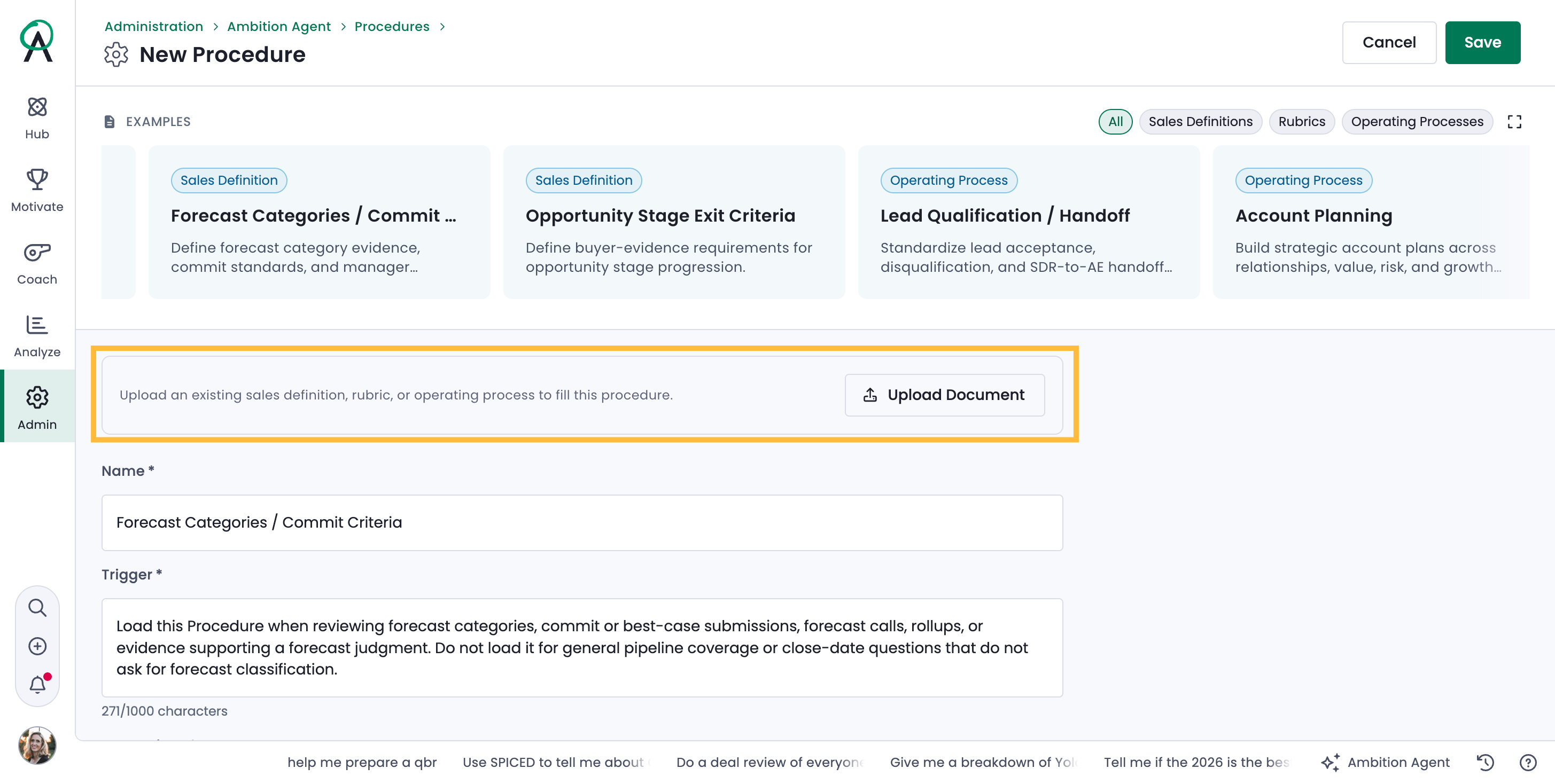
You can also upload a document that outlines your specific process in more detail.
Use the Provisioning drop down selector to determine who can have access to this Procedure. Options include: all admins, all managers, all employees, select employees, or employees in specific groups.
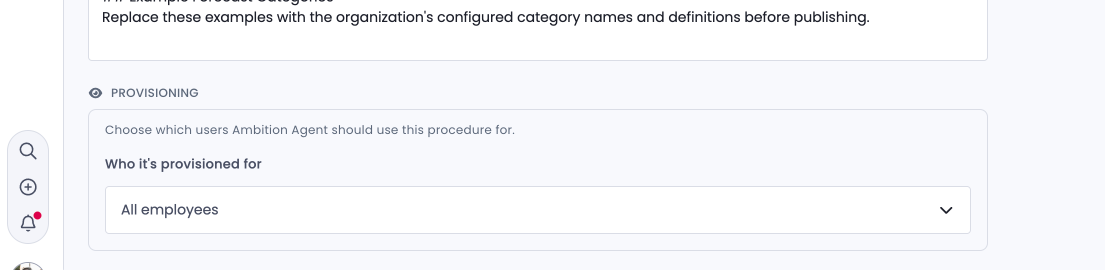
Click on the Save button to save the Procedure.
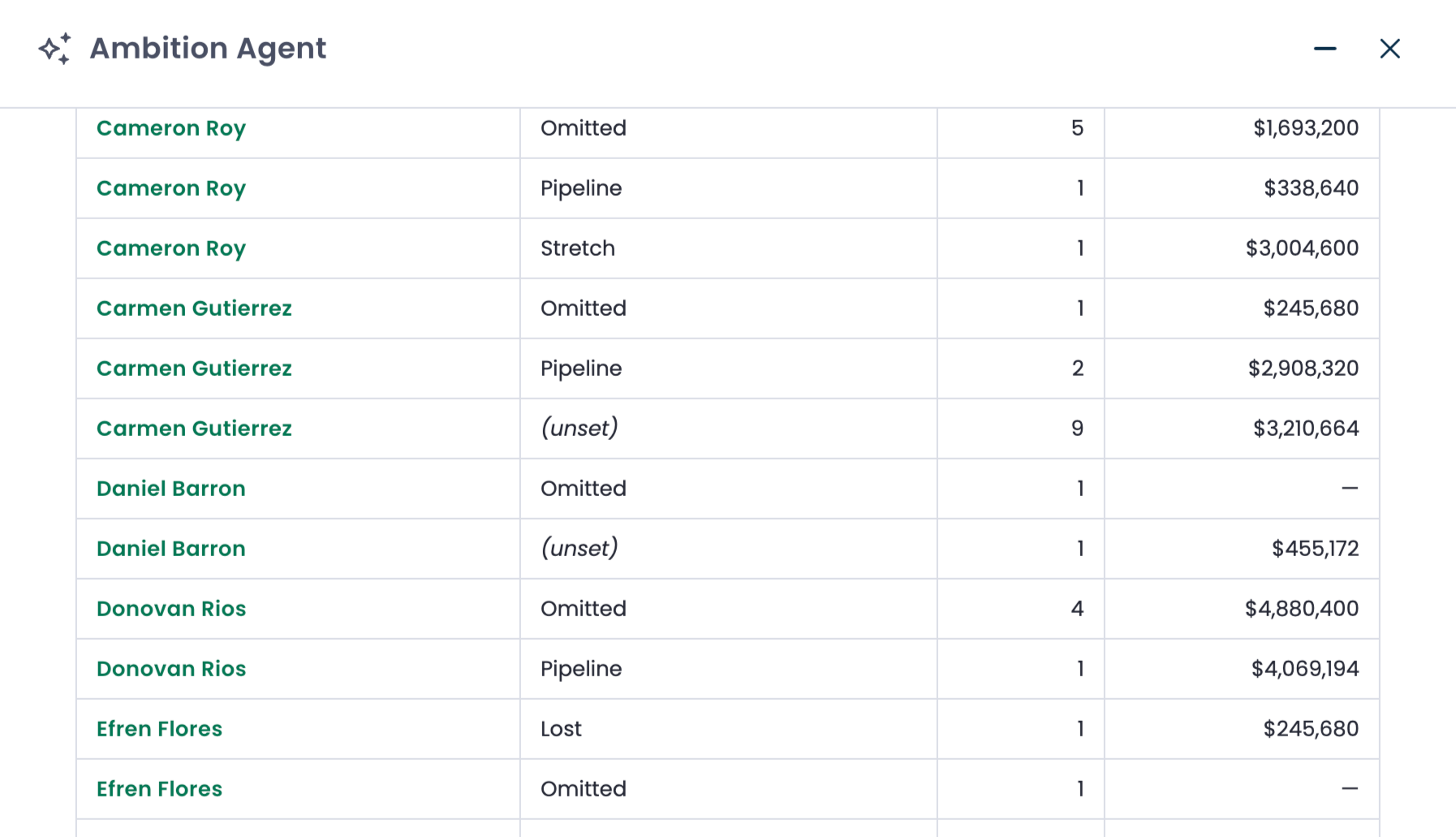
The Ambition agent will invoke the Procedure in future queries as long as the user's request meets the Procedure Trigger criteria. The screenshot below is sample output for the Forecast Categories / Commit Criteria Procedure.
Creating a custom Procedure
Once you click on the Ambition Agent card, you'll be taken to the Procedure creation page.
You can upload documentation that outlines your company's internal definitions or framework using the Upload Document button.
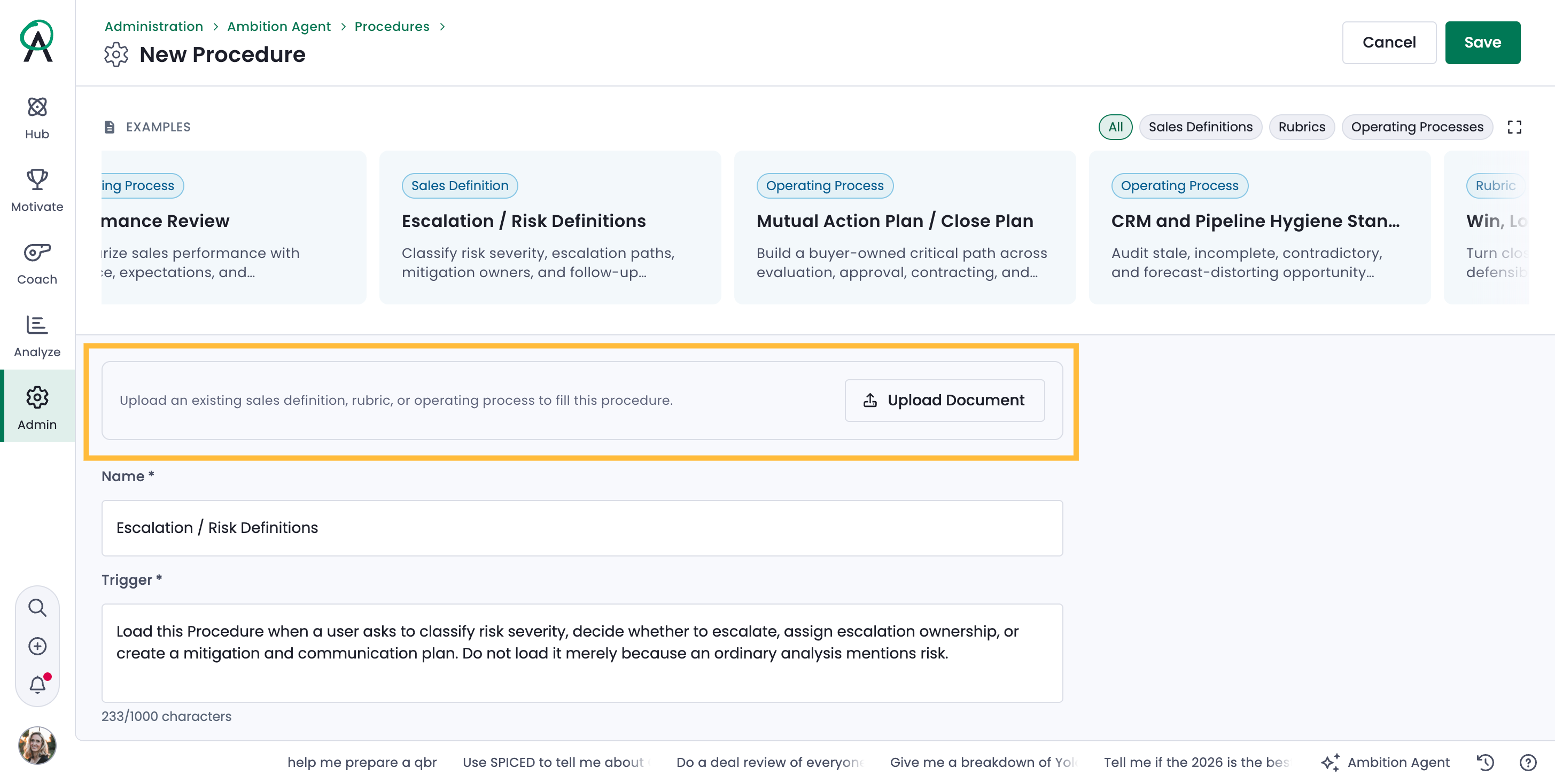
You can also enter the information manually in the fields provided.
After naming the Procedure, use the Trigger field to outline what parameters should be met for the Ambition AI agent to use this Procedure for its data analysis.
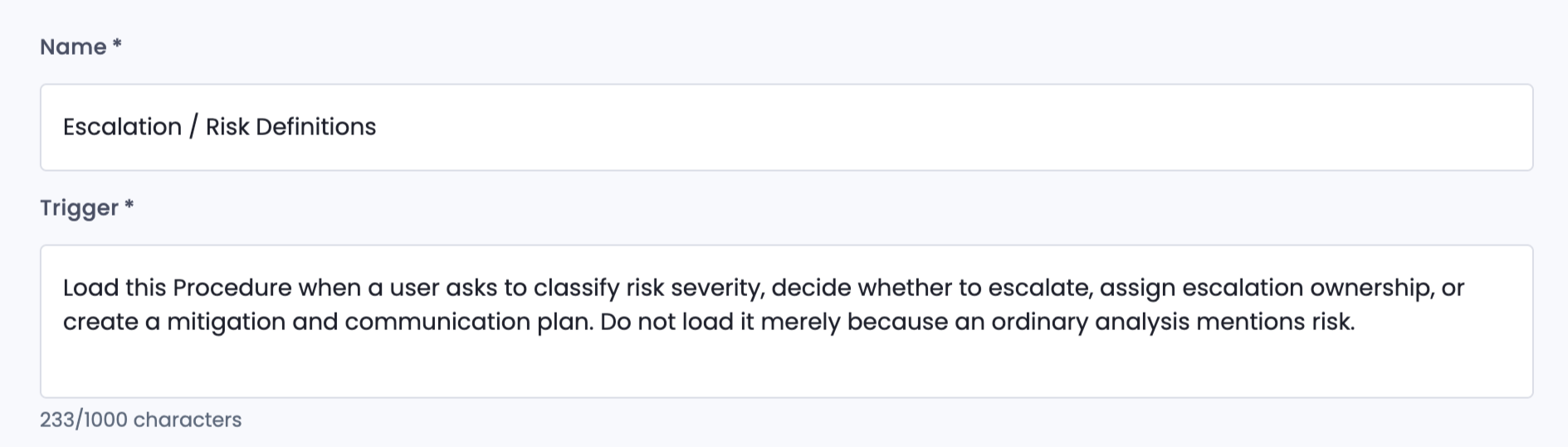
Use the Instructions tab to tell the Ambition AI agent how to use the Procedure to analyze data, review employee performance, or offer insights and guidance. You can include step-by-step instructions as well as definitions, scoring parameters, caveats, and more.
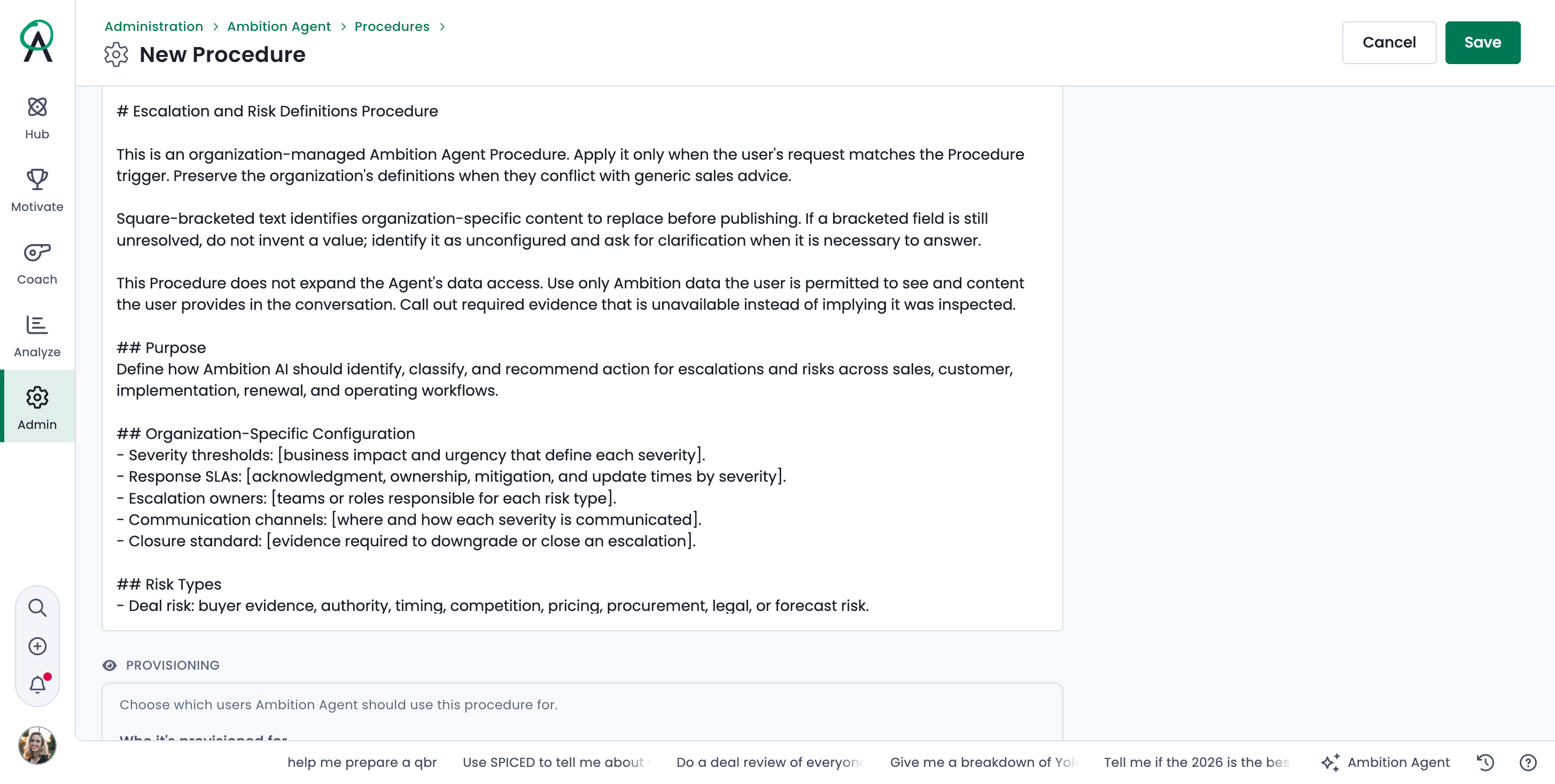
6. Use the Provisioning drop down menu to limit who can access this Procedure during AI agent chats. Access can currently be limited to: all admins, all managers, all employees, select employees, or employees in specific groups.
Save the Procedure.
The Ambition agent will automatically invoke the Procedure once the user's query meets the Procedure's triggers, such as in the example below. The output is for the Escalation / Risk Definitions Procedure.
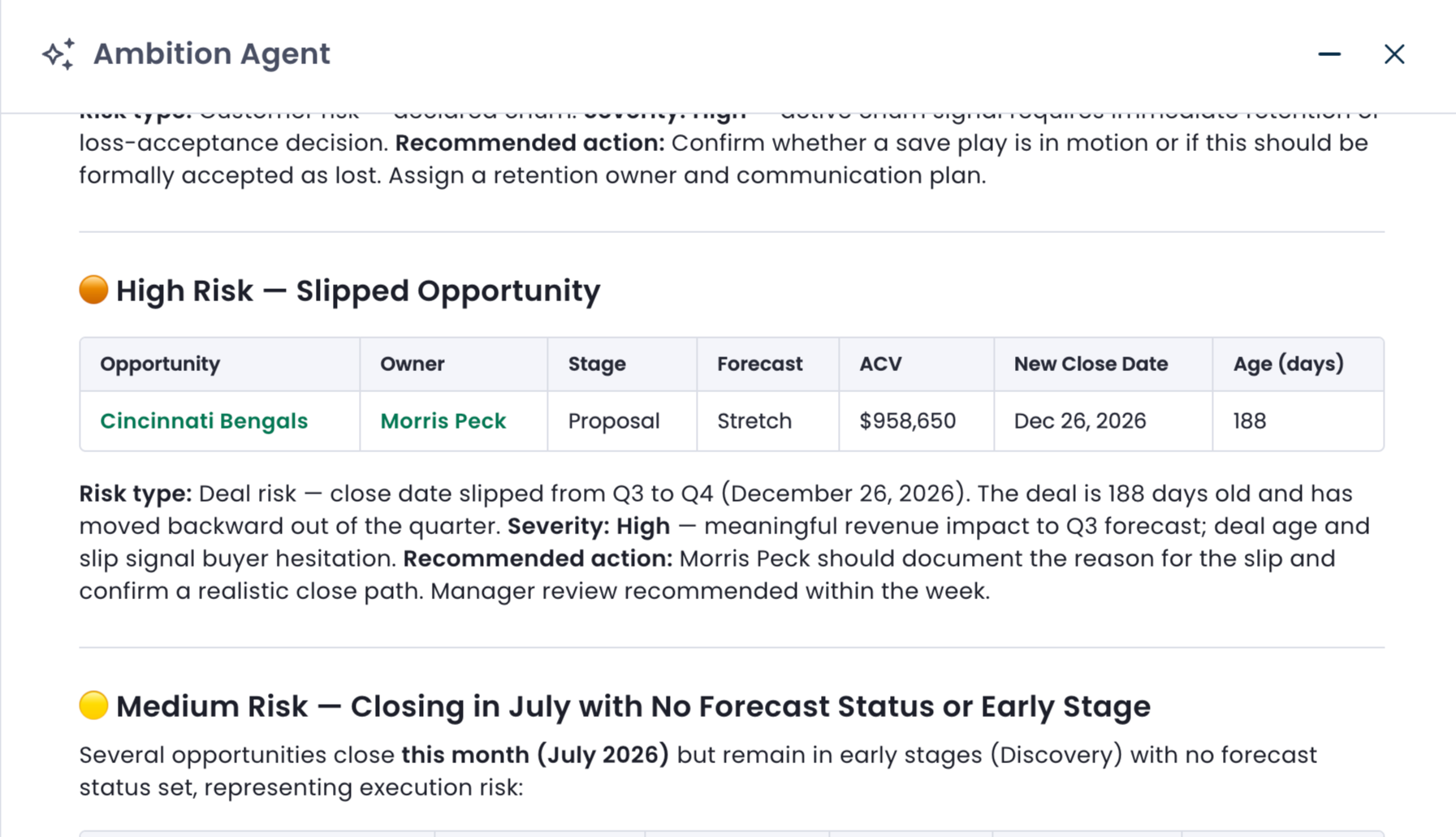
You do not need to use a slash command ("/") to invoke a Procedure. It will be invoked automatically as long as the user's request meets the trigger criteria.