How do I finish or end a coaching program?
Last updated: July 31, 2025
Finish a Coaching Program
Users with the "Coaching: Create Program" permission will be able to finish programs they create.
Managers who had a program created on their behalf (selected as a manager in Step 3 of the create form) who also have "Coaching: Create Program" permission will be able to finish programs they have access to.
Users with "Coaching: All Access" permission can finish all programs.
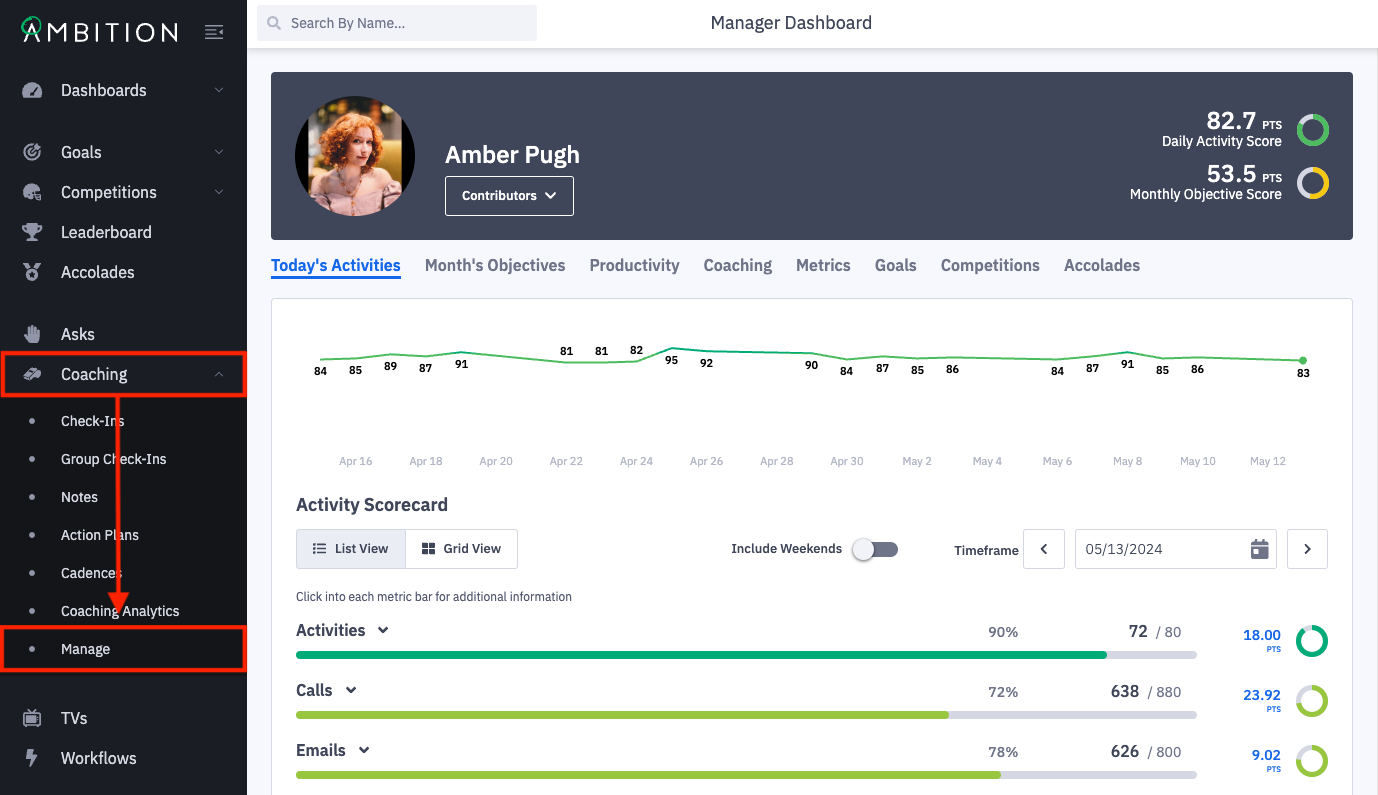
1. Open the left navigation and click Coaching > Manage.
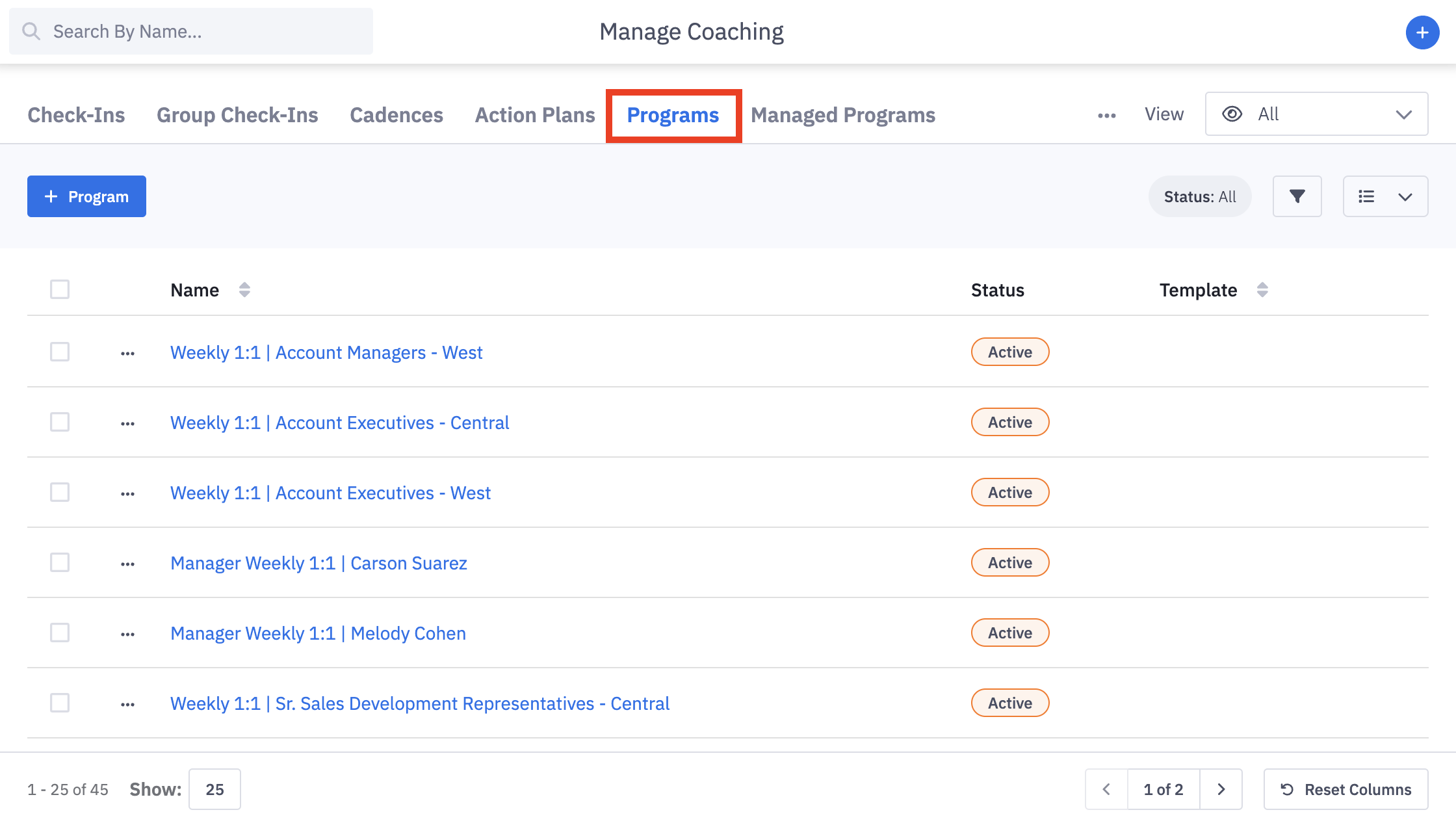
2. From the Manage Coaching page, select the Programs tab.
Managed Programs can be ended through clicking the Managed Programs tab.
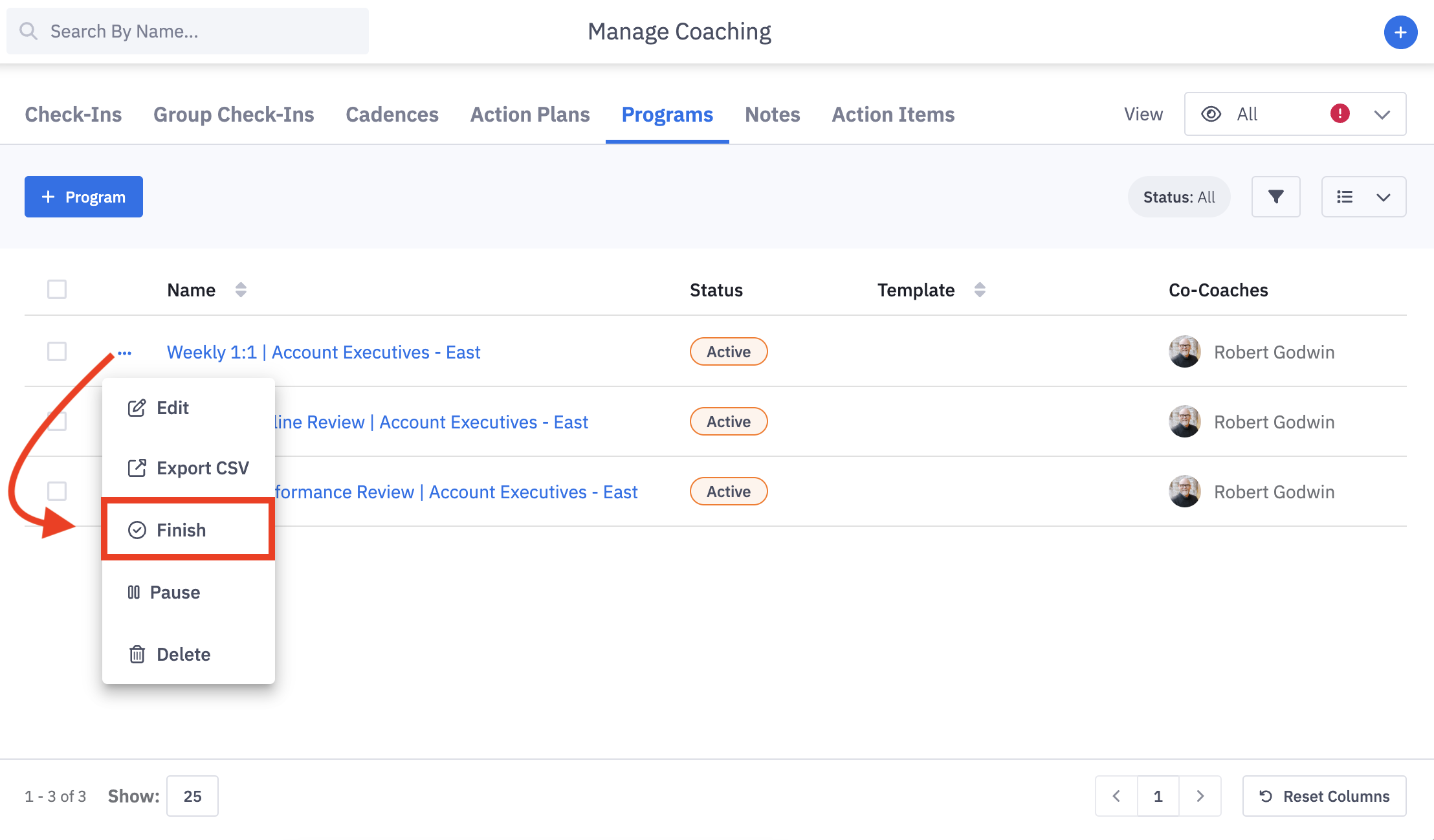
3. Click the ellipses icon and Finish in line with the program you wish to end.
If you need to finish multiple programs at once, check the boxes beside the programs that need to be finished, and use the top actions button to finish multiple programs at once.
If the program you are attempting to finish was created from a managed program, you will get a ""Failed to finish" error.
Rather than finish the program, you will need to go to the Managed Program and remove the manager from step 3 of the managed program. Removing the manager will end the respective program.
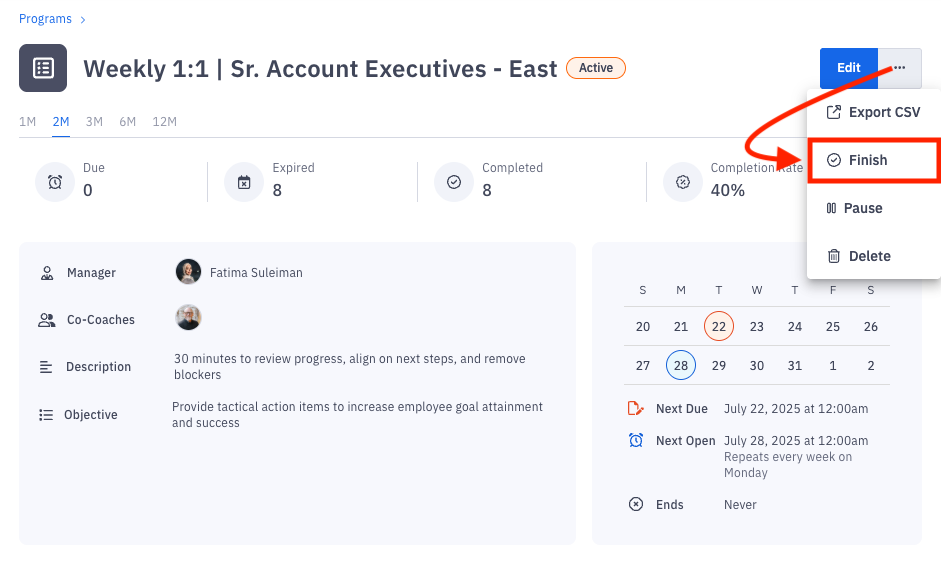
Alternatively, click on the name of the program. You will be navigated to the program page. Click the ellipses icon and Finish.
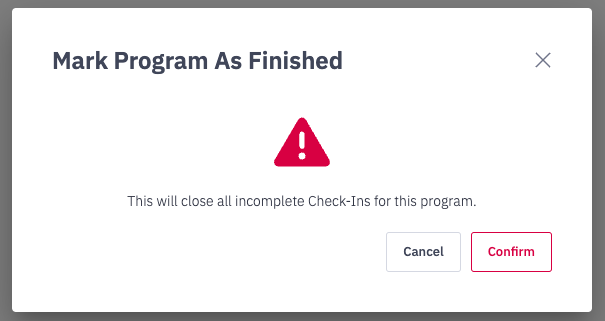
4. Confirm that you understand any open check-ins and the program will be closed by clicking Confirm.
The program will still be present in the Coaching > Manage > Programs interface, but designated with a status of "Finished".