How do I access the Sidebar Widget? (Classic)
Last updated: June 23, 2025
Salesforce Classic Sidebar Widget
Prerequisite
Installation of Ambition's Salesforce Managed Package is required in order to use the Salesforce Classic Sidebar Widget.
Widget Options in Salesforce Classic
Ambition has two widget options that can be placed within the Salesforce Classic sidebar.
Ambition Sidebar Widget
Ambition Sidebar Widget Small
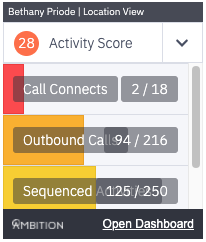
View of Widget Format
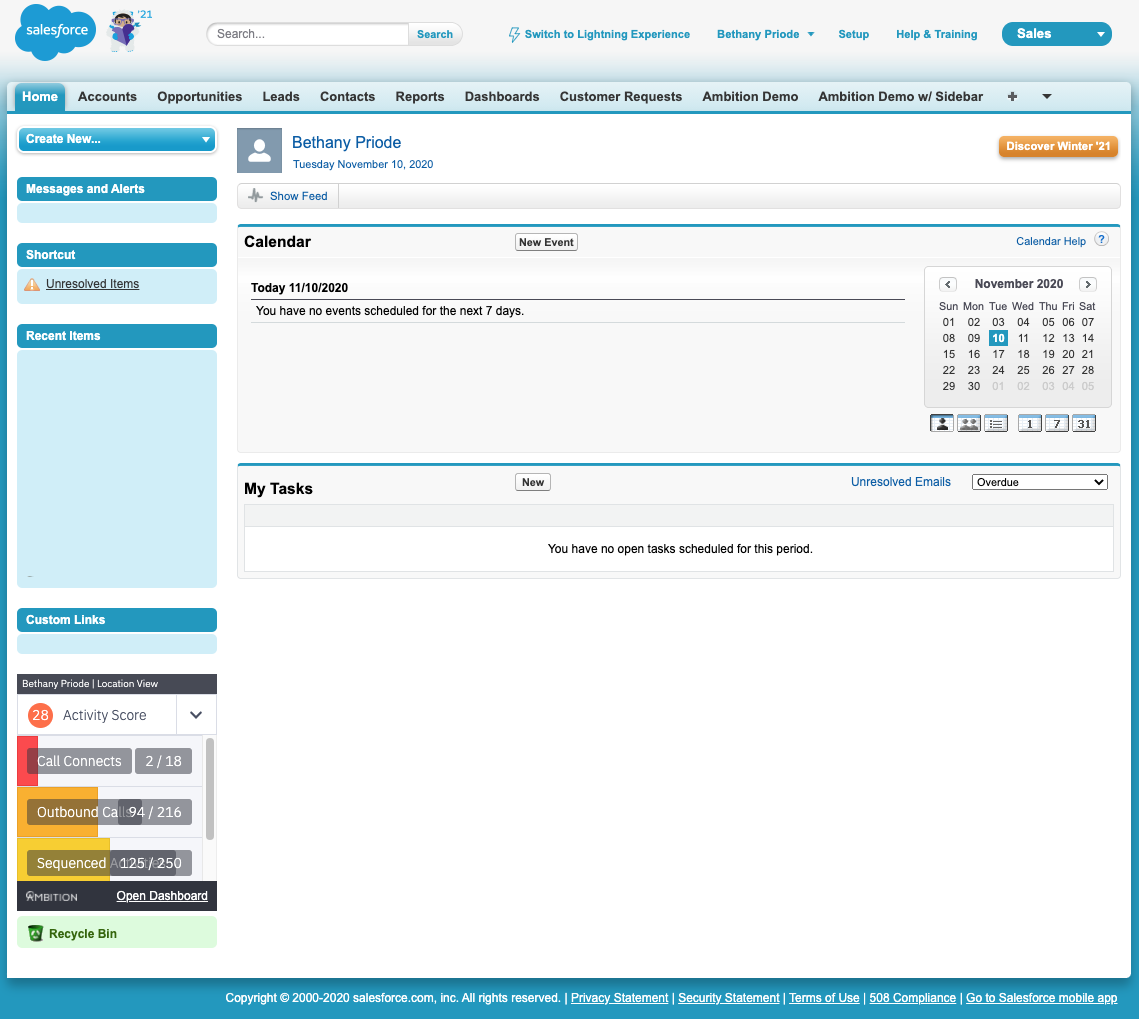
View of Widget within Salesforce interface
Note for Admin:
In Ambition, employees can customize the dashboard that the Ambition Sidebar Widget displays.
An employee's landing page will determine what data is shown in the widget. With user settings in Ambition, employees can select a preferred landing page (personal, manager, team, etc).
Widget Setup
1. Login to Salesforce.
2. Click Setup > Customize > Home > Home Page Layouts.
3. Click Edit on the layout where you wish to place the Widget.
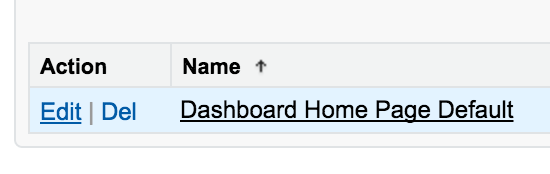
4. Check the desired Ambition Sidebar Widget, click Next.
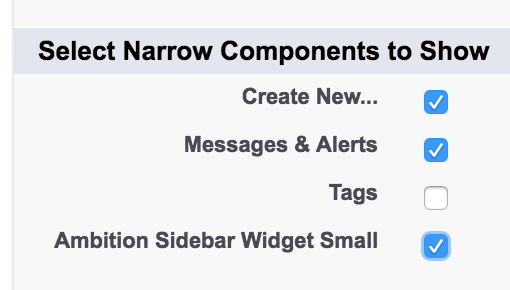
5. Change the order of components if required, click Save.
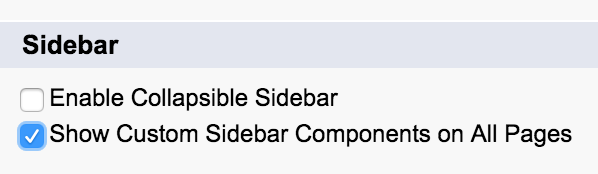
If you want the Ambition Widget to appear within the sidebar across all pages, not just the Home Page:
6. Click Setup > Customize > User Interface.
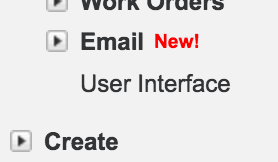
7. Check Show Customer Sidebar Components on All Pages, click Save.
Troubleshoot The Widget Not Showing Up
1. Login to Salesforce.
2. Click Setup > Security Controls > Session Settings.
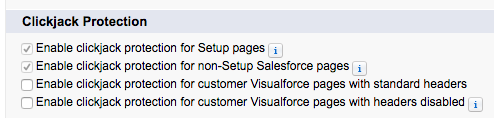
3. Uncheck "Enable Clickjack Protection for Customer Visualforce Pages with Headers Disabled".
4. Click Save.