How do I access and update my user settings?
Last updated: August 14, 2025
User Settings
Users with "Users: Edit - Can Edit Self" permission will be able to edit their user settings.
Update User Settings Through Personal Dashboard
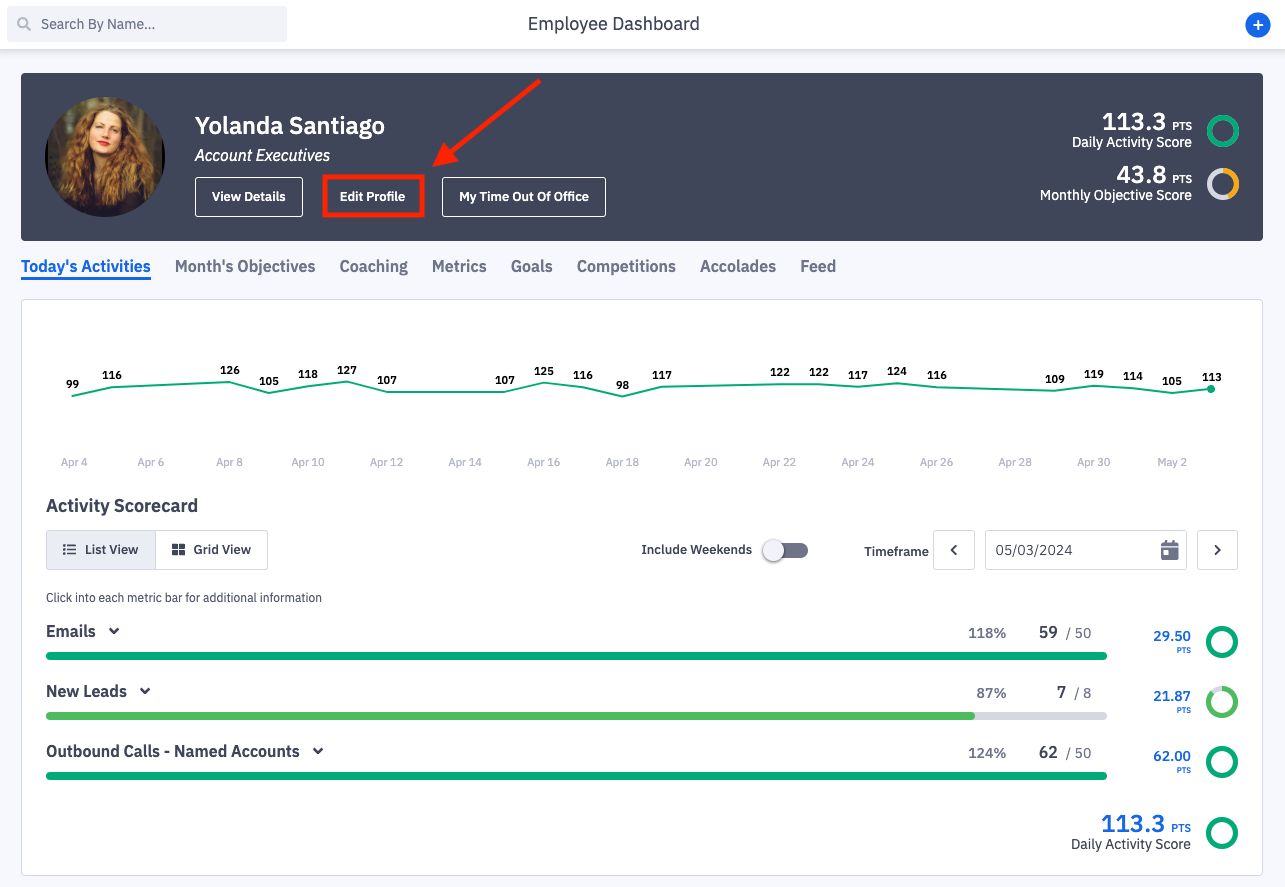
1. Click Edit Profile on your personal dashboard.
You will be navigated into user settings.
2. Make the necessary updates.
Not sure what to update or where this information is used? Learn more here.
If your organization uses our Salesforce integration and areas in the "Details" section of a user's profile are grayed out (ex. email address) or you're unable to select the dropdown menus (ex. Time Zone), these fields were populated directly from Salesforce.
Updates must first be made in Salesforce and then will be reflected in Ambition.
While not grayed out, if your organization uses Single Sign-On with Ambition, any manual changes made to your First or Last name will be overwritten. Any needed updates must be first made in the Identify Provider and then will be reflected in Ambition.
3. Click the Save Changes button at the bottom of the settings page.

Update User Settings Through Left Navigation
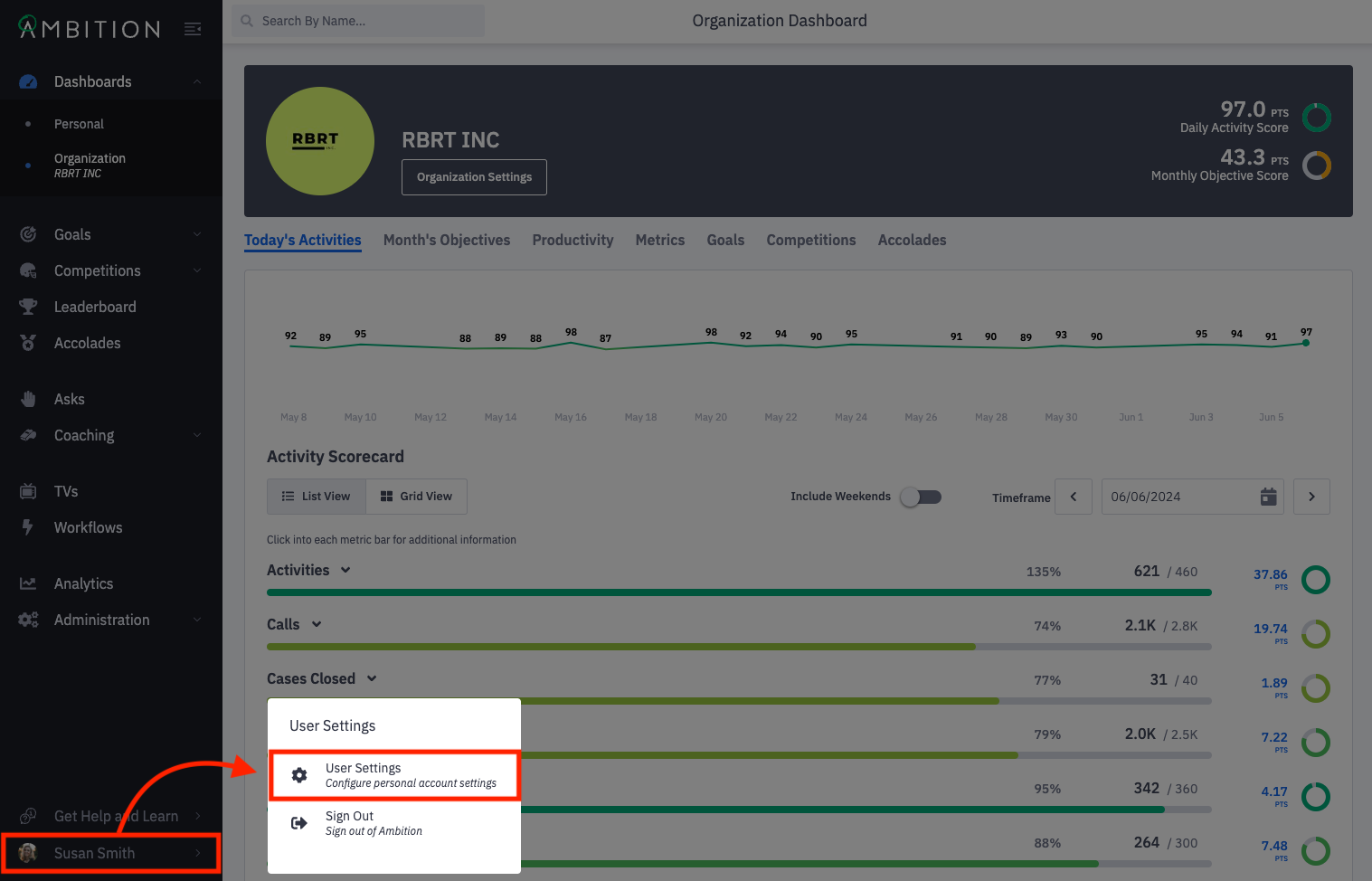
1. Open the left navigation and click on your image and name in the lower left corner. Select User Settings.
2. Make the necessary updates.
Not sure what to update or where this information is used? Learn more here.
If your organization uses our Salesforce integration and areas in the "Details" section of a user's profile are grayed out (ex. email address) or you're unable to select the dropdown menus (ex. Time Zone), these fields were populated directly from Salesforce.
Updates must first be made in Salesforce and then will be reflected in Ambition.
While not grayed out, if your organization uses Single Sign-On with Ambition, any manual changes made to your First or Last name will be overwritten. Any needed updates must be first made in the Identify Provider and then will be reflected in Ambition.
3. Click the Save Changes button at the bottom of the settings page.