How do I update my Ambition profile image/picture?
Last updated: August 14, 2025
Profile Image/Picture
Users with "Users: Edit - Can Edit Self" permission will be able to update their profile image.
If your organization uses our Salesforce integration, your Salesforce profile picture may have been synced over. If not, please take the time to upload a profile picture!
Update Profile Image - Edit Profile
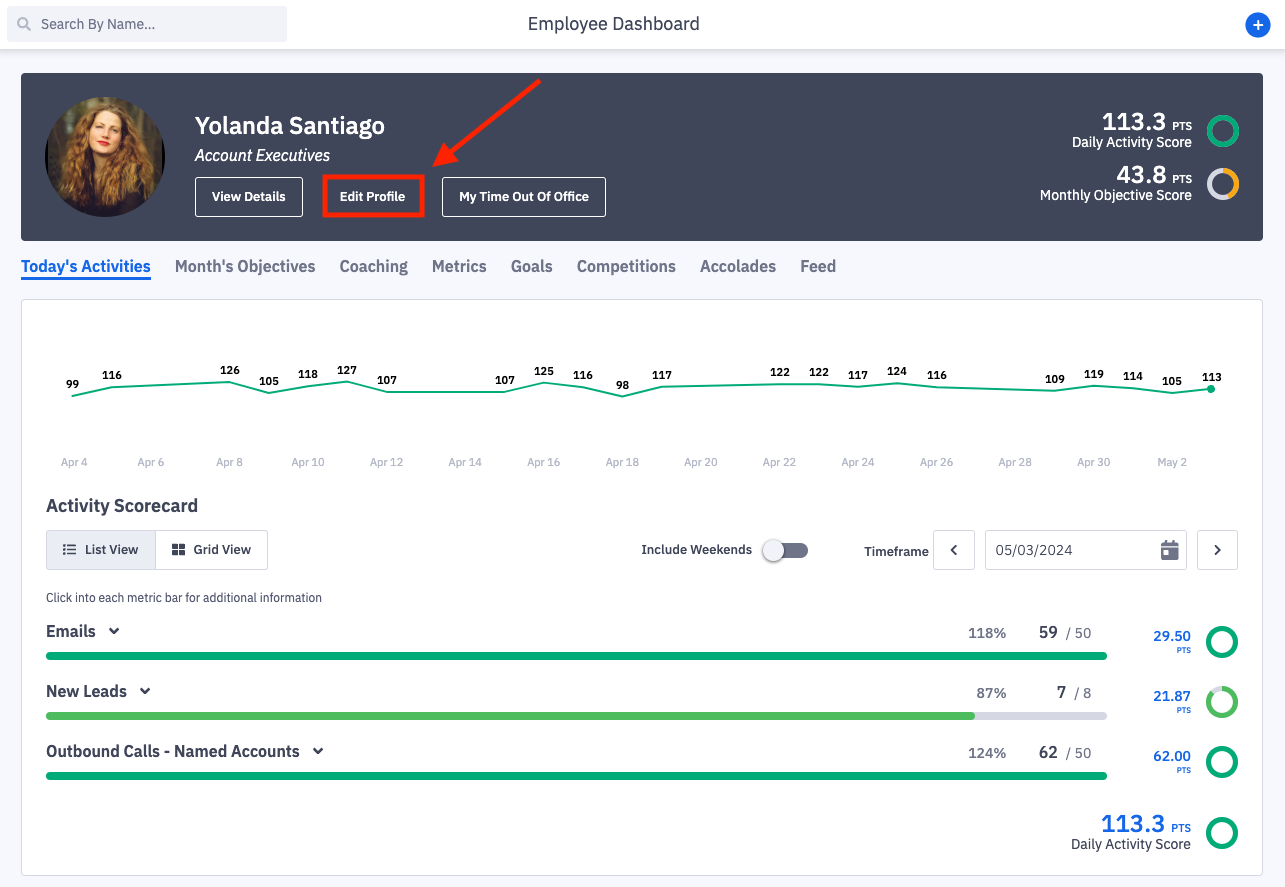
1. Click Edit Profile on your personal dashboard.
You will be navigated into your user settings.
2. Click Choose File.
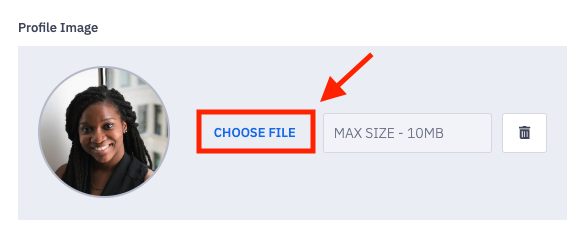
3. Select and upload the desired image from your device.
Running into an error? Make sure your image does not exceed our 10MB file size.
4. After uploading, click Save Changes at the bottom of the page.
Curious about other aspects of your settings? Learn more here.

Update Profile Image - User Settings
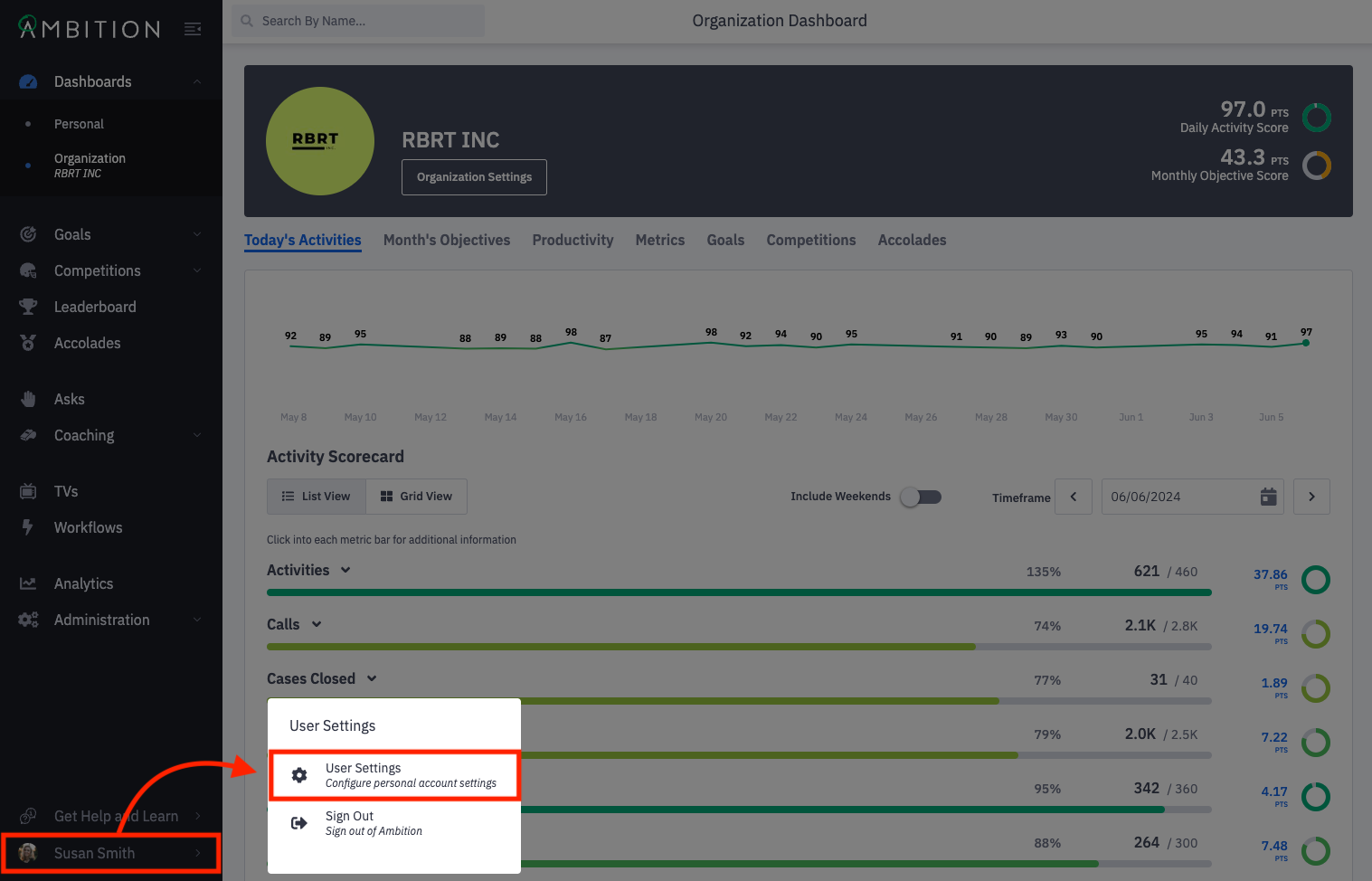
1. Open the left navigation and click on your image and name in the lower left corner. Select User Settings.
2. Click Choose File.
3. Select and upload the desired image from your device.
Running into an error? Make sure your image does not exceed our 10MB file size.
4. After uploading, scroll to the bottom of your settings and click Save Changes.
Curious about other aspects of your settings? Learn more here.