HExtend Check-In
Last updated: October 30, 2025
Extend Check-In
Extend Due Date of Single Check-In
The manager associated with the check-in, any co-coaches assigned to the check-in, and users with "Coaching: All Access" permission will be able to extend a check-in's due date.
1. Access the check-in that needs to have it's due date extended.
Check-ins can be accessed through:
the left navigation > Coaching > Check-Ins
the left navigation > Coaching > Manage > Check-Ins
an employee or managerial dashboard > Coaching tab
2. Click on the ellipses icon and Extend & Notify.
A check-in's due date can be extended while in the scheduled or answers due status.
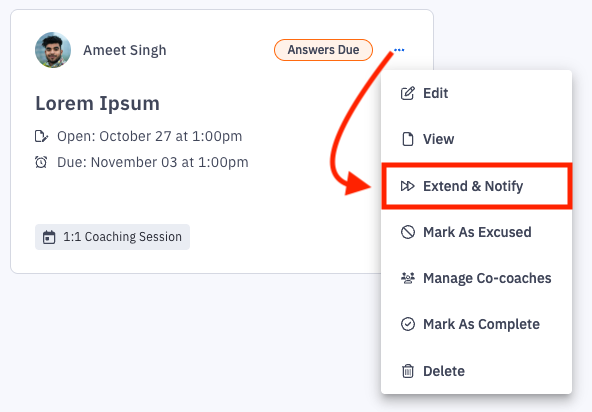 Extend and Notify from Check-In tab | 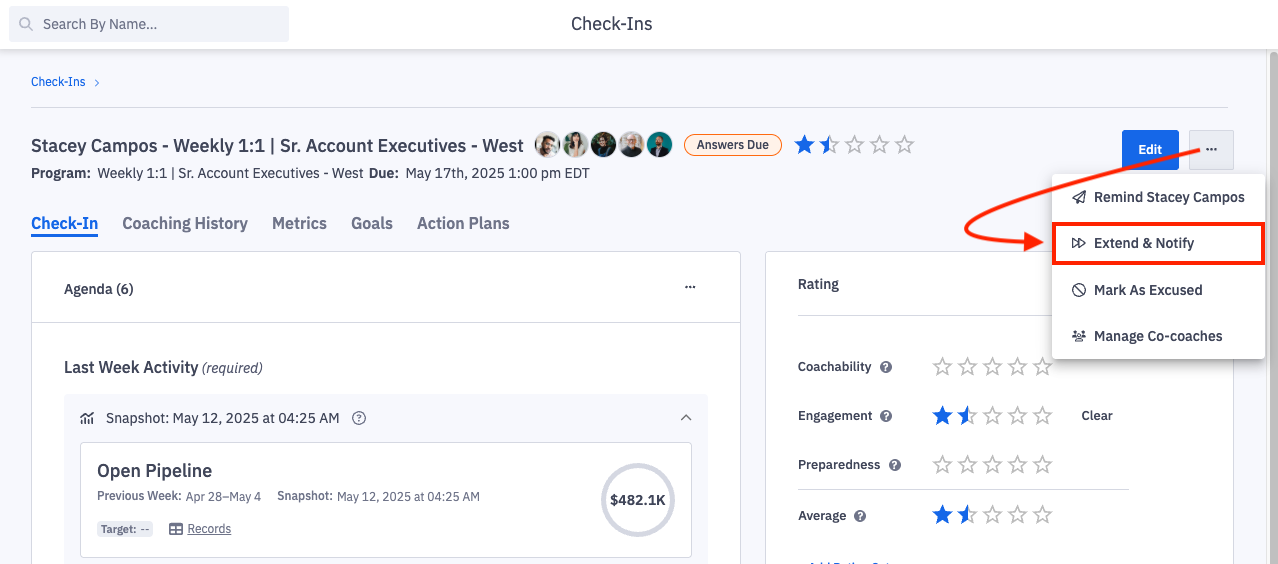 Extend and Notify Within a Check-In |
3. Select the new due date and click Extend Check-In.
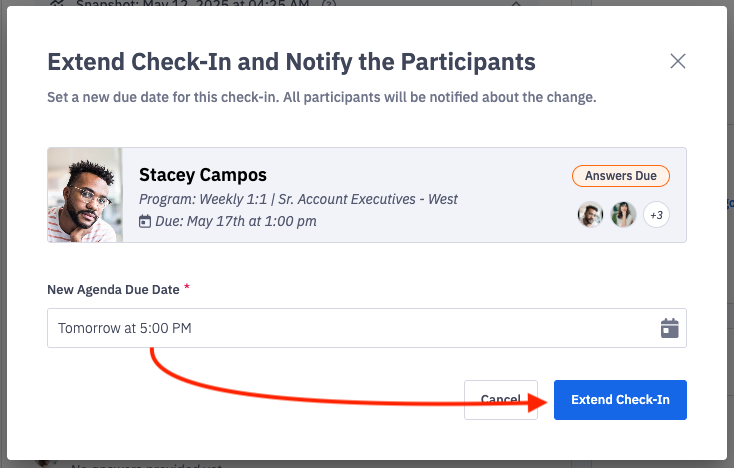
4. The check-in will update with the new due date.
Extend Due Date of Multiple Check-Ins
The manager associated with the check-in, any co-coaches assigned to the check-in, and users with "Coaching: All Access" permission will be able to extend a due date of a check-in.
If you need to extend the due date of multiple check-ins and update them all with the same new agenda due date, you can extend multiple check-ins at once through the coaching > manage > check-ins page.
1. Open the left navigation and click Coaching > Manage.
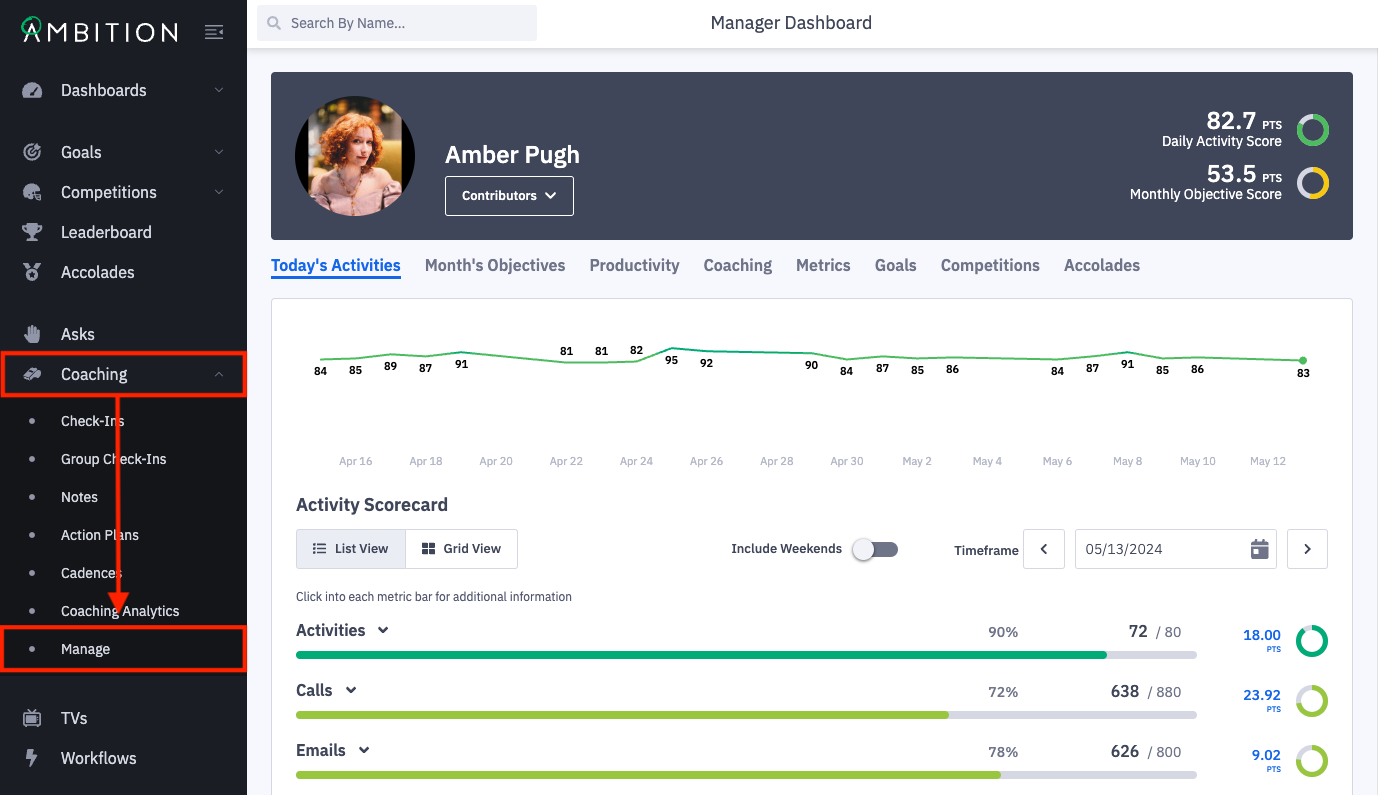
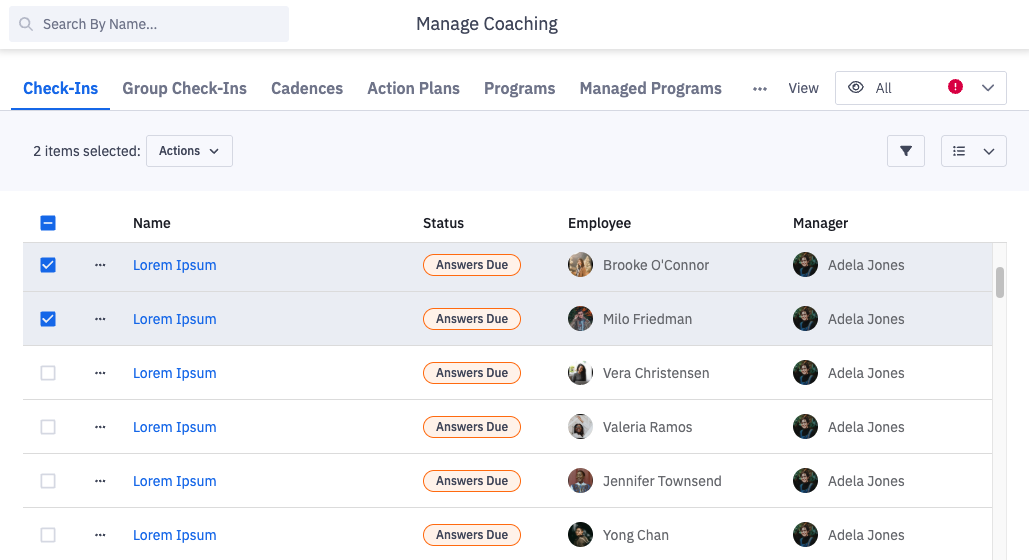
2. On the check-ins tab, search for and select the check-ins that need to have their due date extended.
A check-in's due date can be extended while in the scheduled or answers due status.
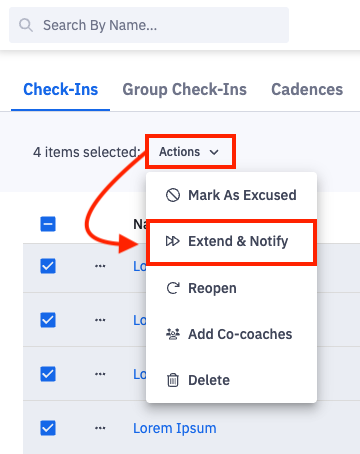
3. Click Actions and then Extend & Notify.
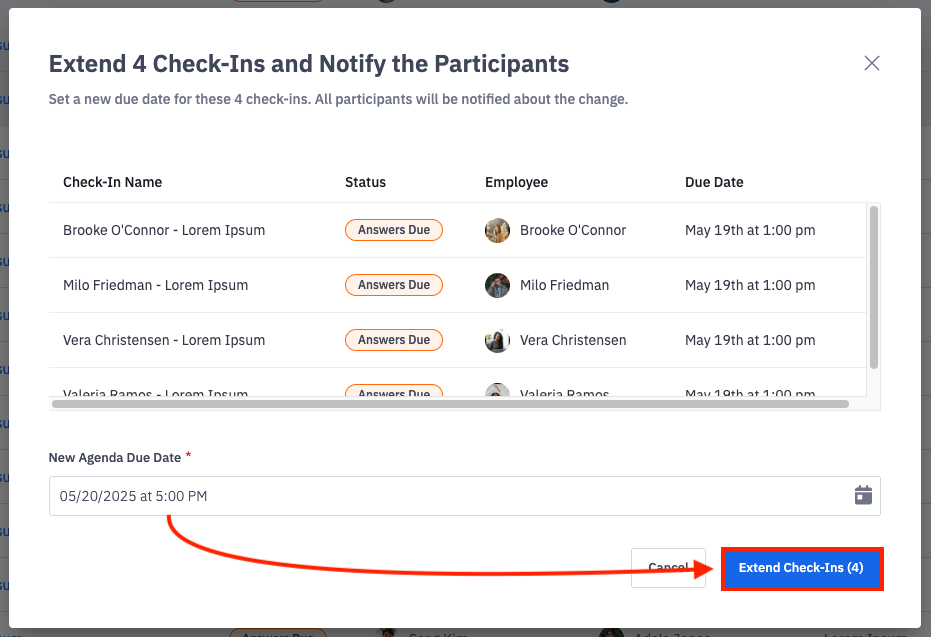
4. Select the new due date and click Extend Check-In (number of check-ins).
5. The check-ins will update with the new due date.