How do I review and approve employee check-ins?
Last updated: February 20, 2026
Review and Approve Check-Ins
How will I be notified a check-in is ready for approval?
You will be notified in Ambition when you have check-ins to review and approve.
By default, Ambition will notify you by email when a check-in is ready to approve, but you can opt of of any of these notification at any time.
Who can view the check-in?
The manager, employee, any co-coaches, and those with the "Coaching: All Access" permission can see the shared coaching session. While those with "Coaching: All Access" permission will not be required to directly interact, they can access the coaching check-in to view as an "Observer" if they desire or make edits to the check-in as needed.
If the "executive level" visibility setting is enabled, managers of managers within Ambition can view coaching events below them in the managerial hierarchical tree. Managers can engage with their direct report's coaching events and anyone who reports to their direct reports, cascading down the hierarchy. The "executive level" preference expands the default (only the manager, employee, co-coaches, and users with "Coaching: All Access") coaching event visibility.
Where will I find check-ins I need to review and approve?
As a manager, there are 3 ways to view your employee's check-ins:
From your Managerial Dashboard, left navigation > Dashboard > Managerial Dashboard > Coaching tab (a rolled-up view for all your employees)
From your direct report's Dashboard > Coaching tab (an employee specific view)
Left navigation > Coaching > Check-Ins (a rolled-up view for all your employees)
From the left navigation > Coaching > Check-Ins page, users will see check-in tabs across the top of the page. Each tab provides the user with a quick way to view each check-in type.
A red notification badge is shown when there is an outstanding deliverable for the user.
For example: A red "1" on the "Manager" tab highlights that this user has one check-in pending their review. A red "1" on the "Employee" tab highlights that this user has one check-in that they need to complete for their own manager.

Tab | Content Tab Displays |
Employee | All check-ins that you are required to complete, for your manager to approve (if applicable). |
Co-Coach | All check-ins that you have been assigned as a co-coach for (if applicable). |
Manager | All check-ins that your direct reports are required to complete for you to review & approve (only shown to users with manager permissions). |
All Access | Tab only shown to users with the "Coaching: All Access" permission. Shows all check-ins in the organization. |
What actions can I take on check-in?
You will then navigate into the check-in where you will have the option to:
edit the agenda
review the answers
remind the rep that answers are due
notify the employee that additional context is needed*
provide a rating that is visible to both employee and manager
excuse the check-in if necessary
reopen an expired check-in
extend the due date of the check-in and notify the employee
optionally leave comments (notification email is sent)
create a coaching note
create an action item
approve and mark the check‑in as complete (only available after the employee submits their answers)
assign a co-coach for the check-in
delete the check-in
*Requesting feedback typically corresponds with leaving comments where a manager will ask for additional clarification or details. The employee will be notified that the check-in has been reviewed but has not been approved.
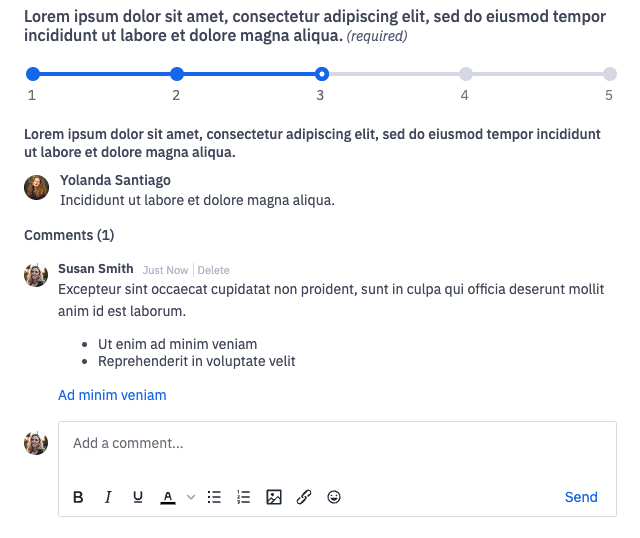
Comments can also be left to help follow-up on agenda items and provide additional context or insight.
How do I approve a check-in?
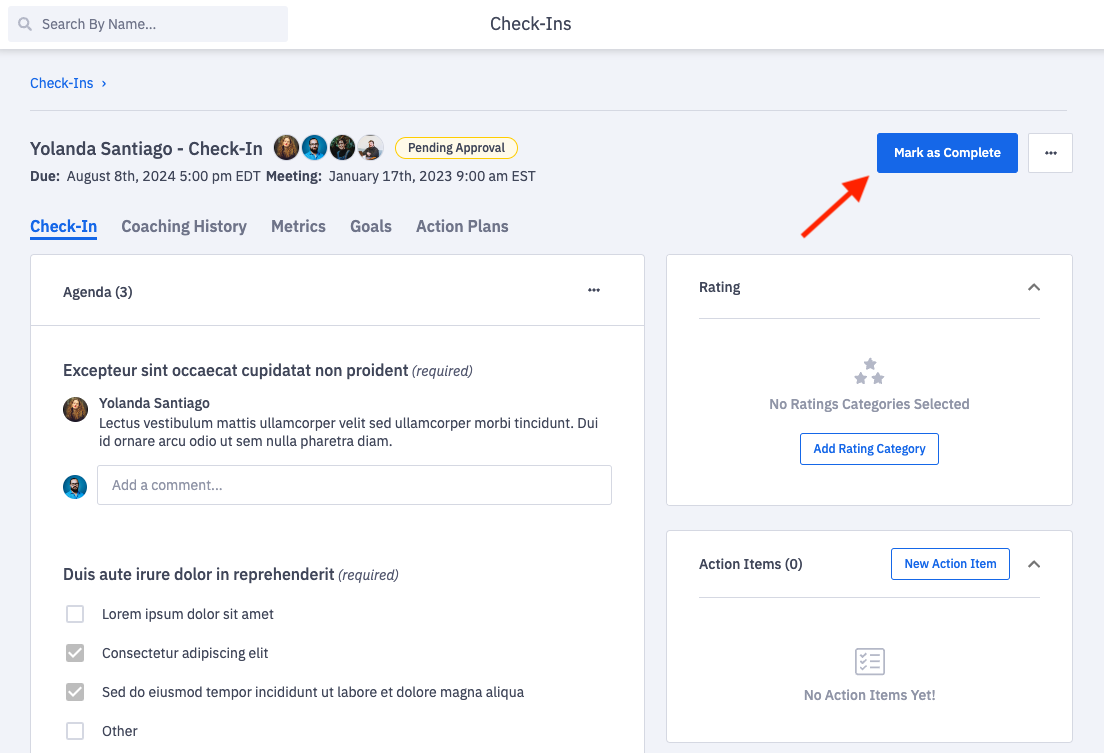
Within the check-in, click Mark as Complete.
Upon marking the check-in complete, the employee will be notified that the check-in has been reviewed and has been approved.
Rate Check-Ins
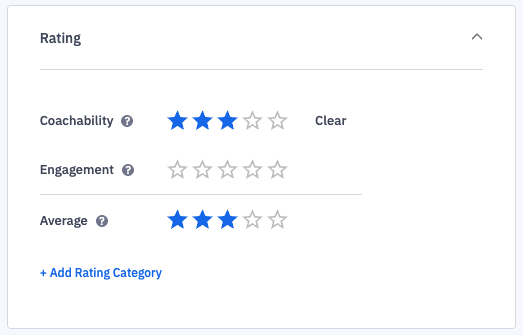
When a coaching session is closed out, each check-in has an optional rating (these ratings are scored on a 1-5 point scale). Ratings provide an outlet for managers to give feedback directly to their employees.
The default rating categories for check-ins are preparedness, engagement, and eoachability.
These rating categories are fully customizable.
Click here to learn more about creating rating categories, and learn more about rating a check-in here.
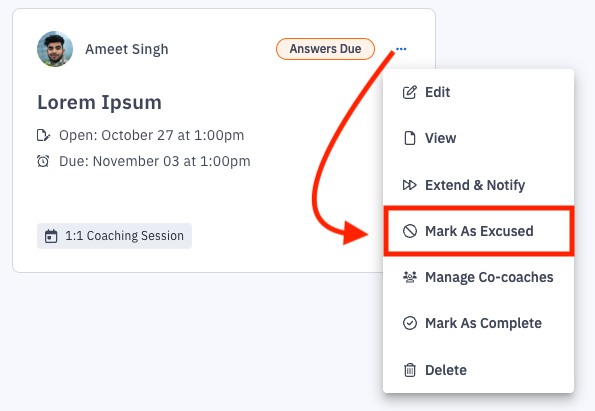
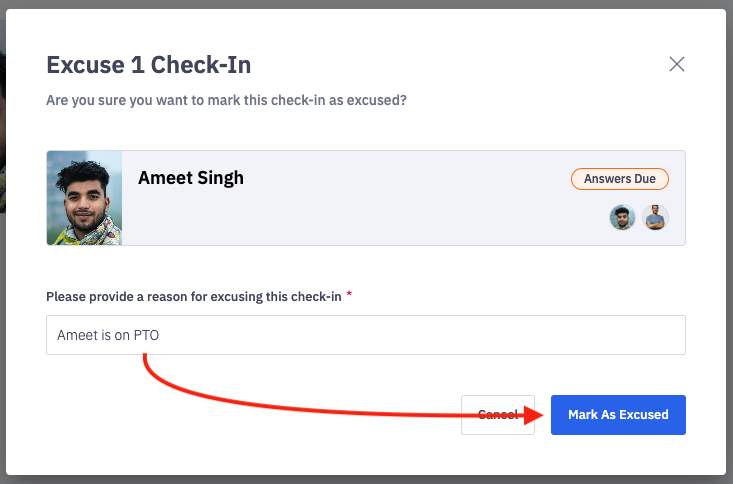
If a check-in needs to be excused, ex. when an employee is on vacation, the check-in can be excused by clicking on the ellipses icon and Mark As Excused. When excusing a check-in, you will be prompted to include the reason for excusing the check-in. The employee will be notified through email that the check-in was excused.
Note: Expired check‑ins can only be marked as “Excused,” not “Complete.” To mark a check‑in as complete, it must be reopened and submitted by the employee before the new due date.
Learn more about excusing a check-in here.
 |  |
Reopen Expired Check-Ins
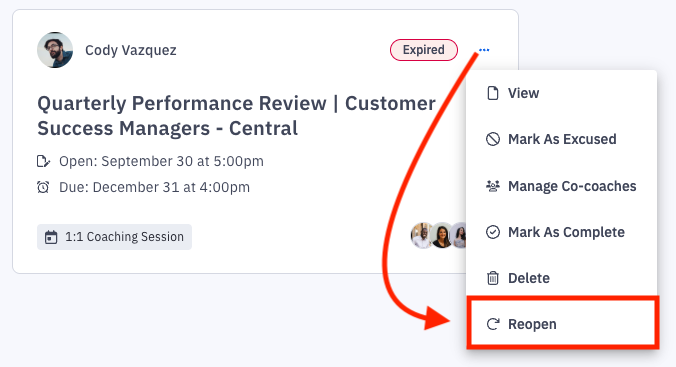
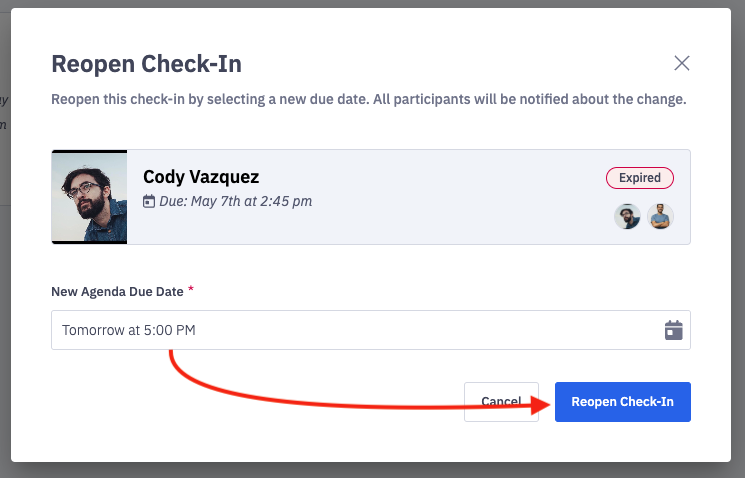
If a check-in has expired (i.e. the due date passed before being completed by the employee) it can be reopened by the manager of that check-in. From the check‑ins tab or within the expired check‑in itself, click on the ellipses icon and Reopen. You will be prompted to select a new due date which will reopen, extend the due date, and email the employee that it has been reopened.
Note: After reopening a check‑in, the employee must still submit their answers before you can mark it as complete.
Learn more about reopening an expired check-in here.
 |  |
Extend Open Check Ins
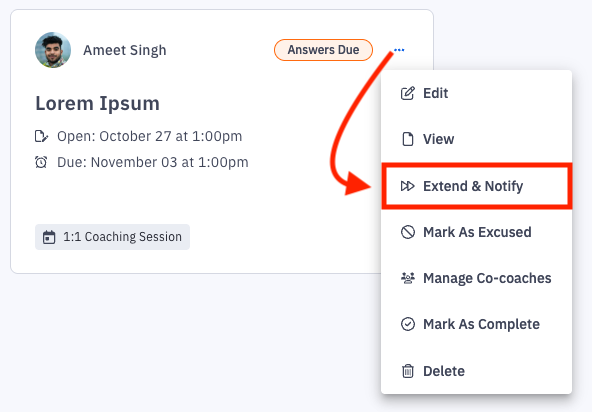
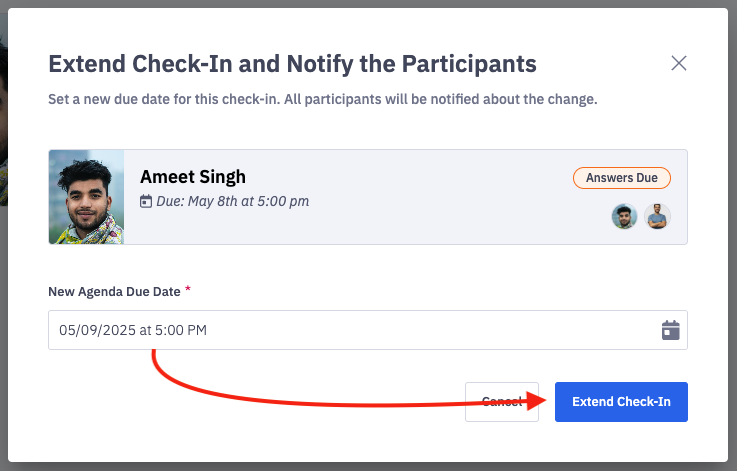
If for any reason the original due date of the agenda needs to be extended, the agenda due date can be extended by clicking on the ellipses icon and Extend and Notify. You will be prompted to select the new agenda due date which will extend the due date of the check-in. The employee will be notified by email of the new due date.
Learn more about extending a check-in's due date here.
 |  |